How to Recover Files from Crashed Windows 7
Quick Navigation:
- Part 1: Windows 7 Crashed Recovery with System Crash Data Recovery Tool
- Your Safe & Effective System Crash Data Recovery Tool
- Part 2: How to Use Tool to Recover Data from Crashed Windows 7
- Part 3: Reasons for Windows 7 Crash and Possible Solution.
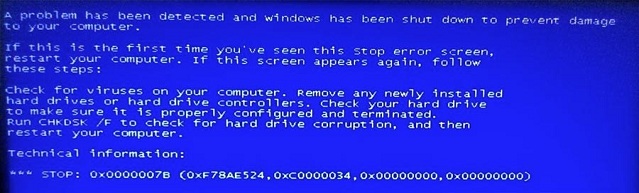
Many Windows users experience frustration when their Windows 7 operating system crashes without warning, risking the loss of important data. This is a common issue that can be distressing, especially if you rely on your computer for personal or professional purposes. Fortunately, with the right guidance, you can recover data from a crashed Windows 7 system, regardless of the reason behind the crash. This article aims to provide a straightforward solution to help you retrieve your valuable data, so you can breathe a sigh of relief and get back to work without worrying about losing your important files.
If the crash happens after a restore or failed repair, this Windows 7 System Restore file recovery guide is closely related.
Part 1: Windows 7 Crashed Recovery with System Crash Data Recovery Tool
If your Windows 7 crashes and you've lost important files, Deep Data Recovery is here to help. This amazing software is designed to recover data from crashed Windows 7 systems, as well as from hard drives, external hard disks, RAW drives, SD cards, and USB drives. With its powerful scanning capabilities, it can quickly and easily recover deleted or lost files, making it the perfect tool for tough data recovery situations. Its speed and effectiveness will leave you impressed, and it's a must-have for anyone who needs to recover critical data.
Your Safe & Effective System Crash Data Recovery Tool
- It's totally safe and it will provide you with a hundred percent effective solution for data recovery issues.
- It can recover data from various storage devices, including hard disk drives, external hard drives, RAW drives, SD cards, and USB drives.
- It can execute various recovery operations such as recovering deleted files, formatted drive recovery, recovering deleted or lost partitions, RAW drive recovery, and recovering data from system/hard drive/Windows crashes without any hassle.
- It supports all file types based on FAT, exFAT, NTFS, NTFS5, ext2, ext3, HFS+ file systems, including photos, graphic, document, audio, video, email and many other file types.
Part 2: How to Use Tool to Recover Data from Crashed Windows 7
To retrieve lost data on Windows 7, follow these steps: use the best data recovery software, which can help you recover deleted files, formatted drives, and other lost data. This software can scan your system and retrieve data that was previously inaccessible, giving you a second chance to recover important files and information.
1.First you need to download and install the software in your PC. The Deep Data Recovery software is harmless, virus-free, and compatible with both Windows and Mac OS, making it easy to install on your computer without any issues. Once installed, you can launch the software, which will present you with an interface.
2.You will find all the partitions in your hard disk and any external storage that you have connected in your PC, on the next window after the preliminary scan. Select the hard drive that contains the files you lost due to Windows crashing, then click the "Scan" button to start a quick scan on the drive.

3. After the final scanning finishes within a few minutes, you'll be presented with a list of your lost data. Choose the files you need to recover from your hard drive, and if desired, preview the files to ensure you're selecting the right ones. If the quick scan didn't work properly, you can also opt for a deep scan to display all your lost files. Once you've selected the files, simply click the "Recover" button to start retrieving them.

Part 3: Reasons for Windows 7 Crash and Possible Solution.
Windows 7 crashes can be caused by a variety of factors, including software issues, hardware problems, and user-related errors. These issues can stem from outdated drivers, corrupted system files, or incompatible software, as well as hardware malfunctions, overheating, or outdated BIOS. Additionally, user actions such as improper shutdowns, file system errors, or malware infections can also lead to Windows 7 crashes.
- Electrical problems, natural disaster issues, and power surges.
- Due to overheating for excessive use.
- The old computer or not taking care of your computer properly can lead to a range of issues, including decreased performance, hardware failures, and data loss. Regular maintenance, such as cleaning dust from the computer, updating software, and running virus scans, can help prevent these problems.
- Dropping your PC or damaging hardware.
- Environments that are too extreme, such as very hot, cold, humid, or vibrational, can be harmful or even life-threatening to humans and other living organisms. These conditions can cause physical discomfort, illness, or even death if not managed or mitigated.
- Issues related to the power outage.
- Any kind of corrupted system registry files.
- The excessive use of memory and the presence of harmful software can lead to a significant increase in virus attacks. This is because the increased memory usage can make it easier for malware to spread and infect other systems, while the harmful software itself can be a vector for viruses to enter and wreak havoc on a system.
Solution: To resolve a Windows 7 crash issue, reinstalling the operating system is the most effective solution. However, before doing so, it's essential to recover data from the hard drive using a tool like Deep Data Recovery software. This ensures that important files are preserved during the process.
With the help of this article, you should now be confident in recovering data from crashed Windows 7. If you're still unsure about using Deep Data Recovery software, it's because you won't find a more premium and useful tool anywhere else online. For recovering data from crashed Windows 7, Deep Data Recovery is the perfect choice, offering advanced features that guarantee a successful outcome.
Related Articles
- How to Recover Uninstalled Programs in Windows 7
- How to Recover Permanently Deleted Files in Windows 7
- How to Recover Files after System Restore in Windows 7
- Recover Unsaved/Deleted Notepad Files in Windows 10/11
- How to Recover Deleted Partition in Windows 11/10
- How to Recover Data from Damaged Partition
Damaged partition recovery involves two main steps: recovering data from the damaged partition and creating a new partition to transfer the data. This process helps to salvage important information and set up a fresh partition to store it.
Products
Articles & Tutorials
- Data Recovery
- Data Backup
- File Recovery
- File Backup
- File synchronize
- System Backup and Restore
- Disk and Partition Clone
- Technical articles
- Disk Master Help
- Windows Deleted File and Disk Recovery Tutorials
- Windows File and Data Recovery Tutorials
- More Windows Tutorials for Install, Security, Files, and PC Tips
- Windows Boot, Repair, and Recovery Environment Tutorials
- Windows Backup Tutorials
- Windows Restore Tutorials
- Windows Clone and Migration Tutorials
- Windows Server Backup, Recovery, and Management Tutorials
- Windows Disk, Partition, and Storage Management Tutorials