How to Recover Lost Files after System Restore in Windows 7
Losing files and data after performing system restore can be frustrating, but there are alternative solutions. Instead of seeking an expert, which can be costly and time-consuming, you can try two simpler methods to recover files after restoring Windows 7. These methods can help you recover your lost files without breaking the bank or waiting for an expert's help.
If the same issue occurs on Windows 10, this Windows 10 System Restore file recovery guide gives updated steps.
- Quick Navigation
- Method #1: Undo System Restore in Windows 7
- Method #2: Recover Files after Factory Reset Windows 7 with Software
Method #1: Undo System Restore in Windows 7
The System Restore tool in Windows 7 allows you to restore your computer system to a previous state, reversing changes made to the operating system, registry keys, installed programs, drivers, and system files. However, if the restore process doesn't resolve the issue, you can try undoing the System Restore to revert back to the previous state.
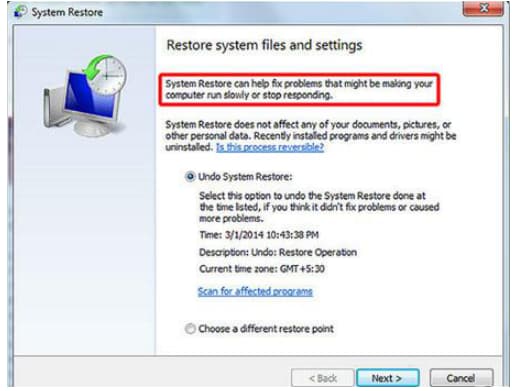
Before looking at the step-Recovering files after a factory reset on Windows 7 can be challenging, and the System Restore method has its drawbacks. While it may resolve some issues if captured at the right time, there's no guarantee, and if you don't back up your data beforehand, personal files won't be restored. Moreover, if you delete critical documents and they're not in the Recycle Bin, they're likely lost forever, as System Restore can't undo deleted files. We'll discuss an alternative recovery tool to salvage your situation shortly.
To recover files after a factory reset on Windows 7 using this method, follow these steps. First, create a new user account and log in to it.
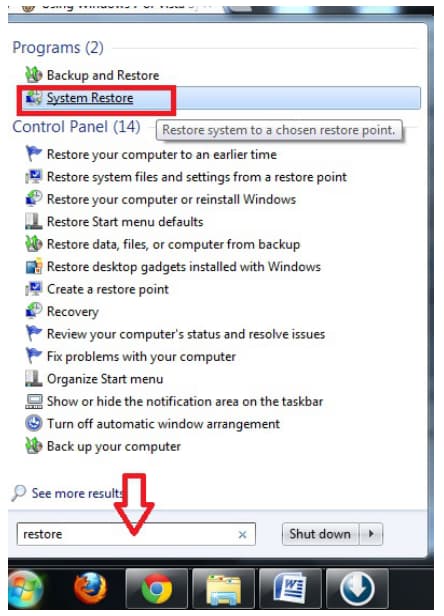
1. To perform a System Restore, click on the "System Restore" icon, then select the desired restore point from the list, and click "Next". Finally, confirm the restore point and click "Finish" to complete the process.
2. A list of results will be generated. Locate and click on "System Restore".
3. If you've accidentally restored your Windows 7 system and lost some files, you can recover them by undoing the last restoration. To do this, a new window will open where you'll need to click "Undo my Last Restoration" and then click "Next" to retrieve your lost files.
4. To complete the undo System Restore in Windows 7 process, read through the content of the windows and if you are satisfied, click "Finish".
5. After completing the process, your computer will automatically restart. Ensure that your data and files are reviewed to confirm the process's success.
Method #2: Recover Files after Factory Reset Windows 7 with Software
To protect your computer system effectively, consider using a professional data recovery tool, which can immediately restore lost files. The Deep Data Recovery software is an excellent option to recover data after a factory reset on Windows 7, designed to help recover lost files and data from your computer system. It's user-friendly and highly efficient, offering two scanning modes to restore all lost, deleted, and formatted data, resolving complex data and file issues without losing further data.
Your Effective File Recovery Software for Windows 7
- Recover deleted files, lost or removed partitions, emptied Recycle Bin, formatted drives, and more in Windows PCs efficiently.
- It can also recover files from SD card, USB drive, CF card, RAW drive, external disk, etc.
- Supports all file types and Works in Windows and macOS.
To recover lost files after System Restore Windows 7, follow these steps using the Deep Data Recovery tool. First, download and install the tool, then launch it and select the drive where the lost files were located.
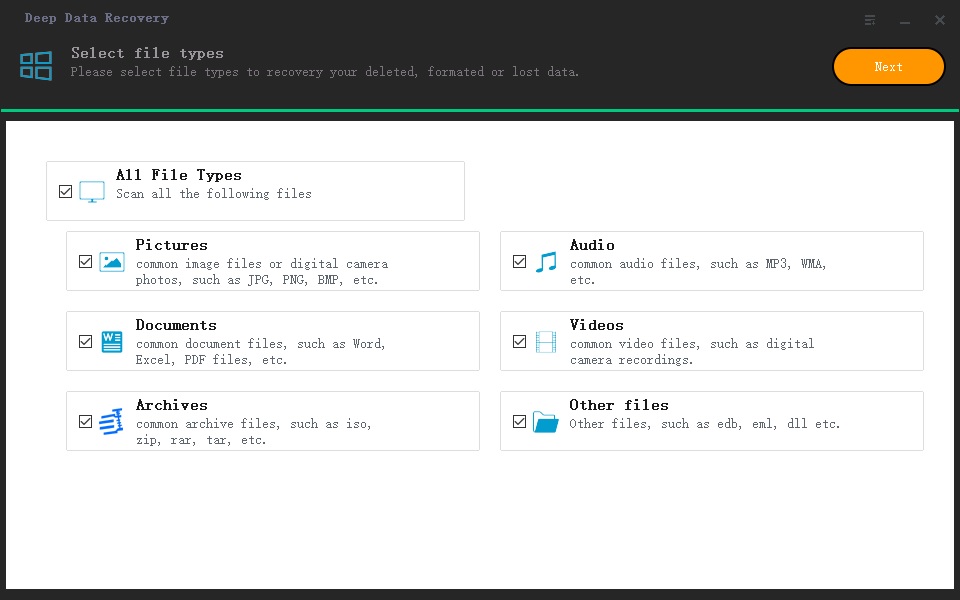
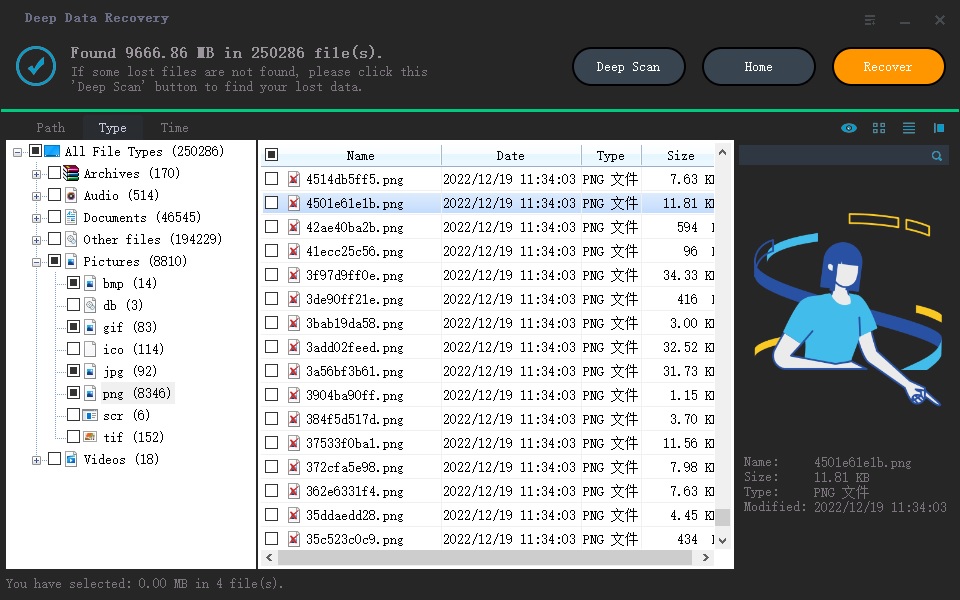
1. To recover a file in Windows 7, launch the file recovery tool, select the file types you want to recover, and click "Next" to start the restoration process. Note that the tool checks all file types by default, so you'll need to uncheck and remove any file types you're not interested in recovering, or uncheck all files and select the specific files you want to restore if they're not among the top list.
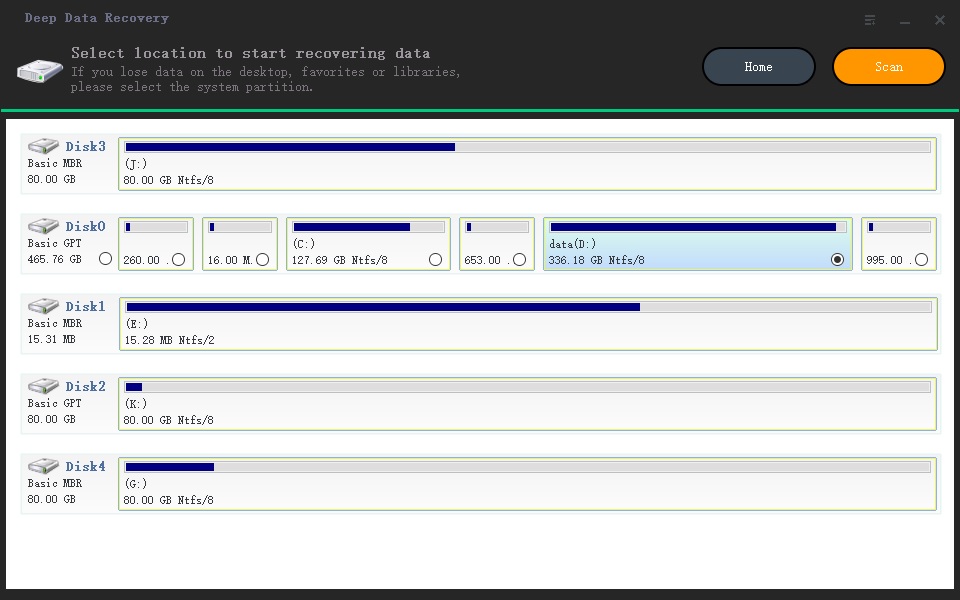
2. To recover deleted files in Windows 7 or unformat drives, select the location to scan, such as a specific partition or the whole hard drive, including external storage devices. The program will then search for lost data, listing details of the search, and allow you to select specific lost data locations like libraries, favorites, or desktop.
3. After restoring Windows 7, the next step is to review and recover any files that were affected by the restore process. This involves running a "Deep Scan" to locate and recover any additional data that was not found during the initial "Quick Scan". The scan results and recovery guide will be displayed at the top of the window, providing a clear path for recovering any necessary files.
Important Note: Backup Data to avoid File Loss in the course of System Restore
Before launching System Restore in Windows 7, it's crucial to back up your files as System Restore won't save copies of recently installed apps, programs, and personal files, and may even overwrite system partitions. To ensure maximum backup protection for your disks, files, partitions/hard drives, external drives, and operating system, consider using Qiling backup, which offers automatic backup options and can clone a USB drive or hard drive quickly and seamlessly.
You shouldn't despair when you lose files after having your system restored in Windows 7. You can use either of the two methods explained above, but we recommend Deep Data Recovery because it comes with more features and guarantees full data recovery.
Related Articles
- Recover Files After Factory Reset/System Restore Windows 10
- Recover Files after Reset Windows 10
- Recover Hidden Folder in Windows 7
- Recover Deleted Partition in Windows 7
- Recover Deleted Files after Reinstalling Windows
- How to Recover Deleted Audio Driver on Windows 7
If you've accidentally deleted the audio driver on your Windows 7 computer, you can recover the deleted audio driver efficiently by following some helpful tips.
Products
Articles & Tutorials
- Data Recovery
- Data Backup
- File Recovery
- File Backup
- File synchronize
- System Backup and Restore
- Disk and Partition Clone
- Technical articles
- Disk Master Help
- Windows Deleted File and Disk Recovery Tutorials
- Windows File and Data Recovery Tutorials
- More Windows Tutorials for Install, Security, Files, and PC Tips
- Windows Boot, Repair, and Recovery Environment Tutorials
- Windows Backup Tutorials
- Windows Restore Tutorials
- Windows Clone and Migration Tutorials
- Windows Server Backup, Recovery, and Management Tutorials
- Windows Disk, Partition, and Storage Management Tutorials