How to Recover Deleted Partition in Windows 7 without Losing Data
Quick Navigation:
- Part 1. Recover Deleted Partition in Windows 7 [Recover Data First]
- Your Effective Windows 7 Partition Recovery Software
- Step-by-Step Guide to Recover Lost Data from Deleted Partition of Windows 7
- Part 2. Recover Deleted Partition from Windows 7 - Restore the Deleted Partition with the Recovered Data
Creating partitions on a hard disk drive is a common practice, allowing us to organize our data and reduce the load on the operating system. Typically, we create at least four partitions on a 1Tb hard disk, which helps us keep things tidy. However, there are situations where protecting data forever becomes impossible.
If you need a newer Windows workflow, this Windows 10 deleted partition recovery guide covers similar partition recovery steps.
In various cases, a person may lose a partition abruptly due to different reasons. For instance, a person may need to recover a deleted partition in Windows 7, or they may want to recover a Windows 7 partition without losing any other files or corrupting the entire hard disk. The scenarios responsible for the loss of a partition in a hard disk include, but are not limited to, accidental deletion, virus attack, disk formatting, partition table corruption, and physical damage to the hard disk.
- Accidentally deleting a partition in Windows 7.
- A mechanical issue with the hard drive caused corruption of the sectors.
- Windows 7 partition may become lost or hidden due to various reasons such as inappropriate operations, repartitioning, virus attacks, or cloning, leading to data loss and system instability.
If you've lost or deleted a partition in Windows 7, the first step to recovering it without losing data is to recover the files. Once the files are recovered, you can then restore the deleted partition with the recovered data.
Part 1. Recover Deleted Partition in Windows 7 [Recover Data First]
To recover data loss in a deleted partition in Windows 7, the recommended software is Deep Data Recovery. This tool allows for the recovery of files or an entire partition from a hard drive, and can also be used to retrieve data from SD cards, external hard drives, RAW drives, and USB drives in just a few clicks.
This partition recovery software excels in retrieving lost/deleted partitions or files due to its robust algorithm, allowing for deep scanning and recovering most data efficiently. The process is secure and productive, making it stand out from other retrieve programs. The program's key features include its ability to recover deleted partitions and files on Windows 7 systems.
Your Effective Windows 7 Partition Recovery Software
- This software helps in recovering lost or deleted partitions in Windows XP, 7, 8, and 10 due to accidental deletion, hidden, repartition, system restore, drive crash, and other reasons.
- Helps in recovering deleted files in Windows 7, including those that have been emptied from the recycle bin, deleted using the "shift+delete" key, or otherwise lost due to accidental deletion.
- This tool helps in recovering data from various storage devices, including formatted partition, hard drive, SD card, pen drive, and other removable drives.
The undelete or unformat partition software supports various file formats, including pictures, audio, videos, documents, archives, and other types of files.
Step-by-Step Guide to Recover Lost Data from Deleted Partition of Windows 7
1. Download and install the trial version of Qiling from its official website, then launch it by clicking the icon on your desktop.
2. Select the drive where the deleted partition was located and click "Scan" to begin the recovery process. The software will show all partitions, including external storage devices, and allow you to select the drive with the yellow icon (-) to recover the deleted partition. This will initiate the scan for the deleted partition data.

3. After the Windows 7 recover deleted partition program completes the scan, it displays the recoverable files from the partition. The interface shows a tree directory on the left, recoverable files in the center, and a thumbnail of a selected file on the right. Once the desired files are chosen, pressing the "Recover" button initiates the recovery process, prompting the user to select a path or folder to store the recovered data.

Using the simple steps as portrayed above, anyone can easily recover deleted partition Windows 7 efficiently.
Part 2. Recover Deleted Partition from Windows 7 - Restore the Deleted Partition with the Recovered Data
Creating multiple partitions on a Windows 7 hard disk is essential to separate the operating system and other data. Having only one partition for both can make it difficult to recover data if the drive malfunctions or becomes corrupted. Fortunately, you can create a partition and recover deleted data without relying on third-party software. To recover a deleted partition in Windows 7, you can follow the steps outlined in Part 1, which enables you to restore the recovered data.
1. To open the Disk Management on a Windows 7 computer, type "Computer Management" in the search bar, which will reveal all the partitions of the hard disk.
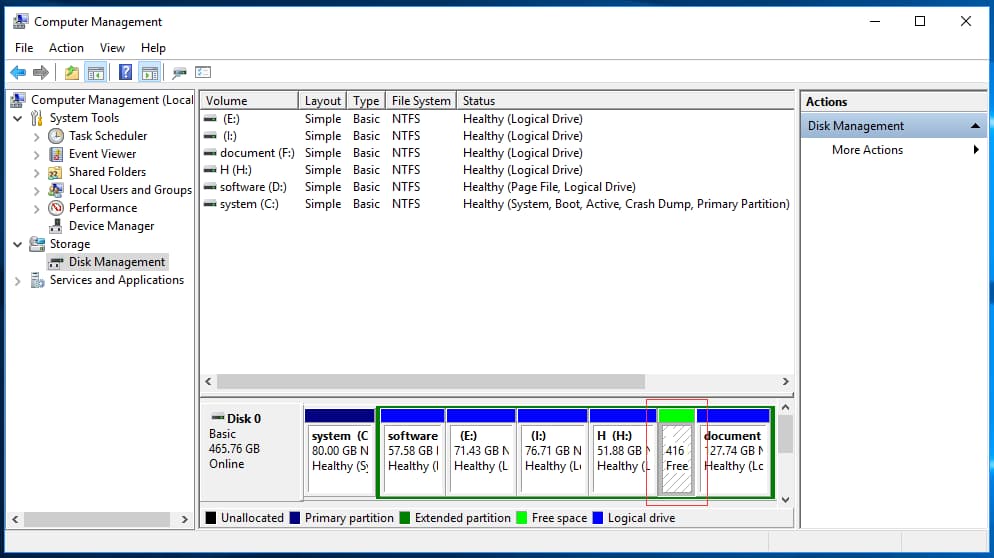
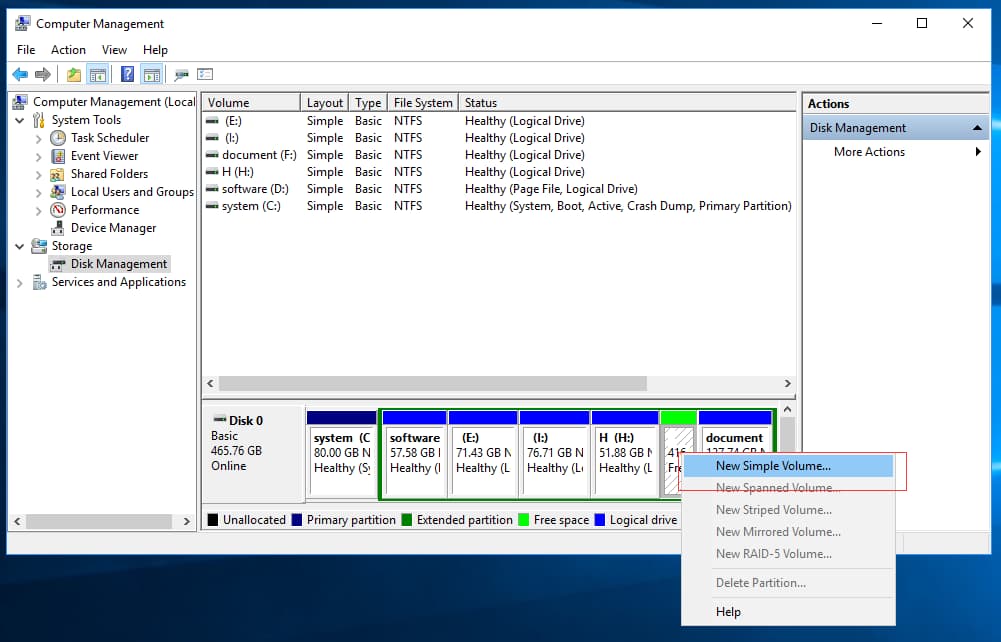
2. To create a new drive, select a partition labeled "Free space" and right-click on it. Choose the "New Simple Volume" option, which will open the Simple Volume Wizard. You can input the desired size for the new volume and choose whether to format it as NTFS or FAT32. Assign a drive letter and name to the new partition, then click "Next" to begin the formatting process. Once complete, the new drive will be visible in the Disk Management window with its assigned name, format type, and available space.
3. Once the newly formed partition is ready, it is time to restore the recovered data from the lost partition in Windows 7. As the data is available, copying it to the new partition will complete the action of restoring the lost data hassle-free.
Related Articles
- How to Recover Files from Crashed Windows 7
- How to Recover Deleted Partition in Windows 11/10
- Recover Permanently Deleted Files in Windows 7
- Sony Data Recovery Software: Recover Deleted Files from Sony SD Card
Learn the key steps, checks, and practical tips for this related guide. - How to Fix Xbox One Only Shows Green Screen
If you're experiencing issues with your Xbox One, getting stuck on a green screen can be frustrating. Fortunately, this article provides solutions to help resolve the problem, allowing you to get back to gaming without any further issues. - Top Best Free Forensic Data Recovery Software for 2023
If you're looking for open source forensic data recovery software, you can consider the forensic data recovery freeware, which offers a viable option for recovering lost data.
Products
Articles & Tutorials
- Data Recovery
- Data Backup
- File Recovery
- File Backup
- File synchronize
- System Backup and Restore
- Disk and Partition Clone
- Technical articles
- Disk Master Help
- Windows Deleted File and Disk Recovery Tutorials
- Windows File and Data Recovery Tutorials
- More Windows Tutorials for Install, Security, Files, and PC Tips
- Windows Boot, Repair, and Recovery Environment Tutorials
- Windows Backup Tutorials
- Windows Restore Tutorials
- Windows Clone and Migration Tutorials
- Windows Server Backup, Recovery, and Management Tutorials
- Windows Disk, Partition, and Storage Management Tutorials