How to Fix Xbox One Only Shows Green Screen
Quick Navigation:
- Part 1. Possible Reasons for why Xbox One may get stuck on Green Screen
- Part 2. How to Fix Xbox One Only Shows Green Screen Issue
- Method #1: Hard Reset Xbox One
- Method #2: Update Xbox One System
- Method #3: Factory Reset Xbox One
- Method #4: Format Hard Drive of Xbox One
- Backup Data from Xbox One Hard Drive with Qiling Disk Master
- Recover Data from Xbox One with Deep Data Recovery
Playing your favorite video games on Xbox One can be a thrilling experience, but it can quickly turn into frustration when the console only shows a green screen, leaving you waiting endlessly for the loading to complete. This issue can persist indefinitely, ruining the fun and potentially causing you to lose progress in games. If you're facing this problem, - there are solutions available to help you resolve the issue and get back to gaming.
If game saves are affected, review lost game data recovery before resetting the console storage.
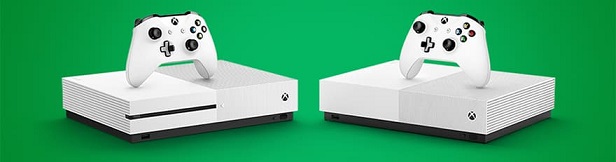
Part 1. Possible Reasons for why Xbox One may get stuck on Green Screen
The Xbox One's green start-up screen can be caused by various issues, including software problems, overheating, faulty hardware, or incorrect console settings, but there's no definitive answer to the cause.
- Error in communication between Xbox One and Windows Servers
- Failure of the system update process
- Hard drive corruption of Xbox One
- Unidentified issues
You can fix an Xbox One that's showing only a green screen by identifying and addressing the underlying cause, whether it's a hardware or software issue. This might involve troubleshooting common problems like a faulty HDMI cable, a loose connection, or a software glitch. If the issue persists, you may need to reset the console, update the system software, or even contact Xbox support for further assistance.
Part 2. How to Fix Xbox One Only Shows Green Screen Issue
To resolve the Xbox One won't leave green screen issue, several approaches can be taken. A hard reset of the Xbox One can be attempted, as can updating the system to the latest software. If that doesn't work, a factory reset can be done to restore the console to its original settings. In some cases, formatting the Xbox One's hard drive may also be necessary to resolve the issue.
Method #1: Hard Reset Xbox One
The simplest method to fix the Xbox One x green screen when watching videos error is to try this first. To complete the process, simply restart your Xbox One x console and see if the issue is resolved. This is the first step to take to solve the problem. If the issue persists, you can try other methods.
Step 1: Press and hold down the Power button on your console for ten seconds.
Step 2: If your Xbox One freezes and goes blank, try waiting for it to reboot. If it doesn't work, you can try the next method to fix the issue.
Method #2: Update Xbox One System
To resolve the issue of your Xbox One only showing a green screen, update the Xbox One system by going to Settings > System > Console Update, and follow the on-screen instructions to download and install the latest system software. If the issue persists, try restarting the console, and if that doesn't work, contact Xbox support for further assistance.
Step 1: Visit support.xbox.com and select Xbox One.
Step 2: Click on 'System' and then 'System Update'.
Step 3: Click on 'How to use Offline System Update Diagnostic Tool' on the Xbox One menu and scroll down.
Step 4: Download 'OSUDT2' on a USB drive and install the update in the Xbox One.
Step 5: If OSUDT2 doesn't install, you should download 'Restore Factory Defaults'.
Step 6: To update the OSUDT2, press the 'Eject plus Accessory pairing' button and the Power button simultaneously, then insert the USB drive containing the downloaded update. The system will find and install the update, displaying the "Applying Update" message.
Step 7: If the Xbox One won't leave the green screen, try downloading the 'Restore Factory Defaults' software on a USB drive and connecting it to the console. This should reset it back to its factory settings, resolving the issue.
Method #3: Factory Reset Xbox One
If your Xbox One is stuck on a green start-up screen, you can try performing a factory reset to fix the issue. To do this, follow the steps: [insert steps here].
Step 1: Press the 'Eject' and 'Sync' buttons and then click the power button.
Step 2: Wait for the two startup beep to sound. Then, a menu window will appear with four options: 'Restart', Factory Reset', 'Update Off of Flash Drive', and 'Power Off'.
Step 3: To reset your system to its factory settings, click on the 'Factory Reset' option. This will prompt a confirmation message to ensure you want to keep the installed games on your system.
Step 4: Click the 'Keep Installed Games' button and wait for it to update for some minutes. The Xbox One will reboot again and your games will be restored shortly.
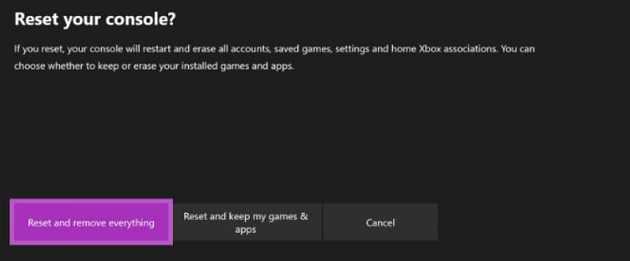
Method #4: Format Hard Drive of Xbox One
When you experience the Xbox One x green screen when watching videos error, it's likely due to damage or corruption on the hard drive. To resolve this, you'll need to format the hard disk using the correct file system, which will erase all data. To avoid losing important data, make sure to back it up beforehand.
The truth is that both factory resetting and formatting the hard drive of the Xbox One will result in data loss. To avoid this, we can explore two alternative options.
Backup Data from Xbox One Hard Drive with Qiling Disk Master
To back up data from your Xbox One hard drive, the most recommended tool is the Qiling Disk Master. This professional software allows you to back up files, folders, system, external hard drive, USB drive, flash drive, and create bootable media, effectively preventing data loss when you perform a factory reset on your Xbox One or any system.
Step 1: Download and launch QilingDBackup and the main window will popup. Click on 'File Backup'

Step 2: To back up files, you will be taken to a list of all hard drives or directories on your system. Select the files you want to back up and click on the 'Start' button.
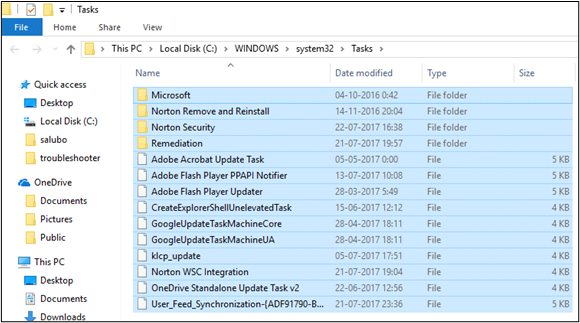
Step 3: Wait for the backup to complete and preview the results. Then, choose from the options to finalize the backup, including Recovery, Backup Settings, and Edit Backup.
Recover Data from Xbox One with Deep Data Recovery
If you've lost data while fixing the issue of your Xbox One only showing a green screen after a factory reset or formatting, you can recover the data using the Deep Data Recovery tool. This tool is highly recommended due to its effectiveness and safety, and is easy to use even for those without experience.
Step-by-step Guide on how to recover data lost from Xbox One
Step 1: Launch Deep Data Recovery after installing the software.
Step 2: Select the location where the data is located, which can be a specified location or the whole hard drive, then click 'Scan' to initiate the recovery process.

Step 3: After the scan, preview the files and click the 'Recover' button to recover the lost files.

To troubleshoot the issue of an Xbox One stuck on a green start-up screen, remove the hard drive from the console and connect it to a computer. This allows for direct access to the console's data and enables troubleshooting.
Related Articles
- How to Fix the Issue GOPro Won't Turn on
- [Solved] Pictures on SD Card Not Showing in Gallery
- How to Recover Deleted Pictures from Panasonic Lumix
- How to Fix SD Card Is Blank or Has Unsupported File System
- [Solved] USB/External Hard Drive Folder Access Denied
- How to Do Sandisk Corrupted SD Card Recovery & Fix It
- How to Fix External Hard Drive Not Showing Up
- Your PC Ran into a Problem and Needs to Restart Windows 8
Products
Articles & Tutorials
- Data Recovery
- Data Backup
- File Recovery
- File Backup
- File synchronize
- System Backup and Restore
- Disk and Partition Clone
- Technical articles
- Disk Master Help
- Windows Deleted File and Disk Recovery Tutorials
- Windows File and Data Recovery Tutorials
- More Windows Tutorials for Install, Security, Files, and PC Tips
- Windows Boot, Repair, and Recovery Environment Tutorials
- Windows Backup Tutorials
- Windows Restore Tutorials
- Windows Clone and Migration Tutorials
- Windows Server Backup, Recovery, and Management Tutorials
- Windows Disk, Partition, and Storage Management Tutorials