How to Recover Hidden Folder in Windows 7
In every person's life, there comes a time when they search for how to recover hidden folders in Windows 7. We've all been there, and once we figured out how to unhide the files, life became simpler. This guide is here to help you restore a hidden folder in Windows 7 without any hassle, so you can get back to your normal routine.
If hidden folders are caused by Windows settings rather than deletion, this show hidden files in Windows 7 guide can help before running recovery.
- Quick Navigation
- Part 1. How to Recover Hidden Folders in Windows 7
- Part 2. How to Show Protected Operating System Folder/Files in Windows 7
- Part 3. How to Recover Hidden Folders in Windows 7 by Deleted
Part 1. How to Recover Hidden Folders in Windows 7
To show hidden files in Windows 7, follow these steps: Go to the Control Panel, then select the "Appearance and Personalization" option. Click on "File Explorer Options" and then select the "View" tab. Check the box next to "Show hidden files, folders, and drives" and uncheck the box next to "Hide protected operating system files" if desired. Click "OK" to save the changes. This will allow you to view and access hidden files and folders in Windows 7.
Step 1: Go to the Start menu, open Control Panel, select "Appearance and Personalization", and then go to Folder Options.
Step 2: To view hidden files, folders, and drives, go to the Folder Options window, click on the View tab, and select the option "Show hidden files, folders, and drives" in the Advanced Settings.
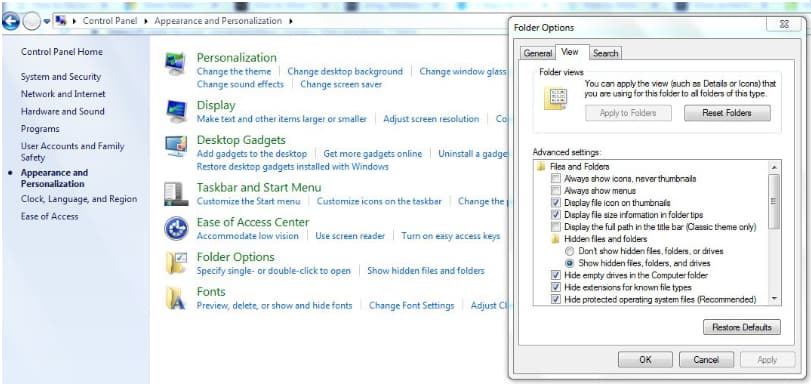
Step 3: To make the changes, select the desired option and tap the "Apply" button. After that, click the "Ok" button to confirm and exit the control panel.
To view hidden files on your system, you can simply go back to your system, and the hidden files will be displayed, making it easy to access them.
Part 2. How to Show Protected Operating System Folder/Files in Windows 7
The Windows system has a feature that hides important files and folders, such as operating system files, for protection. Even when you enable the option to show hidden files and folders, these protected system files remain hidden. To recover hidden folders with the protected system attribute, it's essential to understand why these files are protected in the first place.
The operating system files are critical for efficient functioning. If you mistakenly modify or delete them, your Windows system will become unbootable. However, you can view these files, but it's recommended to avoid modifying them unless you're experienced.
Step 1: To access the Folder & Search Options, launch File Explorer, select the Organize option, and choose "Folder & Search Options" from the menu. A small window will then open up.
Step 2: Go to the View tab, click on Advanced Settings, and look for the "Hide protected operating system files (Recommended)" option under the "Show hidden files, folders, and drives" option.
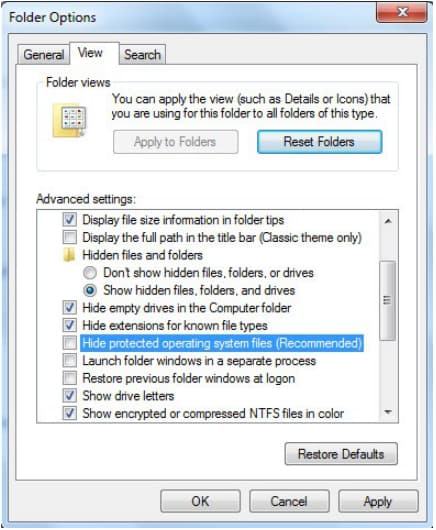
To view system files, you need to uncheck the box that hides them by default. Once unchecked, apply the settings and click "Ok". It's recommended to keep these protected files hidden to prevent another user from modifying or deleting them, which could cause issues.
Part 3. How to Recover Hidden Folders in Windows 7 by Deleted
Users can relax when files are hidden, but sometimes hidden files get deleted, and users think they've lost them permanently. Fortunately, the Deep Data Recovery tool can help, and Qiling can teach users how to restore hidden folders using its user-friendly interface and advanced scanning algorithm. This allows the software to dig deeper into the system and locate needed files.
Your Reliable Hidden Folder Recovery Windows 7 Tool
- The software offers a user-friendly interface to easily locate hidden files on your system. It features two scanning modes, allowing you to quickly find and manage hidden files with precision and efficiency.
- This software offers a recovery solution in case of a system crash, accidental deletion, virus attack, or formatting, providing a safeguard against potential data loss.
- Support various file systems like FAT, exFAT, NTFS, APFS, etc.
- The software offers a hidden recovery feature for various file types, including images, videos, documents, audio files, emails, archives, and more.
- Users can have a preview of the files and filter the search results according to their preferences, allowing them to recover deleted files in Windows 7 or restore a hidden folder from Windows 7.
To restore a hidden folder in Windows 7 using Deep Data Recovery, you'll need to download and set up the software first. Once you've completed the setup, you'll be ready to restore any file, including hidden folders. The steps to follow will guide you through the process of recovering your hidden folder using Deep Data Recovery.
Step 1: Specify Drive for Scan
On the next screen, select the location where the files are hidden and click the "Scan" button to initiate the Quick Scan mode, which will search for lost, hidden, and deleted files.

Step 2: Recover deleted hidden folders in Windows 7
As the scan results appear on the screen, begin searching for the desired files. You can narrow down the results by file format or path. Once you've located the files you need, select them and click the Recover button to download them.

The Windows 7 hidden folder recovery process can take a while to finish, but switching to the "Deep Scan" mode can improve search results and help recover files.
To recover lost files, you can use a method to unhide them, and another to recover a deleted hidden folder. Additionally, using Deep Data Recovery will ensure you have a backup in case of file loss. You can also spread the word to your friends and family about Deep Data Recovery.
Related Articles
- How to Recover Deleted Zip/Rar Files in Windows 11/10
- How to Show Hidden Files in Windows 10
- How to Recover Deleted Files from Documents Folder in Windows 10/11
- How to Recover Lost Files After Windows 11 Update (5 Best Ways)
If you lost files after a Windows 11 update, you can find or recover them with practical methods. Among them, Qiling data recovery software is the best recommendation. It recovers data from Windows 11/10/8/7 with simple clicks. - Four Steps to Recover Deleted Ext3 Partitions in Windows 11, 10
If you're looking for a hassle-free way to recover deleted Ext3 partitions, consider using Ext3 recovery software, which can recover Ext3/Ext4 partitions in just four easy steps. - C Drive Data Recovery | Recover Deleted Files from C Drive
This guide explains C Drive Data Recovery | Recover Deleted Files from C Drive with clear steps, key checks, and practical tips.
Products
Articles & Tutorials
- Data Recovery
- Data Backup
- File Recovery
- File Backup
- File synchronize
- System Backup and Restore
- Disk and Partition Clone
- Technical articles
- Disk Master Help
- Windows Deleted File and Disk Recovery Tutorials
- Windows File and Data Recovery Tutorials
- More Windows Tutorials for Install, Security, Files, and PC Tips
- Windows Boot, Repair, and Recovery Environment Tutorials
- Windows Backup Tutorials
- Windows Restore Tutorials
- Windows Clone and Migration Tutorials
- Windows Server Backup, Recovery, and Management Tutorials
- Windows Disk, Partition, and Storage Management Tutorials