C Drive Data Recovery | Recover Deleted Files from C Drive
- What happens when files are deleted from C drive?
- Recover permanently deleted files from C drive without backups via Deep Data Recovery
- Other methods to recover deleted files from C drive
- Method 1. Recover deleted files from C drive quickly via Recycle Bin
- Method 2. Recover lost files from C drive using File History
- Method 3. Restore previous version of the parent folder
- Method 4. Restore from the Windows backup
- Wrapping up
What happens when files are deleted from C drive?
Users create, edit, and save files on their computers, often using the C drive as a system partition for better performance, while reserving other partitions like D/E drives for storing data.
The C drive sometimes serves as a data partition because users may save files on it, such as in the Documents folder, Pictures folder, and desktop.
Users sometimes delete files to free up space on the C drive, which can lead to data loss and users seeking ways to recover lost files from the C drive.
They are also concerned about data loss from the C drive due to other reasons, such as desktop files disappearing after being infected by viruses.
Many people will go to the Recycle Bin to restore deleted files before emptying it, but those who have permanently removed the data are out of luck.
Unfortunately, once files are permanently deleted from a Windows system, they are usually gone for good. However, there are some specialized tools and techniques that can potentially recover deleted files from the C drive, but the chances of success depend on various factors, such as the type of file system used, the amount of free space available, and the time elapsed since deletion.
Do we have an option to recover permanently deleted items from C drive?
If you have a backup of your files, you can easily recover them from local drives, cloud storage, or external hard drives. However, if you don't have a backup, recovering your files might be more difficult.
While deleted files may seem irrecoverable, they can still be restored with advanced technology and tools. When files are deleted from the Recycle Bin, they remain in their original location until they're overwritten, making it possible to recover them. This means that C drive data recovery is feasible, even after files have been seemingly deleted.
Don't worry; this article gathers several solutions to help you.
Recover permanently deleted files from C drive without backups via Deep Data Recovery
To recover permanently deleted files from C drive, using a reliable Windows data recovery tool is the easiest way, even without backups.
Deep Data Recovery, designed by Qiling, is the top choice in the data security industry. Its unique and advanced features will not only help you but also impress you.
Restore permanently deleted data in a breeze
- Efficient. Data loss on the C drive can occur due to various circumstances, including accidental deletion, formatting, emptying the recycle bin, system crashes, or other unforeseen events. In such scenarios, it's crucial to act promptly to recover lost data, as the chances of successful recovery decrease with time.
- Simple to use. Our user interface is designed to be simple and clear, making it easy for anyone to recover their data in just three easy steps. This streamlined process ensures that everyone can quickly and efficiently retrieve their important files and information, without any unnecessary complexity or confusion.
- Convenient. Maintain the original filenames, locations, and formats while recovering files.
- Compatible. Available for NTFS, FAT32, exFAT, and ReFS on Windows 11/10/8/7/Server.
This app helps you recover frequently used files like photos, videos, audio, documents, spreadsheets, and emails with a high recovery rate. Follow the guide below.
Step 1. Install and run the software, then hover the mouse over the C drive and click on the "Scan" button.

Step 2. Use the search bar to search for specific files, or use the filters on the right side of the screen to narrow down your search by size, type, date modified, and more.

Step 3. Go to Deleted files, navigate to the original location, select the important files you need to restore, and click Recover. Alternatively, go to Recycle Bin to recover items permanently deleted from Recycle Bin.

Other methods to recover deleted files from C drive
To recover lost files from C drive, start by using the Undo feature, which can be accessed by right-clicking on the Recycle Bin and selecting "Undo Delete" or by pressing the "Ctrl + Z" keys. If the Undo feature is not available, consider using data recovery software to scan the C drive for deleted files and restore them to their original location. This can be a time-consuming process, but it may be the only way to recover important files that have been deleted from the C drive.
>> Right-click the blank space Inside the folder on your desktop, select "Undo Delete" or press Ctrl+Z to recall the deletion.
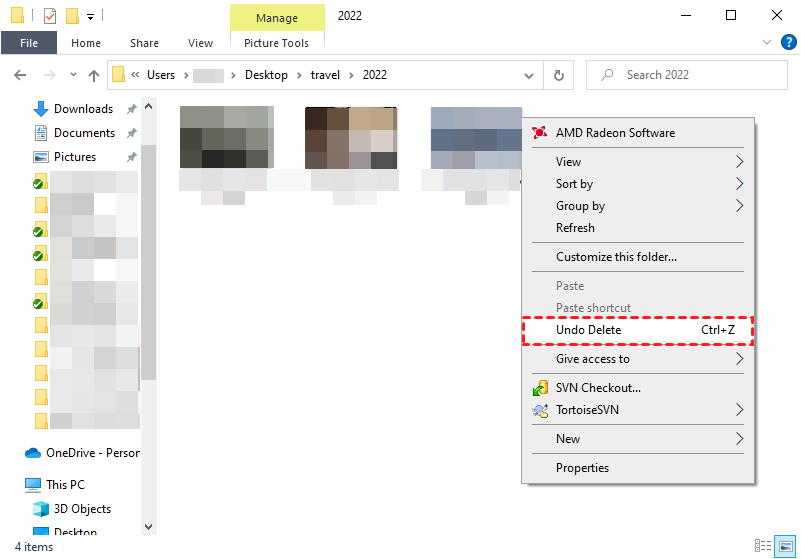
If it fails, try the following means.
Method 1. Recover deleted files from C drive quickly via Recycle Bin
Look at the trash bin and see if you can recover deleted files from it.
To recover deleted files, go to the Recycle Bin, search for the removed data, right-click on the files, and select the "Restore" option.
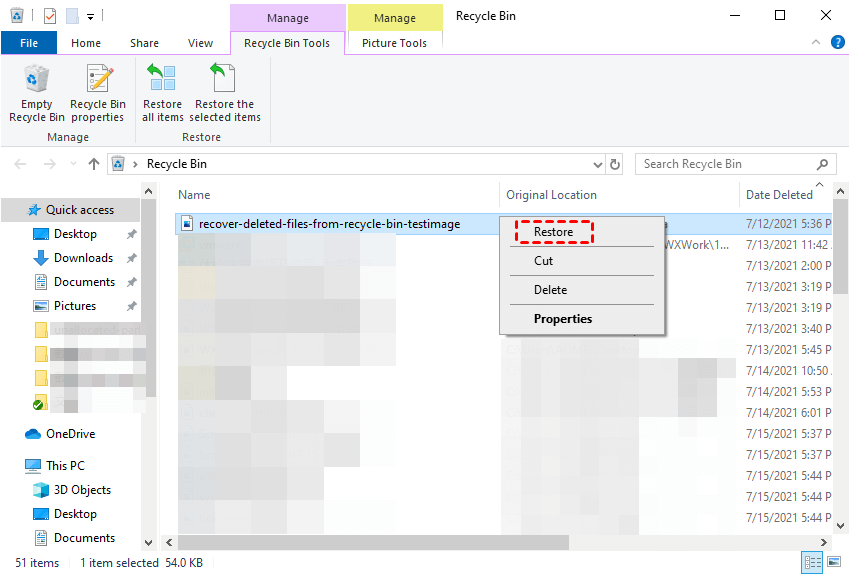
Then they will be restored to their original location.
- Notes:✎...
- If the deleted files are not in the Recycle Bin, there are several methods that may help recover them. One approach is to use a file recovery software, such as Deep Data Recovery Wizard, to scan the computer's hard drive and recover deleted files.
Method 2. Recover lost files from C drive using File History
If you can't find the deleted data in the bin, it's gone for good. You might need to rely on backups or specialized tools like Deep Data Recovery to recover it.
Windows File History is a backup feature that automatically saves copies of files and folders on the C drive to an external drive or network location.
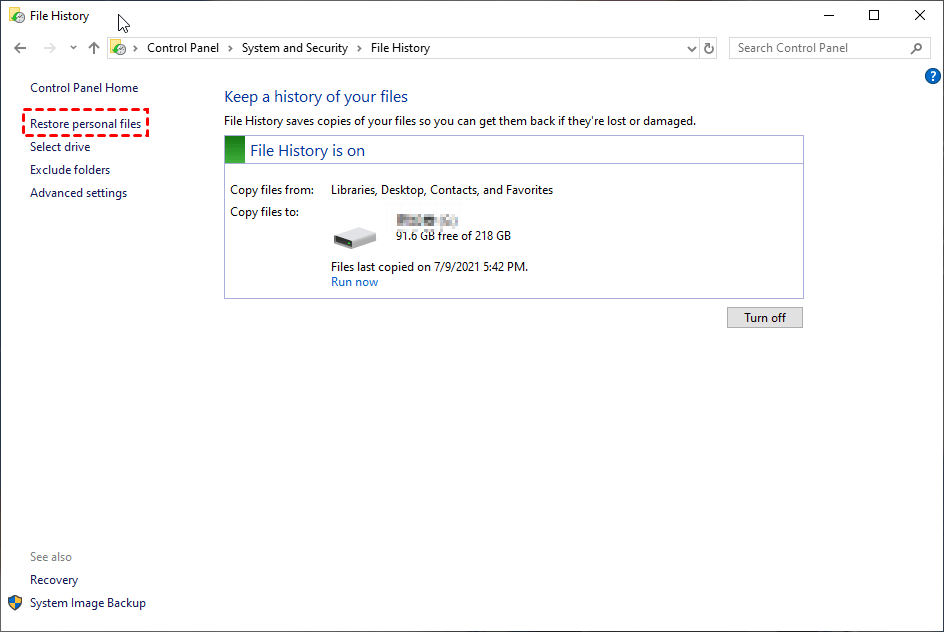
Step 1. To access the File History feature, go to the Control Panel and navigate to System and Security, then select File History.
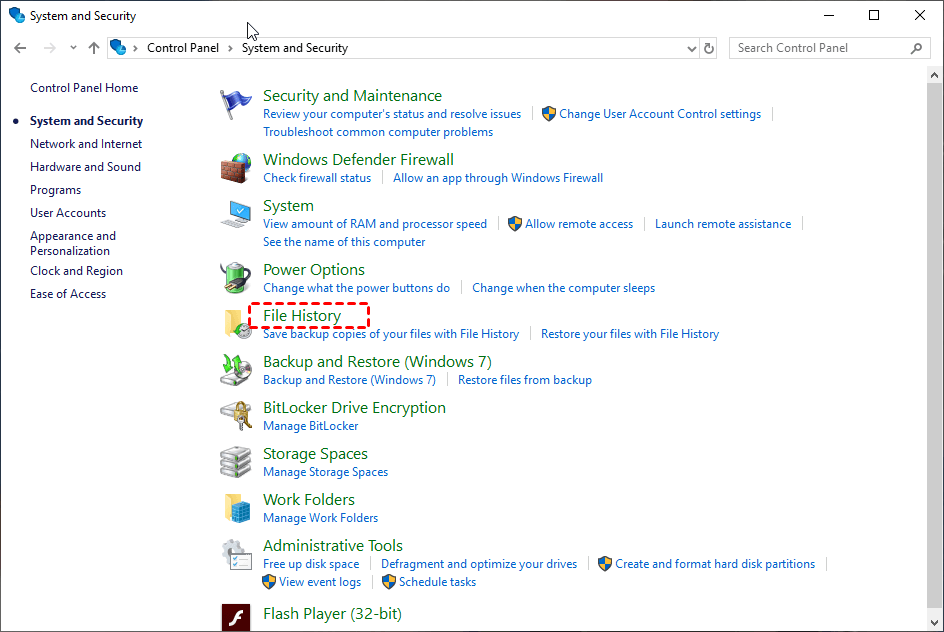
Step 2. Select Restore personal files.
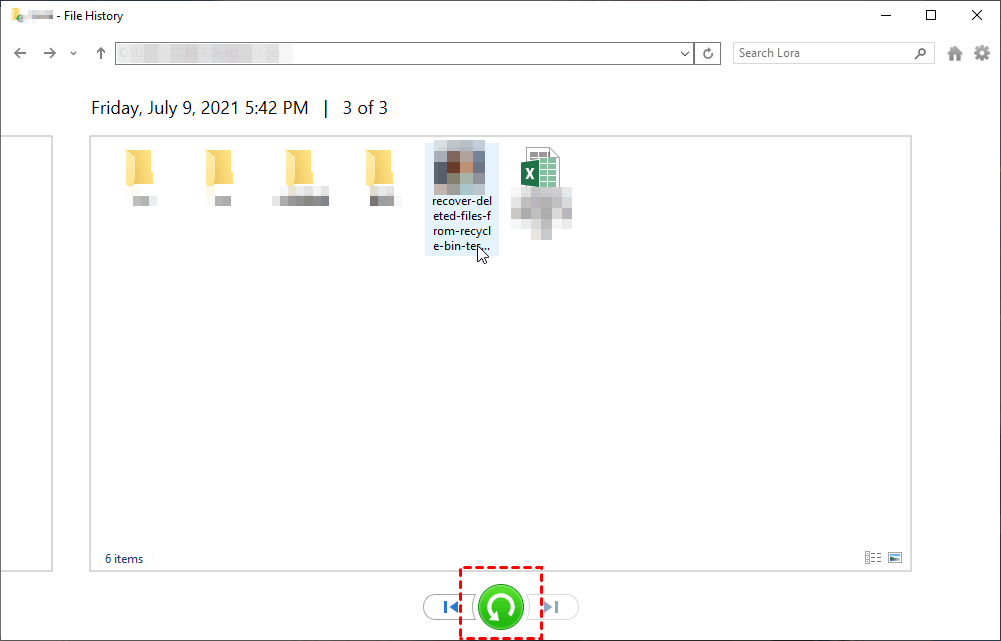
Step 3. Go to the target folder/original location, select the files you need, and click the "Recover" icon to retrieve them. For instance, you can recover permanently deleted Excel files from your desktop.
Method 3. Restore previous version of the parent folder
Windows offers a feature called Previous Version to recover lost files from the C drive. This feature utilizes File History and restore points to retrieve previous versions of files.
As long as File History or system protection is enabled, you can restore previous versions of files/folders to recover lost, deleted, corrupted, or damaged files.
Step 1. To recover deleted files, go to File Explorer, navigate to the parent folder where the deleted files were stored, and access them from there.
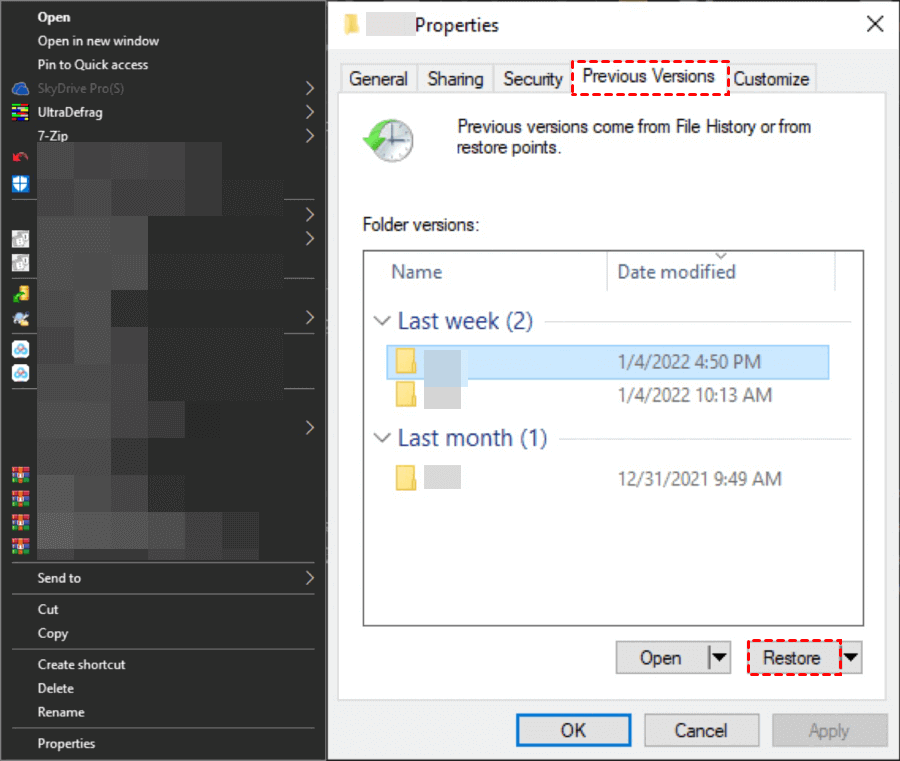
Step 2. Right-click the folder, select Properties, go to Previous Versions, choose the latest version, and then click Restore.
Method 4. Restore from the Windows backup
Windows machines have a dedicated backup feature called Backup and Restore, which allows users to back up files on local drives, and can also be accessed in Control Panel to restore files.
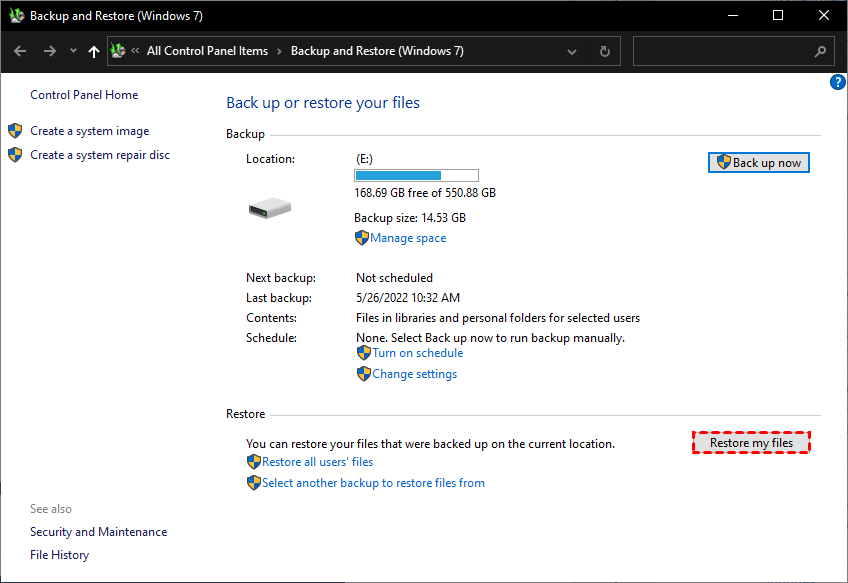
Step 1. Go to Control Panel > System and Security > Backup and Restore (Windows 7).

Step 2. Click Restore my files.
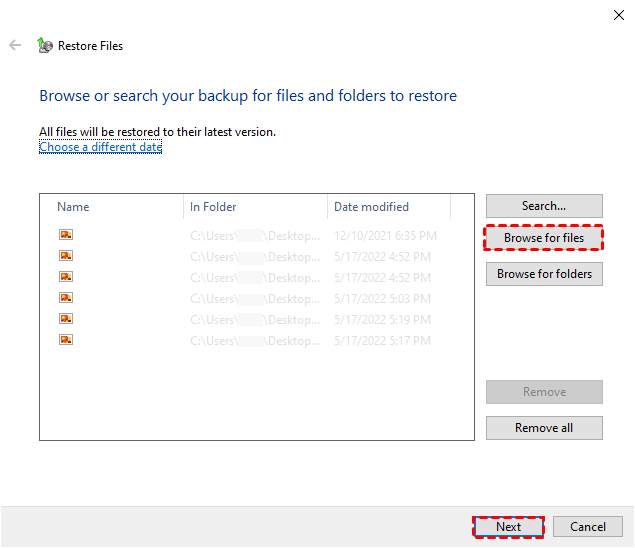
Step 3. To proceed, click on "Browse for files/folders" and select the necessary data. Once you've selected the required data, click on the "Next" button.
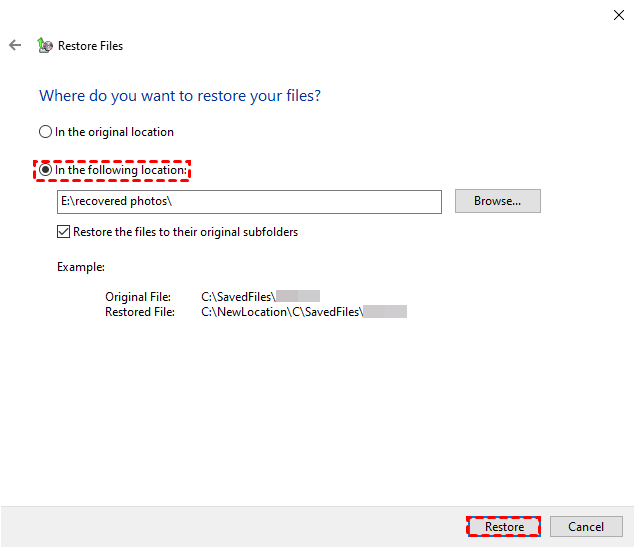
Step 4. Specify the destination to save your recovered files and click Restore.
Thus, you can achieve a successful C drive data recovery.
Wrapping up
This article provides guidance on recovering deleted files from the C drive, covering various scenarios such as accidental deletion, shift deletion, and emptying the Recycle Bin.
With the help of Deep Data Recovery, users can recover permanently deleted files from the C drive without a backup in just 3 simple steps.
Windows has built-in backup features such as Previous Version, File History, Backup and Restore, allowing users to recover lost files.
Related Articles
- 10 Effective Ways to Recover Unsaved & Deleted Word Document
This guide explains 10 Effective Ways to Recover Unsaved & Deleted Word Document with clear steps, key checks, and practical tips. - [Fixed] Windows File Recovery There Was an Error Parsing Your Command
This guide explains Windows File Recovery There Was an Error Parsing Your Command with clear steps, key checks, and practical tips. - 8 Ways to Recover Permanently Deleted Files from Google Drive
This guide explains 8 Ways to Recover Permanently Deleted Files from Google Drive with clear steps, key checks, and practical tips. - Recycle Bin Windows 10 - Full Guide [with Pictures]
The Windows Recycle Bin keeps temporarily deleted files or folders from your hard disk. If you want to restore files from Recycle Bin, you first need to find the Recycle Bin folder. - 2 Ways for How to Recover Files from Bad Sectors on Hard Drive
Bad sectors on a hard drive can cause data to become inaccessible and lead to data loss. Fortunately, there are two ways to recover files from bad sectors on a hard drive. - How to Recover Files from Corrupted/Failed Hard Drive
You need to know how to recover files from failed or corrupted hard drive on Mac in the first place. After all, if files lost, you have to bear the bad result. Here we covered 3 parts in this article. -
Recover C Drive Data
Recover Desktop, Documents, Downloads, and user profile files from C drive safely.
Products
Articles & Tutorials
- Data Recovery
- Data Backup
- File Recovery
- File Backup
- File synchronize
- System Backup and Restore
- Disk and Partition Clone
- Technical articles
- Disk Master Help
- Windows Deleted File and Disk Recovery Tutorials
- Windows File and Data Recovery Tutorials
- More Windows Tutorials for Install, Security, Files, and PC Tips
- Windows Boot, Repair, and Recovery Environment Tutorials
- Windows Backup Tutorials
- Windows Restore Tutorials
- Windows Clone and Migration Tutorials
- Windows Server Backup, Recovery, and Management Tutorials
- Windows Disk, Partition, and Storage Management Tutorials