[Fixed] Windows File Recovery There Was an Error Parsing Your Command
Microsoft released a tool called Windows File Recovery in 2020, available for Windows 10 and above users, which can recover lost files like photos, videos, and documents from local storage devices.
The app's command-line interface makes it difficult for users unfamiliar with commands to navigate and use its features.
Users may encounter errors when using Windows File Recovery, such as the error "there was an error parsing your command". This issue can be resolved by discussing and addressing it effectively in an article, providing a clear and concise explanation of the solution.
About Windows File Recovery there was an error parsing your command
I accidentally deleted files from a folder on my Desktop.I'm trying to use the Windows 10 File Recovery but keep getting errors. The folder is LAPTOP 2019 and it was on my Desktop, and the recovery file can be on the D drive. The command is:
winfr C: D: /regular /n \desktop\laptop 2019\.
The error message "There was an error parsing your command. What should I fix?" typically indicates that the command or instruction you provided is not being understood by the system or program. This can be due to a variety of reasons such as incorrect syntax, missing or incorrect parameters, or the command itself being invalid.
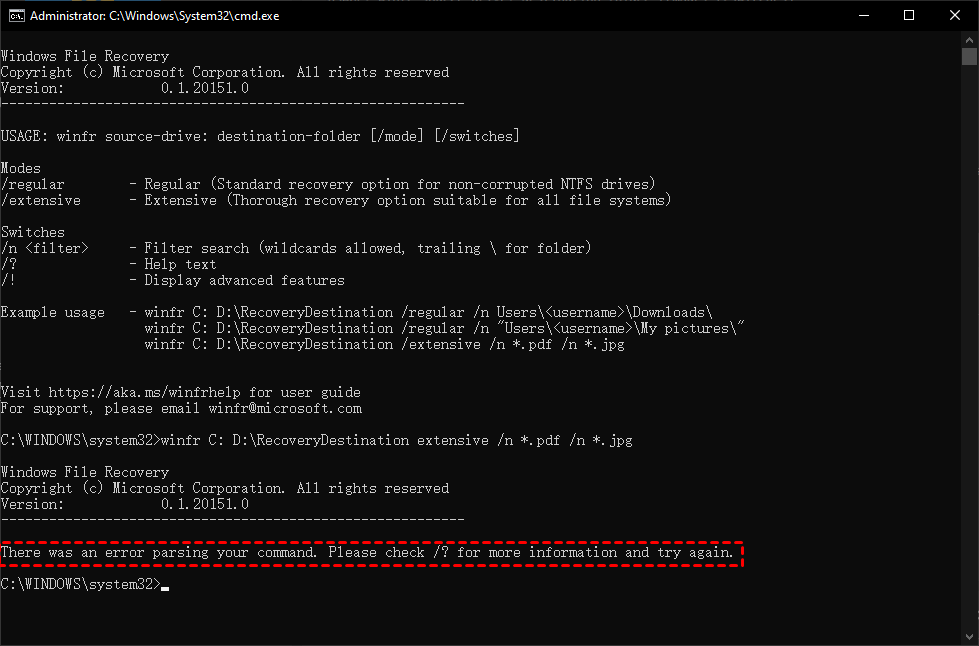
The error in using the command line incorrectly is the primary reason for this issue. To resolve it, follow the Windows File Recovery tutorial and check your command line syntax. If still unclear, consider the best Windows File Recovery alternative.
👉If you're looking for a reliable alternative to Windows File Recovery, try Deep Data Recovery. You can get it now in part 3.
Check your command line syntax of Windows File Recovery
"There was an error parsing your command" means that Windows File Recovery is having trouble understanding the command you're giving it, likely due to a syntax error.
Pay attention to the syntax, structure, spelling, and punctuation. The complete correct Windows File Recovery command format is:
Part 1. Source drive & destination drive
One of the key points in the Windows File Recovery command syntax is selecting the source drive and destination drive.
The source drive is where the lost files were originally located, while the destination drive is where the recovered files will be saved after the recovery process is complete.
Now check if you have met these requirements.
The source and destination drives should be distinct.
To avoid the "Windows File Recovery failed to create destination folder" error, ensure that both the source and destination drives use a valid drive letter. This will prevent any issues with the file recovery process.
The source and destination drive paths should be followed by a colon (:), such as C: for the source drive and D: for the destination drive.
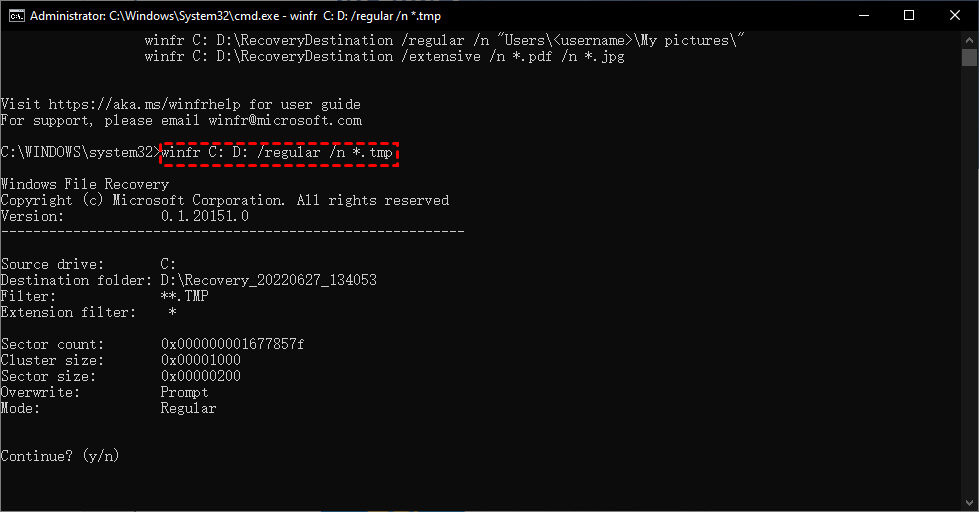
Point 4. There is a space between the source drive and the destination drive, e.g., if you want to recover files from the C drive to the D drive, then it goes like C: D:
Just as shown in the sample:
Part 2. Slashes and backslashes
In computing, slashes and backslashes are used for specific purposes. The forward slash (/) is used in Windows File Recovery commands to work with recovery modes and switches, while the backslash (\) is used to denote a directory, such as \Users\username\DataRecovery\. This notation is used to specify paths and folders on the computer.
So there are some points you need to pay attention to.
When using a recovery mode or switch, don't forget to include the slash (/) in the command. For example, instead of typing "recovery mode", type "recovery mode/" or "switch /". This ensures the command is executed correctly and avoids any potential errors or issues.
When referring to a recovery mode or a switch, there should be no space between the slash and the mode or switch, e.g., /regular or /n.
The recovery mode pattern is separated from the switch pattern by a space, e.g., /extensive /n.
When denoting a folder, use backslashes and remember to put a backslash at the end of the folder name, for example, /n\foldername\.
Part 3. Directory
The difficulty lies in users' ability to accurately target the correct file directory, which requires precise spelling of the directory name, otherwise the system may not be able to locate the specified path.
When targeting the file path, please provide the original location of the files, i.e., where the file was before it was deleted or became missing. This will help users to easily locate and recover the lost files.
To target the exact file path, go to the folder containing the file and copy the file path in the location bar.
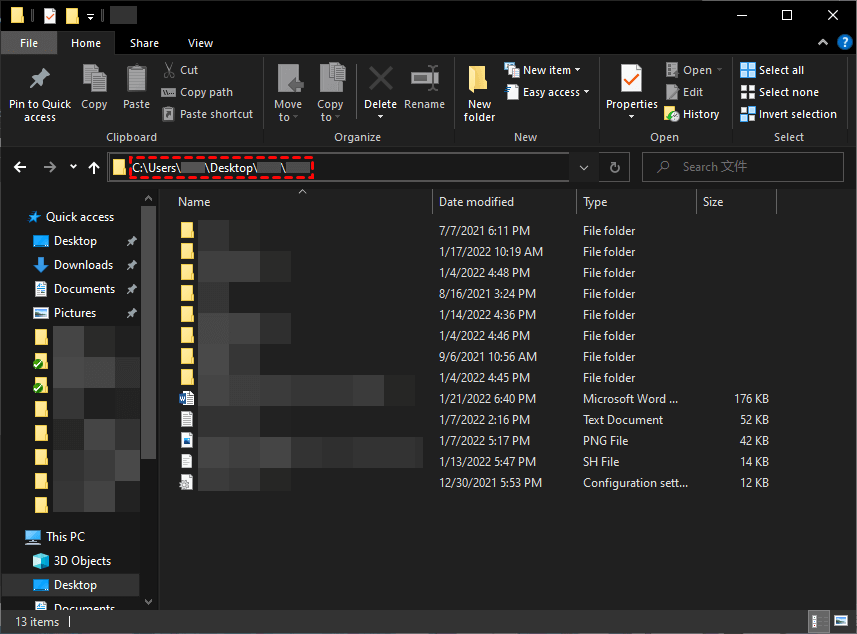
If your deleted files were on the desktop, the correct file path to recover them is C:\Users\username\Desktop\foldername\.
If there are spaces in the file/folder name, please surround it with quotation marks, for example: "\Program Files\Clash for Windows\".
Let's put it in the command line:
Try the best Windows File Recovery alternative
You can try running the command as administrator or checking the command syntax to ensure it's correct. Also, verify that the drive or volume you're trying to recover is not corrupted or write-protected.
Deep Data Recovery software can simplify the process of recovering lost data by automating complex commands and parameters, saving users time and labor.
It is supported by a sophisticated team with 10+ years of experience and features advanced scanning methods, allowing for easy file recovery in Windows 10 or 11 in just 3 steps.
- Core technologies - Quick Scan & Deep Scan. Both of them will thoroughly scan your disk for deleted or lost data, making data recovery easy and quick with a high success rate.
- Recover documents, photos, audio, videos, emails, compressed files, and more, up to 200+ formats.
- Search or filter deleted files quickly, preview, and recover them while scanning if necessary.
- Recover deleted or lost data with ease on various storage devices, including internal or external disks (HDD or SSD), USB drives, and SD cards.
- Handle comprehensive data loss scenarios, A corrupted disk is a hard drive or solid-state drive that contains damaged or unreadable data due to various reasons, such as accidental deletion, virus-infected, corrupted, or formatted disk.
Don't hesitate to download the best Windows File Recovery alternative - Deep Data Recovery - to recover deleted and missing files in a breeze.
Step 1. Launch the program, hover the mouse over the drive and click "Scan" to scan.

Step 2. The software will automatically run both Quick Scan and Deep Scan to identify all recoverable data, displaying it in a window organized by file or folder name, date modified, type, size, and path.

Step 3. Select the data you need and click Recover, then choose a new location to save the recovered files to avoid overwriting your data.

You can also use this app to recover permanently deleted files in Windows 10/11.
Related suggestions: keep data and files safe
The error "Windows File Recovery there was an error parsing your command" is addressed in this article with several tips and a recommended Windows data recovery utility - Deep Data Recovery.
Losing files and data can be a significant financial burden for individuals and companies, as it can lead to lost productivity, revenue, and even business closure. It's a risk that no one wants to take, making data backup and recovery a crucial aspect of digital life.
To avoid data loss, taking some measures to protect your data is a good idea.
- Avoid visiting or using websites that may contain malware or pose a threat, as visiting such sites can lead to files being attacked and corrupted.
- Use Antivirus programs to scan and protect your data.
- Save the file from time to time when editing.
- Keep your files backed up in multiple places, such as an external hard drive, the cloud, and your computer, to ensure they are safe and easily accessible in case of a disaster or data loss.
You can easily back up your data by utilizing the free Windows backup software, Qiling Disk Master Standard. This software offers amazing features such as "File Backup", "Disk Backup", "Partition Backup", and "System Backup" to help you with your backup needs.
Related Articles
- How to Recover Items Deleted from Recycle Bin?
This article aims to recover items deleted from Recycle Bin, even if it has been emptied, and provides users with 6 proven methods below. - How to Recover Missing/Disappeared Files in Windows 10 Easily
This guide offers several simple and free methods to recover missing files in Windows 10 after a Windows update or reinstall. - How to Recover Permanently Deleted Excel File from Desktop?
Recovering a permanently deleted Excel file from your desktop can be achieved through various methods, as outlined in this article. The steps to recover the file are provided to help users restore their Excel file. - How to Recover Unsaved & Deleted Word Documents
Learn how to Recover Unsaved & Deleted Word Documents with clear steps, key checks, and practical tips. - How to Recover Hidden Folder in Windows 7
Learn how to recover a hidden folder in Windows 7, unhide the folder, and access the files you need. - How to Recover JPEG Files on Mac or Windows
Learn how to Recover JPEG Files on Mac or Windows with clear steps, key checks, and practical tips. -
Windows File Recovery Failed to Create Destination Folder
Fix recovery destination folder errors by checking permissions, paths, free space, and safe restore targets.
Products
Articles & Tutorials
- Data Recovery
- Data Backup
- File Recovery
- File Backup
- File synchronize
- System Backup and Restore
- Disk and Partition Clone
- Technical articles
- Disk Master Help
- Windows Deleted File and Disk Recovery Tutorials
- Windows File and Data Recovery Tutorials
- More Windows Tutorials for Install, Security, Files, and PC Tips
- Windows Boot, Repair, and Recovery Environment Tutorials
- Windows Backup Tutorials
- Windows Restore Tutorials
- Windows Clone and Migration Tutorials
- Windows Server Backup, Recovery, and Management Tutorials
- Windows Disk, Partition, and Storage Management Tutorials