How to Recover Missing/Disappeared Files in Windows 10 Easily
- Why did my files disappear on Windows 10?
- How to recover missing/lost/disappeared files in Windows 10
- Way 1. Find missing files in Windows 10 by checking the Recycle Bin
- Way 2. Find disappeared files by showing Hidden Files & Folders
- Way 3. Check your Administrator account
- Way 4. Restore missing files from Windows Backup
- Way 5. The easiest way to recover missing/disappeared files
- Conclusion
Files missing are a common issue on every version of Windows, including Windows 10, where personal documents, pictures, videos, and games data may go missing. Fortunately, there are effective ways to find and recover these missing files, and we'll guide you through them step-by-step in this article.
If files bypassed Recycle Bin, see deleted file not in Recycle Bin.
Why did my files disappear on Windows 10?
To recover lost items on your computer, first try to figure out how they disappeared. Common situations where files might be missed include accidental deletion, emptying the recycle bin, or formatting a drive. If you're unsure, check your computer's settings and recent actions to see if you can find any clues.
Update or reinstall Windows 10Some files, such as desktop files and installed applications, may go missing from your computer after a Windows 10 update, whether done manually or automatically.
The properties settingsFiles can become inaccessible when the property is set to "hidden" and File Explorer is not configured to show hidden files, leading to their disappearance.
Login to a new accountWhen you switch to a new account, your old account still exists, but it's no longer the default account, which means files from the old account might become inaccessible.
Accidentally operationMistakes can happen, and sometimes you might accidentally delete or format files or folders.
Unexpected failureThe hard drive is failing or corrupted, leading to potential file loss.
How to recover missing/lost/disappeared files in Windows 10
Now that you understand how files disappeared, you can choose one of the following methods to retrieve unknowingly missing, lost, deleted, hidden files or folders in Windows 10. There are several ways to restore missing files in Windows 10, including [list the methods].
Way 1. Find missing files in Windows 10 by checking the Recycle Bin
If your files have disappeared from your Windows 10 Desktop, first check the Recycle Bin to see if they were accidentally moved there. If they are, you can restore them by right-clicking on the file and selecting "Restore".
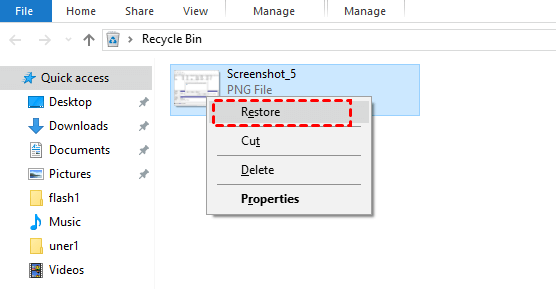
If the Recycle Bin is empty or you've accidentally emptied it, you can recover missing files or permanently deleted files on Windows 10 by following the methods below or using the last method.
Way 2. Find disappeared files by showing Hidden Files & Folders
You may want to check if your files are simply invisible and hidden, rather than deleted. Try making hidden files and folders visible and see if that resolves the issue. To do this, you can refer to the following steps:
Step 1. Please press Windows + E key combination to open Windows File Explorer.
Step 2. Click View on the toolbar, click Options to open Folder Options.
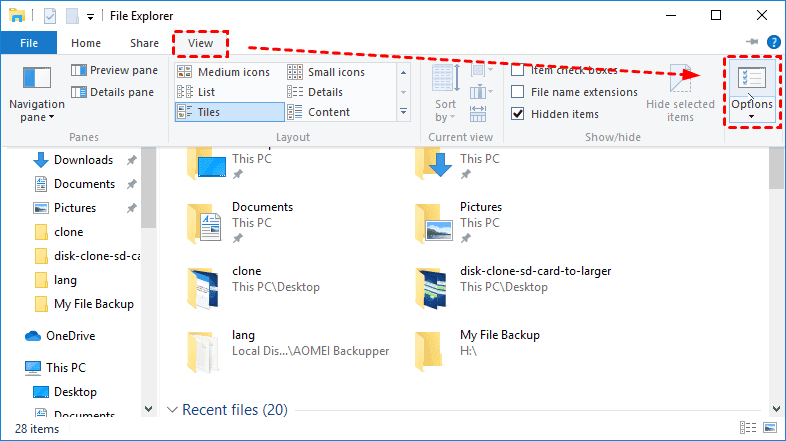
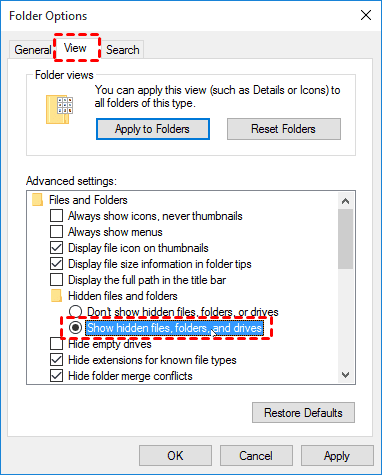
Step 3. To view hidden files, folders, and drives, go to the View tab, check the Show hidden files, folders, and drives option at the Advanced settings, click Apply, and then tap OK.
Way 3. Check your Administrator account
If you've upgraded to Windows 10 and can't find your missing files, it's possible that the update created a new user account and set it as the default, moving your files to the administrator account, which may now be disabled. To troubleshoot, you can check to see if your files are located in the administrator account.
Step 1. Type compmgmt.msc in the Search box to open Computer Management.
Step 2. Under the system tools, click on Local Users and Groups > Users > Administrator > Double click on Administrator to open the Properties box. (If you see any admin account with a down arrow, that means the account is disabled.)
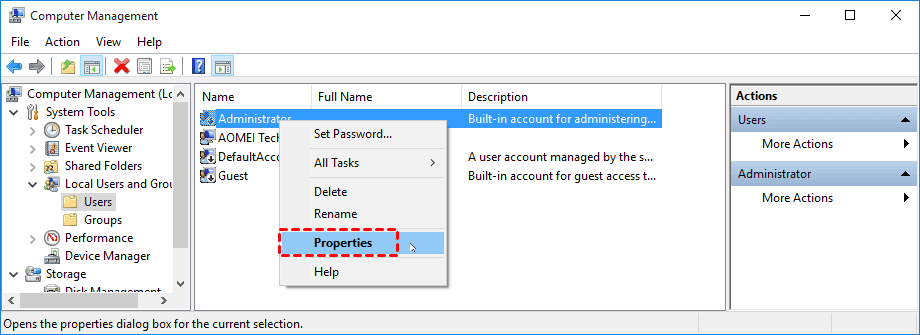
Step 3. At General tab, uncheck Account is disabled option, click Apply and then tap OK.
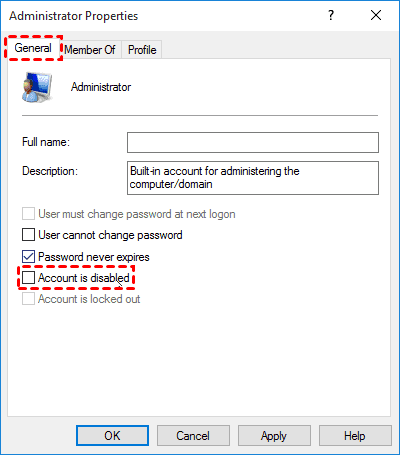
Restart your computer, log in with this account, and see if you can find the missing files.
Way 4. Restore missing files from Windows Backup
Backup and Restore is a data protection tool on Windows that allows you to back up your computer data and restore the backup when needed. If you still can't find missing files on Windows 10, you can try restoring them from a backup by following the necessary steps.
Step 1. Open Control Panel, click Backup and Restore (Windows 7) in the System and Security tab.

Step 2. In the Backup and Restore window, click Restore my files in the Restore section.
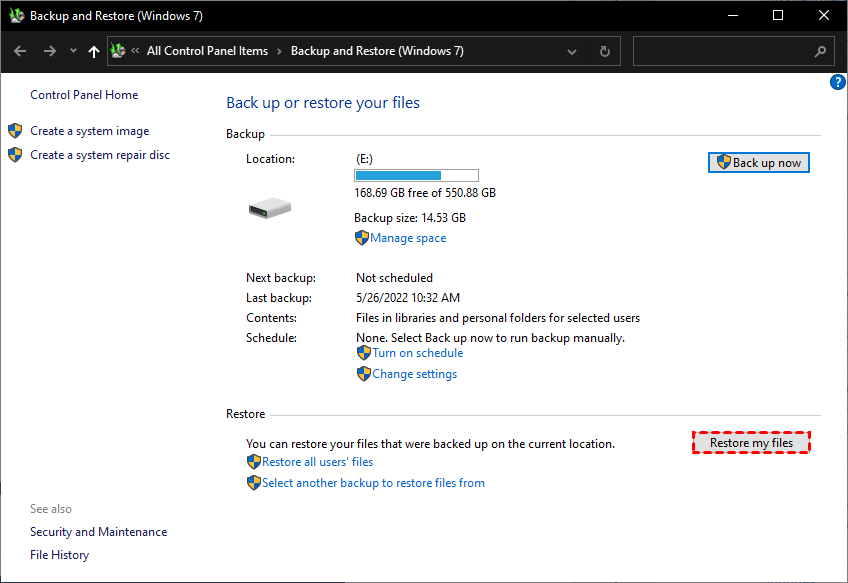
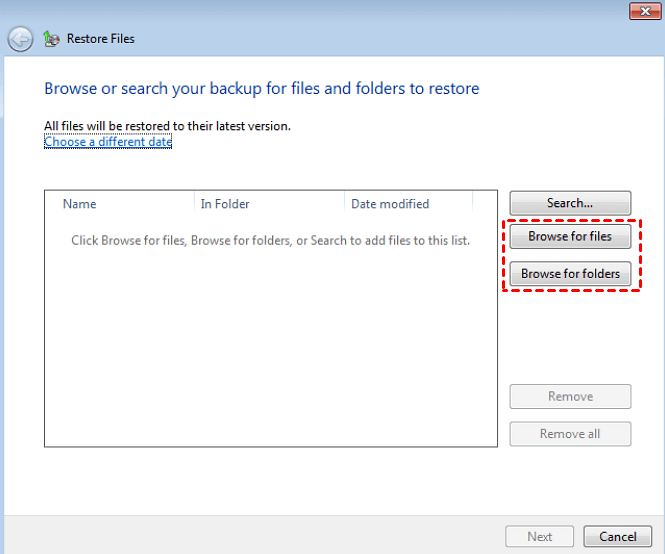
Step 3. Click on Browse for files or Browse for folders to select the files/folders you want to recover. Choose to restore them to their original location or a new one, and click Restore to complete the process.
Tip: To restore a file, create a new file with the same name and type, then right-click and select "Properties" and click "Restore" at the "Previous Version" tab.
Way 5. The easiest way to recover missing/disappeared files
If none of the above methods work, you can try using a professional Windows data recovery tool to recover your lost files.
Deep Data Recovery is a file recovery utility for Windows that helps users find and recover lost files, even if they were deleted by mistake or cleared from the Recycle Bin.
It has many amazing features:🔥
✔ Apply to a comprehensive data loss situationThis software allows you to restore permanently deleted files, files that were formatted, and recover data in various other situations such as a system crash, reinstall, virus attack, and more.
✔ All data types This software can quickly scan and restore over 200 types of data, including images, videos, audio files, and emails, at a high speed and recovery rate.
✔ Wide range of useIt is perfectly compatible with Windows 7/8/10/11 and Windows Server, and can run smoothly on any version of the operating system.recover data from C driveThe primary storage devices used in digital cameras are memory cards, including SD cards, CF cards, and Memory Sticks, which store the captured images and videos. Additionally, external hard drives (HDD and SSD) and USB flash drives can also be used to expand the storage capacity of a camera, allowing users to store more photos and videos.
✔ Keep all original files -Retrieve deleted/missing/lost files with format name path kept.
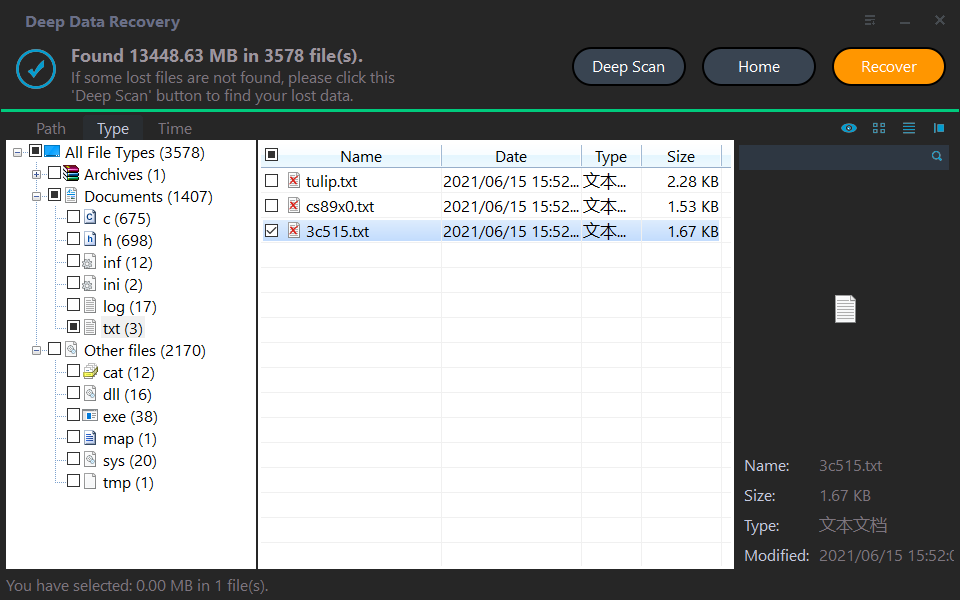
To recover lost files in Windows 10, download this tool and follow the step-by-step guide below. The guide will walk you through the process of finding and recovering lost files, making it easy to retrieve your important data.
Step 1. Install Deep Data Recovery and run it on your computer.
Step 2. To scan a drive, hover the mouse over the drive and click the Scan button.
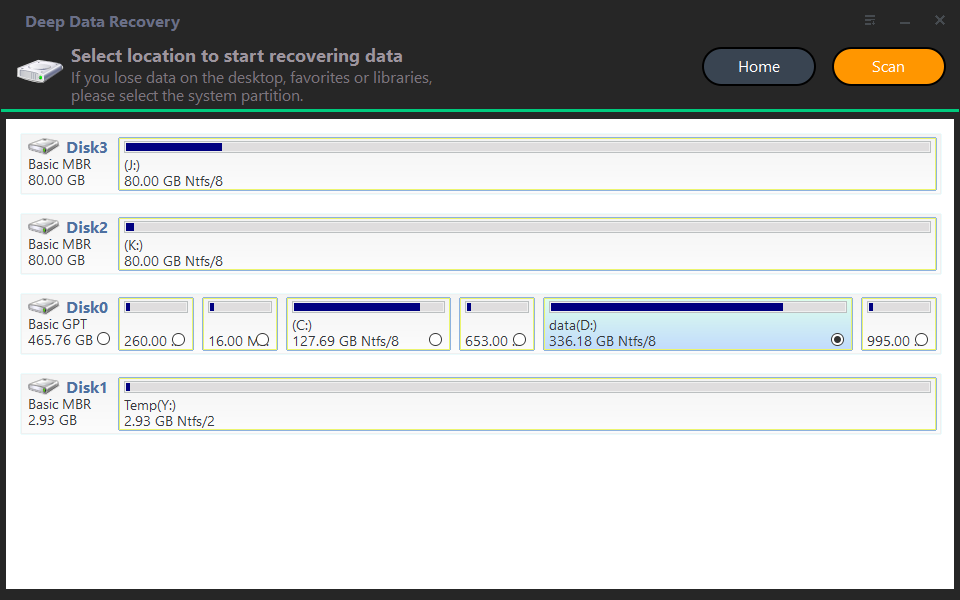
Step 3. The program will automatically scan the disk using Quick scan and Deep scan modes, allowing you to find the desired data without waiting for the scanning process to complete. Once you've located the data you want to recover, you can click the "Recover" button.
Conclusion
To recover missing files in Windows 10, check the Recycle Bin, show hidden files, uncheck old user accounts, use Windows Backup, or try Deep Data Recovery. Before exploring other solutions, consider using Deep Data Recovery directly to recover your data as soon as possible.
Developing good backup habits can reduce unnecessary troubles in our daily life by protecting against data loss, making regular backups a crucial step to ensure the security of our digital assets.
Related Articles
- How to Recover Files after Reinstalling Windows 10 Easily
Learn how to Recover Files after Reinstalling Windows 10 Easily with clear steps, key checks, and practical tips. - Top 3 Best Free Data Recovery Software for Windows 10/11
There are top 3 best free data recovery software for Windows 10/11, follow this passage to get back your lost data. - How to Recover Deleted Videos on Any Device
No matter how you lost videos from your PC or phone, there are ways how you can recover deleted videos. Try the best and most effective methods below to recover deleted, formatted, or damaged videos on Windows/Mac/iPhone/Android. - SD Card Recovery Online for 2021 – Recover Deleted/Lost Files from Memory Card
This guide explains SD Card Recovery Online for 2021 – Recover Deleted/Lost Files from Memory Card with clear steps, key checks, and practical tips. - How to Recover Deleted Photos from Lenovo Laptop
To recover deleted photos from a Lenovo laptop, you can follow these steps: install a Lenovo laptop data recovery software, use it to locate where the photos were deleted from, preview the recovered photos, and finally recover the deleted Lenovo laptop photos. - How to Recover Deleted/Lost Photos from Memory Card
Learn how to Recover Deleted/Lost Photos from Memory Card with clear steps, key checks, and practical tips.
Products
Articles & Tutorials
- Data Recovery
- Data Backup
- File Recovery
- File Backup
- File synchronize
- System Backup and Restore
- Disk and Partition Clone
- Technical articles
- Disk Master Help
- Windows Deleted File and Disk Recovery Tutorials
- Windows File and Data Recovery Tutorials
- More Windows Tutorials for Install, Security, Files, and PC Tips
- Windows Boot, Repair, and Recovery Environment Tutorials
- Windows Backup Tutorials
- Windows Restore Tutorials
- Windows Clone and Migration Tutorials
- Windows Server Backup, Recovery, and Management Tutorials
- Windows Disk, Partition, and Storage Management Tutorials