How to Show/See/View Hidden Files in Windows 10
Quick Navigation:
- Method #1. One scan to show all hidden files on your Windows 10 PC
- Your Effective Windows 10 Show Hidden File Software
- Steps for How to Show Hidden Files in Windows 10
- Method #2. Show hidden files in Windows 10 via the control panel
- Method #3. View hidden files in Windows 10 via File Explorer
- Method #4. Show hidden files in Windows 10 via the command line
Many people want to know how to show hidden files in Windows 10, either to find specific files or to check out hidden system-related files. Fortunately, there are four ways to do this, making it easy to access these files. Whether you're looking for a specific file or want to explore the hidden system files, these methods should be effective in helping you achieve your goal.
If hidden files still do not appear, this deleted hidden files recovery guide explains what to try next.
Method #1. One scan to show all hidden files on your Windows 10 PC
The primary goal of any software tool is to simplify people's lives by making it easy to find the right files, complete tasks, and achieve desired outcomes, essentially "hitting the mark". To show hidden files on Windows 10, you can also utilize software assistance. I recommend using Deep Data Recovery to help you display hidden files on both Mac and Windows PCs.
Qiling data recovery software can recover data on a computer, scan the whole computer for selected file types, display all found files, and let you preview hidden files before saving them to any location on the computer. Its features include the ability to scan the whole computer, display all files it found, and let you preview hidden files before saving them. It can recover data on a computer, scan the whole computer, and display all found files. It also allows you to preview hidden files before saving them. This software can scan the computer, display files, and let you preview hidden files.
Your Effective Windows 10 Show Hidden File Software
- The software supports the viewing of over 500 different file types, encompassing a wide range of file formats including photos, videos, audio files, documents, emails, and many others.
- Quick Scan is faster, but Deep Scan provides a more accurate Windows 10 show hidden files result.
- This feature enables users to preview and save all discovered files to a specified directory.
- This tool can scan for lost files that are hidden on your Windows 10 PC and is fully compatible with recovering deleted files in Windows 10, even if the recycle bin has been emptied.
Steps for How to Show Hidden Files in Windows 10
To view all hidden files in Windows 10, download the Deep Data Recovery software and follow these simple steps:
- Click the download button to get the executable file on your PC.
- Double-click it and follow the built-in wizard to install the software.
- Launch the software, select the partition where the hidden files are saved, and click "Scan" to initiate the scanning process.
- Select the files to preview
- In this window, you can see the software searching for hidden files in Windows 10.
- When finding the target files, select them and click "Recover" to save them on your computer.


Method #2. Show hidden files in Windows 10 via the control panel
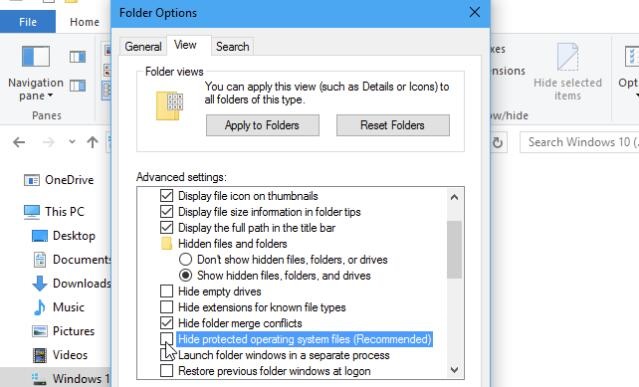
To show hidden files in Windows 10, you can go to the Control Panel, click on "Appearance and Personalization," then click on "File Explorer Options," and finally, under the "View" tab, select the option to show hidden files. This will allow you to view and access the system files that are normally hidden.
- To access the Windows System, start by clicking the Start button located at the bottom left of your screen. Next, click on the "Windows System" option.
- Find "Control Panel", and then select "File Explorer". Click "View".
- To view hidden files, folders, and drives, scroll down and check the box next to "Show hidden files, folders, and drives", and then uncheck the box next to "Hide protected operating system files (Recommended)".
Method #3. View hidden files in Windows 10 via File Explorer
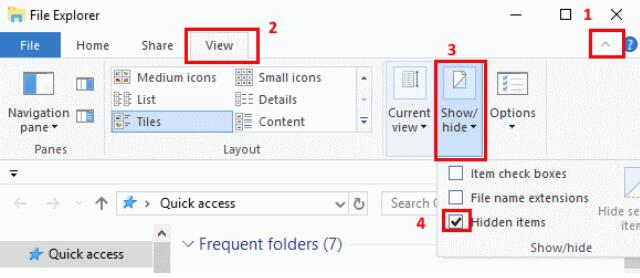
- Click the "Start" button at the bottom left, and find "File Explorer".
- Select the "View" tab and check the "Hidden items" checkbox to show hidden items.
Method #4. Show hidden files in Windows 10 via the command line
If you're familiar with computer techniques, you can also use the command line to show hidden files in Windows 10. To do this, follow these steps:
- Press the "Windows" key and the "R" key simultaneously to open the Run dialogue box.
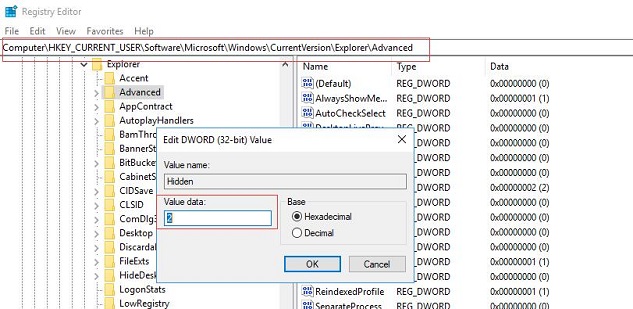
- To access the Windows Explorer settings in the Registry Editor, type "regedit" and press Enter. Then, navigate to HKEY_CURRENT_USER > Software > Microsoft > Windows > CurrentVersion > Explorer > Advanced.
- To show hidden files and operating system files, set the value for "Hidden" to "1" and the value for "ShowSuperHidden" to "1" in the registry.
Related Articles
- How to Recover Deleted and Unsaved Notepad Text Files in Windows 7/10
- Restore Deleted Files on C Drive in Windows 10/11/8/7
- How to Recover Deleted Hidden Files in Windows 10
- How to Recover Corrupted Files in Windows 10/11
- How to Recover Deleted Files from SD Card in Windows 10
- How to Recover Files Lost after Cut and Paste in Windows 11/10
- How to Recover Data from Dynamic Disk
Recovering data from a dynamic disk is a straightforward process with Deep Data Recovery. Simply target the desired file types and location, then scan the dynamic drive. Once the scan is complete, you can preview and restore deleted files, making it easy to retrieve your data.
Products
Articles & Tutorials
- Data Recovery
- Data Backup
- File Recovery
- File Backup
- File synchronize
- System Backup and Restore
- Disk and Partition Clone
- Technical articles
- Disk Master Help
- Windows Deleted File and Disk Recovery Tutorials
- Windows File and Data Recovery Tutorials
- More Windows Tutorials for Install, Security, Files, and PC Tips
- Windows Boot, Repair, and Recovery Environment Tutorials
- Windows Backup Tutorials
- Windows Restore Tutorials
- Windows Clone and Migration Tutorials
- Windows Server Backup, Recovery, and Management Tutorials
- Windows Disk, Partition, and Storage Management Tutorials