How to Recover Files from Formatted Hard Drive in Windows 11
Quick Navigation:
- Method 1: Restore files from Formatted Hard Drive in Windows 11 with software
- Method 2. Unformat Hard Drive in Windows 11 by Perform System Restore
- Method 3. Recover files from formatted hard drive on Windows 11 using File History
- Method 4: How to Recover Data from Formatted Hard Disk in Windows 11 Using CMD
- FAQ:
- Is it possible to recover deleted files from a formatted hard drive?
- Can I recover a file that has been lost for more than a month?
- How can I recover my lost data from my hard drive?
- Is it possible to retrieve all the lost files from a formatted hard drive?
Don't panic if you've formatted a hard drive in Windows 11 and lost your files! There are viable solutions to recover data from a formatted hard drive on your Windows 11 PC. In this article, we'll provide a step-by-step guide on how to retrieve your lost files and unformat your hard disk. Let's get started!
If the same formatted-drive issue happens on Windows 10, this Windows 10 formatted hard drive recovery guide gives related steps.
Method 1: Restore files from Formatted Hard Drive in Windows 11 with software
If you somehow have a formatted hard disk and want to get back the erased files, you can do it using Windows 11 unformatted hard drive software like Deep Data Recovery. It's a professional recovery tool and can help you find more than a thousand file formats (videos, pictures, audio files, documents, emails).
You can retrieve files from external hard drive local HDD/SSD, USB flash drive, memory card, digital camera, etc., using this tool. The format recovery software is not only compatible with Windows 11 but also with other older Windows versions.
Here are the steps of how you can recover files from formatted hard disk in Windows 11 with the unformatted software:
- Download the formatted disk recovery software in Windows 11
- Select the hard drive to scan
- Preview the found files one by one
- Recover data from formatted hard disk in Windows 11
To get started with recovering your files from the formatted hard disk, click the Download button to get the trial version of the file recovery software installed on your computer. This software is fully compatible with Windows 11 and is designed to help you recover your files efficiently.
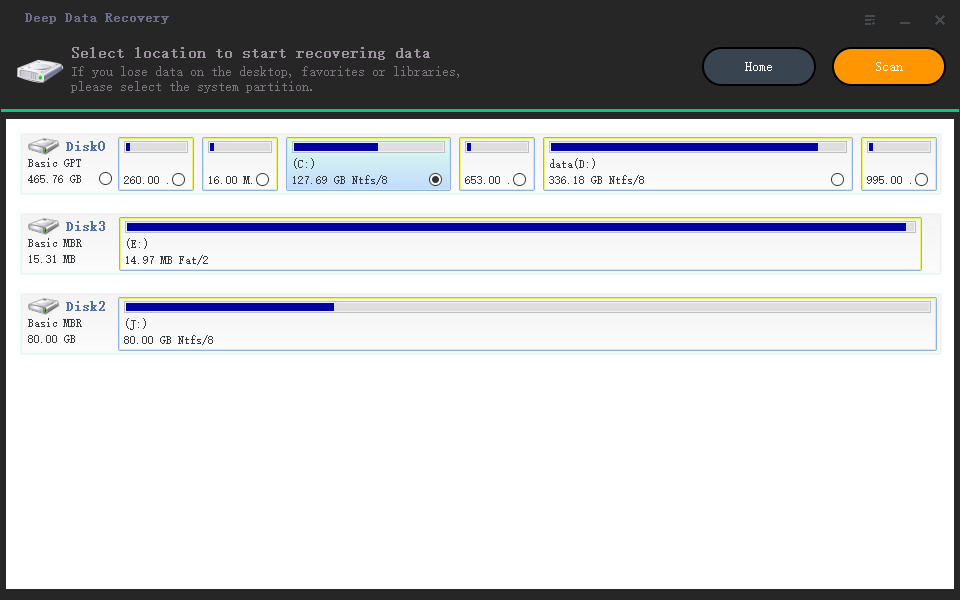
To begin the file recovery process, you need to select the formatted hard drive from the list of available drives in the software. Once you've chosen the correct drive, click the "Scan" button to initiate the scanning process. This will allow the software to start searching for the erased data on the formatted hard drive.
After the scanning process is complete, the software will display a window with a directory (left panel) and a file information panel (right panel). In the left panel, you can navigate through the directory structure to find the location of the recoverable files. The right panel will display the details of each file, including its name, size, and type.
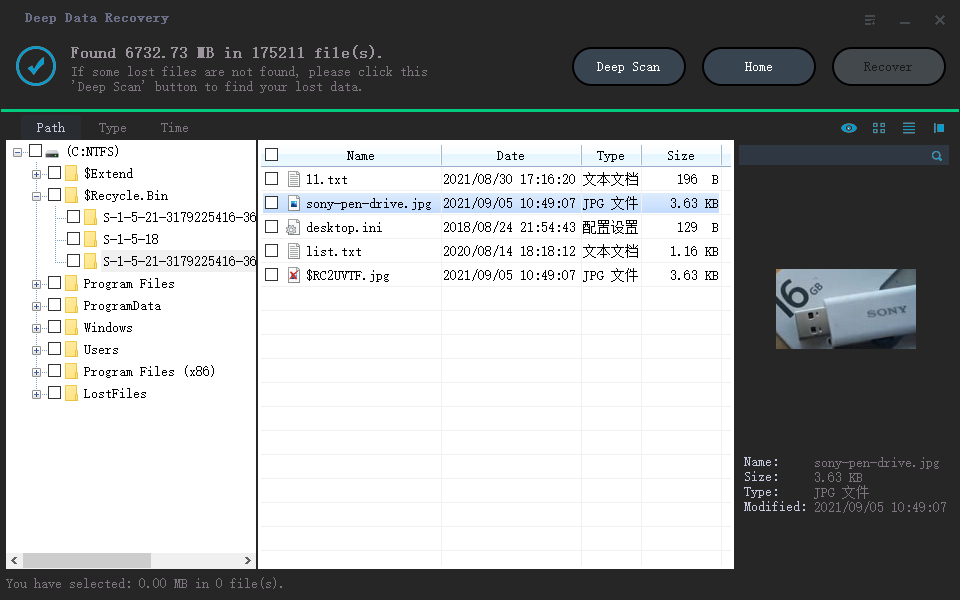
To recover the files, locate the desired files in the directory and select them. Once you've selected the files you want to recover, click the "Recover" button. The software will then save the selected files to a safe location on your computer. Make sure to choose a location that is not on the same hard drive as the original files to avoid any further data loss.
Method 2. Unformat Hard Drive in Windows 11 by Perform System Restore
To use System Restore, follow these steps:
- Open your Windows 11 and press two keys together (Windows + R). You can click on the Windows menu and go to the run search bar.
- In the "search bar", type "rstrui.exe" and hit enter. It will lead you to the system restore window.
- Choose a restore point from where you want to start restoring and then click on the "Next".
- Then hit the scan button to look for deleted files.
- The system will look at whether the drive is safe or not, and then you can simply click on the next.
- Once the system restore process is complete, you can save any formatted files on your hard drive or transfer them to an external disk. This will ensure that you have a backup of your important files and can recover them if needed.
Method 3. Recover files from formatted hard drive on Windows 11 using File History
To prevent the loss of important files, it's essential to create a backup of your files. This way, you can recover them even if you've formatted your hard drive. You can use the Windows Backup feature to create a backup of your files, which will allow you to restore them if needed.
Here is how you can do it:
- Open the "control panel" on your Windows 11.
- Choose Update & Security.
- From there, click on the "Restore your files with File History" option below the "File History".
- Select the files you want to get from the current backup.
- Once you have selected the files you want to retrieve from the current backup, click on the "Restore" button to begin the restoration process. The files will be saved to their original location, so you can access them as needed.
- In addition to restoring your files to their original location, you can also choose to save them in a different location or transfer them to an external disk. This can be a useful option if you want to keep a copy of your files in a separate place, or if you need to free up space on your computer.
Method 4: How to Recover Data from Formatted Hard Disk in Windows 11 Using CMD
This last option is a bit tricky one but one of the most effective ways to recover deleted files from hard drive. Using prompt commands, you can easily restore a formatted hard disk in Windows 11.
Let's take a look at the instructions:
- Open your laptop and then click on the Windows menu.
- Go to the search bar and type Command Prompt.
- Once the application shows up, double click on it or right-click > Run As Administrator.
- Command prompt window will open up, there you need to write (chkdsk C: /f) and then hit enter.
- The system will automatically check for the deleted files.
- To save your files after recovering a formatted hard disk, you can use the `ATTRIB` command in the Command Prompt as an administrator. Here's how to do it:
- That's it. Close the command window and enjoy using your deleted files.
You can recover a formatted hard disk by running the `chkdsk` command in the Command Prompt as an administrator. Here's how to do it:
Recover permanently deleted files in Windows 11 can be very problematic. It's better to have a backup of your files. Sometimes a hard disk gets broken, and then you have to format it or replace it. But before you do that, make sure to keep a backup of all your files. You can also move your files to another hard drive or an SD card.
FAQ:
Is it possible to recover deleted files from a formatted hard drive?
A: Yes! You can easily get your lost photos, video, and other files from a formatted hard drive with the above-mentioned ways. However, the best option should be using Deep Data Recovery to restore data from a formatted hard drive in Windows 11.
- Download and install the data recovery software for Windows 11.
- To recover specific file types from a formatted hard drive, follow these steps:
- Select the formatted hard drive and click "Scan" to let the software scan for recoverable files.
- Select needed files and click "Recover" to save them on your computer.
Can I recover a file that has been lost for more than a month?
The sooner you initiate the data recovery process, the higher the chances of successfully recovering your lost files. When you delete files, they don't disappear immediately. The deleted files are still present on the hard drive until they're overwritten by new data.
How can I recover my lost data from my hard drive?
If you're using Windows 11, you can easily recover your lost files using the Windows 11 unformat hard drive software - Deep Data Recovery. This software is designed to recover lost files from formatted hard drives, deleted files, and corrupted hard drives.
Is it possible to retrieve all the lost files from a formatted hard drive?
The answer to that is yes and no. When you're trying to recover deleted data, all the data has to be present in your hard drive somewhere to recover it. However, full recovery depends on the file's size and the time of its deletion. If you're unable to undelete your lost data, chances are they've been overwritten by other files already.
Related Articles
- How to Recover Corrupted Files in Windows 10/11
- How to Corrupt a PDF File so That It Can't Be Opened (Step-by-Step Guide)
Learn how to Recover Corrupted Files in Windows 10/11 How to Corrupt a PDF File so That It Can't Be Opened (Step-by-Step Guide) with clear steps, key checks, and practical tips. - [Unsaved & Deleted] How to Make Photoshop File Recovery
When you accidentally closed Photoshop file without saving, or when you lost Photoshop file due to program crash, you can learn to recover unsaved Photoshop file with effective methods in this article. - [Solved] IDM File Has Been Moved
This guide explains IDM File Has Been Moved with clear steps, key checks, and practical tips. - [Solved] Norton Internet Security Deleted My File - Recover Files Deleted by Norton
If Norton deletes your files, you can recover them from the Quarantine folder or use Deep Data Recovery to retrieve the deleted files. The Quarantine folder is where Norton stores removed files, allowing you to restore them if needed. - How to Recover LOST.DIR Files from Android SD Card/Memory Card
If you're looking to recover LOST.DIR files on your Android SD card or memory card, you're in the right place. Recovering these files is a relatively simple process that can be completed in just a few steps. To get started, you can follow these three easy steps to retrieve your lost files.
Products
Articles & Tutorials
- Data Recovery
- Data Backup
- File Recovery
- File Backup
- File synchronize
- System Backup and Restore
- Disk and Partition Clone
- Technical articles
- Disk Master Help
- Windows Deleted File and Disk Recovery Tutorials
- Windows File and Data Recovery Tutorials
- More Windows Tutorials for Install, Security, Files, and PC Tips
- Windows Boot, Repair, and Recovery Environment Tutorials
- Windows Backup Tutorials
- Windows Restore Tutorials
- Windows Clone and Migration Tutorials
- Windows Server Backup, Recovery, and Management Tutorials
- Windows Disk, Partition, and Storage Management Tutorials