How to Recover Overwritten or Replaced Photos, Excel, Word files
Quick Navigation:
- Any Possibility to Recover Overwritten or Replaced Files?
- Your Safe & Effective Overwritten File Recovery Software
- Steps for How to Retrieve Overwritten Flies.
I recently experienced an issue where I edited an Excel file and accidentally replaced the old version with the new one, only to realize later that some data from the old version wasn't transferred to the new one. The problem is that the old version is now gone, and I'm struggling to recover the overwritten file on my Windows system.
If the overwritten file is a Word document, this saved-over Word document recovery guide gives a focused recovery path.
My wife accidentally overwrote photos on the computer by saving them with the same file name as existing ones on the SD card, resulting in the new photos replacing the original ones on the computer.
Losing files due to accidental deletion or overwriting can be a disaster, but knowing how to recover replaced or overwritten files can be a lifesaver.
Any Possibility to Recover Overwritten or Replaced Files?
For many users, overwritten file recovery is confusing because the original file is no longer visible. Checking the "Previous Version" tab may help in some cases, but it does not always work. Once a file is overwritten, stop saving new data to the same hard drive, SD card, USB drive, or other storage device. The original data may still be recoverable with tools like Deep Data Recovery, but new files can overwrite it again and reduce the recovery chance. The following method explains how to scan the drive and recover overwritten files safely.
Your Safe & Effective Overwritten File Recovery Software
- It enables recovery of overwritten, replaced, or corrupted files, including Word documents, photos, PowerPoint presentations, Excel spreadsheets, PDFs, videos, and audio files.
- A data recovery tool can recover overwritten data from various storage devices, including hard disks, SSDs, USB drives, memory cards, external hard drives, and more.
- Faster and more reliable file recovery is now available under Windows 11/10/7/8/XP/Vista and Mac OS X 10.6 and later.
Steps for How to Retrieve Overwritten Flies.
1. To recover files from an external hard drive, a non-tech user should first connect the external storage device to their computer and then launch a professional overwritten file recovery tool. This tool is necessary as manual recovery without software is not feasible for a non-tech user. By running the software on the computer, it can help recover the files from the external hard drive.
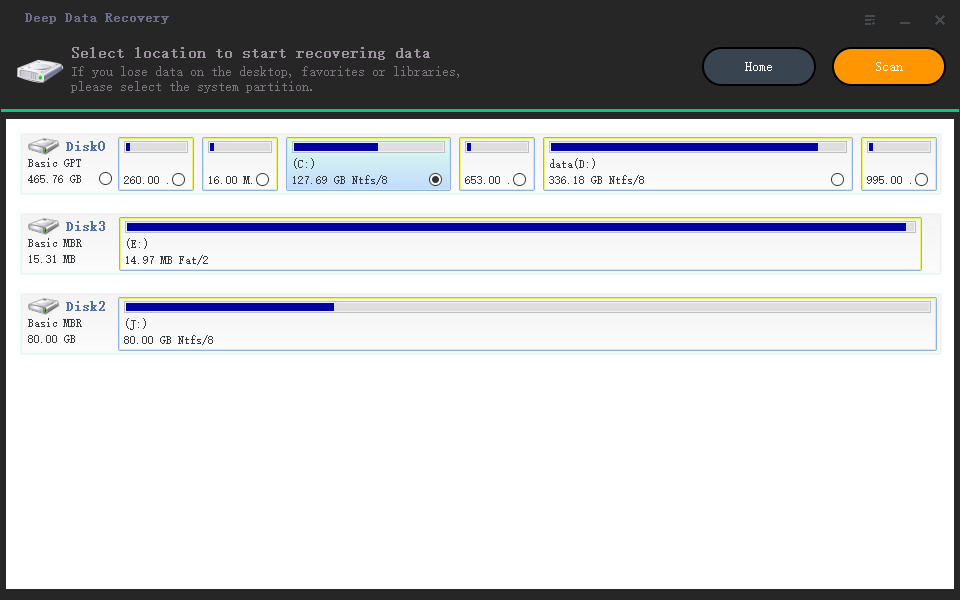
2.Select the location where the original files are overwritten or replaced, then click "Scan" button to start scan and recover overwritten files. It will list all files found.
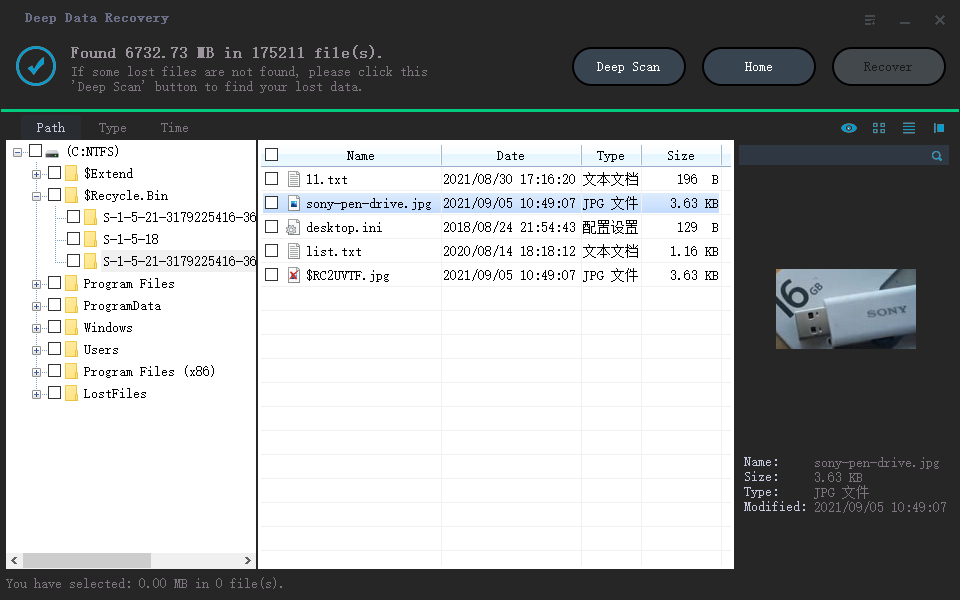
3.When the scan is over, you can choose "path", "type" or "time" to filter the file to find the file you want. When dealing with a large number of files, click the "Search" icon on the right and enter keywords to quickly locate the desired file. Once found, click the "Recover" button to save and recover any overwritten or replaced files.
Related Articles
- Recover Deleted Files from GoPro
- Download NTFS Data Recovery Software with Torrent, Serial Key
This page covers an official path for you to download genuine Qiling NTFS data recovery software with license code. It can replace the cracked NTFS data recovery software torrent and help you fully restore whatever you've lost on storage devices in 3 simple steps. - NTFS File Recovery Freeware | Free Undelete NTFS [Full Guide]
Qiling NTFS undelete freeware supports to undelete NFTS files and recover data lost due to deletion, formatting, partition loss and some other reasons in a safe and easy way. All Windows OS such as Windows 10/8/7 are all supported. - Microsoft Outlook 2016/2013/2010 Not Responding in Windows 10/11 (5 Fixes)
When Outlook not responding in Windows 10, the first thing you should do is restoring the lost Outlook emails. Find effective methods here and you can restore all lost Outlook emails and repair not working Outlook efficiently. - HP Pen Drive Online Recovery - Recover Data from HP Pen Drive
If you're looking for information on HP pen drive data recovery online, this article is a helpful resource. It provides insights into HP pen drive online recovery and recommends the best online recovery tool for HP pen drive, allowing you to recover your lost data efficiently. - iBoysoft Data Recovery and Best Deep Data Recovery Alternative You Must Know
iBoysoft data recovery is a safe option, but it's not free to recover data. It allows for the recovery of up to 1GB files for free, while an alternative option, Qiling Free Data Recovery, offers the recovery of up to 2GB for free.
Products
Articles & Tutorials
- Data Recovery
- Data Backup
- File Recovery
- File Backup
- File synchronize
- System Backup and Restore
- Disk and Partition Clone
- Technical articles
- Disk Master Help
- Windows Deleted File and Disk Recovery Tutorials
- Windows File and Data Recovery Tutorials
- More Windows Tutorials for Install, Security, Files, and PC Tips
- Windows Boot, Repair, and Recovery Environment Tutorials
- Windows Backup Tutorials
- Windows Restore Tutorials
- Windows Clone and Migration Tutorials
- Windows Server Backup, Recovery, and Management Tutorials
- Windows Disk, Partition, and Storage Management Tutorials