How to Recover Temporary Files in Windows 11/10/8/7
Temp files can be recovered, a concern for many users. Whether it's a Word file or Excel sheet, knowing how to recover temp files on your Windows system is crucial. Before diving into recovery, let's briefly discuss what temp files are: they're temporary files created by applications to store data temporarily while working on a document or spreadsheet. These files are usually deleted automatically when the application is closed, but in some cases, they can be recovered, potentially containing unsaved work or other important data. Knowing how to recover temp files can be a lifesaver, especially when working on critical documents.
If the temporary file belongs to Word or Office, this temporary Word file recovery guide gives a more specific example.
Windows uses temporary files with the .tmp extension as a backup feature to recover unsaved or edited content in case of a system malfunction. These files hold the content that was being worked on, allowing for potential recovery of lost data. However, if the temp files are not found on the system, third-party software may be necessary for recovery.
So, here we will make an attempt to restore temporary files in Windows 11/10/8/7 and get your files back as soon as possible.
- Quick Navigation
- Part 1. How to Restore Temp Files in Windows 11/10
- Part 2. How to Recover Temporary Deleted Files on Computer with Software
Part 1. How to Restore Temp Files in Windows 11/10
Temporary files are stored in the Windows Temp folder, but its location can vary across systems and user profiles. These files are deleted when the program is closed, and their contents are often unknown, making it difficult to open them without context.
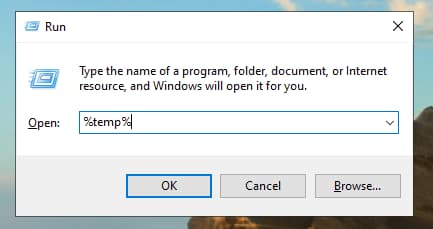
- To open the temp folder on Windows, use Cortana or the Run window to type "%temp%" and press enter. This will open the designated temp folder on your system.
- The default location of the folder is most likely to be C:\Username\AppData\Local\Temp.
- The temp folder contains files accessed recently by various apps, which can be found inside it.
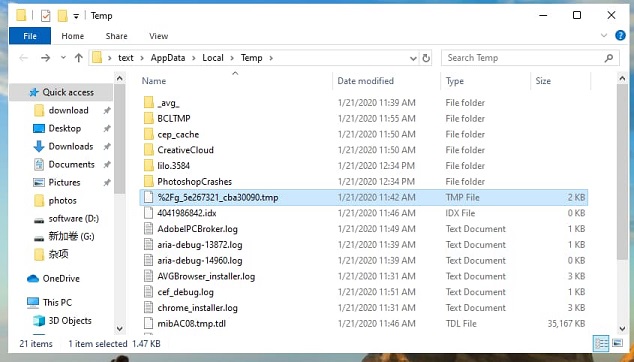
To open a temporary file, start by identifying the file type based on its app icon, and be cautious when handling temp files as they contain raw, unprocessed data. This approach allows for the recovery of temporary files created in various applications, such as Word and PowerPoint, on a Windows PC.
To find the temp files, go to the folder where you normally find temporary files, such as the "Temp" folder in Windows or the "tmp" folder in Linux. Once you locate the file, right-click on it and select the "Open with" option to open it with a suitable program.
To access the information stored in a temp file, you need to specify the app associated with it. Once you've done that, you can convert the temp file to a desired format like Word, Excel, or PDF by renaming it with the corresponding extension (.docx, .xlsx, or .pdf).
The issue with recovering temporary files is that they might not be easily accessible on your system.
How to Recover Temporary Deleted Files on Computer with Software
If you've lost temp files, don't panic! The Deep Data Recovery tool is here to help. It can recover deleted temp files on Windows 10 or any other Windows OS version, regardless of how or when they were lost. This powerful and safe data recovery tool can retrieve a wide range of file types, including images, archives, videos, and documents, with just one click.
Your Safe & Effective Temp File Recovery Software
- Recover deleted, lost and temporary files even without backup.
- Perform a RAW drive recovery in addition to recovering other lost files due to various reasons such as accidental deletion, system crashes, virus attacks, corrupted storage, and unknown issues.
- The software supports a wide range of file formats and devices, requiring minimal setup to use. It can easily recover files from various storage devices, including partitions, hard drives, memory cards, digital cameras, and more.
Step-by-step Guide for How to Recover Deleted/Lost/Temporary Files
To recover deleted files on your computer, follow these simple steps: [insert steps here].
- Run Qiling
- Specify the Location
- Preview & restore temporary files in Windows 11/10/7
Download the software on your system, and it will be ready for recovery right away. Once downloaded, simply launch the program.
On the next screen, you'll see the available space on the drive where the file could be found. To proceed, specify the location and press the Scan button on the top. The recover temp files software will then scan the entire drive space and display the results on the screen.

Once the scan is finished, you can start looking for the files you want. Filter the results according to the file type and format, select the files you want, have a preview, and then hit the "Recover" button.

To delete temp files, you can use the Disk Cleanup tool in Windows. This tool allows you to delete temporary files, system files, and other items that you don't need anymore. You can also use the Task Manager to close any unnecessary programs or background processes that may be using up space on your computer.
Using Deep Data Recovery can be a reliable method for retrieving data, including temporary files. This approach can help recover files without any significant delay or loss of quality.
Related Articles
- Recover Overwritten or Replaced files
- Recover Deleted Sticky Notes
- Recover Chrome Browsing History
- Hard Drive Recovery| Recover Files from a Hard Disk
Learn how to Recover Overwritten or Replaced files Recover Deleted Sticky Notes Recover Chrome Browsing History Hard Drive Recovery| Recover Files from a Hard Disk with clear steps, key checks, and practical tips. - How to Recover Hidden Files from Pen Drive and Open It
If you're having trouble recovering hidden files from a pen drive on your Mac or Windows 11/10/8/7/XP, this guide provides a step-by-step solution to help you open hidden files in your pen drive. - Best Prosoft Data Rescue Alternative Free Download
Prosoft Data Rescue is a powerful tool for recovering lost or deleted data on a computer, but users may be looking for alternative software options.
Products
Articles & Tutorials
- Data Recovery
- Data Backup
- File Recovery
- File Backup
- File synchronize
- System Backup and Restore
- Disk and Partition Clone
- Technical articles
- Disk Master Help
- Windows Deleted File and Disk Recovery Tutorials
- Windows File and Data Recovery Tutorials
- More Windows Tutorials for Install, Security, Files, and PC Tips
- Windows Boot, Repair, and Recovery Environment Tutorials
- Windows Backup Tutorials
- Windows Restore Tutorials
- Windows Clone and Migration Tutorials
- Windows Server Backup, Recovery, and Management Tutorials
- Windows Disk, Partition, and Storage Management Tutorials