Sandisk USB Recovery - Recover Sandisk Cruzer USB/Blade/Pen Drive
Quick Navigation:
- Data loss on SanDisk Cruzer flash drive
- SanDisk Cruzer Data Recovery Tool Free Download to Get Your Lost Files
- Your Effective SanDisk Cruzer Flash Drive Recovery Tool
- Follow Simple Steps to Recover SanDisk USB Drive
- Step 1: Download data recovery software
Unfortunately, formatting a USB drive erases all data on it, including your documents. However, it's possible to recover some data with the right tools and expertise. You can try using data recovery software like Recuva or Deep Data Recovery Wizard, which can scan the drive and try to recover deleted files. Keep in mind that the success of data recovery depends on various factors, such as the type of files, the condition of the drive, and how quickly you act after formatting.
For general USB recovery, see recover deleted files from USB drive before writing new data to the Cruzer drive.
Many SanDisk Cruzer users are looking for solutions to recover lost files from their USB flash drive. Fortunately, there are several methods that can help recover data from a SanDisk Cruzer on both Mac and Windows PCs. If you're looking for a SanDisk Cruzer data recovery solution, you're in the right place. We'll show you an easy and safe way to use a Sandisk Cruzer USB flash drive recovery tool to get your lost data back from your SanDisk Cruzer flash drive.
Data loss on SanDisk Cruzer flash drive
Data loss on SanDisk USB drives can occur due to various reasons such as physical damage, software corruption, or human error, leading to the loss of valuable files and data.
- If you've lost files on a SanDisk Cruzer flash drive, pen drive, or other drives due to accidental deletion, you can try using data recovery software to scan the drive and retrieve the deleted files. One option is to use the built-in SanDisk recovery software, which can be downloaded from the SanDisk website.
- Format the SanDisk Cruzer USB flash drive by mistake.
- The SanDisk Cruzer flash drive is not being recognized by your computer. This could be due to a variety of reasons such as a faulty connection, a corrupted driver, or an issue with the flash drive itself.
- You can't open the SanDisk Cruzer and more drives on your computer.
- The SanDisk Cruzer blade is erased by third-party software.
The data on a SanDisk Cruzer flash drive is not deleted or formatted, but rather hidden, with the disk space still available for new data. This means that as long as the new data doesn't completely overwrite the lost data, it's possible to recover the lost data using a SanDisk USB recovery or SanDisk Cruzer blade recovery tool.
There are many SanDisk flash drive recovery programs that can help recover lost data from SanDisk Cruzer flash drives or pend drives due to deletion, format, data erasure, virus infection, file system crash, etc.
SanDisk Cruzer Data Recovery Tool Free Download to Get Your Lost Files
Deep Data Recovery is a tool that can help recover deleted, formatted, or lost data from SanDisk Cruzer USB flash drives, pen drives, and other storage devices, solving all SanDisk Cruzer data loss problems. This powerful software can even recover data from an inaccessible or crashed SanDisk Cruzer flash drive. To recover your SanDisk USB drive, simply download and install the software on your computer.
Your Effective SanDisk Cruzer Flash Drive Recovery Tool
- SanDisk recovery software provides a standalone solution for Mac or Windows, featuring a clean interface that makes it easy to recover deleted, formatted, or lost data from SanDisk Cruzer USB flash drives.
- Support to recover all types of files, including photos, videos, emails, audio, archives, documents, folders and more.
- It can also perform SanDisk Extreme PRO recovery or other SanDisk drives file retrieval, such as SanDisk SD card, SSD, HDD, pen drive or other USB drives.
After installing the SanDisk Cruzer undelete or unformat flash drive tool on your computer, you'll find it's very easy to use, whether you're a newbie or an IT Pro. You can run it to recover all your data from your SanDisk Cruzer flash drive efficiently.
Follow Simple Steps to Recover SanDisk USB Drive
Step 1: Download data recovery software
Download and launch the SanDisk flash recovery utility on your computer, then connect your SanDisk Cruzer flash drive to the computer.
Step 2: Select the SanDisk Cruzer Flash Drive to Scan
Select the SanDisk Cruzer flash drive and click on the "Scan" button to scan the drive and find lost data.
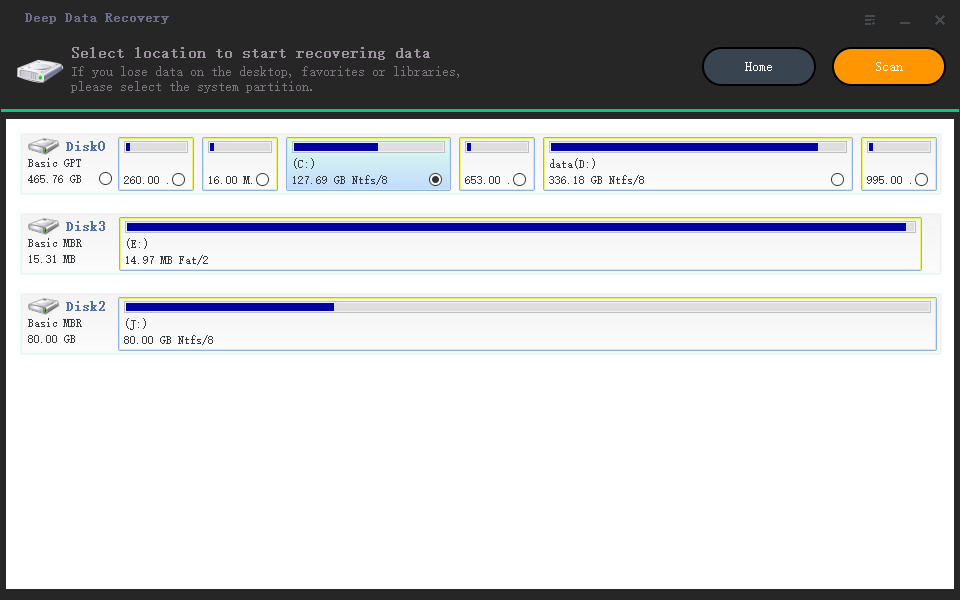
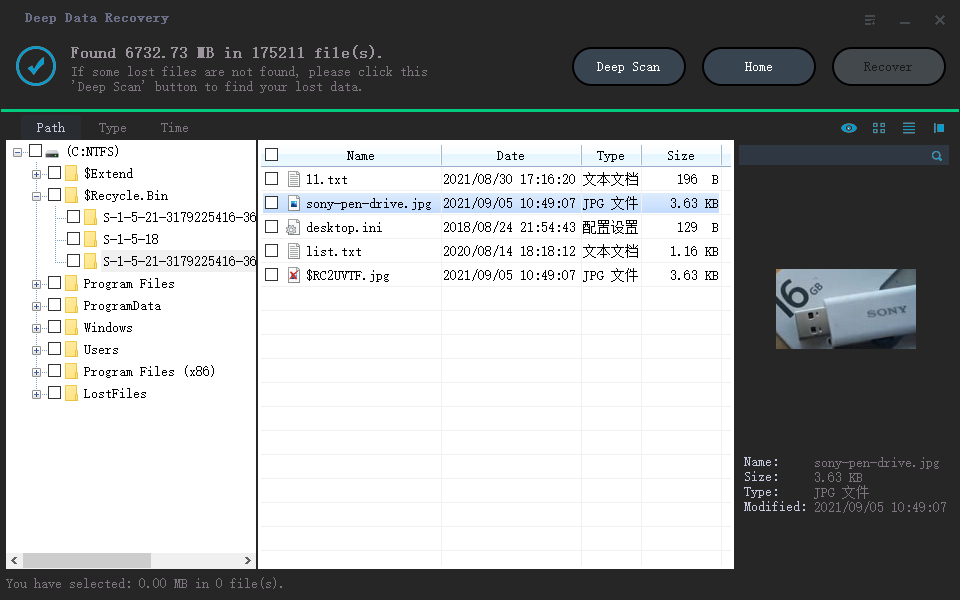
Step 3: Preview and SanDisk Cruzer Data Recovery
After scanning, you can quickly preview and recover the lost files from the SanDisk Cruzer flash drive.
The SanDisk Cruzer flash drive recovery software can quickly scan the drive to find deleted or lost files. If not all files are found, a "Deep Scan" can be initiated to thoroughly search the drive and recover even more lost files.
Related Articles
- Recover Deleted Pictures from SanDisk SD Card/USB Drive
- A Complete Guide to Recover Deleted Files
Learn how to Recover Deleted Pictures from SanDisk SD Card/USB Drive A Complete Guide to Recover Deleted Files with clear steps, key checks, and practical tips. - How to Recover Deleted OneNote Files
This page introduces you how to recover deleted OneNote files via Notebook Recycle Bin or third-party recovery tool when Notebook Recycle Bin is unavailable. - Recover Deleted or Unsaved PowerPoint Files
This page includes two ways - using powerful PowerPoint recovery software or the manual method to help you recover deleted or unsaved PowerPoint files without quality loss. With Qiling Data Recovery, it is a piece of cake to recover deleted PowerPoint files in Windows 11/10/8.1/8/7. - How to Repair and Recover Corrupted Pictures in SD Card
To repair and recover corrupted photos from an SD card, you can use Deep Data Recovery software, which makes the process easy with just three simple steps. - How to Recover CR2 Files from SD Card on Mac/Windows PC
You can recover CR2 files from an SD card on a Mac or Windows PC, even if they're corrupted. To do this, simply scan the card, preview the deleted or lost files, and then restore them using the software. This will allow you to get back your CR2 files, even if the card has been formatted.
Products
Articles & Tutorials
- Data Recovery
- Data Backup
- File Recovery
- File Backup
- File synchronize
- System Backup and Restore
- Disk and Partition Clone
- Technical articles
- Disk Master Help
- Windows Deleted File and Disk Recovery Tutorials
- Windows File and Data Recovery Tutorials
- More Windows Tutorials for Install, Security, Files, and PC Tips
- Windows Boot, Repair, and Recovery Environment Tutorials
- Windows Backup Tutorials
- Windows Restore Tutorials
- Windows Clone and Migration Tutorials
- Windows Server Backup, Recovery, and Management Tutorials
- Windows Disk, Partition, and Storage Management Tutorials