Two Ways to Create New Partition on Hard Drive
Why create new partition?
You may need to partition your hard drive if you want to create a multi-boot machine with different operating systems on separate drives, or if you want to separate your operating system and applications from your data and media files. This allows for better organization and can improve system performance.
If you have a 90GB hard drive, you can allocate space by giving a 30GB partition for Windows and applications, a 10GB partition for data, and saving 50GB for media.
To create a new partition, you can use Windows Disk Management or a third-party partition manager. In Disk Management, shrink an existing partition first to create unallocated space, and then build a new partition from that space. If Disk Management cannot resize or move the partition as needed, a partition manager such as Qiling Partition Master or MiniTool Partition Wizard can provide more flexible options.
1. Create new partition through disk management snap-in
Windows has built-in Disk Management for creating a new partition. Right-click "My Computer", choose "Manage", and open the Computer Management interface. Then choose "Disk Management" and check whether the disk has unallocated space. If it does, right-click the unallocated space and select "New Partition". If there is no unallocated space, use the free Partition Assistant Standard Edition to shrink or extend a drive and make space first.
The New Partition Wizard will ask you to specify the following:
- The Partition Type: A primary partition, extended partition, or logical partition is a type of partition on a hard drive that allows for the division of the drive into separate sections, each of which can be used to store an operating system, data, or other files. The primary partition is the first partition created on a drive and is typically used to store the operating system. The extended partition is a special partition that contains one or more logical partitions, which are additional partitions created within the extended partition.
- Primary partition:A primary partition is a section of a hard drive that can be used to store an operating system and is the only type of partition that can be booted from, allowing the operating system to start from it.
- Extended partition: An extended partition is a section of a Master Boot Record (MBR) that can hold multiple logical drives or partitions.
- Logical partition: After creating an extended partition, you can divide it into multiple logic partitions as needed.
- The Partition Size:The wizard will display the minimum and maximum size for your choice, and you can specify a proper size for the new partition.
- The Drive Letter: You can choose any unused letter like F:, G:, or H: for the new partition, but the wizard will automatically assign a default drive letter if you don't. If you select the option to not assign a drive letter or path, Windows will assign a letter later.
- Format Partition: To format a new partition, you'll need to choose a file system type, such as NTFS or FAT32, and then format the partition with that file system. NTFS offers better security features and recovery capabilities, but FAT32 is simpler and can be read by many operating systems. If you choose NTFS and later want to convert it back to FAT32, that's also possible.
Please following the wizard hint, you could create new partition step by step.
2. Create new partition with the free Partition Assistant Standard Edition
Qiling Disk Master Standard Edition is a completely free software that simplifies managing disk partitions. It offers an easier and more effortless way to handle disk partitions, starting with a clean slate.
To create a new partition in Partition Assistant, open the software and view the detailed information of your disk. If there is unallocated space, choose it and right-click, then select the "Create Partition" option from the menu to easily create a new partition.
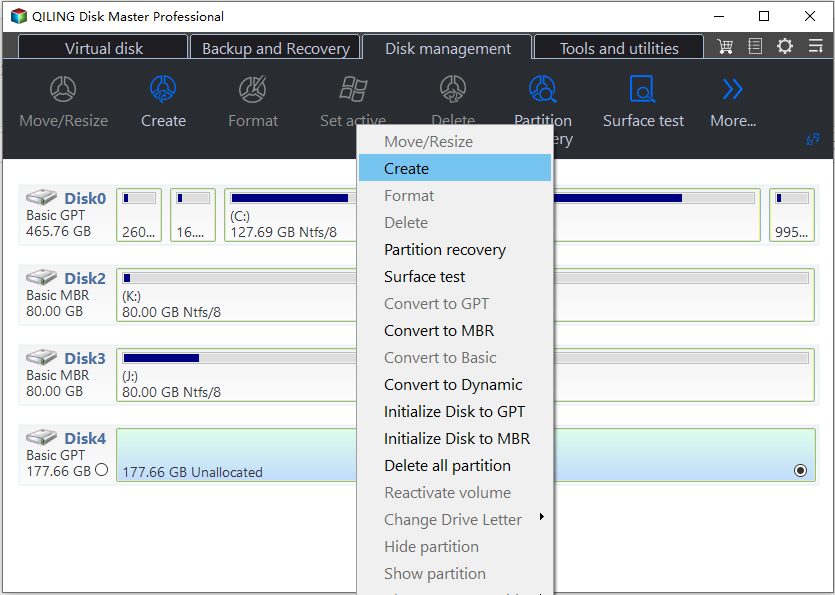
The partition assistant will guide you to set up the partition size, drive letter, and file system. You can customize these settings as needed, and then click "Proceed" to apply the changes.
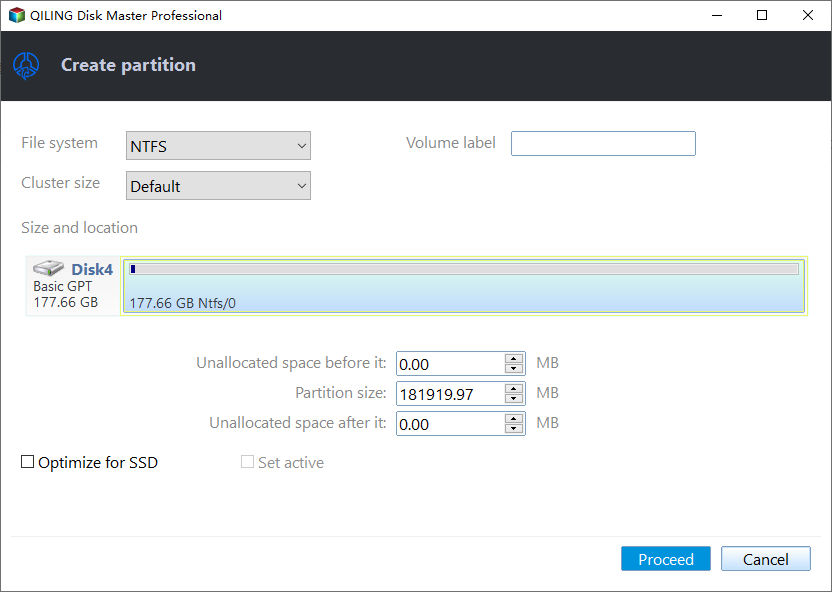
Creating a new partition with Partition Assistant or Qiling Partition Manager is straightforward. Windows Disk Management has limits, such as creating FAT32 partitions only up to 32GB, while a partition manager can support larger partitions and more flexible operations. Partition Assistant also provides resizing and repartitioning features and supports Windows XP/2000/Vista/7/8 and Server 2003/2008. The free edition supports 32-bit and 64-bit non-server Windows systems.
Download Partition Assistant Standard Edition (FREEWARE)
Related Articles
- Windows Server 2008 (R2) Closes to End of Life| What Can You Do?
Microsoft announces Windows Server 2008 (R2) end of life date once again, your computer are more vulnerable to security risk. What to do to protect your server, get it now! - How to Install Windows 11 Without Secure Boot and TPM
This is a tutorial on how to install Windows 11 without Secure Boot and TPM. In this article, you can learn to bypass Secure Boot and TPM to install Windows 11 on your computer with the help of Qiling Disk Master. - The Best Powerful Backup4all Alternative in Windows 7/8/10
This guide explains The Best Powerful Backup4all Alternative in Windows 7/8/10 with clear steps, key checks, and practical tips. - Fix Cloned Hard Drive Won't Boot in Windows 7 Easily (5 Ways)
If you encounter the problem cloned hard drive won't boot in Windows 7, you can read this article to know the specific reasons and solutions. - Free Backup Software to Backup External Hard Drive
Learn how to automatically backup Seagate, Samsung, Western Digital etc. external/portable hard drive using best free backup utility Qiling Disk Master in Windows 7/8/10/11. - Solved: External Hard Drive Shown as “Unknown device”
This guide explains Solved: External Hard Drive Shown as “Unknown device” with clear steps, key checks, and practical tips.
Products
Articles & Tutorials
- Data Recovery
- Data Backup
- File Recovery
- File Backup
- File synchronize
- System Backup and Restore
- Disk and Partition Clone
- Technical articles
- Disk Master Help
- Windows Deleted File and Disk Recovery Tutorials
- Windows File and Data Recovery Tutorials
- More Windows Tutorials for Install, Security, Files, and PC Tips
- Windows Boot, Repair, and Recovery Environment Tutorials
- Windows Backup Tutorials
- Windows Restore Tutorials
- Windows Clone and Migration Tutorials
- Windows Server Backup, Recovery, and Management Tutorials
- Windows Disk, Partition, and Storage Management Tutorials