Free Format Hard Drive Partition with Qiling Disk Master
Why do you need to format hard drive partition?
You need to format a hard drive partition for various reasons, such as reinstalling an operating system, deleting files and data, or preparing the drive for use with a different operating system. To format a hard drive partition, you can use built-in tools like the Disk Management tool in Windows or the Disk Utility tool in macOS.
- 1. Install a new disk/partition a hard drive: When you add a new hard drive, Disk Management displays it as "unallocated" space, which File Explorer cannot access until it is initialized, partitioned, and formatted. This process checks the drive for errors and prepares it for use, and can also involve creating partitions for large drives to protect system files and manage data better.
- 2. Fix "file system is RAW" issue: If the file system becomes corrupted or unrecognized, it shows as RAW; you must recover data first, then convert RAW to a compatible file system by formatting.
- 3. Erase data: Formatting a hard disk partition can be a good idea for users who want to clean up their storage medium, but it won't completely remove everything. Advanced techniques can help recover lost data, and wiping a hard drive without deleting Windows can be a good option for selling a disk or computer.
If you want to free format a partition, you can download Qiling Disk Master and follow the easy steps in the next part.
The Best Windows Disk Partition Manager and PC Optimizer
How to format hard disk partitions with Qiling software
Before formatting a hard drive, it's a good idea to backup any important data on it, as everything will be erased during the process. Take some time to think about what you need to keep and copy or archive it, or consider using a backup software to ensure your data is safe. This way, you can avoid losing any valuable files or information.
Format hard drive
To format a hard drive, download the Qiling Disk Master software and open it. Choose the partition you want to format from the main interface and click "Format". In the dialog, enter the partition label and select the desired file system, such as FAT32 or NTFS. Qiling Disk Master will automatically determine the cluster size based on the selected file system and partition size, and the default option is recommended.
Attentions:
1. Before formatting an existing drive, make sure to copy any necessary files or information to a safe place, as formatting will completely erase all data on the drive.
2. To save files larger than 4GB on a partition, use NTFS formatting due to FAT32's 4GB file size limitation. You can also convert FAT32 to NTFS without losing data if needed.
3. Qiling Disk Master is a free partition manager that offers a range of functions, including formatting hard drives, wiping partitions, creating partitions, deleting partitions, and more. With its comprehensive toolset, it can efficiently solve various partition-related issues, making it a reliable solution for users. The Pro Edition, in particular, excels at resizing, creating, and formatting partitions, and supports Windows 11/10/8.1/8/7 32 and 64-bit operating systems. Pro Edition does well on resizing, creating, formatting partitions, and so on for Windows 11/10/8.
To access the Disk Management console, go to Start, type "diskmgmt.msc," and press Enter.
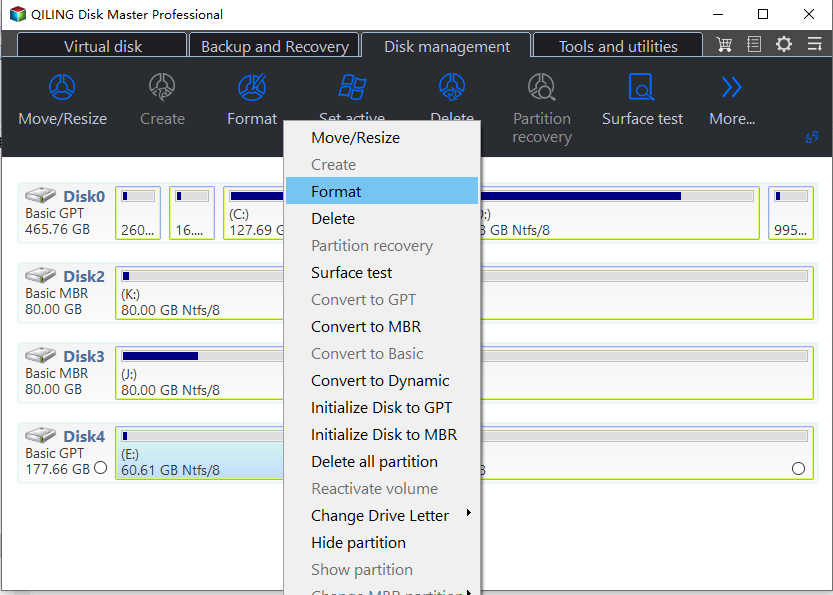
After clicking the Format button, a view will appear. If there are multiple partitions on your disk, and you only want to format one, you can click the targeted partition and choose the "Format Partition" option.
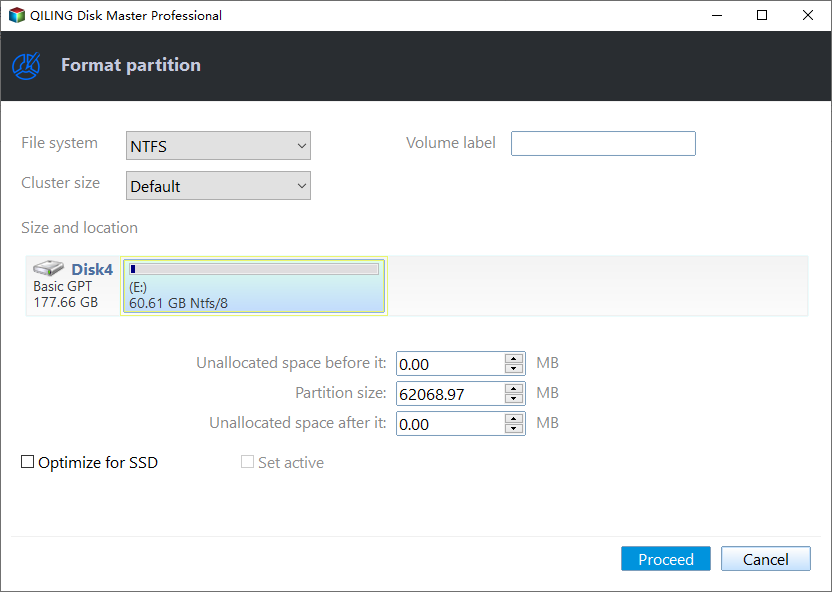
To create a partition, you'll need to input the partition label and choose the file system (NTFS or FAT32). It's recommended to use the default cluster size, as sizes that are too small or too big can have drawbacks.
- ★Tips:
- Server partition magic tool helps manage disks/partitions on Windows Server, providing features like partition resizing, merging, splitting, and deleting, as well as disk cloning and wiping. This tool is essential for server administrators to optimize storage space, improve performance, and ensure data integrity.
- To add unallocated space to the system partition in Windows 7, 8, 10, or 11, you can use the built-in Disk Management tool. First, open Disk Management by pressing the Windows key + R, typing "diskmgmt".
- Enterprise users can enjoy unlimited usage of Qiling Disk Master on unlimited computers within one company, saving money.
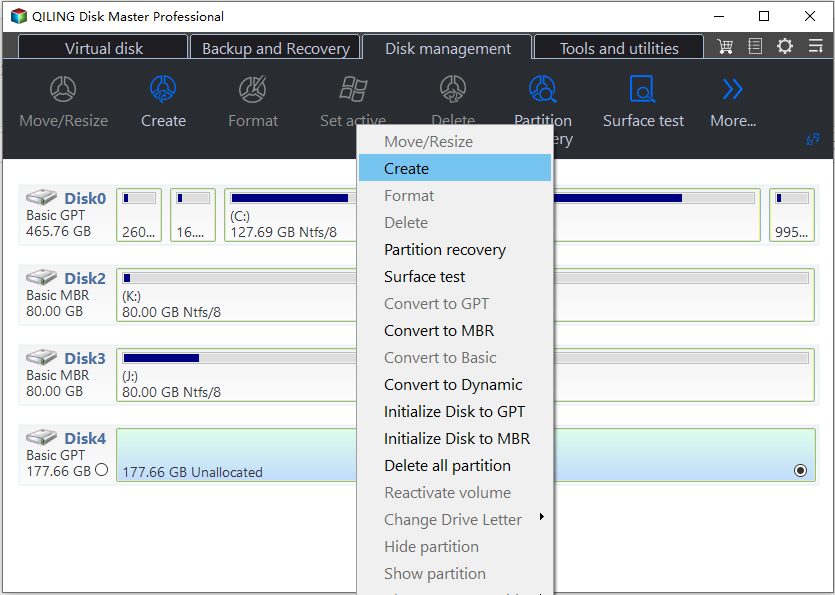
You can create a partition on your HDD without using Disk Management by running the Create Partition tool provided by Qiling Disk Master.
Conclusion
Qiling Disk Master offers a safe and effective way to format hard drive partitions, whether it's for creating, cloning, splitting, or recovering lost partitions. If you're facing issues with your C drive being full while other drives are empty, the tool's features such as App Mover, Allocate Free Space, and Merge Partitions can help resolve the problem.
Related Articles
- How to Perform High Level Format on Hard Drives for Windows 10, 8, 7?
High level formatting is a process of initializing portions of hard disk and recreate the file system on the disk. - SD Card Benchmark App 2024 Updated Recommend [Detailed Guide]
This guide explains SD Card Benchmark App 2024 Updated Recommend with clear steps, key checks, and practical tips. - Seagate Hard Drive Repair Tool Free [Fix Seagate Errors Quick & Easy]
If you're searching for a Seagate hard drive repair tool, this article explains the solution. You'll learn everything you need to know about Seagate hard drive repair tools and can even download a Seagate hard drive repair tool for free. - What Is the Easiest Way to Shred Files in Windows 10?
This guide explains What Is the Easiest Way to Shred Files in Windows 10 with clear steps, key checks, and practical tips. - 2 Ways to Partition C Drive in Windows 7 Without Formatting
If you want to partition the C drive on your Windows 7 PC without formatting but don't know how then you should read this article. We show you two easy ways to do that. Read on for details. - Top 3 Best Partition Resizer Portable Review: Pros and Cons
If you're looking for the best portable partition resizer, you've come to the right place. This article introduces three portable resize tools and compares them from multiple aspects, providing you with a comprehensive guide to make an informed decision.
Products
Articles & Tutorials
- Data Recovery
- Data Backup
- File Recovery
- File Backup
- File synchronize
- System Backup and Restore
- Disk and Partition Clone
- Technical articles
- Disk Master Help
- Windows Deleted File and Disk Recovery Tutorials
- Windows File and Data Recovery Tutorials
- More Windows Tutorials for Install, Security, Files, and PC Tips
- Windows Boot, Repair, and Recovery Environment Tutorials
- Windows Backup Tutorials
- Windows Restore Tutorials
- Windows Clone and Migration Tutorials
- Windows Server Backup, Recovery, and Management Tutorials
- Windows Disk, Partition, and Storage Management Tutorials