How to Defragment or Optimize a Drive in Windows Server 2022
Defragmentation can help a fragmented spinning hard disk, but it is not a universal speed fix. SSDs, virtual disks, RAID volumes, and thin-provisioned storage may require different optimization or maintenance. Check the storage type and vendor guidance before starting a server-wide job.
Prepare a maintenance window
Step 1. In Disk Management or the storage console, note the target volume's letter, label, capacity, and underlying disk. Check whether that disk is a local HDD, SSD, virtual disk, or SAN LUN; the drive letter alone does not reveal the physical media. For shared, tiered, or deduplicated storage, follow the storage provider's maintenance guidance before running an optimization.
Step 2. Check disk health, available capacity, and the most recent backup. A conventional HDD defragmentation needs working space; aim for at least 15% free space for a full pass. Choose a quiet maintenance window, note the slow workload or latency you want to improve, and pause other heavy disk jobs. Do not use defragmentation to troubleshoot a failing drive.
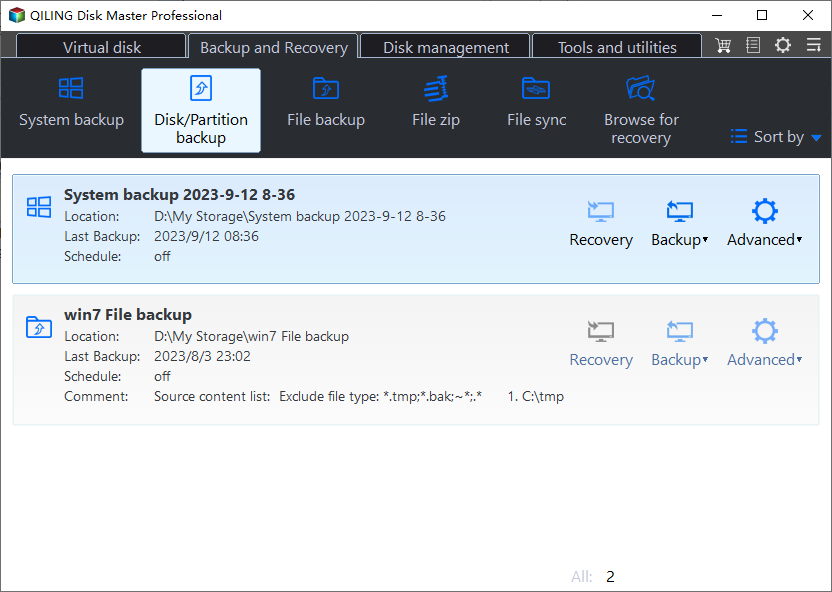
Step 3. If the backup is outdated, connect storage with enough free space for a new image. In Qiling Disk Master Server, open Backup and Recovery and choose Disk/Partition backup. The illustrated entry opens the backup workflow.
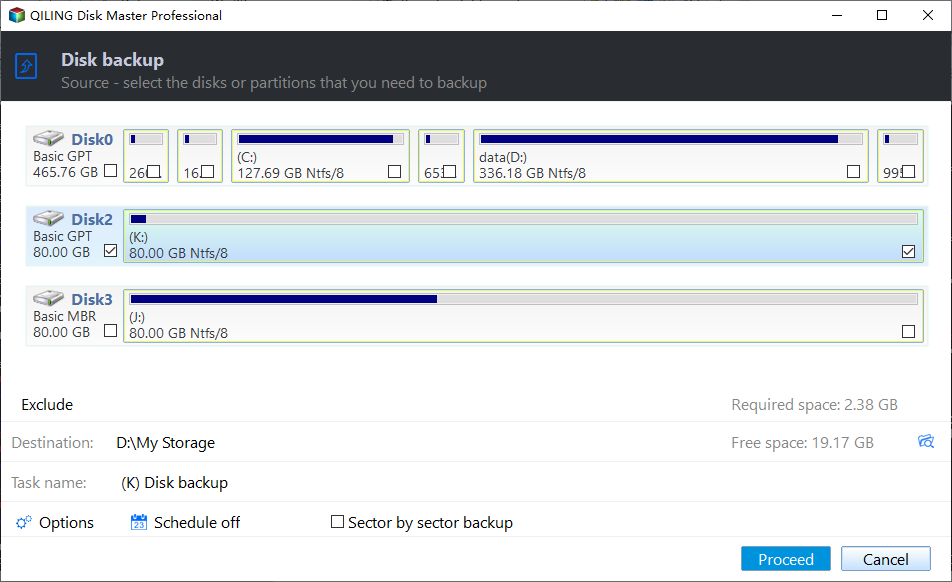
Step 4. In the disk backup screen, select the physical disk that contains the target volume. Compare its capacity and partition layout with the disk identified in Step 1; do not select a disk merely because it has a similar drive letter.
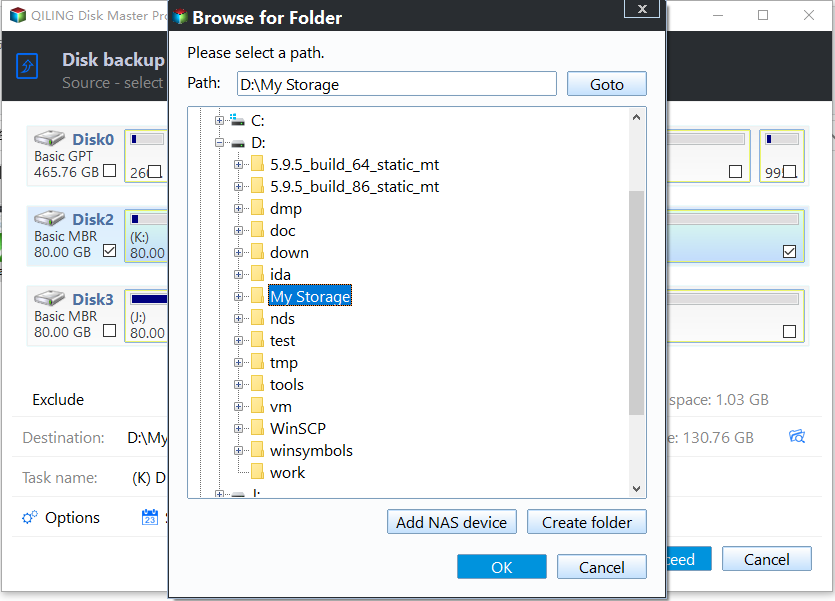
Step 5. Open the Destination selector and choose a folder on separate storage, not on the disk being backed up. Confirm the folder selection and check that the displayed free space is sufficient.
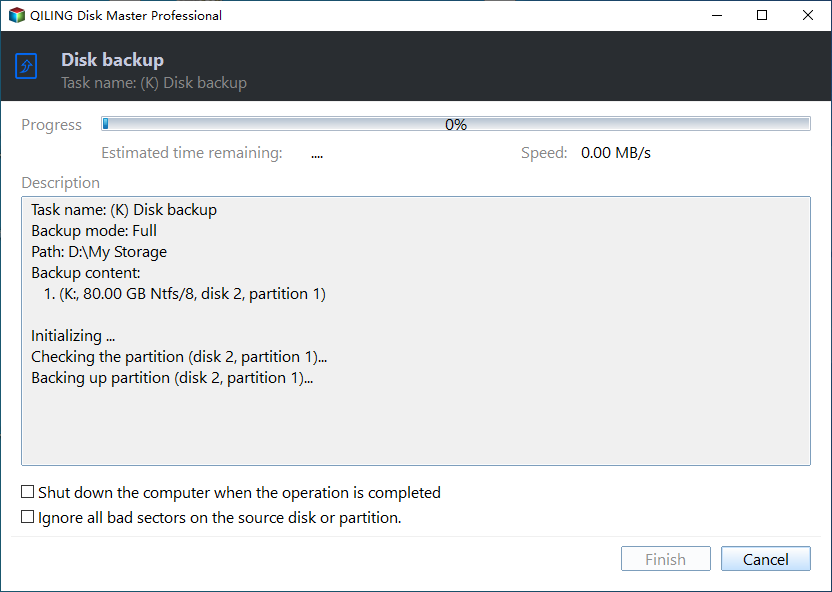
Step 6. Review the source disk and destination, click Proceed, and wait for the backup to finish. Confirm that the backup appears in the recovery view and, where practical, test restoring a file or image to separate test storage before maintenance.
Analyze in the graphical tool
Step 1. On a Server 2022 installation with Desktop Experience, press Win + R, type dfrgui, and press Enter to open Optimize Drives. If the server has no graphical desktop, use the command-line method below instead.
Step 2. Select only the row matching the volume letter recorded earlier. Read its Media type, Last run, and Current status, and compare the media type with the underlying storage information from the preparation step. The example image shows where these fields and controls appear; its sample drive letters are not instructions for your server.
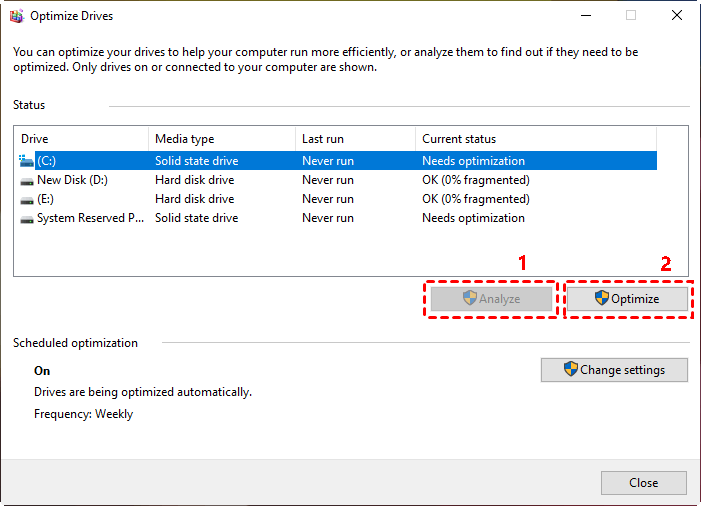
Step 3. For a suitable local HDD, click Analyze if the button is available and wait for Current status to update. Do not treat a fragmentation percentage alone as proof of a performance problem. If the button is unavailable for an SSD or another storage type, do not force a traditional defragmentation.
Step 4. If the storage type and analysis justify maintenance, keep the same volume selected and click Optimize. Windows chooses an appropriate operation for the reported media; on an SSD this may be retrim rather than a traditional HDD defragmentation. Do not select all volumes by habit.
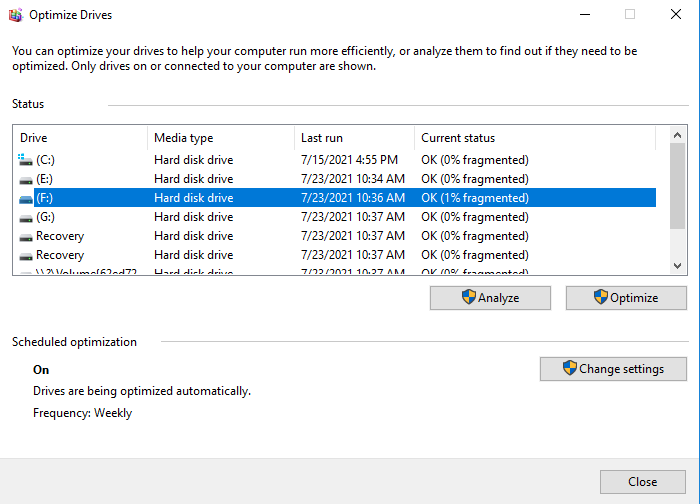
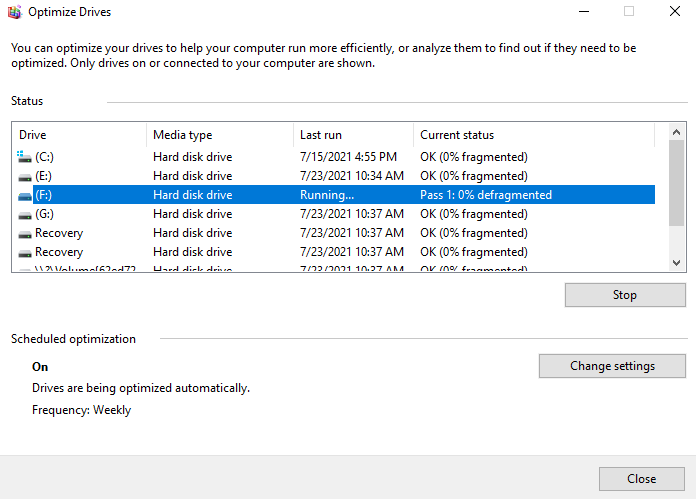
Step 5. Watch the selected row until the running status ends. Record the final status or any error, then compare the original slow workload during normal operation. The progress image illustrates the running state, not a completed optimization.
Analyze and optimize from an elevated prompt
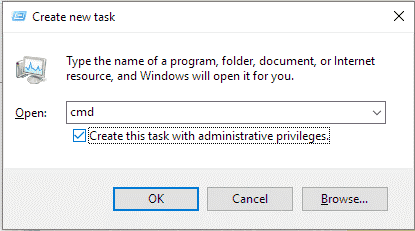
Step 1. Open an elevated Command Prompt. On a server with a desktop, one route is Task Manager > Run new task: enter cmd, check Create this task with administrative privileges, and click OK. Confirm that the window title begins with Administrator. On Server Core, use an administrator Command Prompt session.
Step 2. Recheck the target volume letter in Disk Management or the storage console. To analyze the example volume D:, run the command below. Replace D: with the verified volume letter on your server; /A analyzes without starting optimization, and /V prints detailed output.
defrag D: /A /VStep 3. Read the analysis report and confirm that the volume is eligible for optimization. If the file system is dirty, the volume is locked, or the storage provider prohibits the operation, address that condition first rather than forcing a defragmentation.
Step 4. If optimization is appropriate, run the following command with the same verified letter. /O lets Windows choose an operation for the reported media type; /U displays progress and /V provides the detailed report.
defrag D: /O /U /VStep 5. Use defrag D: /D /U /V only when the target is a conventional local HDD and traditional defragmentation is justified. Do not use it as a substitute for the storage provider's procedure on SSD, SAN, thin-provisioned, or other managed storage.
Step 6. Let the command return to the prompt, then save or note the result and any error. Rerun defrag D: /A /V if you need a post-operation comparison. If latency remains high, investigate disk health, free capacity, controller or SAN metrics, and competing workloads instead of repeatedly defragmenting.
Keep maintenance proportionate
Use scheduled optimization only for volumes that benefit from it. On SSD-backed or virtualized servers, rely on the storage provider's guidance. A failing disk should be replaced or recovered from a verified backup, not repeatedly optimized.
Related Articles
- How to Defragment a Drive
Review general Windows defragmentation controls. - Clean Up a Windows Server C Drive
Free space safely before investigating storage performance.
Products
Articles & Tutorials
- Data Recovery
- Data Backup
- File Recovery
- File Backup
- File synchronize
- System Backup and Restore
- Disk and Partition Clone
- Technical articles
- Disk Master Help
- Windows Deleted File and Disk Recovery Tutorials
- Windows File and Data Recovery Tutorials
- More Windows Tutorials for Install, Security, Files, and PC Tips
- Windows Boot, Repair, and Recovery Environment Tutorials
- Windows Backup Tutorials
- Windows Restore Tutorials
- Windows Clone and Migration Tutorials
- Windows Server Backup, Recovery, and Management Tutorials
- Windows Disk, Partition, and Storage Management Tutorials