Move Apps in Windows Server 2022 Safely
Moving apps on Windows Server 2022 needs more care than on a home PC because applications may run services, scheduled tasks, databases, and shared paths.
Understand the problem
Do not move server application folders by drag-and-drop. First identify services, data folders, ports, licenses, and dependencies, then choose a supported move, reinstall, or migration path.
- Confirm the exact disk, partition, drive letter, file system, and capacity before changing anything.
- Back up or recover important files before formatting, deleting, converting, resizing, or recreating partitions.
- For boot-related changes, check BIOS or UEFI mode, boot order, and system partition status before editing disk layout.
Use Windows built-in tools
Use Windows tools to identify where the application stores data and whether it supports changing the install or data path.
- Check Services, Task Scheduler, and application documentation before changing paths.
- Back up application data, configuration files, and databases.
- Stop related services during the maintenance window.
- Use the application installer or management console to change the data location when supported.
- Restart services and verify user access, permissions, and network shares.
Use Qiling tools for guided steps
 Qiling Disk Master
Back up server application data before moving apps or changing application storage paths.
Function. Back up files before changing locations or programs
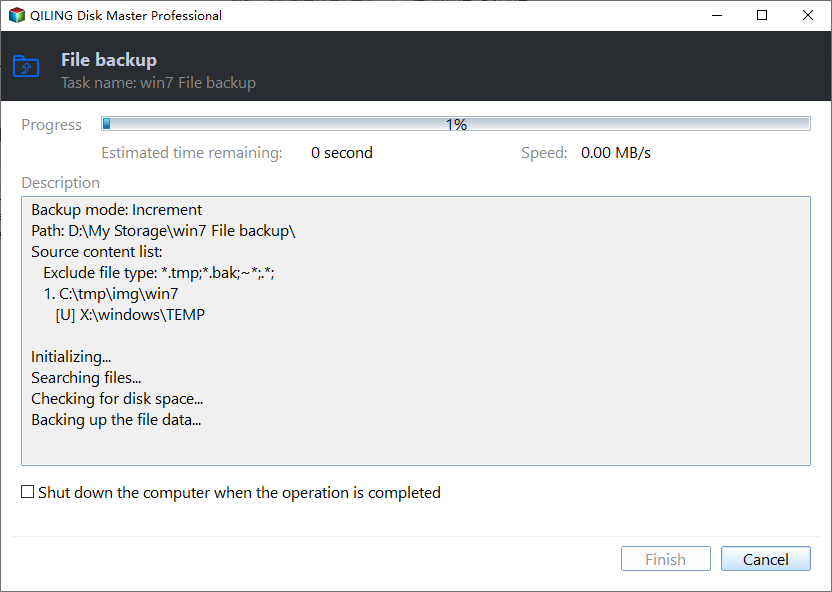
Step 1. Open Qiling Disk Master and choose Backup and Recovery > File backup.

Step 2. Select server application data, configuration folders, and shared working directories and any related configuration folders that you may need later.

Step 3. Choose a destination on another disk, external drive, or network location. Avoid saving the backup to the disk you are about to modify.

Step 4. Review the source and destination, then click Proceed. Keep the backup until the new location or new program path is verified.
Check the result
Confirm services start correctly, users can open the application, and event logs show no path or permission errors.
Related Articles
-
Migrate to New Server
Plan server migration with backups and service validation. -
How to Back Up a Server
Protect server workloads before application or storage changes.
Products
Articles & Tutorials
- Data Recovery
- Data Backup
- File Recovery
- File Backup
- File synchronize
- System Backup and Restore
- Disk and Partition Clone
- Technical articles
- Disk Master Help
- Windows Deleted File and Disk Recovery Tutorials
- Windows File and Data Recovery Tutorials
- More Windows Tutorials for Install, Security, Files, and PC Tips
- Windows Boot, Repair, and Recovery Environment Tutorials
- Windows Backup Tutorials
- Windows Restore Tutorials
- Windows Clone and Migration Tutorials
- Windows Server Backup, Recovery, and Management Tutorials
- Windows Disk, Partition, and Storage Management Tutorials