Windows Server 2019 Slow File Sharing
Slow file sharing on Windows Server 2019 can affect users, backups, and applications that rely on SMB shares.
Understand the problem
The cause may be network speed, SMB settings, antivirus scanning, disk bottlenecks, permissions, offline files, or overloaded backup jobs.
- Confirm the exact disk, partition, file system, Windows version, boot mode, or sync setting before making changes.
- Back up or recover important files before wiping, formatting, converting, cloning, reinstalling, or repairing Windows.
- For boot and update tasks, prepare recovery media and check BIOS or UEFI settings before deeper repair.
Use Windows built-in tools
Check the path from client to server.
- Test network speed and latency between client and server.
- Check disk queue, free space, and health on the server.
- Review SMB settings and file share permissions.
- Temporarily test antivirus exclusions where appropriate.
- Check whether backup or indexing tasks overlap peak hours.
Use Qiling tools for guided steps
 Qiling Disk Master
Back up shared folders before changing storage, permissions, or server maintenance schedules.
Function. Back up important files first
Step 1. Connect an external drive or choose a safe network location with enough free space for critical shared folders on the server.
Step 2. Open Qiling Disk Master and choose File Backup. This protects files before cleanup, partition changes, repair, or system updates.

Step 3. In the tree control, select the files and folders that must be protected. Protect business files before disk repair, permission changes, or share migration

Step 4. Choose a destination that is not affected by the operation, such as another disk, external drive, NAS, or shared folder.

Step 5. Review the source and destination, then click Proceed. Wait for the backup to finish before continuing.
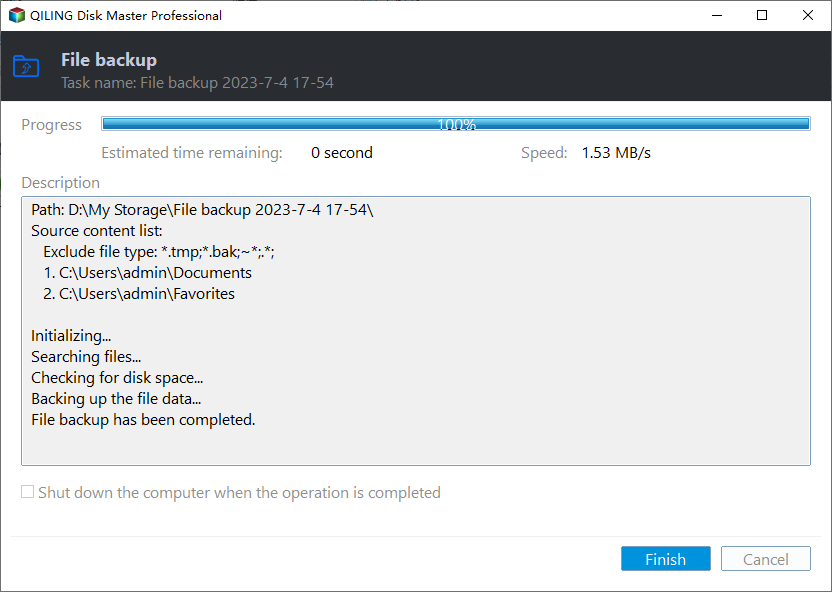
Check the result
After changes, test opening, copying, and saving files from multiple clients. Compare performance during and outside business hours.
Related Articles
- Server Backup to Shared Folder
Schedule backups to shared folders without overloading file sharing. - Back Up Files Server 2019
Protect shared data before changing server storage settings. - Optimize Storage in Windows Server 2022
If disk performance contributes to slow file sharing, distinguish HDD defragmentation from SSD or virtual-storage optimization.
Products
Articles & Tutorials
- Data Recovery
- Data Backup
- File Recovery
- File Backup
- File synchronize
- System Backup and Restore
- Disk and Partition Clone
- Technical articles
- Disk Master Help
- Windows Deleted File and Disk Recovery Tutorials
- Windows File and Data Recovery Tutorials
- More Windows Tutorials for Install, Security, Files, and PC Tips
- Windows Boot, Repair, and Recovery Environment Tutorials
- Windows Backup Tutorials
- Windows Restore Tutorials
- Windows Clone and Migration Tutorials
- Windows Server Backup, Recovery, and Management Tutorials
- Windows Disk, Partition, and Storage Management Tutorials