Windows Server 2019 Updates Not Working
Windows Server 2019 update failures can interrupt security patching and role stability. Common causes include service issues, update cache corruption, low disk space, WSUS settings, or network restrictions.
Understand the problem
Server updates should be handled during a maintenance window. Back up role data and confirm rollback options before resetting update components.
- Confirm the disk, partition, file system, Windows version, boot mode, or update state before making changes.
- Back up or recover important files before conversion, deletion, formatting, cleanup, reimage, or boot repair.
- For boot-related work, check BIOS or UEFI mode, boot order, system partition status, and recovery media first.
Use Windows built-in tools
Check update basics first.
- Confirm the server has enough free space on C drive.
- Check Windows Update, BITS, and Cryptographic Services.
- Review WSUS or Group Policy update settings.
- Clear the SoftwareDistribution cache if downloads are stuck.
- Run SFC and DISM repair commands when system files are damaged.
Use Qiling tools for guided steps
 Qiling Disk Master
Back up server files and configuration before resetting update components or repairing system files.
Function. Back up important files before repair or conversion
Step 1. Connect an external drive or choose another safe destination with enough space for server data and exported role settings.
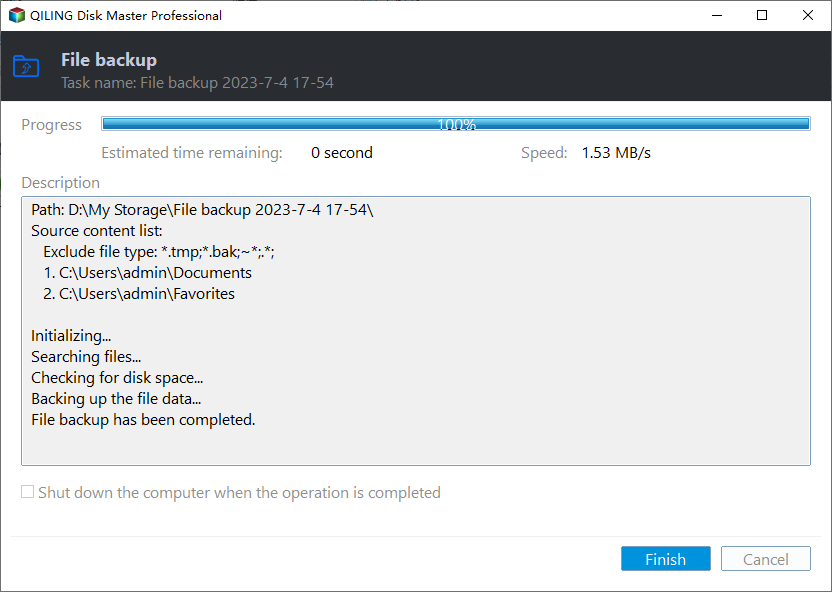
Step 2. Open Qiling Disk Master and choose File Backup. A backup gives you a rollback point before Windows repair, disk conversion, cleanup, or installation work.

Step 3. In the tree control, select the files and folders that must be protected. Include shared folders, scripts, databases, and configuration exports before update repair

Step 4. Choose another internal disk, external drive, NAS folder, or network path as the destination. Avoid saving the backup on the partition that will be changed.

Step 5. Review the task and click Proceed. Wait for the backup to finish before continuing.
Check the result
After repair, install updates in batches and check Event Viewer. Confirm services and scheduled tasks still run normally.
Related Articles
-
Upgrade Windows Server 2019 to 2022
Prepare Server upgrades with backup and rollback planning. -
Windows Server 2019 Backup
Back up Server 2019 before updates, repair, or upgrade operations.
Products
Articles & Tutorials
- Data Recovery
- Data Backup
- File Recovery
- File Backup
- File synchronize
- System Backup and Restore
- Disk and Partition Clone
- Technical articles
- Disk Master Help
- Windows Deleted File and Disk Recovery Tutorials
- Windows File and Data Recovery Tutorials
- More Windows Tutorials for Install, Security, Files, and PC Tips
- Windows Boot, Repair, and Recovery Environment Tutorials
- Windows Backup Tutorials
- Windows Restore Tutorials
- Windows Clone and Migration Tutorials
- Windows Server Backup, Recovery, and Management Tutorials
- Windows Disk, Partition, and Storage Management Tutorials