Top Samsung SSD Factory Reset Tool for Windows 11, 10, 8, 7
When need a Samsung SSD factory reset tool?
Samsung Corp. is a leading SSD manufacturer, renowned for its high-performance products, cutting-edge techniques, and lengthy warranty periods. As a result, Samsung SSDs have gained immense popularity worldwide, with many users opting for them due to their reliability and efficiency. Consequently, there is a growing demand for a Samsung SSD factory reset tool, making it an essential resource for those who have purchased, installed, and are utilizing Samsung SSDs.
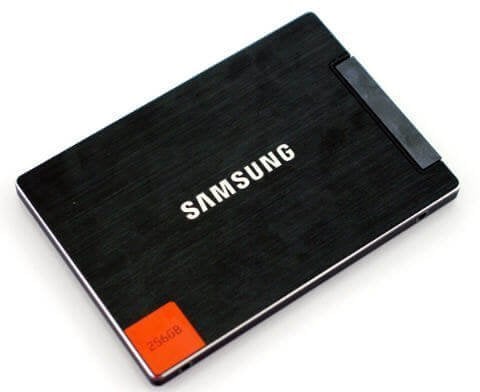
You'll need the Samsung SSD reset tool when you notice a decline in your SSD's performance, such as slower boot times, slower program startup, or issues with small files taking up large disk space. This is a sign that your SSD needs to be reset to its factory settings, effectively restoring its performance to like-new condition.
How does Samsung SSD factory reset tool recover lost performance?
Samsung SSD factory reset tool aims to recover SSD performance by resetting the drive to its original state. This is necessary because SSDs store data in a unique structure and have limited write times, which can lead to performance degradation over time. By resetting the drive, the tool helps to restore its original performance capabilities.
The method used to store data on an SSD can significantly prolong the writing process to a sector if there is a file on that section, even if it's marked for deletion. In reality, deleted files aren't immediately erased, and it's only through the SSD's TRIM feature that they're eventually removed. When a new file is written to that sector, the SSD must go through a read-erase-modify-write loop, which can be time-consuming. As the number of files stored increases, so does the duration of the writing process.
Due to its limited writing times, an SSD cannot handle a large number of loops, resulting in a shorter service life. To prevent this, Samsung SSD recovery software performs a Secure Erase, which completely wipes all data stored on the SSD, allowing new files to be written directly to the SSD, thereby improving reading and writing speeds and prolonging the SSD's lifespan. Additionally, Secure Erase can be used for permanent SSD data wiping, with no possibility of recovery.
What is the top Samsung SSD factory reset tool?
Samsung Magician software is a must-have for Samsung SSD maintenance, compatible with various models including the 830, T5, 850 EVO/PRO. This software features Secure Erase, which quickly and thoroughly destroys all stored data, creating a new encryption key and restoring the SSD to its factory defaults. For detailed steps and screenshots, refer to the Samsung SSD Secure Erase guide.
Samsung Magician, a tool for recovering and managing Samsung SSDs, can be unreliable and may not work in certain situations, such as when a Samsung 850 EVO is not detected in Windows 10 or when creating a bootable USB drive fails. Furthermore, Secure Erase functionality may not work as expected. In such cases, a better alternative to Samsung Magician is needed to resolve the issue.
Qiling Disk Master Professional is a disk manager that can reset Samsung SSDs to factory state and recover lost performance. It offers different arrangements for HDD wiping and SSD erasing, making it a more professional tool. With its intuitive user interface, SSD secure erasing is made simple and easy. You can download its demo version to try it out first.
How to reset Samsung SSD to factory state without hurting it
Before erasing a hard drive, it's essential to back up any crucial files to either a cloud storage or a local storage device to prevent data loss. This will ensure that your important information is safely stored and can be recovered later if needed.
1. To connect your Samsung SSD to a Windows 7 based computer, ensure it's not the boot drive. Then, install and run Qiling Disk Master Professional.
2. Right-click the Samsung SSD and select "SSD Secure Erase" from the context menu, following the on-screen instructions to complete the secure erase process.
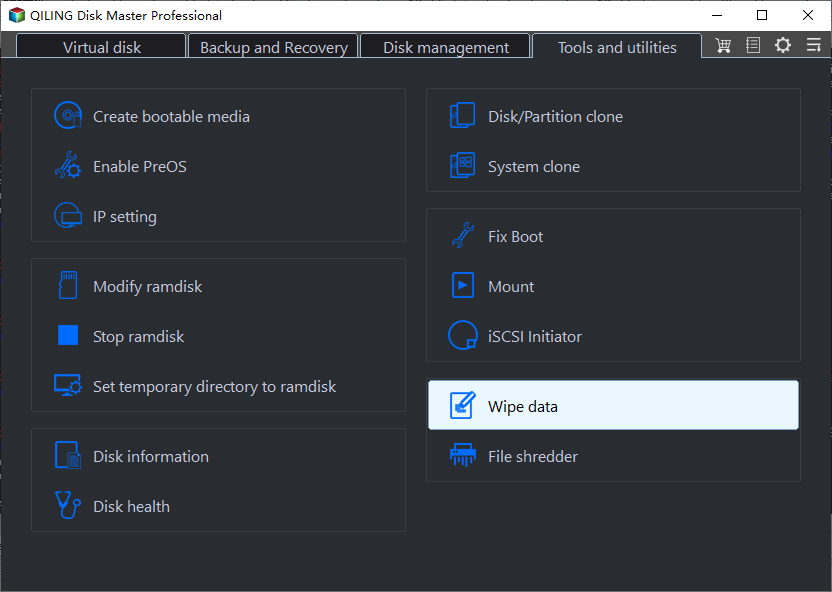
3. Select Samsung SSD from this list.
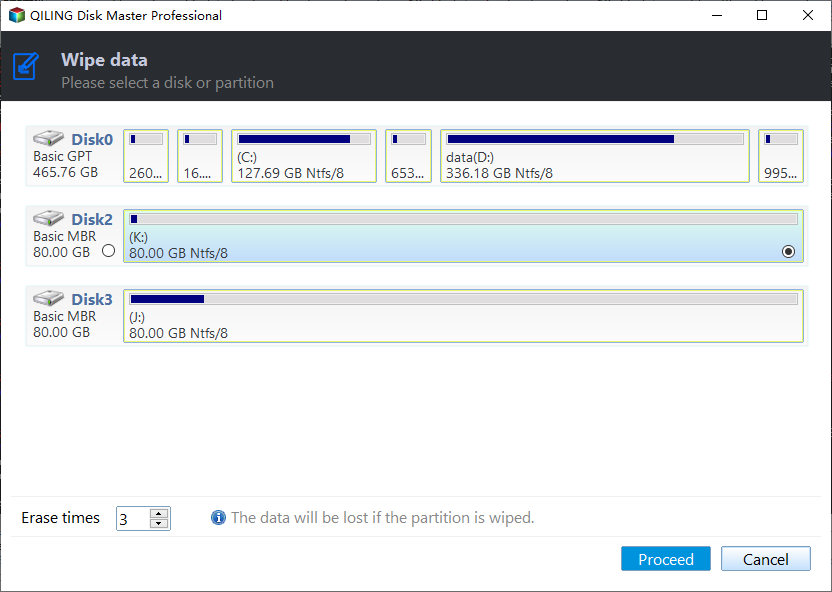
4. Select the erase times.
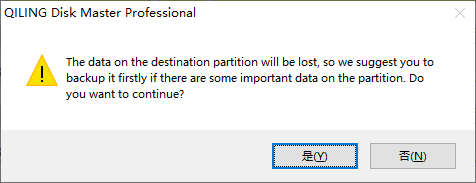
5. After clicking "Proceed" after hot swap, click "Yes" in the warning message box, and the Samsung SSD secure erase progress will begin.
TipQiling Disk Master Professional is a tool that can reset Samsung portable SSDs, Intel SSDs, Kingston SSDs, and other brands of SSDs, but it's not recommended to frequently perform a secure erase on an SSD.
- How to perform SSD hot swap:
- To securely erase an SSD, you'll need to access the drive and perform a physical wipe. This involves opening the computer case and locating the SSD.
- Unplug the SSD SATA cable and plug it back.
- Return to Qiling Disk Master and click "Confirm" to continue.
NoteDuring the hot swap process, the computer system must remain powered on, as shutting it down will result in a failure to unlock the system.
Summary
Qiling Disk Master Professional is a reliable Samsung SSD factory reset tool that offers a range of features beyond just recovering lost performance. This software also allows you to move your OS to a Samsung SSD without reinstalling, making it a convenient option. Additionally, it comes with features like formatting, recovering deleted files, and disk copying, making it a versatile tool for managing your SSD.
Related Articles
- Fix: Boot Configuration Data File Doesn't Contain Valid Information for an Operating System
Learn how to Fix: Boot Configuration Data File Doesn't Contain Valid Information for an Operating System with clear steps, key checks, and practical tips. - Can't Delete Partition on USB? Time to Fix it!
Learn how to can't Delete Partition on USB Time to Fix it safely, including what to check before formatting, wiping, or deleting data. - How to Change Drive Letter [Full Tutorial]🔥
Learn how to Change Drive Letter 🔥 with clear steps, key checks, and practical tips. - Guide on Checking Disk Speed in Windows 10 Using CMD [2024 Tutorial]
Protecting your data requires that you keep tabs on your SSD's performance. This article explains how to check disk speed windows 10 cmd. - Solved: 6 Fixes for Samsung 990 Pro Slow Write Speed - 2024 New
The Samsung 990 Pro may be experiencing slow write speeds, but there are fixes available. Qiling provides 6 solutions to resolve this issue, including using Samsung Magician and reliable SSD benchmark test tools. - How to Fix Samsung Magician Won't Recognize SSD [Full Guide]
Learn how to Fix Samsung Magician Won't Recognize SSD with clear steps, key checks, and practical tips.
Products
Articles & Tutorials
- Data Recovery
- Data Backup
- File Recovery
- File Backup
- File synchronize
- System Backup and Restore
- Disk and Partition Clone
- Technical articles
- Disk Master Help
- Windows Deleted File and Disk Recovery Tutorials
- Windows File and Data Recovery Tutorials
- More Windows Tutorials for Install, Security, Files, and PC Tips
- Windows Boot, Repair, and Recovery Environment Tutorials
- Windows Backup Tutorials
- Windows Restore Tutorials
- Windows Clone and Migration Tutorials
- Windows Server Backup, Recovery, and Management Tutorials
- Windows Disk, Partition, and Storage Management Tutorials