[Tutorial] Do Samsung SSD Secure Erase via 2 Methods
Quick navigation:
- When need to secure erase Samsung SSD?
- How to do Samsung SSD secure erase with Samsung Magician?
- A more versatile (Samsung) SSD secure erase utility
- Final words
When need to secure erase Samsung SSD?
In today's interconnected world, being extremely cautious about data privacy is crucial. When disposing of a Samsung or other brand's SSD, it's essential to ensure no data remains on it, as the standard method of wiping a hard drive is insufficient for SSDs and can cause data remanence and harm the drive's lifespan.
If you have a Samsung 830, 840, or 850 series SSD, you can use Samsung SSD Magician to perform a secure erase, which resets your SSD to its factory default performance and securely erases all data, making it unrecoverable even with data recovery services.
How to do Samsung SSD secure erase with Samsung Magician?
To securely erase a Samsung SSD, you can use the Samsung Magician software, which allows you to run the Secure Erase within Windows 10/7 if the SSD is not the system drive. If it is the system drive, create a bootable media and use it to erase the SSD.
To perform a Samsung SSD secure erase, you can use Samsung Magician, which provides an option to create a Samsung SSD Secure Erase ISO. Alternatively, you can use a tool like Phantom Drive to mount a blank writable DVD image, and then use SSD Magician to burn the image to the virtual drive, resulting in an ISO file that can be used to perform the secure erase remotely.
Before proceeding: To use Magician, ensure your SSD is connected via the SATA interface, not the SCSI controller interface. Choose the appropriate method for erasing data based on your specific situation, such as Secure Erase in Windows, a bootable disk, or an ISO file.
1. Run Samsung Magician. In the lower-left section, click Data Security.
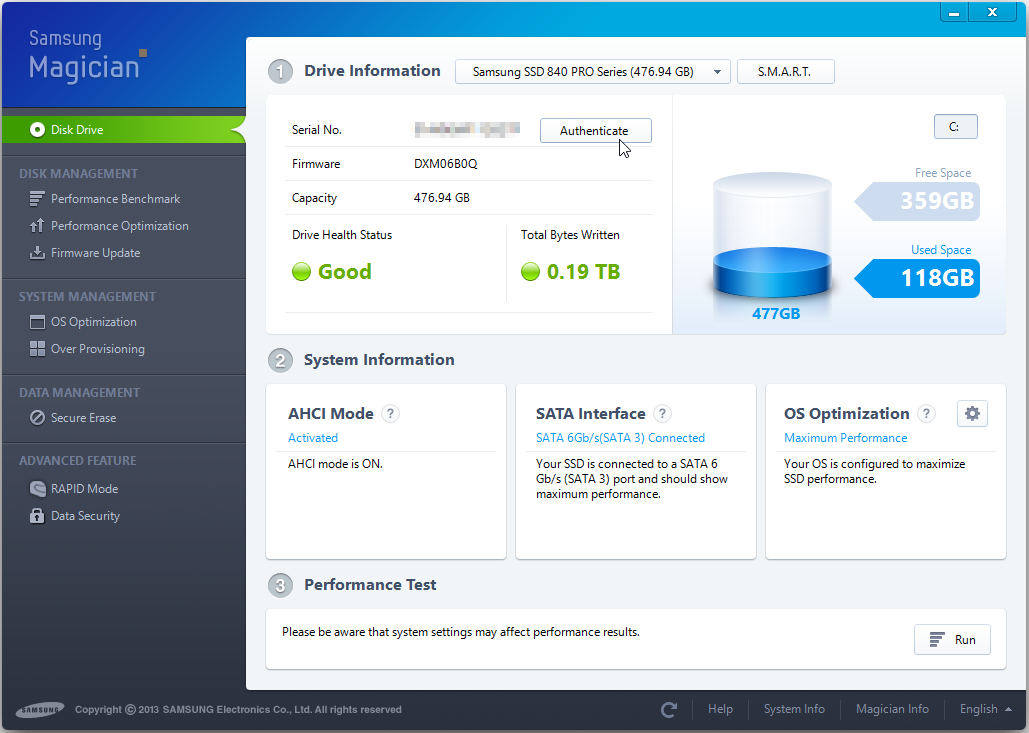
2. Warning: Please read the following information carefully before proceeding. Once you click "Start", you will be unable to go back and will be asked to complete a series of tasks.
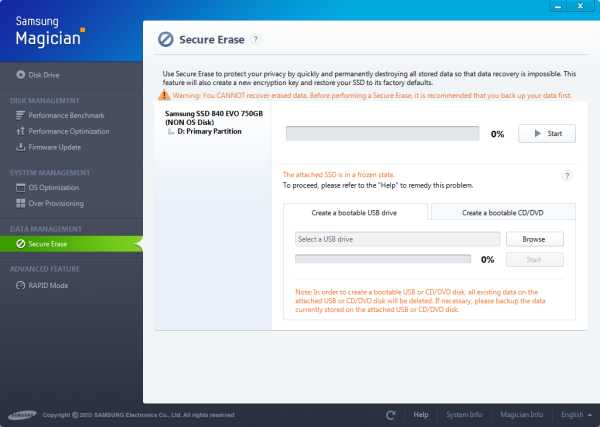
When trying to erase an SSD within Windows, there's a risk of it getting stuck in a frozen state. In such cases, creating a bootable CD or USB drive can help you perform a Secure Erase. Note that the Samsung Magician can only be used for Samsung SSDs, while other SSDs can be securely erased using a more versatile utility.
A more versatile (Samsung) SSD secure erase utility
We recommend using Qiling Disk Master Professional, a powerful disk partition manager that offers an "SSD Secure Erase" function, allowing for secure erase of Samsung SSD and other brands SSD drives, a feature not available in Samsung Magician. To perform a Samsung SSD secure erase, you can download the demo version of Qiling Disk Master Professional for a trial.
Note: The "SSD Secure Erase" feature only works on Windows 7 systems and SATA SSD drives. If your Samsung SSD is installed on a Windows 10 or Windows 8 computer, you'll need to connect it to a Windows 7 PC first.
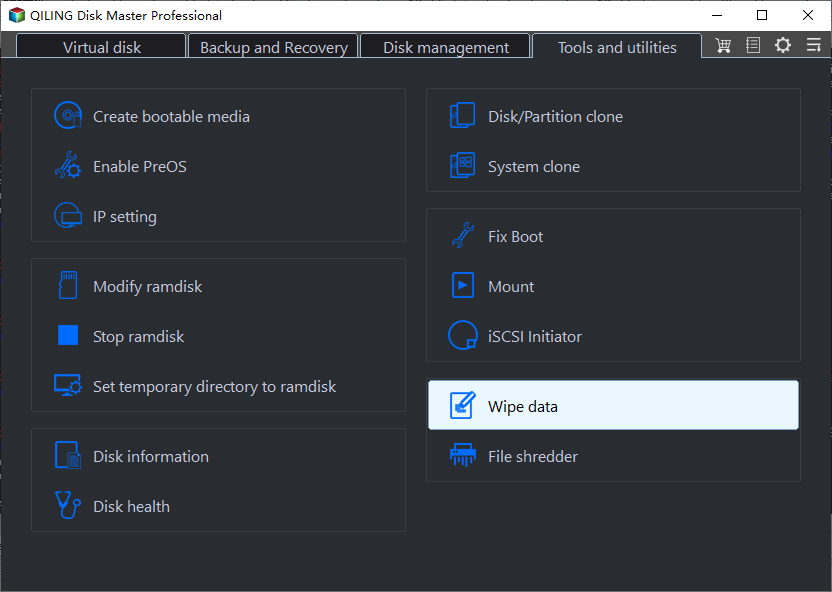
Step 1. Install and run Qiling Disk Master Professional. Choose "SSD Secure Erase".
Step 2. Click the Samsung SSD.
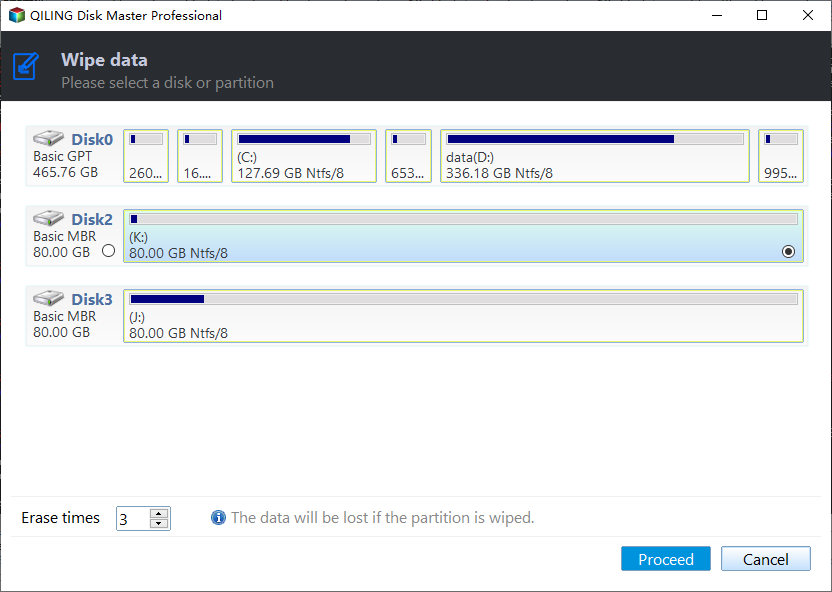
Step 3. Check and confirm the identification information of the Samsung SSD you will secure erase.
Step 4. If your SSD is frozen and won't unlock, try unplugging the SATA cable, waiting a few seconds, and then plugging it back in. This should allow you to click "OK" and start the operation again.
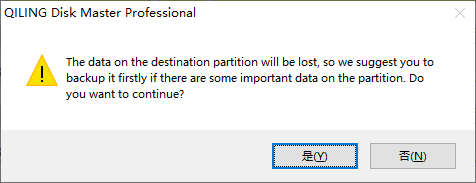
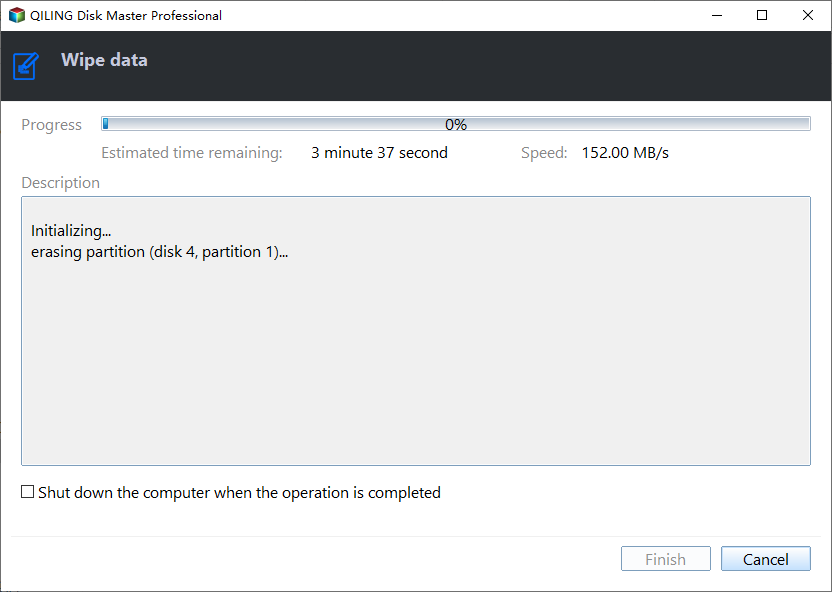
Step 5. When it is completed, click "Finish".
Final words
To securely erase a Samsung SSD, you can use either Samsung Magician or Qiling Disk Master Professional. Depending on your situation, you can choose one over the other. It's worth noting that Qiling Disk Master Professional also offers additional advanced features, including cloning SSD drives, aligning partitions, transferring the OS to an SSD, recovering lost data, and converting a system disk from MBR to GPT without deleting partitions, making it a more comprehensive tool.
Related Articles
- 2 Methods to Secure Erase SSD in Windows 10, 8, 7
Learn how to secure erase SSD drive in Windows 10, 8, 7. Qiling Disk Master Professional can securely wipe all data from SSD permanently. - How to Completely Wipe a Disk in Windows 10, 8, 7?
Learn how to Completely Wipe a Disk in Windows 10, 8, 7 with clear steps, key checks, and practical tips. - Secure Erase Flash Drive in Windows 10 | 4 Methods
To protect your privacy, it's necessary to secure erase flash drive in Windows 10 with a data erasing tool before selling it out or donating to others. - Top 2 Ways to Wipe Empty Space on Windows 10
This guide explains Top 2 Ways to Wipe Empty Space on Windows 10 with clear steps, key checks, and practical tips. - 3 Best Free File Shredder for Windows 10/11 Free Download
It's essential to permanently remove highly sensitive files or data from your computer or laptop. Here are the best and free 3 software that you can use to completely erase confidential data from your PC, laptop, or other storage devices. - How to Fix 'Clean Is Not Allowed on the Disk' Error
When encountering a 'Clean is Not Allowed on the Disk' error, there's no need to panic as it's a fixable issue. To resolve this, you can use the correct tool, such as Qiling Disk Master, which is more effective than using Diskpart commands, especially when wiping Operating System disks.
Products
Articles & Tutorials
- Data Recovery
- Data Backup
- File Recovery
- File Backup
- File synchronize
- System Backup and Restore
- Disk and Partition Clone
- Technical articles
- Disk Master Help
- Windows Deleted File and Disk Recovery Tutorials
- Windows File and Data Recovery Tutorials
- More Windows Tutorials for Install, Security, Files, and PC Tips
- Windows Boot, Repair, and Recovery Environment Tutorials
- Windows Backup Tutorials
- Windows Restore Tutorials
- Windows Clone and Migration Tutorials
- Windows Server Backup, Recovery, and Management Tutorials
- Windows Disk, Partition, and Storage Management Tutorials