How to Completely Wipe a Disk in Windows 10, 8, 7?
Disk wipe Windows 10
To completely wipe the disk and delete all data, you can use the built-in Disk Cleanup tool in Windows 10. It will remove temporary files, system files, and other items you don't need. Alternatively, you can use a third-party tool like DBAN (Darik's Boot and Nuke) or a disk wiping software like CCleaner to securely erase all data on the disk. Make sure to back up any important files before wiping the disk. If you're looking for a more permanent solution, you can also try formatting the disk, which will completely erase all data. Be cautious, as this will remove all data, including operating system and installed programs. Please note that wiping a disk will render all data unrecoverable. Be sure to take necessary precautions before proceeding.
When do you need to wipe disk?
You may be wondering when to wipe a disk, but if you plan to donate or sell it, you'll likely need to wipe it completely and permanently in Windows 10/8/7. This is because hard drives store data, which can be sensitive, and as time passes, there's more personal data accumulated. To keep your data safe, it's a good idea to clean up all data on the disk when it's not in use, and most people choose to delete them directly, but wiping the disk is a more thorough approach.
Under normal circumstances, deleting a file doesn't actually make it disappear. The system simply removes the file name from the file allocation table, leaving the actual data on the disk. This means that deleted files can often be easily restored using data recovery software. In such cases, wiping the disk can be a more effective way to clear the hard drive.
The best disk wipe software
If you want to completely and permanently wipe data on a Windows disk, you can use a professional disk wipe software like Qiling Disk Master, which has a "Wipe Hard Drive" feature that overwrites the disk with zeros to prevent data restoration.
Qiling Disk Master offers many features, including Format Partition, Rebuild MBR, and Migrate OS to SSD, making it a powerful tool that can be used in Windows 10/8/7, Windows XP, and Windows Vista.
How to wipe disk in Windows 11/10/8/7?
To wipe a disk in Windows 10/8/7, follow these steps: first, back up any important data on the hard drive to a cloud or external hard drive, as wiping the disk will erase all data. Then, go to the Disk Management tool, select the disk you want to wipe, and choose the "Full Clean" or "Quick Format" option, depending on your needs. If you want to completely erase all data, choose the "Full Clean" option, which will overwrite the disk with zeros. If you're short on time, the "Quick Format" option will simply format the disk without erasing data.
Disk wipe Windows 11/10/8/7
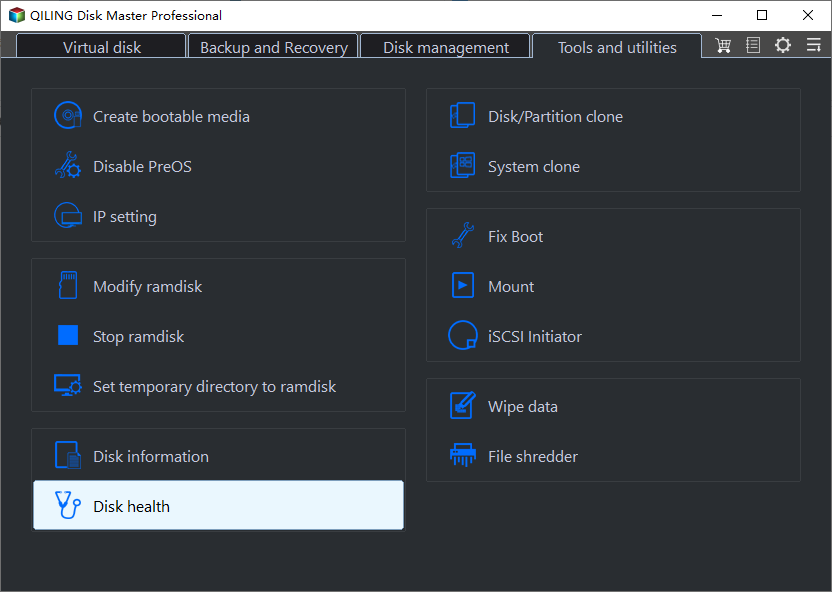
Step 1. Install and run Qiling Disk Master, right-click the hard drive you want to wipe, and select "Wipe Hard Drive" from the context menu.
Step 2. In the next window, choose "Erase times one(Fil sectors with Zero)".
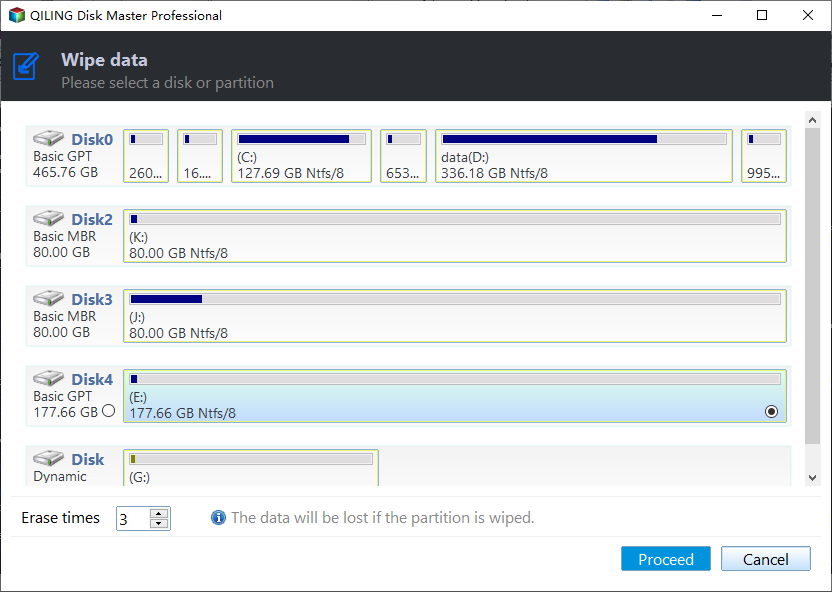
Note: You can upgrade to the Professional edition to unlock additional wiping methods that offer enhanced security.
Step 3. After executing the operation, the system will return to the main interface. To proceed, click "Proceed".
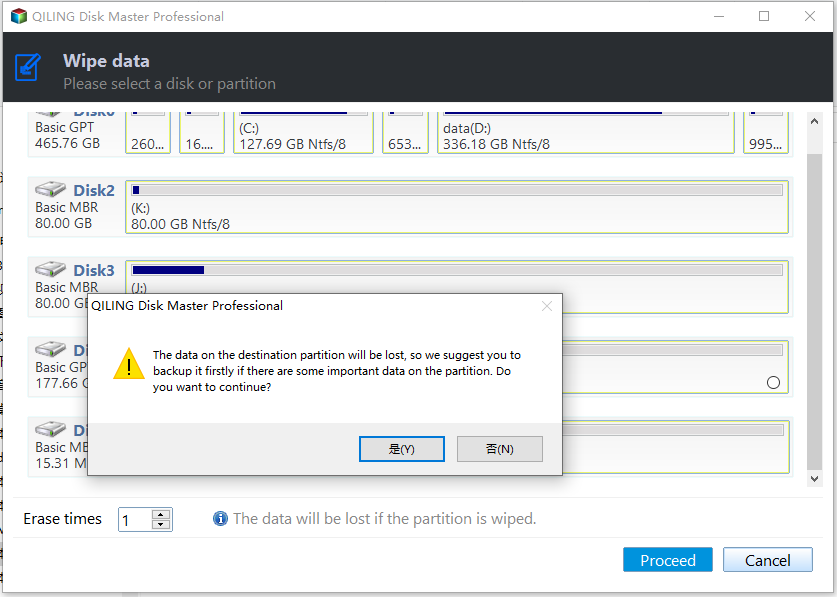
Note: If you need to wipe the system hard drive, you should create a bootable media and enter the WinPE environment.
Secure erase SSD in Windows 7
If you need to wipe a solid-For solid-state drives, it's recommended to use the "SSD Secure Erase" method, which is available in the Professional Edition, as it securely erases data without harming the drive, unlike the general method that can decrease the lifespan of the drive.
The SSD Secure Erase feature is currently only supported by the Windows 7 operating system. If your operating system is not Windows 7, you'll need to connect the SSD to a Windows 7 computer in order to utilize this feature.
Step 1. To securely erase an SSD, run Qiling Disk Master, navigate to the SSD you want to erase, and select "Secure Erase SSD" from the "Wipe" menu.
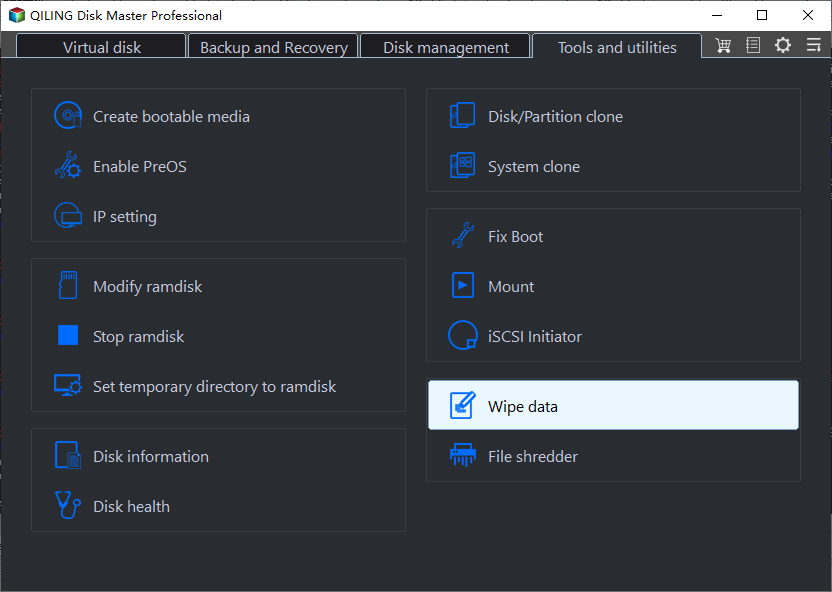
Step 2. Choose the SSD you want to erase, read it.
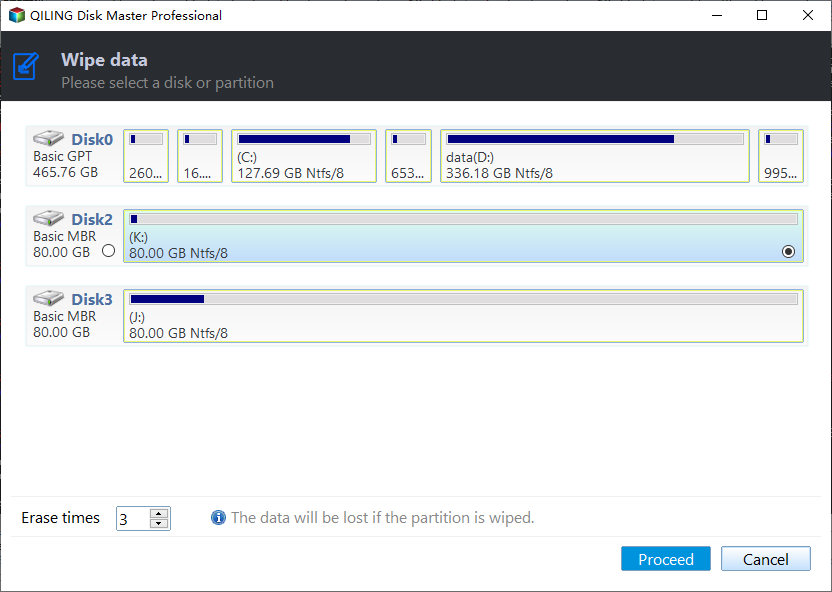
Step 3. To continue, check the selected SSD information. If it's in a frozen state, you'll need to reconnect the SSD to perform a hot swap.
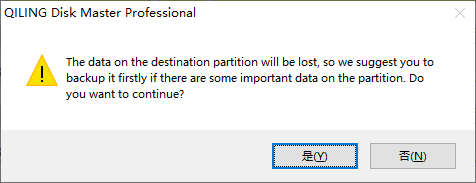
Perform hot swap steps:
1. To prepare your device for the repair, you need to open the case cover, which is usually located at the back of the device for desktops or the top for laptops. This will give you access to the internal components that need to be repaired.
2. Find the SSD that needs to be securely erased.
3. Unplug the SSD power cable.
4. Unplug the SATA data cable of the SSD.
5. To connect the SATA data cable, first, insert the SATA data cable into the SATA port of the motherboard. Then, insert the other end of the SATA data cable into the SATA port of the hard disk.
6. Unplug the power cord from the power connector on the hard disk, then plug it back in.
When plugging in a new device, do not turn off the computer or any running programs. This will prevent any potential issues or data loss during the hot plugging process.
To securely erase the SSD, you can use the built-in secure erase feature in the BIOS or UEFI settings. This will completely erase all data on the SSD, including any operating system, programs, and personal files.
Step 4. Click "next" to continue, then wait till the progress finished.
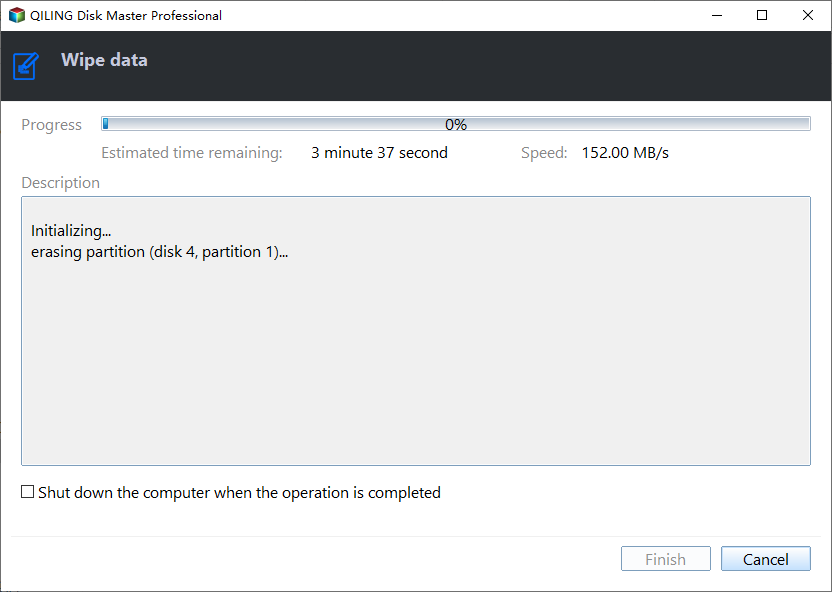
Cleaning the system disk will delete system data, making it impossible for Windows to start properly.
Verdict
To wipe a disk in Windows 10/8/7 effectively, you can use secure erase, which can significantly increase the read/write speed and performance of your SSD while ensuring its service life. Qiling Disk Master is a reliable software for this purpose.
Upgrading to the Professional edition allows for the recovery of lost partitions. For Windows Server users, Qiling Disk Master Server offers more advanced features.
Related Articles
- How to Wipe Hard Drive in Windows 8 Permanently?
You can wipe hard drive in Windows 8 from Command Prompt. If the hard drive is with OS installed, you can employ a third-party partition tool, Qiling Disk Master Professional. - Best DOD 5220.22-M Hard Drive Wiping Tool for Windows 10, 8, 7
This post recommends a powerful and professional DoD hard drive software-Qiling Disk Master Professional, which can help DoD wipe hard drive (HDD, SD card, USB drive) with 3 passes and make data irrecoverable. - How to Erase SSD before Selling in Secure and Complete Mode?
On this page, you can learn how to erase SSD before selling it to any strangers. Then all content on the SSD drive will be wiped completely and no one can recover it easily, adding protection on your private data. - How to Delete Everything But OS in Windows 10/11 [Beginners' Guide]
Learn how to Delete Everything But OS in Windows 10/11 with clear steps, key checks, and practical tips. - 2022 Full Guide on How to Make SSD Data Unrecoverable
If you're selling or have damaged your SSD, you need to know How to Make SSD Data Unrecoverable, and this article has all the details you need to know. - 5 Best PC Cleaner Free Download for Windows 10/11 in 2022
Enjoy a faster, cleaner PC. Here are the 5 best PC cleaners Free Download for Windows 10. Windows users pick a reliable PC cleaner software to optimize their computer performance.
Products
Articles & Tutorials
- Data Recovery
- Data Backup
- File Recovery
- File Backup
- File synchronize
- System Backup and Restore
- Disk and Partition Clone
- Technical articles
- Disk Master Help
- Windows Deleted File and Disk Recovery Tutorials
- Windows File and Data Recovery Tutorials
- More Windows Tutorials for Install, Security, Files, and PC Tips
- Windows Boot, Repair, and Recovery Environment Tutorials
- Windows Backup Tutorials
- Windows Restore Tutorials
- Windows Clone and Migration Tutorials
- Windows Server Backup, Recovery, and Management Tutorials
- Windows Disk, Partition, and Storage Management Tutorials