Top 2 Ways to Wipe Empty Space on Windows 10
Need to Overwrite Free Space on Windows 10
Wipe the free space on Windows 10
To ensure the free space on your Windows 10 laptop is wiped, you can use the built-in Disk Cleanup tool or the Command Prompt. The Disk Cleanup tool can be accessed by searching for it in the Start menu, and it will automatically delete temporary files, system files, and other items that are no longer needed. Alternatively, you can use the Command Prompt to run the `cipher` command, which will wipe the free space on your laptop. This will ensure that any deleted files or sensitive information are completely erased and cannot be recovered by anyone else.
- Question from Microsoft
When you delete a file from the Windows Recycle Bin, the space it occupied is marked as "Free" so another file can use it, but the file itself still exists on the hard drive, only Windows no longer knows where it is.
To safely wipe the free space on your Windows hard drive, you can use the built-in Disk Cleanup tool or a third-party software like CCleaner. The Disk Cleanup tool can be accessed by searching for it in the Start menu, while CCleaner can be downloaded from its official website. Once you've launched the tool or software, select the drive you want to wipe and choose the "Clean up system files" option. This will remove temporary files, system logs, and other data that is no longer needed. To wipe the free space, select the "Wipe free space" option and choose how many passes you want the tool to make.
Method 1. Wipe Free Space on Windows 10 with CMD
There is a built-in Cipher command in Windows can be used to wipe empty space on Windows 10 by permanently destroying deleted data, effectively clearing the hard disk, SD card, or other storage media.
Note✍: Before using the Cipher command, exit all programs to ensure that the maximum amount of free space is erased. This guarantees that the command can safely overwrite free space on the hard drive.
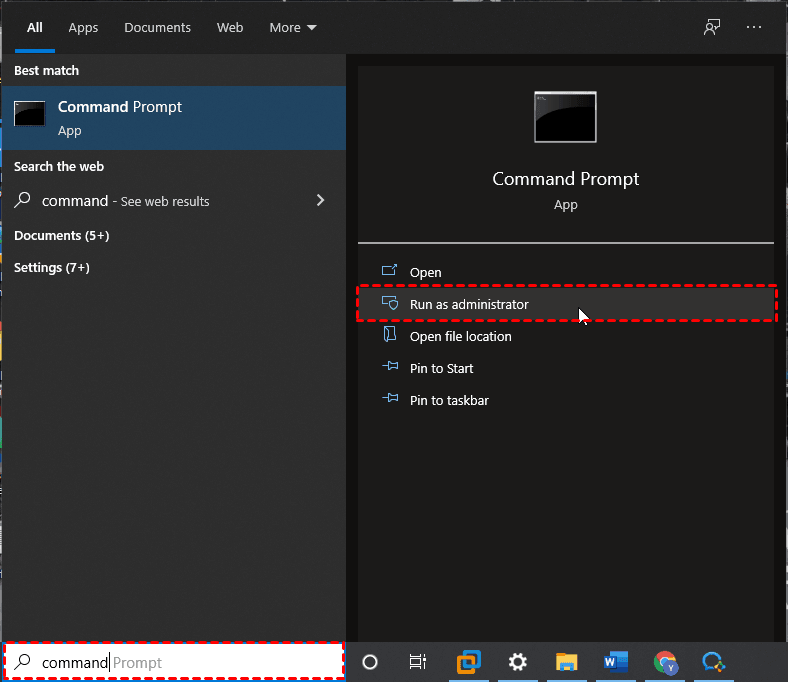
- To run the command prompt as an administrator, type "command" in the search box, select the first search result, and click "Run as administrator".
- To resolve the issue, open the Command Prompt and type the commands "ipconfig /release" and press Enter, followed by "ipconfig /renew" and press Enter, then "ipconfig /flushdns" and press Enter. Next, type "netsh int ip reset" and press Enter, followed by "netsh winsock reset" and press Enter.
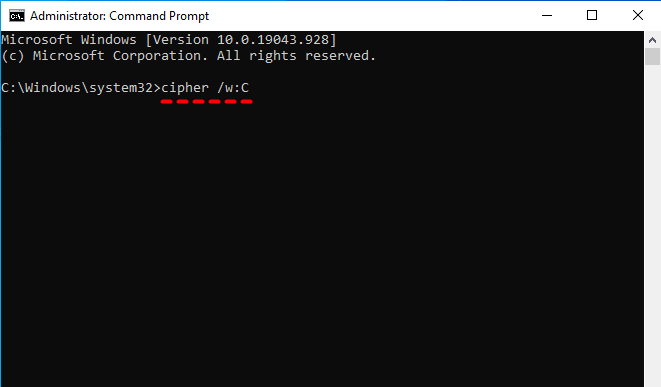
▶ cipher /w:C
♨ Tips:
✪ /w: remove any data from the available unused disk space.
✪ C: If you want Windows to delete all files and data on the C: drive, you can type `format C:` in the Command Prompt, replacing "C" with the drive letter that needs to be wiped. This will erase all data on that drive.
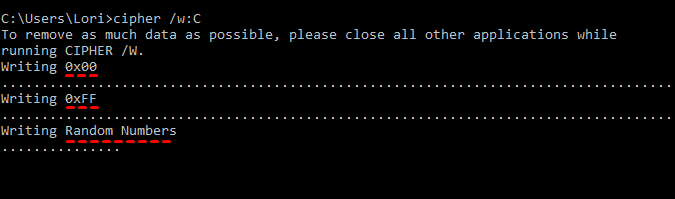
- It will overwrite the free space with three passes. The first pass will fill the free space with zeros, the second pass will fill the free space with the ASCII code of 0x00 (a zero), and the third pass will fill the free space with the ASCII code of 0xff (a full byte).
● First with all zero's – 0x00.
● Second with all 255's, – 0xFF.
● Finally with Random Numbers.
Method 2. Wipe Empty Space with Reliable Space Eraser on Windows 10
If the free space on your hard disk is too large, you can use a reliable space eraser like Qiling Disk Master Professional to quickly wipe the free space instead of using the Cipher command, which can take a lot of time. This tool supports various Windows systems, including Windows 11/10/8.1/8/7/Vista/XP. It allows you to quickly erase free space, making it a more efficient option for disk cleaning.
✱ To wipe a disk for reuse, select the entire disk for wiping, and the data will be unrecoverable after wiping. The process can also be used to wipe a selected partition or unallocated space to free up space.
✱ This software can securely erase data from various types of storage devices, including USB drives, hard disk drives, and SD cards, supporting all major brands such as Samsung, SanDisk, and WD.
✱ The computer system offers multiple secure wiping methods, including the DoD 52220.22-M method which involves 7 passes and the Gutmann method which involves 35 passes.
Here is how to wipe empty space on Windows 10 via Qiling Disk Master: Download and launch the software, then backup your important files to protect them from being erased, as the erased data is unrecoverable.
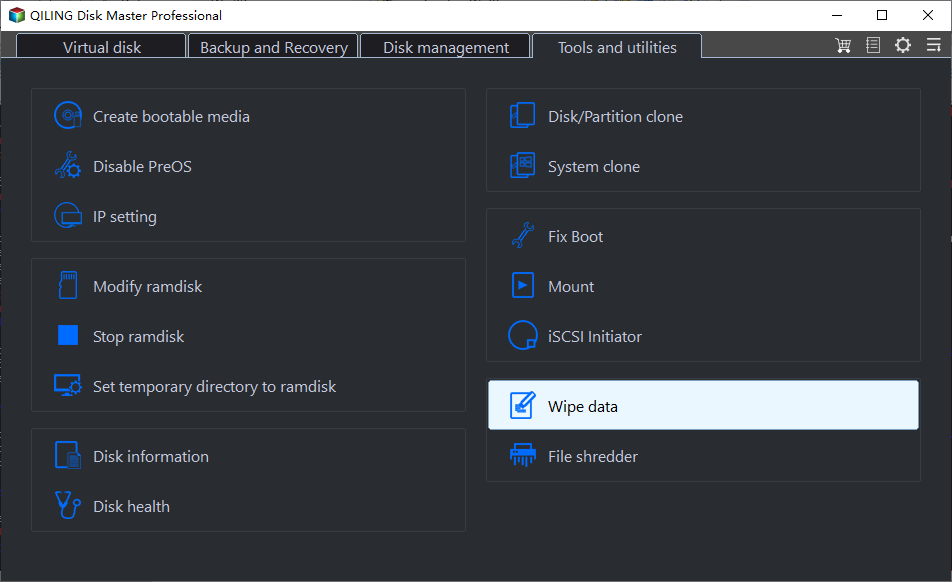
Step 1. Click Tools on the left panel and select Disk Wipe.
Step 2. Decide whether to delete the selected partition (s) or unallocated space on the disk.
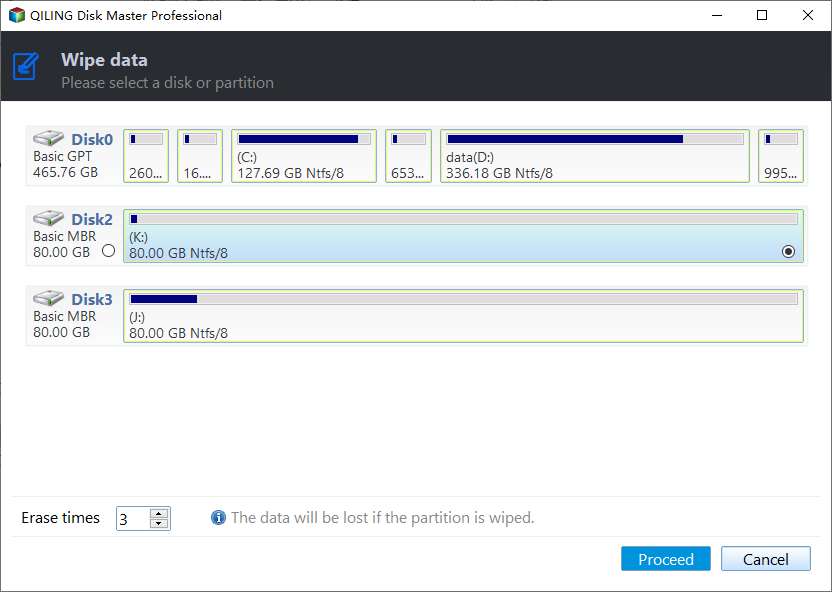
♨ Tip: If you choose the "Wipe disk" option, all data on the disk, including partitions and sectors, will be completely deleted.
Step 3. To begin the disk wiping process, select the wiping method you need and confirm the selected or unallocated space. Then, click Proceed to initiate the operation. Note that safer wiping methods may require more passes and lower wiping speeds.
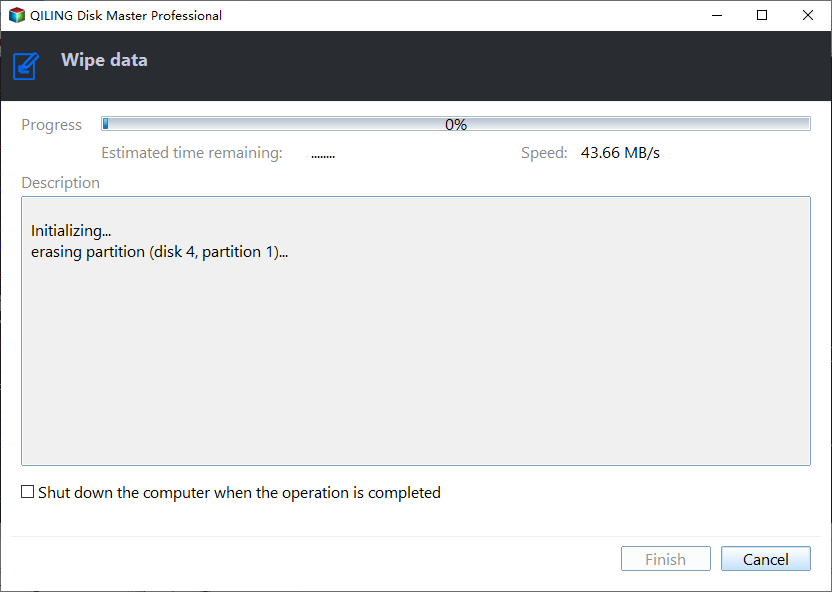
Step 4. To wipe your device, you'll enter a wiping process page. If you want to stop, click Cancel in the top right corner. Once the process is complete, click Finish.
Note✍:
◉ If you want to wipe the current system disk or C drive where Windows is installed, the software will restart to WinPE to perform the operation, and you will not be able to enter the system after completion.
◉This feature doesn't support wiping dynamic disks.
Conclusion
To get rid of empty space on Windows 10, you can either use a method that requires some technical knowledge, which may involve risks of losing important files, or use a disk wiping software that is user-friendly and doesn't require any technical skills.
In daily use, you can also use it to backup system for disaster and realize continuous data protection to files and folders with its Backup functions. Try it now to wipe the free space on your computer.
Related Articles
- How to Securely Wipe or Cleanup a Hard Drive in Windows 10
If you want to clean a hard drive in Windows 10, try following methods to delete everything and write zeros to hard drive; or if you want perform disk cleanup to free up space, there are also some common solutions. - How to Delete Backup Files in Windows 10 When Backup Disk Full?
Learn how to Delete Backup Files in Windows 10 When Backup Disk Full with clear steps, key checks, and practical tips. - Best Bootable Hard Drive Eraser for Windows 10/8/7 [Freeware]
Review Best Bootable Hard Drive Eraser for Windows 10/8/7 with setup requirements, preparation steps, and tips to avoid installation or boot problems. - How to Securely Erase SD Card? 2022 Full Guide
Learn how to securely Erase SD Card 2022 Full Guide safely, including what to check before formatting, wiping, or deleting data. - Best Guide to Reset a Computer and Wipe It Clean on Windows 10/11
If you plan to sell or give your computer away, you'll want your data stored on your PC is inaccessible to the computer's next owner. On this page, we are going to help you reset a computer and wipe it clean on Windows 10. - How to Reset a Hard Drive in Windows 11/10 [2022 New Guide]
Your PC won't start, you haven't created a recovery drive, and resetting your PC didn't work. You can safely delete the previous Windows installation by resetting hard drive.
Products
Articles & Tutorials
- Data Recovery
- Data Backup
- File Recovery
- File Backup
- File synchronize
- System Backup and Restore
- Disk and Partition Clone
- Technical articles
- Disk Master Help
- Windows Deleted File and Disk Recovery Tutorials
- Windows File and Data Recovery Tutorials
- More Windows Tutorials for Install, Security, Files, and PC Tips
- Windows Boot, Repair, and Recovery Environment Tutorials
- Windows Backup Tutorials
- Windows Restore Tutorials
- Windows Clone and Migration Tutorials
- Windows Server Backup, Recovery, and Management Tutorials
- Windows Disk, Partition, and Storage Management Tutorials