Prolong the Lifespan of Your SSD in 3 Ways
A solid-state drive (SSD) stores data using flash memory and has no moving parts, unlike traditional hard disk drives. The lifespan of an SSD is limited by program-erase cycles (P/E cycles), which can be thought of as writing and erasing information on a piece of paper. As you continue to write and erase data on the paper, it will eventually wear out, similarly to an SSD. To understand how much data has been written to an SSD, you can use a benchmark tool. When the SSD is full, it must be erased before new data can be written, which also wears out the drive. This process of writing and erasing data is what limits the lifespan of an SSD, making it a crucial factor to consider when using these drives.
How to Extend SSD Lifespan
SSDs are widely used due to their advantages over traditional hard drives, but their limited lifetime raises concerns. Fortunately, there are ways to stretch and optimize SSDs, allowing users to make the most of their service time.
Method 1. Disable Hibernation
When a computer's hibernation feature is activated, the system saves the current state, including running programs and information, to the internal device. Upon restarting, the system reloads this saved content into memory, restoring the computer to its previous state before hibernation was chosen.
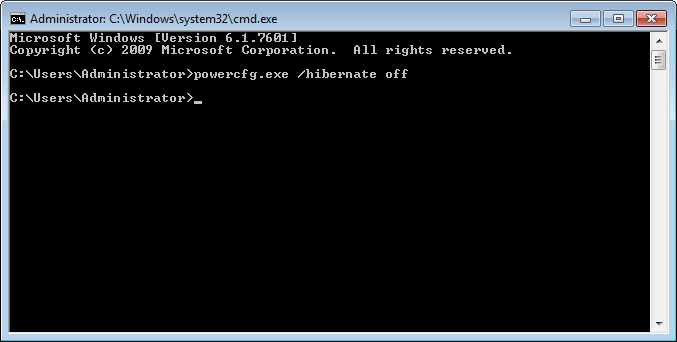
To avoid decreasing the lifetime of an SSD due to hibernation, you can turn off hibernation by following these steps.
To open Command Prompt as Administrator, type "cmd" in the Start Menu and then press Enter.
2, enter powercfg.exe/hibernate off and press Enter.
Method 2. Disable Page Files
A page file is a storage space on an internal device that serves as a backup for an application's memory needs. When a computer runs low on physical memory, the page file is used to temporarily store data that an application requires, freeing up physical memory for other tasks.
To extend the life of your SSD, it's recommended to disable the page file feature, as the dynamic size changes can lead to excessive write cycles, which can be detrimental to the drive's lifespan. If you're unable to allocate sufficient physical memory, disabling page files can help prevent unnecessary writes to the SSD. This can help ensure the longevity of your solid-state drive.
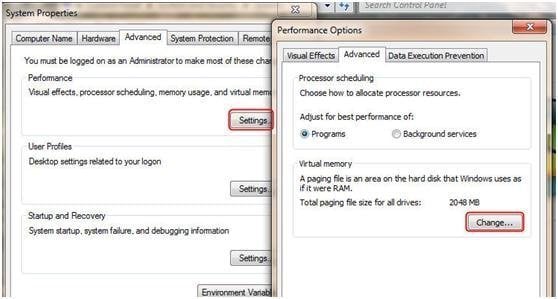
1. Right-click My Computer and then choose Properties.
2. Choose Advanced System Settings.
To make a change to the performance settings, click on the advanced option, select settings in the performance field, and then choose change in the performance option.
Method 3. No Defragmentation
Traditional hard drives benefit from defragmentation, which rearranges data to improve sequential reading speeds. However, since SSDs don't have moving parts and data location doesn't affect performance, defragmentation is unnecessary and can actually reduce SSD lifespan by consuming precious P/E cycles, so it's best to disable it.
1. Open My Computer and right click on the SSD, then choose Properties.
2. Click Defragment now, then you will enter Disk Defragmenter.
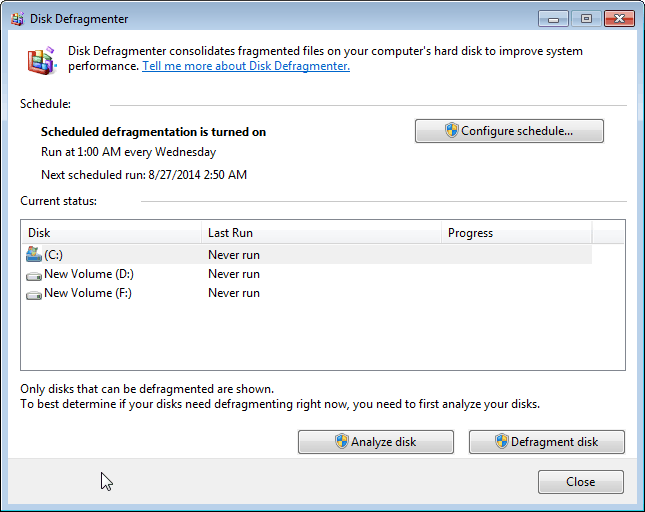
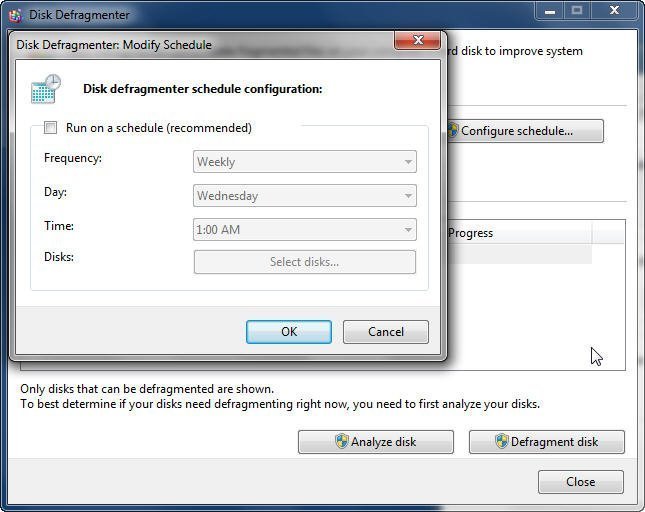
In Disk Defragmenter, when scheduled defragmentation is available, click on the "Configure Schedule" button, turn off the schedule, and click "OK".
Conclusion
To prolong the lifespan of your SSD, consider implementing the methods mentioned earlier, such as reducing temporary files and cache, performing firmware updates, and using it in a RAID 0 array for improved performance. Additionally, you can try to extend the lifespan of your SSD, regardless of the brand (e.g. Synology, Crucial), by using it for your operating system only and reserving the hard drive for storage. This approach can help you get the most out of your SSD.
Related Articles
- How to Format SD Card to FAT32 on Windows 11/10? [7 Free Methods]
This page collected 7 reliable SD card formatter software that helps you to format all types of SD cards to FAT32 for free. Follow to download the best free SD Card formatter FAT32 software and set the desired file system to your SD card on Windows now. - How to Format SSD with OS on It [Reliable Solution] - Qiling
Learn how to Format SSD with OS on It - Qiling with clear steps, key checks, and practical tips. - How to Fix Hogwarts Legacy Blue Screen [Step-by-Step Guide]
This article will lead you to analyze the causes of Hogwarts Legacy blue screen. And you will get six ways to fix Hogwarts Legacy blue screen and improve gaming experiences. - Full Guide to Check How Much Disk Space Do I Have in 2024
Users of Windows PCs can use this page to find out how much disk space do I have. Discover five practical strategies that solve this question by following this tutorial. - Steam Deck Disk Speed Test Tutorial 2024 [Your Guide Is Here]
This guide explains Steam Deck Disk Speed Test Tutorial 2024 with clear steps, key checks, and practical tips. - Steam Deck Speed Test, Everything You Should Know
To ensure a smooth gaming experience on your Steam Deck, stay calm and learn how to identify and fix slowdowns. Don't let a slow device ruin your gaming experience - instead, follow our guide to run a speed test and identify the cause of your slowdowns, allowing you to get back to gaming smoothly.
Products
Articles & Tutorials
- Data Recovery
- Data Backup
- File Recovery
- File Backup
- File synchronize
- System Backup and Restore
- Disk and Partition Clone
- Technical articles
- Disk Master Help
- Windows Deleted File and Disk Recovery Tutorials
- Windows File and Data Recovery Tutorials
- More Windows Tutorials for Install, Security, Files, and PC Tips
- Windows Boot, Repair, and Recovery Environment Tutorials
- Windows Backup Tutorials
- Windows Restore Tutorials
- Windows Clone and Migration Tutorials
- Windows Server Backup, Recovery, and Management Tutorials
- Windows Disk, Partition, and Storage Management Tutorials