6 Methods: Clean up Windows 10 to Improve Windows PC Performance
Question
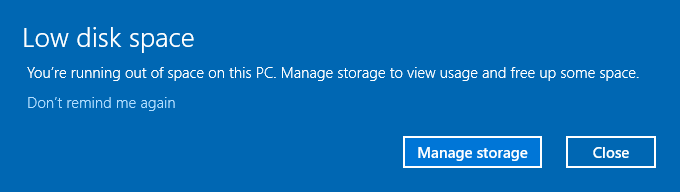
I have a Windows 10 Dell PC that has been 10-year-old. Recently, I find it runs dramatically more slowly than before and the warning of low disk space pops up on regular basis. I know that means my storage space is running out but I have no idea what I should do. Is there any good way to clean up Windows 10?
- Question from Alfredo
Why do we clean up Windows 10?
Windows 10 computer owners often face the issue of junk files accumulating in their system over time, significantly slowing down their PC's performance. To maintain their computer's speed and efficiency, regular maintenance is essential, including cleaning up Windows 10 to delete or remove unnecessary files.
6 Methods for Windows 10 disk space cleanup
Cleaning up Windows 10 files can be a daunting task, but there are top 6 methods to help you get it done. If you're still unsure, the following contents will guide you through the process. You can find the solutions in the next section.
Method 1. Uninstall unused apps
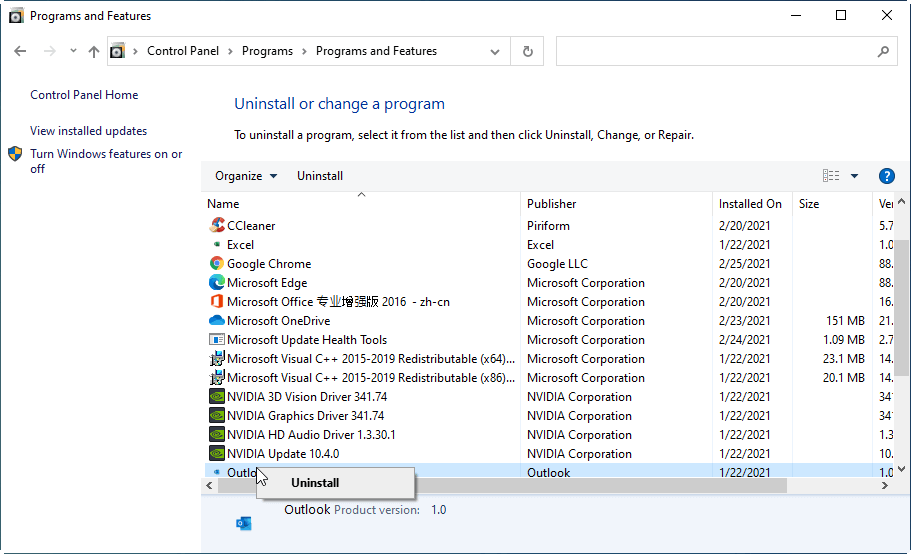
When cleaning up Windows 10, it's essential to consider uninstalling unused apps, including those that come bundled with third-party software, known as bundleware, and old apps that are no longer used, freeing up space and improving computer performance.
★ To open the Control Panel, simply type "control panel" in the search box on the taskbar and press the "ENTER" key, which will bring up the window of Control Panel.
★ Hit "Programs" in the popup window.
★ Select "Programs and Features".
★ To remove an unwanted app or program from your PC, right-click on the item in the list of installed programs and select "Uninstall". This will delete the program from your computer.
Method 2. Run Windows inbuilt Disk Cleanup
Disk Cleanup is a PC maintenance program in Microsoft Windows that frees up disk space on a computer hard drive by searching and removing unnecessary files.
★ Type "disk cleanup" in the search box and hit "ENTER".
★ Clean the selected partition by deleting all files and data on it, thereby freeing up space on your computer. This will erase all files, folders, and programs on the partition, so make sure you have backed up any important data before proceeding.
★ To delete files, select the files you want to delete by ticking them in the popup window, then click "OK" to confirm the deletion.
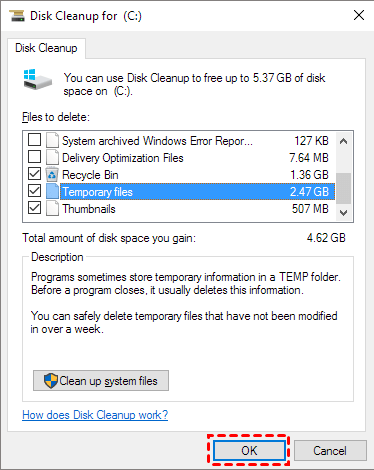
The process will be finished within less than 5 seconds.
Method 3. Set Storage Sense
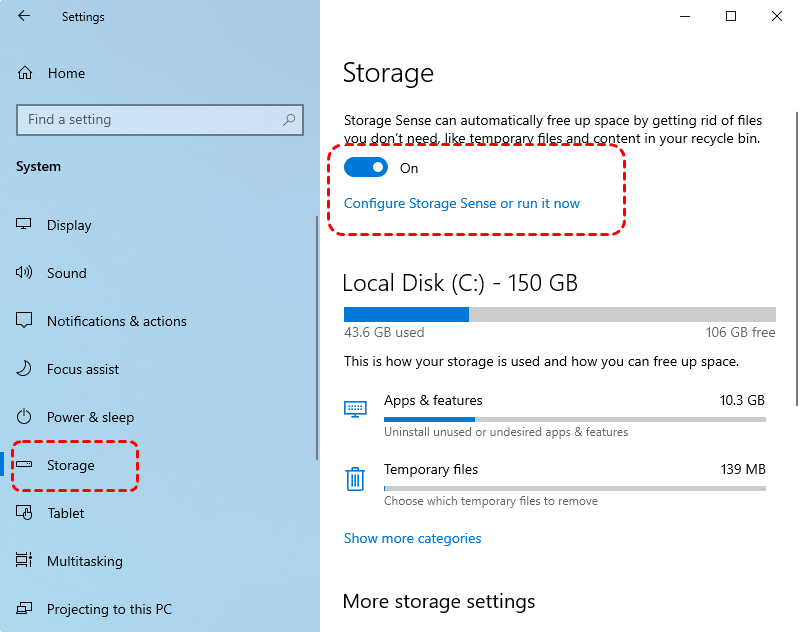
Windows 10 has a built-in program called Storage Sense that automatically frees up storage space by getting rid of unnecessary files, such as .tmp files and contents in the recycle bin.
★ To check storage, open the start menu, then go to "Settings", click on "System", and select "Storage".
★ Toggle on the storage button.
★ Click on "Configure Storage Sense or run it now".
In the setup window, you can customize how Storage Sense operates, including setting a schedule for daily, weekly, or monthly cleanups. Additionally, you can initiate an immediate cleanup by clicking the "Clean now" button.
Method 4. Delete temporary and downloaded files
Windows allows you to view and delete temporary files, including TMP files, in the "Storage" section, making it easy to free up space by removing unnecessary files.
★ To check for disk errors on your Windows 10 PC, go to the Start menu and click on "Settings", then click on "System", followed by "Storage".
★ Select "Temporary files".
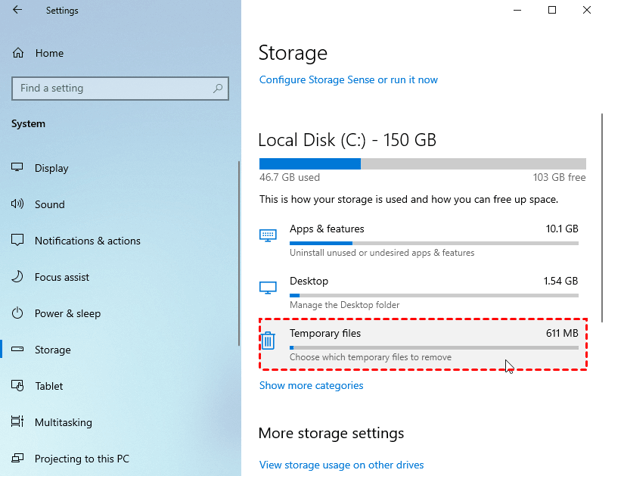
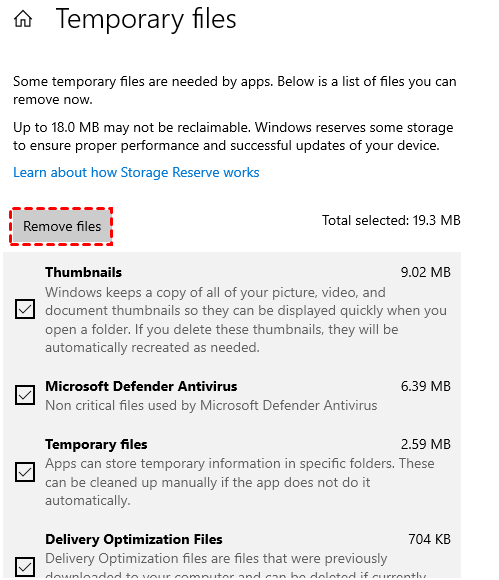
★ In the popup window, all files will be automatically analyzed and listed, showing the total number of files you've selected.
★ Click on "Remove files" to delete these TMP files.
Method 5. Disable hibernate
Hibernation is a PC state that's faster to start up from than shutting down or sleeping, as it doesn't require re-establishing files and settings. When enabled, it reserves part of the disk for its data, specifically the hiberfil.sys file, which is allocated at ¾ of the PC's installed RAM.
If you're running low on space on your Windows 10 PC, you can free up some extra space by disabling hibernate, which can help you recover some storage space.
★ To open the Command Prompt as an administrator on your PC, follow these steps: Start the Start menu on your PC and choose "Command Prompt (Admin)" from the popup menu. This will open the Command Prompt application with administrative privileges, allowing you to run commands that require elevated permissions.
★ Type the command "powercfg.exe /hibernate off" and press the "ENTER" key in the Command Prompt window.
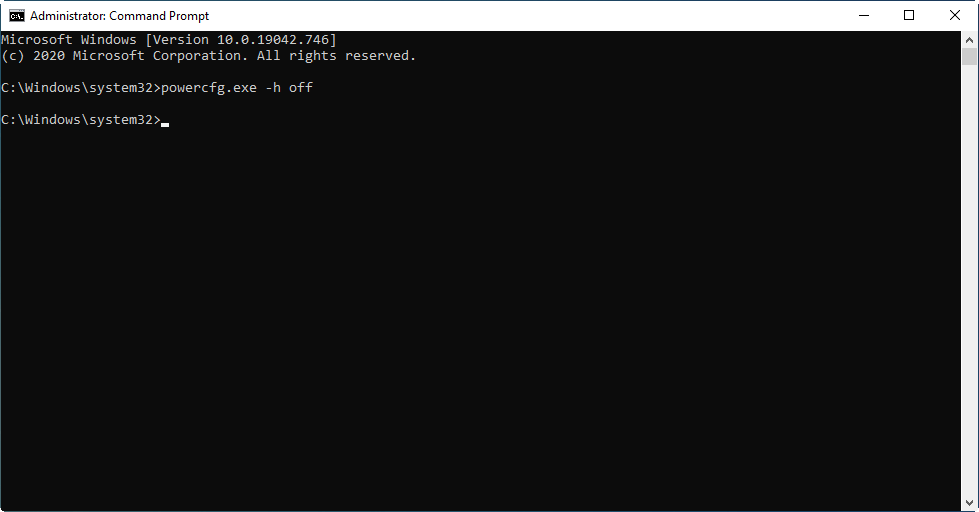
To disable hibernate, you can go to Power Options in the Control Panel, click on "Choose what the power buttons do," and then uncheck the box next to "Hibernate." This will prevent the computer from automatically going into hibernate mode when the power button is pressed.
Method 6. Extend System Drive
If your PC runs slowly despite performing a Windows 10 cleanup, consider extending your system drive by shrinking another drive. However, using Disk Management to resize partitions can be problematic as it can only extend the C drive with adjacent unallocated space, and deleting the entire partition next to C drive to get the required space can result in data loss. A better alternative is needed.
I was able to find a powerful disk manager freeware called Qiling Disk Master Standard that can extend the system partition, even if it's an encrypted partition. This tool is more feature-rich than its counterparts, allowing me to not only extend the partition but also clone, wipe, and format partitions. I appreciate that it's free from bundleware and has a user-friendly interface, making it a great option for managing my disk.
Get the most powerful disk manager software for free to extend your system drive and make your PC run more smoothly.
Step Install and launch Qiling Disk Master Standard, which will list all disks and partitions on its main interface.
Step 2. To shrink a partition, right-click on the partition you want to shrink and select the option to resize or move the partition.
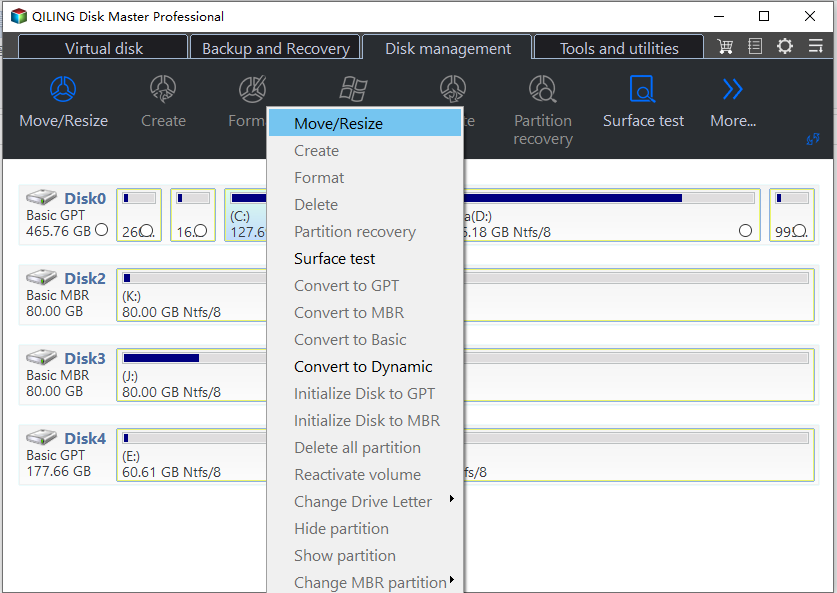
Step 3. To resize the unallocated space, adjust the length of the green bar to determine the size of the unallocated space. Then, click "OK" to proceed.
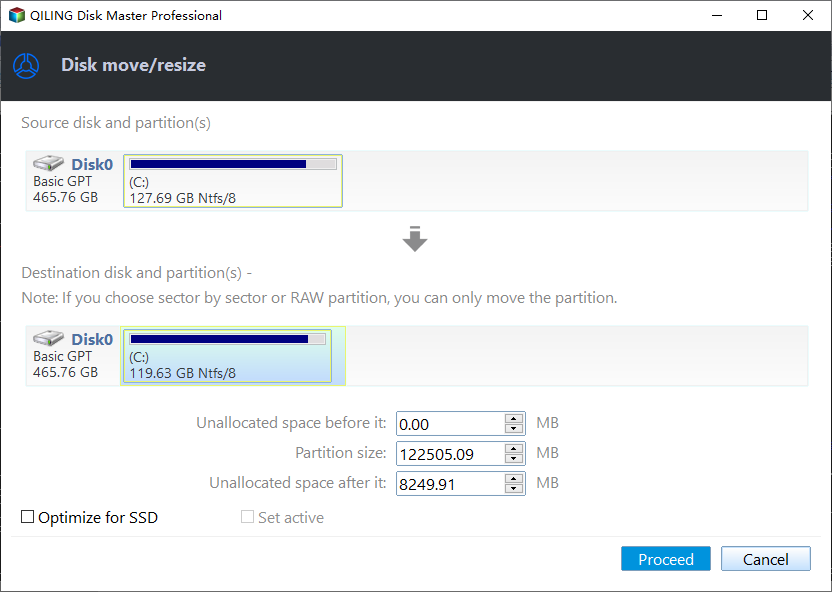
Step 4. After returning to the main interface, click on "Proceed" on the upper left to initiate the system drive extension.
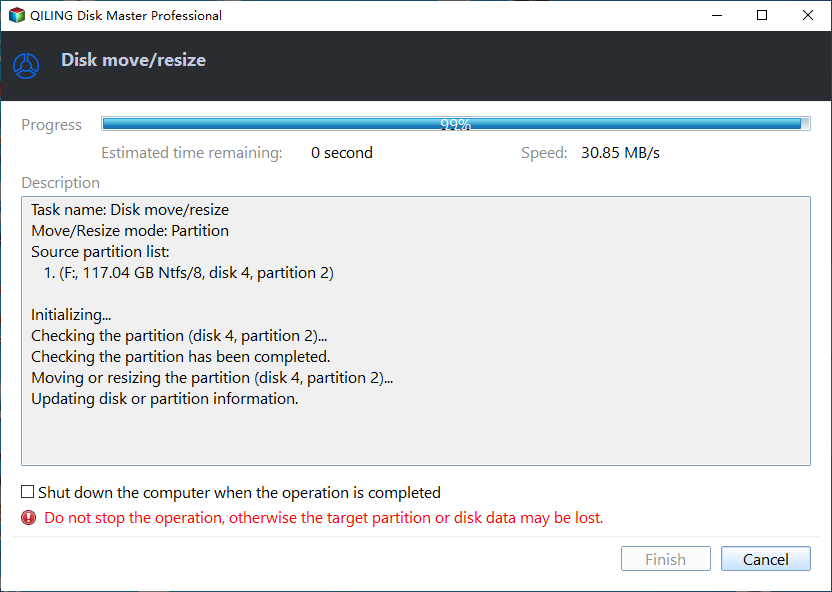
If you're using an old computer with limited storage, this method may not be effective. To free up space, consider using the "Disk Clone" feature in Qiling Disk Master Standard to copy your system data to a larger new hard drive or solid-state drive (SSD).
Conclusion
To clean up Windows 10 files, it's essential to regularly remove unnecessary files and data to free up space and improve system performance. Six methods can be used to achieve this, including using built-in features like Disk Cleanup and Storage Sense, as well as third-party tools like CCleaner and Qiling Disk Master Standard. The latter, in its Pro version, offers additional features like partition splitting, quick partitioning, and free space allocation.
Related Articles
- How to Fix C Drive Full Windows 10 within Only A Few Steps?
The issue C drive full windows 10 is a headache and can bring you quite a lot of trouble. If you want to find out where those extra files come from and the solution to this issue, this should be the right article for you. - How to Check MBR or GPT in Windows 11/10/8/7[3 Free Ways]
To check whether your Windows 11/10/8/7 system uses MBR (Master Boot Record) or GPT (GUID Partition Table), you can use the Command Prompt, Disk Management, or a free partition manager. In the Command Prompt, type "wmic diskdrive get status" and press Enter. - How to Defragment External Hard Disk in Windows 10
Learn how to defragment external hard disk with Windows tool and with an external hard drive defrag software. - How to Delete Everything on a USB Flash Drive [Completely]?
This post shows how to delete everything on a USB flash drive (completely), even when you can't delete files from USB due to write protection or something else. - How to Move Partition with GParted in Windows 10, 8, 7?
Moving partition with GParted helps you to merge partitions. This article will illustrate you how to perform it. - Move Program Files (x86) to Another Drive Safely and Easily
To move program files (x86) to another drive safely and easily, you can use the built-in Windows feature called "System" or a third-party software like EaseUS Todo PCTrans or PC Mover. These tools will help you transfer the files without affecting the programs
Products
Articles & Tutorials
- Data Recovery
- Data Backup
- File Recovery
- File Backup
- File synchronize
- System Backup and Restore
- Disk and Partition Clone
- Technical articles
- Disk Master Help
- Windows Deleted File and Disk Recovery Tutorials
- Windows File and Data Recovery Tutorials
- More Windows Tutorials for Install, Security, Files, and PC Tips
- Windows Boot, Repair, and Recovery Environment Tutorials
- Windows Backup Tutorials
- Windows Restore Tutorials
- Windows Clone and Migration Tutorials
- Windows Server Backup, Recovery, and Management Tutorials
- Windows Disk, Partition, and Storage Management Tutorials