Free Clone Partition on Windows 11, 10, 8, 7 Easily
What does clone partition mean?
Cloning a partition, also known as copying a partition, is the process of duplicating the entire contents of a partition to a new one, either on the same hard disk or a different one. The resulting destination partition will have the exact same data as the source partition, making cloning a useful way to create a full and faithful copy of the source partition in Windows 11/10/8/7.
Cloning partitions is a safe and efficient way to backup data, transfer large amounts of data, and even move entire installations between hard drives or partitions, avoiding potential program or OS boot failures that can occur when copying files individually.
Does Windows 10 have cloning software?
Windows 10 does not have a built-in cloning software to copy partitions, only offering the System Image feature which creates a complete replication of the OS drive and allows restoration to another device, but does not provide a cloning feature to copy all contents from one partition to another.
Freeware to clone partition on Windows 10 (Win 11 also supported)
A professional partition cloning tool is necessary for flexibly cloning a partition in Windows 11, 10, 8, and 7. We highly recommend the freeware Qiling Disk Master Standard, which allows you to duplicate partitions or volumes in 32-bit and 64-bit Windows 11/10/8/7 for free.
The Qiling Disk Master Standard offers two distinct methods for cloning partitions, catering to different needs and requirements.
✦Clone Partition Quickly: Copy all existing files from one partition to another partition or hard disk, ensuring the destination has enough space to hold all the files from the original partition.
✦Sector-by-Sector Clone: Copy all sectors from the source partition to the destination partition, including bad sectors, used sectors, and blank sectors, to ensure the destination partition is an exact replica of the source partition, provided the target partition is larger than the source partition.
▶ Preparations before cloning partition on Windows 10
To clone a disk partition using the free Qiling Disk Master Standard, prepare the following:
① To clone a partition to a different hard disk, ensure the new hard disk is connected to your Windows 10 computer and is detected successfully. If necessary, use a USB adapter cable or install the second hard drive to make it visible to your computer.
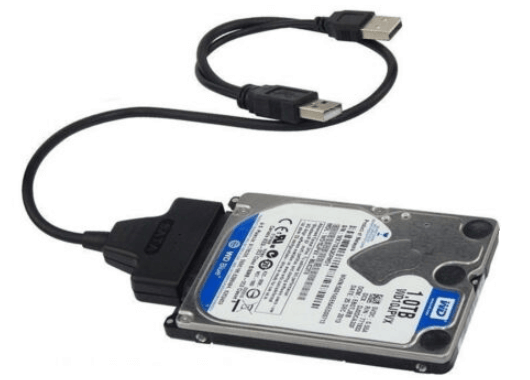
② To clone a disk, ensure there is unallocated space on the destination disk. If the destination disk is already full, create unallocated space by deleting or shrinking a partition. This allows the cloning process to utilize the unallocated space.
③ If you're using a new disk, you'll need to initialize it first. To prevent changing the boot mode, make sure the partition style (MBR or GPT) is the same as the source disk.
▶ 5 steps to clone partition in Windows PC for free
To clone a partition from one disk to another on Windows, follow these five steps: first, ensure the destination disk has enough free space to hold the partition you're cloning; next, download and install a reliable disk cloning software such as Qiling Backup; then, launch the software and select the source and destination disks; after that, choose the cloning method (e.g.
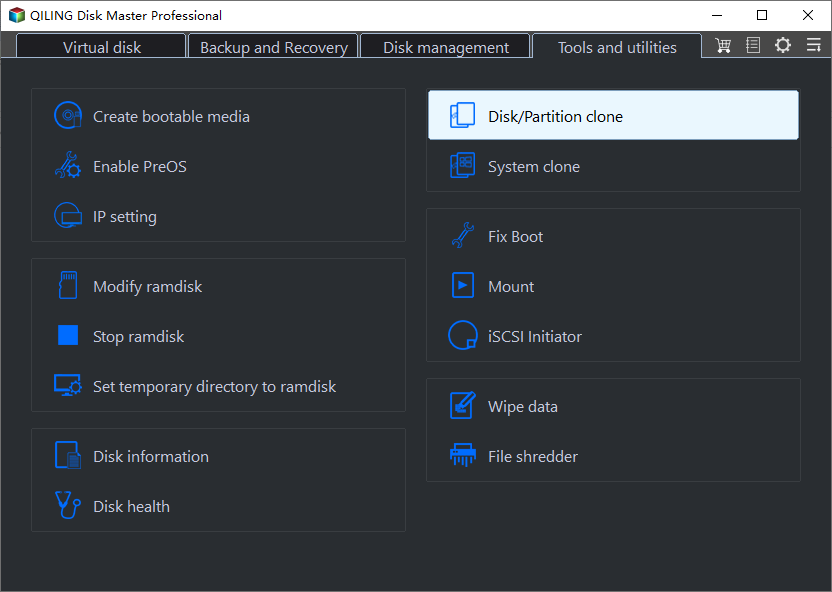
Step 1. Install and launch Qiling Disk Master, then click the "Tools" main tab and select "Clone Partition".
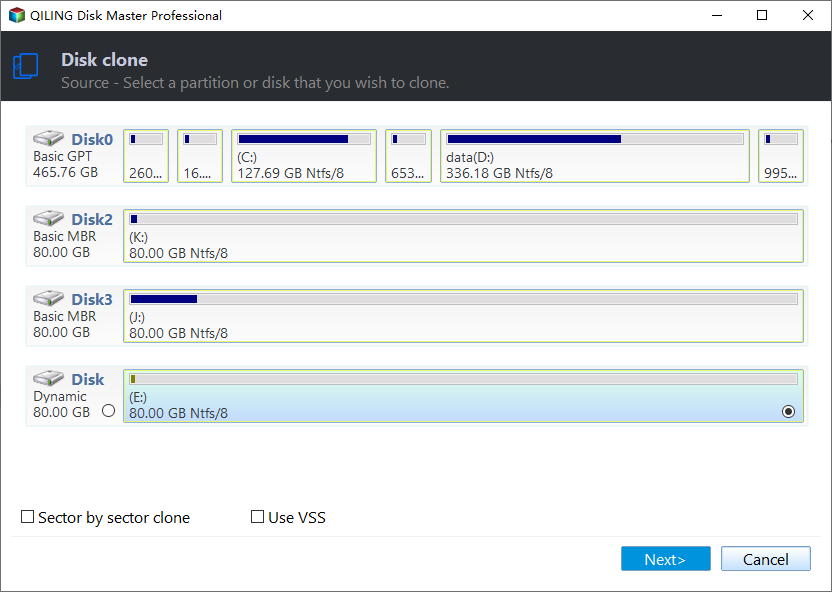
Step 2. Enter the Confirm interface to check the source and destination clone location, then click the "Next" button to continue.
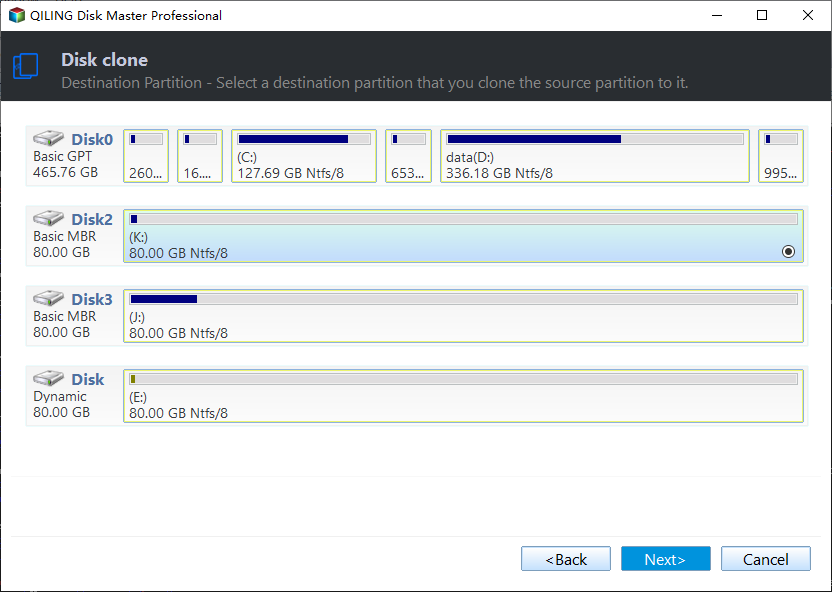
Step 3. Select the destination partition or unallocated space to hold your source partition, and then click "Next" in the next window.
Notes:
- There is an option to optimize the read and write speed on a partition, especially when copying to a SSD, which can extend its lifespan.
- If you choose the "Sector-by-Sector Clone" mode, the unallocated space must be equal to or larger than the source partition, and selecting this option will prevent resizing the destination partition.
Step 4. In the next window, click the "Settings" button to adjust the target partition size. You can adjust the source partition size to fit the target partition or skip this step and click "Save".
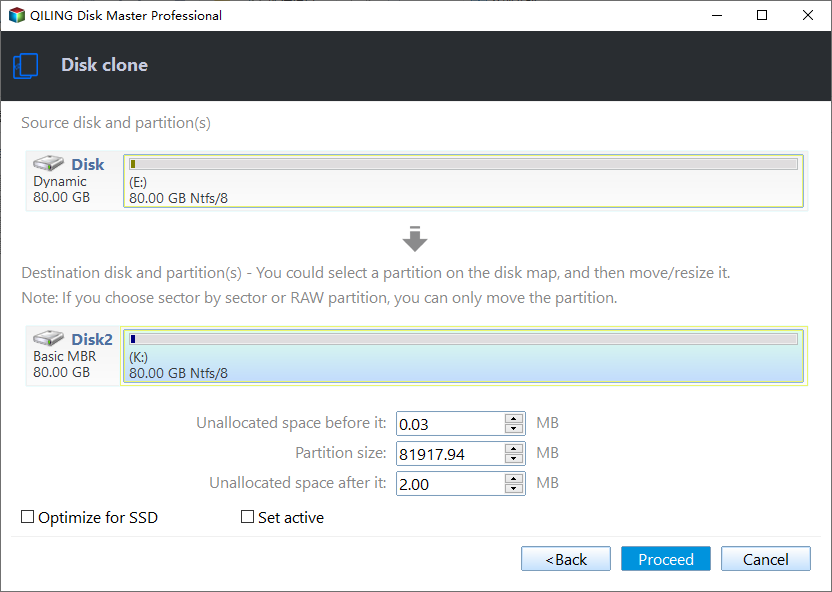
Step 5. You can preview the partition copy operating. And click "Proceed" to clone the partition.
The cloning process will start and you can monitor its progress. Upon completion, a congratulation window will appear, indicating a successful clone. Once done, you can verify that the destination disk's partition layout is identical to the source disk's partition layout.
▶ How to clone boot partition on Windows PC
Cloning a data partition to another hard disk in Windows 10 involves using a cloning software, such as Qiling Backup, to create a duplicate of the partition on the original disk. This process allows for a seamless transfer of data and applications to the new disk, preserving the original disk's structure and settings. The cloned partition can then be used as a replacement for the original, or it can be used as a separate drive for storing data. It's worth noting that the free edition of Qiling Backup only supports cloning from MBR to MBR, while the professional edition supports more advanced cloning options, including GPT to GPT and MBR to GPT cloning.
The advanced feature "Migrate OS to SSD" is recommended for a smooth boot from the cloned drive, allowing the migration of system and OS-related partitions to another drive.
Step 1. Click "Clone" > "Migrate OS to SSD" and click "Next" in the pop-out window.

Step 2. To begin the process of creating a new partition on the target hard disk, select an unallocated space on the target hard disk and click "Next".

Step 3. Here, you can resize partition on the destination disk and hit on "Next" to continue.

Step 4. Click "Proceed" to commit the pending operation.
Step 5. Read the note on how to boot OS from the destination disk and click "Yes".

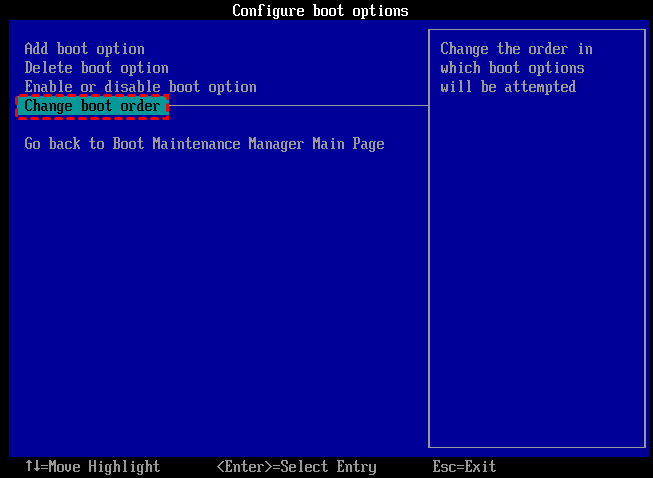
After cloning the boot partition in Windows 10, you need to enter BIOS setup to change the boot order to boot the computer from the destination disk.
Summary
With the help of free Qiling Disk Master Standard, cloning a partition or whole hard disk in Windows 10 is a straightforward process. It allows for cloning a specific partition on a hard disk and also provides a server version for Windows Server users.
Related Articles
- Freeware to Clone/Copy Partition to Another Drive (SSD/HDD) in Windows 10/8/7
With the free Qiling Disk Master Standard, you can easily clone partition to another drive or disk in Windows 11, 10, 8, 7. It also allows you to clone C drive to another drive effectively. - NTFS VS. FAT32: What's the Difference and Which is Better?
In this post,we share much information about NTFS and FAT32 file systems and make an elaborate comparison. Besides, you can also learn how to realize the NTFS and FAT32 conversion without formatting or losing data.
Products
Articles & Tutorials
- Data Recovery
- Data Backup
- File Recovery
- File Backup
- File synchronize
- System Backup and Restore
- Disk and Partition Clone
- Technical articles
- Disk Master Help
- Windows Deleted File and Disk Recovery Tutorials
- Windows File and Data Recovery Tutorials
- More Windows Tutorials for Install, Security, Files, and PC Tips
- Windows Boot, Repair, and Recovery Environment Tutorials
- Windows Backup Tutorials
- Windows Restore Tutorials
- Windows Clone and Migration Tutorials
- Windows Server Backup, Recovery, and Management Tutorials
- Windows Disk, Partition, and Storage Management Tutorials