How to Move Windows 10 Boot Manager to SSD and Boot From It Smoothly?
User case
To move Windows 10 to a new SSD while preserving the boot manager, you can use the built-in feature in Windows 10 called "Clone or Upgrade" in the Windows 10 Media Creation Tool. This tool allows you to clone the existing Windows installation to the new SSD, including the boot manager, without needing to reinstall Windows. Alternatively, you can use a third-party cloning software like Qiling Disk Master to clone the existing installation to the new SSD. Both methods will ensure that the boot manager is correctly moved to the new SSD, allowing you to boot from the SSD without any issues.
About Windows boot manager
The Windows boot manager, also known as BOOTMGR, is a boot sequence manager first introduced in Windows Vista to replace the NTLDR boot manager in previous versions of Windows. It reads the boot configuration data, displays the OS selection menu, and allows you to choose which OS to load. The bootmgr file is typically located in the root directory of the Active partition, usually labeled as System Reserved or EFI system partition without a drive letter, or in the system drive (usually C: drive) if no such partitions exist.
The boot manager helps to execute the system loader: winload.exe, ensuring a successful Windows 10 load, making it a crucial part of the startup process, and essential for booting from a cloned hard drive.
Top tool to move Windows 10 boot manager to SSD
When moving the operating system to a new drive, it's essential to transfer all OS-related partitions, including the system/boot drive, system reserved partition, and EFI or recovery partitions, to ensure the Windows boot manager is also moved to the new drive, making the process much easier and more reliable.
For migrating your OS to an SSD, you can use Qiling Disk Master Professional, which is compatible with Windows 11, 10, 8, 7, and XP, Vista (both 32-bit and 64-bit). Its "Migrate OS to SSD Wizard" feature allows you to change the system drive (C: drive) and other necessary partitions, such as the system reserved partition or EFI partition, to another HDD/SSD, making the cloned hard drive bootable as well. A demo version is available for a free trial.
The utility supports moving the Windows boot manager from MBR to MBR, MBR to GPT, GPT to GPT, or GPT to MBR disks. However, note that if you're changing the boot manager and OS from MBR to GPT or GPT to MBR, you'll also need to switch the boot mode from Legacy to UEFI or UEFI to Legacy. Alternatively, you can convert the destination SSD and source disk to GPT or MBR in advance, allowing you to avoid switching boot modes.
Guide: move Windows boot manager to SSD step by step
To set up your SSD, connect it to your computer using a SATA to USB adapter if necessary, and ensure it's detected. Once set up, you can learn how to change the Windows boot manager to use the SSD instead of the original drive.
Before you do:
①Back up any important files on the solid-state drive, as they will be erased during the OS migration process.
②Make sure the destination SSD has enough free space to accommodate the used space of the OS partition, and if necessary, shrink the C drive to fit the SSD.
Step 1. Install and run Qiling Disk Master Professional. Click "Tools" > "System Clone" on the main interface and click "Next".

Step 2. Select an unallocated space on the target SSD and click "Next".

Step 3. Here, you can resize the partitions on the solid-state drive and click "Next".

Step 4. Back to the main interface, click "Proceed" to commit the operation.
Step 5. Then you will receive a boot note. Read it carefully if necessary and click "Yes".

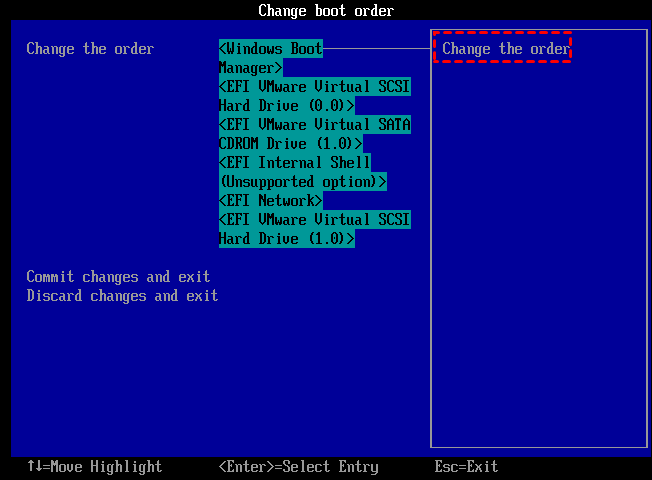
Once the cloning process is complete, the OS and boot manager are transferred onto the new SSD drive. To verify the cloned SSD drive, you can either remove the current HDD and install the SSD drive, or reboot your computer and enter BIOS to change the boot order, making the cloned SSD the first boot device, to see if your computer can successfully boot from it.
PS.: If you're unable to boot from a new SSD, you can find solutions on this page: Cloned Hard Drive or SSD Won't Boot - How to Fix?.
Summary
To move the Windows 10 boot manager to an SSD and boot from it, follow the steps. If everything goes well on the new SSD, you can wipe the old system drive and use it for data storage. Qiling Disk Master Professional not only supports OS migration but also other functions like allocating free space, extending the system drive, cloning the hard disk, and converting the disk between MBR and GPT without deleting partitions. For Server users, Qiling Disk Master Server offers similar features.
Related Articles
- Resolved: Windows Boot Manager Boot Failed in Windows 10
The error "message Windows boot manager boot failed" will appear if the Master Boot Record is corrupted. But and this post shows how to repair this problem easily. - Fix BOOTMGR (Boot Manager) Is Missing Problem in Windows 7/8/10
Fix the 'BOOTMGR is missing' error in Windows 11/10/8/7 with practical methods, including startup repair, BCD rebuild, active partition checks, and bootable media recovery. - How to Schedule Defrag Windows 11, 10
Windows 11, 10 schedule defrag can improve device performance by running disk defragmentation at scheduled times, helping to maintain the health and speed of the device. This can be done via the Settings app or using a third-party tool. - Free SD Card Erase Tool: Securely Erase SD card in Windows
Here you can know how to clear, erase, or wipe an SD card, USB flash drive and hard drive. Try the best SD card eraser tool-Qiling Disk Master to erase hard drives easily and efficiently in Windows PC and Windows Server. - QILING Fast Cache Server
QILING Fast Cache can improve overall system performance and the life of hard disk. Free download the Fast Cache software to speed up your computer now! - Qiling File Shredder
Qiling File Shredder is permanently wipe the disk or shared data, irreversibly remove sensitive data easily and effectively.
Products
Articles & Tutorials
- Data Recovery
- Data Backup
- File Recovery
- File Backup
- File synchronize
- System Backup and Restore
- Disk and Partition Clone
- Technical articles
- Disk Master Help
- Windows Deleted File and Disk Recovery Tutorials
- Windows File and Data Recovery Tutorials
- More Windows Tutorials for Install, Security, Files, and PC Tips
- Windows Boot, Repair, and Recovery Environment Tutorials
- Windows Backup Tutorials
- Windows Restore Tutorials
- Windows Clone and Migration Tutorials
- Windows Server Backup, Recovery, and Management Tutorials
- Windows Disk, Partition, and Storage Management Tutorials