Resolved: Windows Boot Manager Boot Failed in Windows 10
The case
"I have a Lenovo Ideapad with Windows 10 installed. I was playing the game Counter-Strike, and my screen suddenly froze, I couldn't even hit ctrl+alt+delete. Thus, I turned offthe Windows 10 Lenovo computer, but when I tried to turn the computer on again, I get an error message: Windows Boot Manager Boot Failed. Changing the BIOS to Legacy BIOS boot is not working.
It seems like you're trying to boot your computer, but it's not recognizing the boot device. This could be due to a hardware or software issue. Can you try checking the boot order in your BIOS settings and see if that resolves the issue? If not, you might want to try booting from a USB drive or CD/DVD with a bootable operating system to see if that helps."
About Windows Boot Manager
Windows Boot Manager (BOOTMGR) is a small software that helps start Windows 10. Its configuration data is stored in the Boot Configuration Data (BCD) store. The BOOTMGR file itself is read-only and invisible, located in the System Reserved Partition or system/boot partition.
When starting Windows 10, the first code to execute is the BIOS, which reads the Master Boot Record (MBR) from the boot device and transfers control to the boot code stored in the MBR. The Windows Boot Manager then reads the boot entries from the Boot Configuration Data (BCD) store, making them available to the loader, and displays a boot menu to the user.
Causes of Windows Boot Manager Boot Failed Windows 10
Windows Boot Manager failed due to a corrupted Master Boot Record (MBR), likely caused by malware or improper shutdown, resulting in the failure to find the OS loader. Repairing the MBR is necessary to resolve the issue.
How to fix "Windows Boot Manager Boot Failed" in Windows 10?
To fix the MBR on a Windows 10 computer, you can use the Bootrec.exe tool or a free disk partitioning software. This will help resolve the issue and get your computer running smoothly again.
1. Use Bootrec.exe Tool
The bootrec.exe tool, a built-in Windows 10 utility, can be used to fix issues with the Windows Boot Manager failing to start. It's a relatively simple process to use this tool, which can help resolve problems related to the Master Boot Record (MBR) in Windows 10.
1. Press F8 to go to the Windows Recovery Menu while booting Windows 10 system.
2. Choose Troubleshoot-> Advanced options to get into Automatic Repair menu.
3. Click command prompt to use Bootrec.exe tool. And input the following commands, and run them one by one:
- bootrec /RebuildBcd
- bootrec /fixMbr
- bootrec /fixboot
- bootsect /nt60 SYS or bootsect /nt60 ALL
2. Apply disk partitioning freeware
Moreover, the alternative way will give you a shot. Qiling Disk Master Standard is comprehensive and free software that allows you to manage hard drive partitions and troubleshoot Windows Boot Manager errors under WinPE, including rebuilding MBR to fix Windows Boot Manager Boot Failed in Windows 10.
To fix a corrupted PC, download the freeware on a normal Windows 10 computer and create a WinPE bootable media. This media can then be used to boot up the corrupted PC, allowing you to rebuild the Master Boot Record (MBR).
1. To make a bootable USB drive on Windows 10 using Qiling Disk Master Standard, simply insert the USB flash drive into your PC, then run Qiling Disk Master Standard and navigate to the "Tools" panel, where you can select the option to "Make Bootable Media".

2. Choose USB Boot Device.
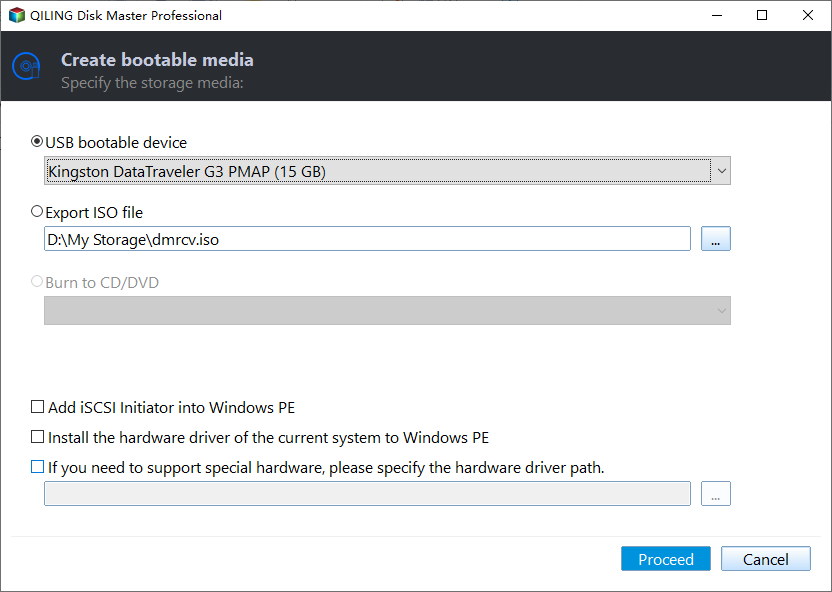
3.Click Proceed button to create the bootable USB disk.
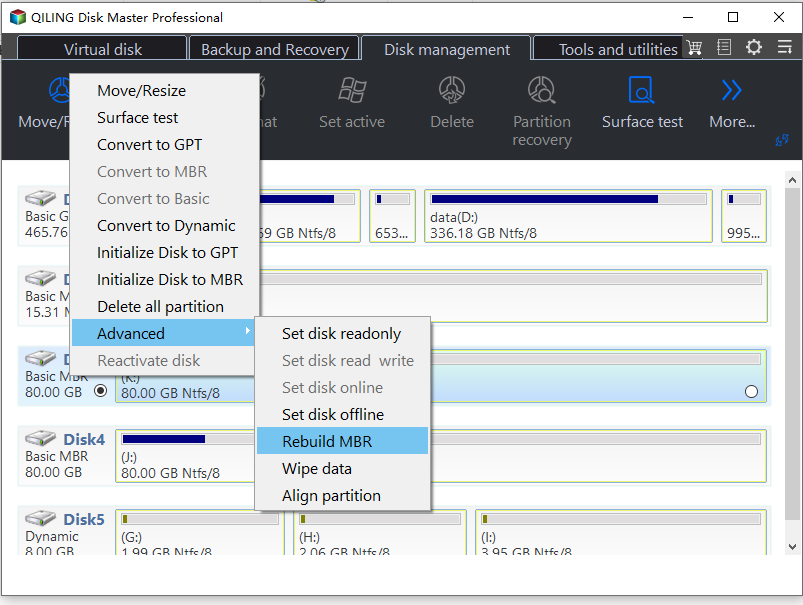
4. Boot your corrupted Windows 10 computer from the bootable media, and Qiling Disk Master will automatically run on the desktop.
5. Select Rebuild MBR.
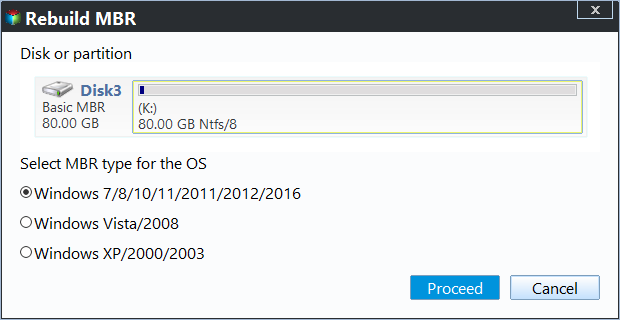
6. Choose the MBR for your Windows 10 operating system. Hit Proceed.
The Windows boot manager boot failed problem in Windows 10 can be solved using Qiling Disk Master Professional, which offers additional features like allocating free space, migrating the OS to an SSD, extending/moving/reshaping partitions, and recovering lost data.
Qiling provides a server edition that covers all features of the Professional edition and also supports Windows Server systems, including Windows Server 2003, 2008, 2012, 2016, 2019, and SBS 2003, 2008, 2011.
Related Articles
- How to Fix Invalid Partition Table Error in Windows 10?[4 Ways]
Fix the invalid partition table error in Windows 10 with four practical methods, including boot repair, partition checks, BIOS settings, and data-safe recovery steps. - Windows Needs More Space to Update – How Do I Do?
This guide explains Windows Needs More Space to Update – How Do I Do with clear steps, key checks, and practical tips. - Fix Windows Update 0x80080005 Error in 7 Effective Methods
To resolve the Windows Update 0x80080005 error, you can try one of the 7 solutions outlined in this article. Before attempting any fixes, it's recommended to back up your system to prevent future update issues. By following these steps, you can successfully troubleshoot and resolve the error, - How to Wipe and Partition Hard Drive?
When you find your disk performance gets slow, but you don't want to replace it, you could try to wipe and partition hard drive so that you can start from scratch. The detailed tutorial is presented in this passage. - How to Move Windows 10 Boot Manager to SSD and Boot From It Smoothly?
If you want to move Windows 10 boot manager to SSD from the old HDD, you can try the software-Qiling Disk Master, which can move Windows related partitions including the boot manager to another drive and ensure you can boot from it without any issues. - No Bootable Device Found in Windows 10 - Solved Now!
Review No Bootable Device Found in Windows 10 - Solved Now! with setup requirements, preparation steps, and tips to avoid installation or boot problems.
Products
Articles & Tutorials
- Data Recovery
- Data Backup
- File Recovery
- File Backup
- File synchronize
- System Backup and Restore
- Disk and Partition Clone
- Technical articles
- Disk Master Help
- Windows Deleted File and Disk Recovery Tutorials
- Windows File and Data Recovery Tutorials
- More Windows Tutorials for Install, Security, Files, and PC Tips
- Windows Boot, Repair, and Recovery Environment Tutorials
- Windows Backup Tutorials
- Windows Restore Tutorials
- Windows Clone and Migration Tutorials
- Windows Server Backup, Recovery, and Management Tutorials
- Windows Disk, Partition, and Storage Management Tutorials