No Bootable Device Found in Windows 10 - Solved Now!
Quick Navigation:
- An error occurs: no bootable device found in Windows 10
- How to fix no bootable device found in Windows 10 accordingly?
- Solve no bootable device found with free partition manager
- Summary
An error occurs: no bootable device found in Windows 10
Are you frustrated when your computer won't boot and displays the message "No bootable devices found"? This error occurs when the computer can't find a device that contains the necessary files to start up. Typically, a bootable device includes a hard drive, floppy disk drive, CD-ROM drive, DVD drive, or USB thumb drive. If you're experiencing this issue in Windows 10, let's troubleshoot together.
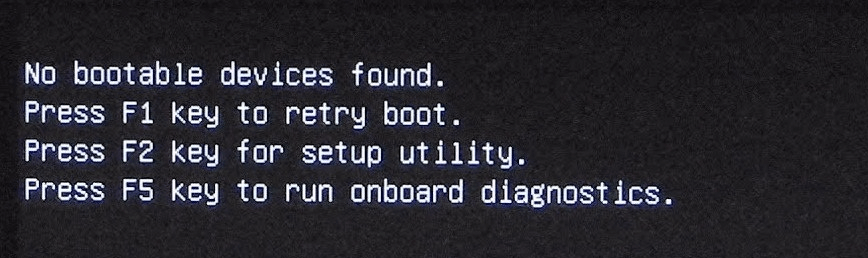
How to fix no bootable device found in Windows 10 accordingly?
If you encounter the "No bootable device is detected" error, there are two possible causes. You can find corresponding solutions here, which may or may not require Windows installation media. If you don't have the media, you can use a free tool offered in the next part. (Note: I reformatted the text to fit the requested format, but I had to make some minor changes to ensure it flows well as a single paragraph)
Hard drive is not set as first boot device in BIOS
In this case, you can simply change boot order like this:
1. Restart computer and tap Del to enter BIOS interface.
2. To change the boot order, press the right arrow key until the "Boot" tab is selected, then use the "+" or "-" button to move "Hard Drive" to the top of the list.
3. Press F10 to save changes and restart computer.
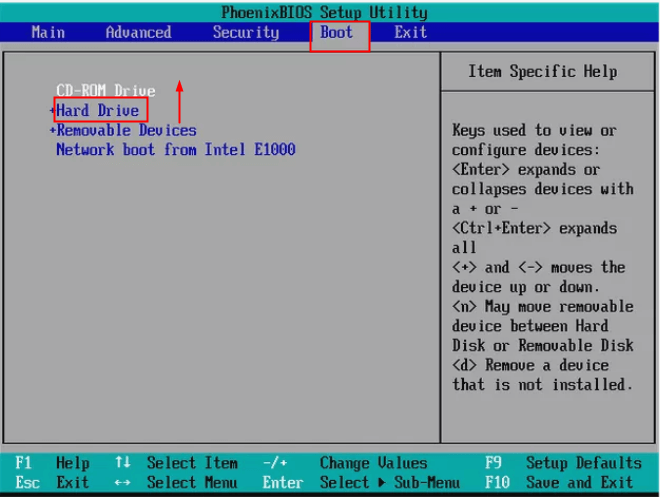
Tips:
● The function key to enter BIOS interface is typically F1, F2, F3, Esc, or Delete, and can be found in your PC manufacturer's manual or online documentation.
● The BIOS setup utility's menu option or configuration item for setting the boot order may be called something different in each utility, such as Boot, Boot Options, Boot Order, etc., and may be located within a general menu option like Advanced Options, Advanced BIOS Features, or Other Options.
Corrupted MBR
To repair a corrupted MBR in Windows 10, you can try the following steps:
1. To install Windows, you need to boot from the Windows installation media. This typically involves inserting a USB drive or CD/DVD that contains the Windows installation files into your computer, and then configuring your computer's BIOS or UEFI settings to prioritize the installation media as the boot device.
2. To repair your computer, select the language and region, and then click on "Repair your computer" when you see the "Install now" window.
3. On the Advanced options screen, select Troubleshoot and then Command Prompt.
4. In Command Prompt, input following command lines and press Enter after each. (If you are asked whether you want to add a new installation to boot list, type "y" and then press Enter.)
● bootrec /fixmbr
● bootrec /fixboot
● bootrec /scanos
● bootrec /rebuildbcd
5. Exit Command Prompt and restart your computer.
Solve no bootable device found with free partition manager
If the Master Boot Record (MBR) of your computer is corrupted, you can use a reliable partition manager called Qiling Disk Master Standard to rebuild the MBR. This software is free and can help you fix the issue with the "no bootable device" error in Windows 10. To do this, you can follow the steps provided by Qiling Disk Master Standard to rebuild the MBR and get your computer up and running again.
Step 1. Connect a USB drive to a computer in good condition, download, install and run Qiling Disk Master, then click on "Tools" > "Make Bootable Media" on the main interface and follow the wizard to create a bootable USB drive.

Tips: The bootable USB will contain installed Qiling Disk Master.
Step 2. To fix a computer with a boot problem, insert a bootable USB drive into the computer, then enter the computer's BIOS settings and change the boot order to prioritize the USB drive. This allows the computer to boot from the USB drive instead of its internal storage, allowing you to access the computer's operating system and potentially troubleshoot or repair the boot issue.
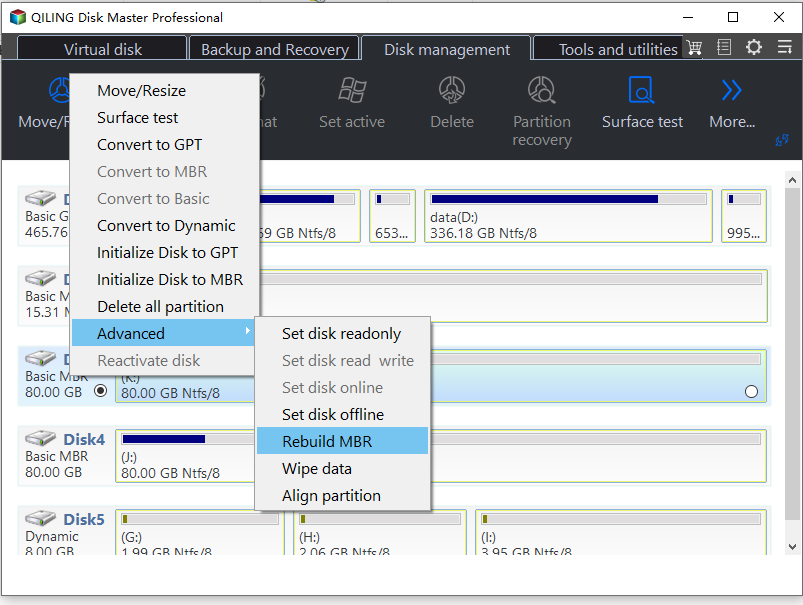
Step 3. Once logged in, you'll see the Qiling Disk Master loaded. Right-click the system disk, then select "Rebuild MBR".
Step 4. The type of MBR for Windows 10 should be set to "BIOS" in the pop-up window. This will ensure that the system can boot properly and that the MBR is compatible with the Windows 10 operating system.
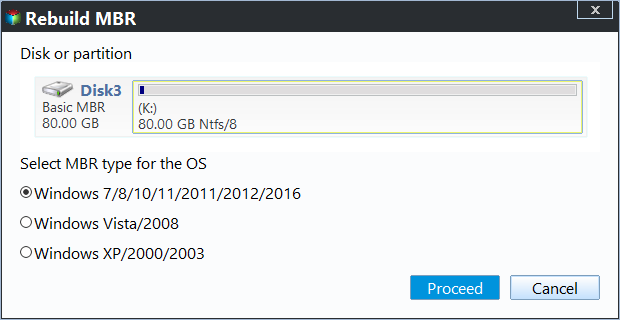
Step 5. You can restart your computer later after clicking "Proceed" to commit the pending operations.
Summary
If you encounter the "no bootable device found" issue in Windows 10, the solutions also apply to Windows 7. If data loss occurs during the process, you can use the "Recover Data" function to retrieve lost data. Additionally, you can use Qiling Disk Master to perform various operations such as rebuilding MBR, increasing C drive memory, or erasing an SSD before selling.
Related Articles
- Solved: Boot Device Not Found HP
Sometimes, some users report that hard drive not detected or boot device not found HP laptop/desktop. This article will show you five workable ways to solve it quickly and safely. - How to Repair Operating System Not Found Error in Windows 10?
Sometimes, you might meet the "operating system not found" error in Windows 10 startup process. Here you can learn why your computer says no operating system found and how to fix this problem via several effective methods. - How to Fix "Invalid Partition Table" Error in Windows 10?
Fix the invalid partition table error in Windows 10 with four practical methods, including boot repair, partition checks, BIOS settings, and data-safe recovery steps. - Best File Shredder to Securely Delete Data for Windows
To fix the "no bootable device found" error in Windows 10, you can use Qiling Disk Master to rebuild MBR, check disk health, and clone your system to a new drive if the hard drive is failing. - QILING Disk Master Edition Comparison
QILING Disk Master offers affordable, reliable, easy and best backup and restore software and disk manager software and ramdisk software solutions for Windows. - QILING Disk Master Free
Qiling Disk Master Free is an award-winning and easy-to-use free data backup software and free partition manager software for windows PC. - Fix No Boot Device Available in Windows 7
Fix No Boot Device Available in Windows 7 by checking BIOS order, disk connection, boot files, and data protection options.
Products
Articles & Tutorials
- Data Recovery
- Data Backup
- File Recovery
- File Backup
- File synchronize
- System Backup and Restore
- Disk and Partition Clone
- Technical articles
- Disk Master Help
- Windows Deleted File and Disk Recovery Tutorials
- Windows File and Data Recovery Tutorials
- More Windows Tutorials for Install, Security, Files, and PC Tips
- Windows Boot, Repair, and Recovery Environment Tutorials
- Windows Backup Tutorials
- Windows Restore Tutorials
- Windows Clone and Migration Tutorials
- Windows Server Backup, Recovery, and Management Tutorials
- Windows Disk, Partition, and Storage Management Tutorials