Windows 10 Media Creation Tool: Create Installation USB
What can Media Creation Tool do?
Windows 10 Media Creation Tool can download Windows 10 setup files, create a bootable USB, or save an ISO file. It is useful for clean installation, upgrade repair, startup repair, and reinstalling Windows on another PC.
Before creating Windows 10 installation media
- Prepare an 8GB or larger USB drive.
- Back up the USB drive because it will be erased.
- Use a stable network connection.
- Confirm the target PC needs 64-bit or 32-bit Windows.
Create a Windows 10 bootable USB
Step 1. Download Media Creation Tool from Microsoft and run it as administrator.
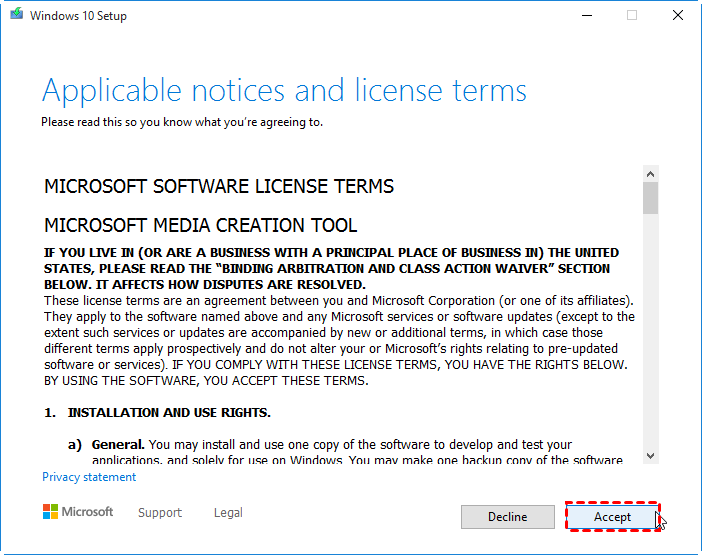
Step 2. Accept the license terms.
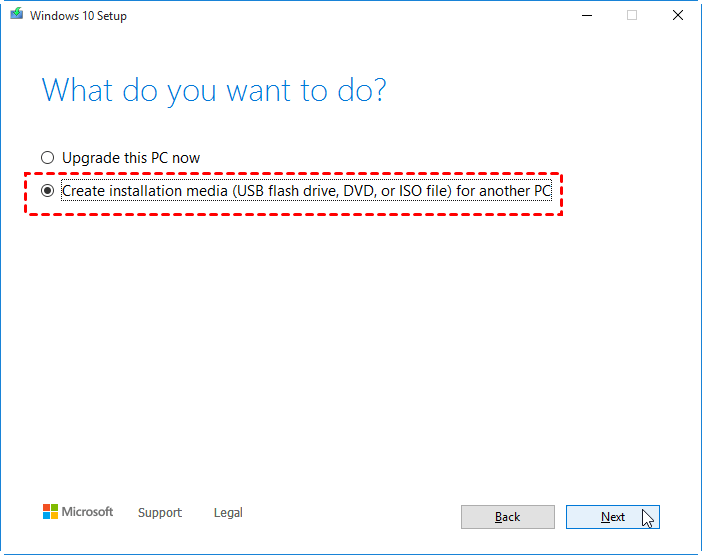
Step 3. Choose Create installation media for another PC.
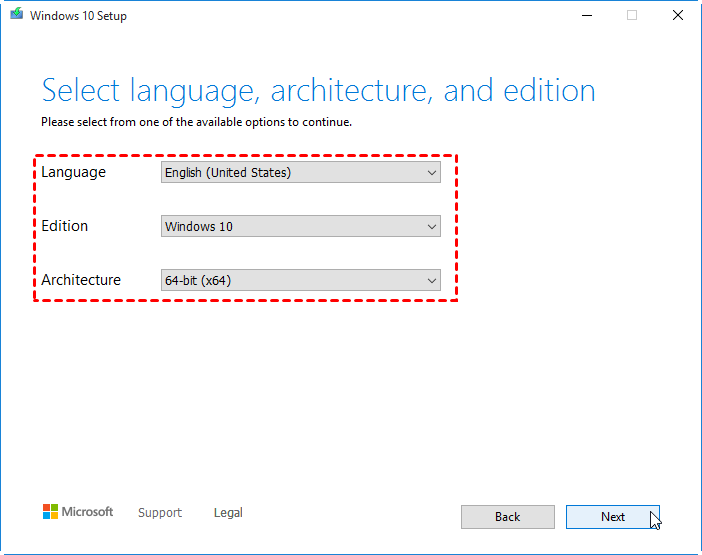
Step 4. Select language, edition, and architecture.
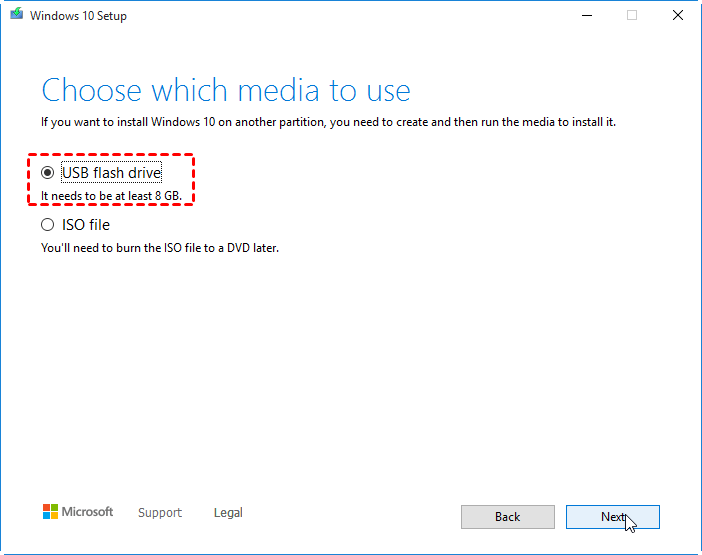
Step 5. Choose USB flash drive, select the USB drive, and wait until creation finishes.
Use the USB to repair or install Windows
Step 1. Insert the USB into the target PC and enter BIOS or boot menu.
Step 2. Boot from the USB drive.
Step 3. To repair, click Repair your computer. To reinstall, click Install now.
Step 4. For clean installation, choose the correct system partition carefully to avoid deleting data partitions.
Back up files before reinstalling Windows
 Qiling Disk Master
Before reinstalling Windows, use Qiling Disk Master to back up personal files or create a full system image for rollback.
Step 1. Connect an external drive that has enough space for the files or system image you want to keep. Do not use the Windows installation USB as the backup destination.
Step 2. Open Qiling Disk Master and choose File Backup to protect personal folders, or choose System Backup to preserve the current Windows installation and boot partitions.
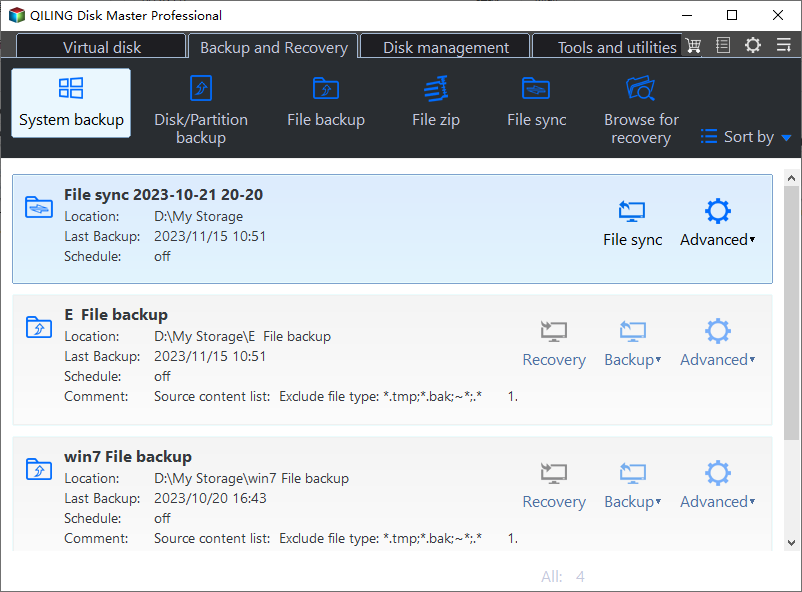
Step 3. Select the external drive as the destination. For a file backup, include Desktop, Documents, Downloads, Pictures, browser exports, and any work folders stored outside the user profile.
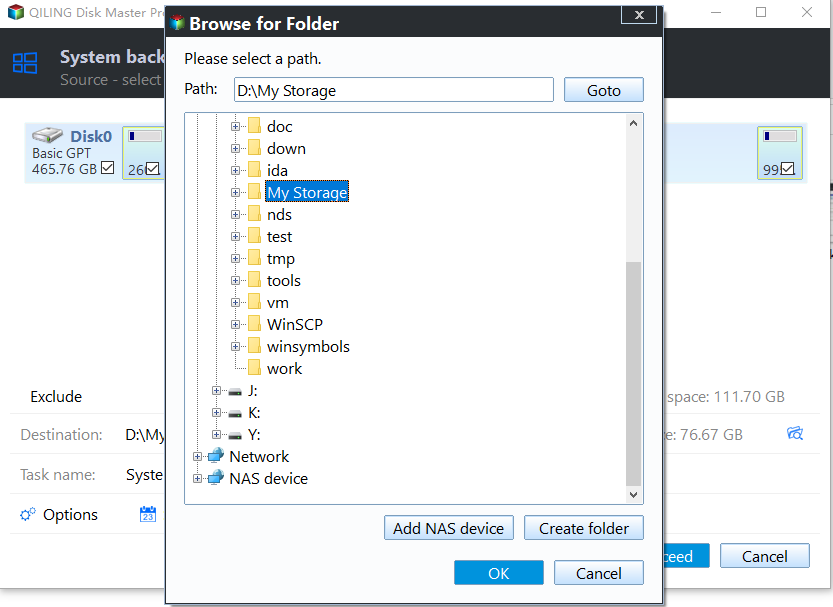
Step 4. Check the backup source and destination, then click Proceed. Wait for the task to finish and open a few backed-up files to confirm they are usable.
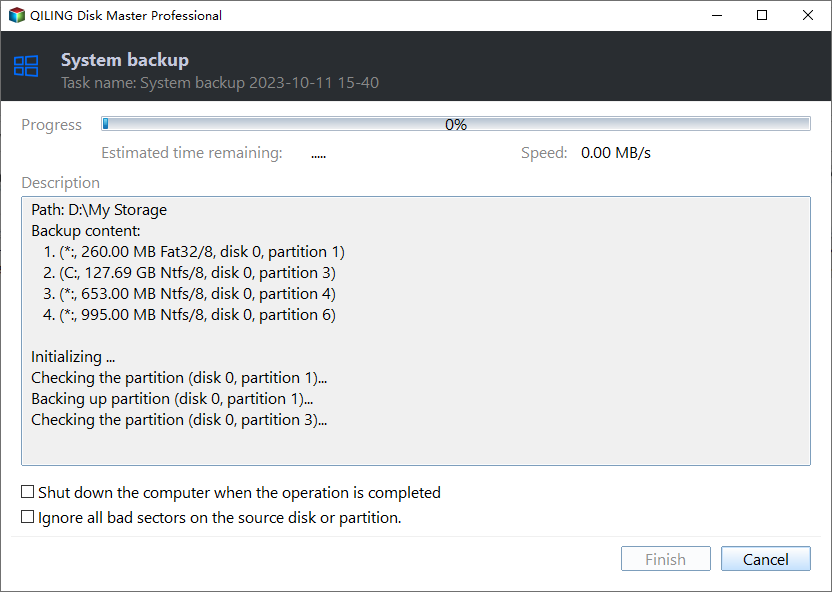
Step 5. Safely disconnect the backup drive only after completion. You can then boot from the Windows 10 installation USB to repair or reinstall Windows, with a copy of your files available if the installation requires partition changes.
Conclusion
Windows 10 Media Creation Tool is the official way to create installation USB media. Prepare the USB carefully and back up data before repair or installation.
Related Articles
-
How to Use Windows Media Creation Tool to Install Windows 10, 8, 7?
Learn how Windows installation media helps with repair and reinstall tasks. -
Repair Windows 10, 11: Create Repair Boot USB Drive
Create repair media for boot errors and recovery options. -
Create Windows PE or Linux Bootable Media Easily
Build bootable media for system recovery and maintenance. -
How to Recover or Create EFI Partition on Windows 11
Repair or recreate EFI startup files when Windows boot media cannot resolve the boot problem.
Products
Articles & Tutorials
- Data Recovery
- Data Backup
- File Recovery
- File Backup
- File synchronize
- System Backup and Restore
- Disk and Partition Clone
- Technical articles
- Disk Master Help
- Windows Deleted File and Disk Recovery Tutorials
- Windows File and Data Recovery Tutorials
- More Windows Tutorials for Install, Security, Files, and PC Tips
- Windows Boot, Repair, and Recovery Environment Tutorials
- Windows Backup Tutorials
- Windows Restore Tutorials
- Windows Clone and Migration Tutorials
- Windows Server Backup, Recovery, and Management Tutorials
- Windows Disk, Partition, and Storage Management Tutorials