How to Recover or Create EFI Partition on Windows 11
The EFI partition is missing on Windows 11
The EFI System Partition, also called ESP, stores boot files required by UEFI firmware. If it is deleted, formatted, or damaged during disk conversion or cloning, Windows 11 may fail to start and show errors such as "No bootable device" or "Boot configuration data is missing".
Before rebuilding it, stop changing partitions on the system disk. If Windows can still boot, create a system backup first because EFI repair uses commands that write to the boot area.
What is an EFI partition?
An EFI partition is usually a small FAT32 partition of about 100 MB to 300 MB. It normally has no drive letter and is marked as EFI System Partition in Disk Management. It stores Windows Boot Manager, BCD files, and startup data used by UEFI.
Before you recover or create the EFI partition
- Confirm the system disk uses GPT.
- Prepare a Windows 11 installation USB or recovery drive.
- Do not format the Windows partition.
- Back up important data if Windows is still accessible.
 Qiling Disk Master
Before editing boot partitions, create a system backup or disk clone with Qiling Disk Master so you can roll back if a command is entered incorrectly.
Method 1. Recover EFI partition by rebuilding boot files
Use this method when the EFI partition still exists but Windows 11 cannot boot.
Step 1. Boot from a Windows 11 installation USB. On the setup screen, click Repair your computer.
Step 2. Go to Troubleshoot > Advanced options > Command Prompt.
Step 3. Type diskpart, press Enter, and run list disk, select disk 0, and list partition.
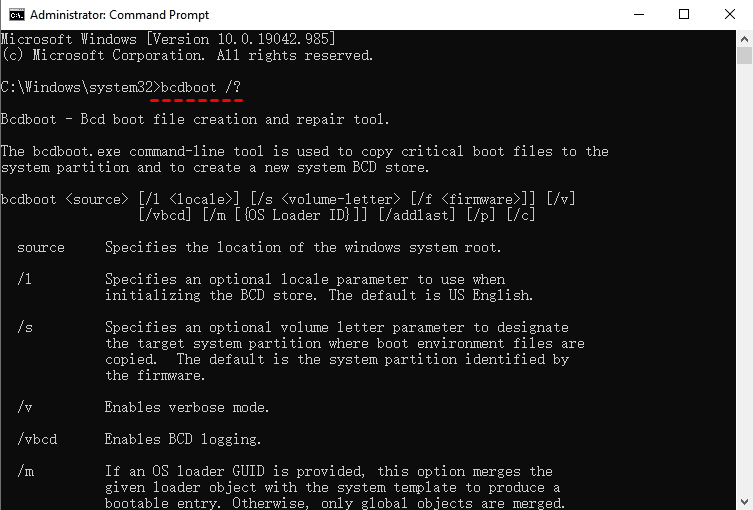
Step 4. Select the EFI partition, then assign a temporary drive letter:
select partition X
assign letter=S
exit
Step 5. Rebuild the boot files:
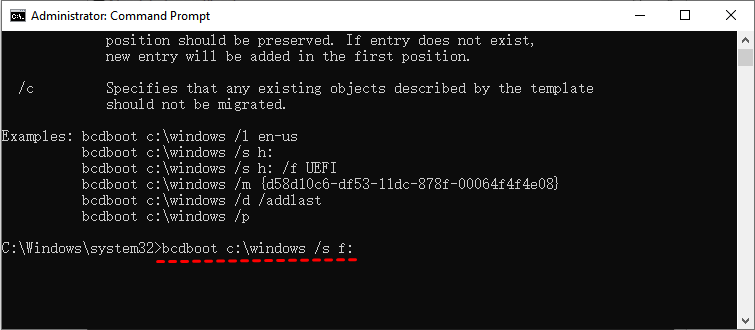
bcdboot C:\Windows /s S: /f UEFI
If Windows is not shown as C: in recovery mode, use dir C:, dir D:, and other drive letters to find the partition containing the Windows folder.
Step 6. Restart the PC and set Windows Boot Manager as the first boot option in BIOS/UEFI.
Method 2. Create a new EFI partition on Windows 11
Use this method only when the EFI partition is truly missing and there is unallocated space on the system disk.
Step 1. Open Command Prompt from Windows Recovery Environment.
Step 2. Run diskpart, list disk, and select disk 0.
Step 3. Create and format a 300 MB EFI partition:
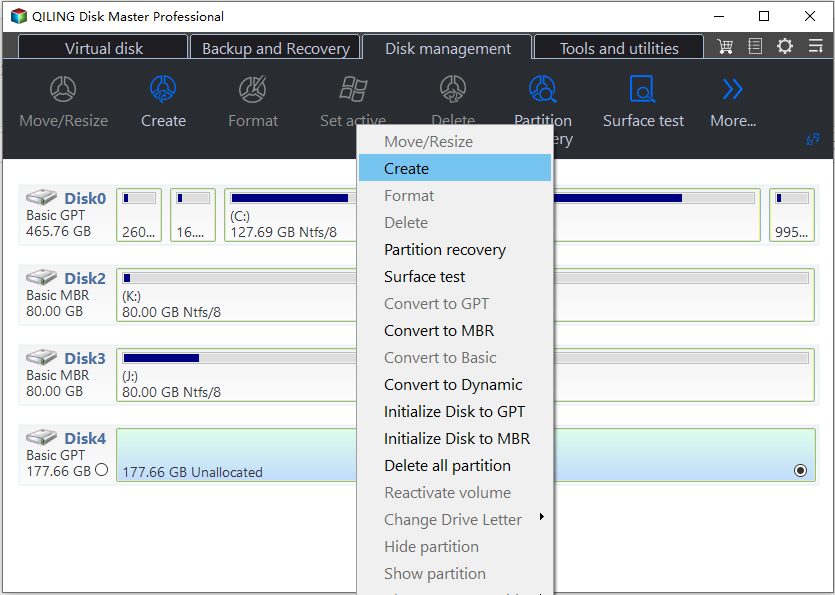
create partition efi size=300
format quick fs=fat32 label="System"
assign letter=S
exit
Step 4. Copy boot files to the new EFI partition:
bcdboot C:\Windows /s S: /f UEFI
Step 5. Restart and test whether Windows 11 boots normally.
Conclusion
Recovering or creating an EFI partition is possible, but it must be done carefully. Rebuild boot files when the EFI partition still exists; create a new FAT32 EFI partition only when it is missing.
Related Articles
-
Deleted File Not in Recycle Bin | Proven Fixes
Learn why deleted files may bypass Recycle Bin and how to restore them with File History, Backup and Restore, or recovery software. -
BitLocker Data Recovery: Recover Data from BitLocker Encrypted Drives
Find practical ways to unlock BitLocker drives, locate a recovery key, and protect encrypted data before formatting. -
How to Reset Windows 11 without Losing Data and Apps
See when to use Reset this PC, backup images, and other Windows 11 recovery options while keeping personal files safer.
Products
Articles & Tutorials
- Data Recovery
- Data Backup
- File Recovery
- File Backup
- File synchronize
- System Backup and Restore
- Disk and Partition Clone
- Technical articles
- Disk Master Help
- Windows Deleted File and Disk Recovery Tutorials
- Windows File and Data Recovery Tutorials
- More Windows Tutorials for Install, Security, Files, and PC Tips
- Windows Boot, Repair, and Recovery Environment Tutorials
- Windows Backup Tutorials
- Windows Restore Tutorials
- Windows Clone and Migration Tutorials
- Windows Server Backup, Recovery, and Management Tutorials
- Windows Disk, Partition, and Storage Management Tutorials