Deleted File Not in Recycle Bin | Proven Fixes
- "Where did the deleted files go? They are not in Recycle Bin."
- Fixes: how to recover deleted file not in Recycle Bin?
- Solution 1. Recover deleted files not in Recycle Bin effortlessly
- Solution 2. Restore deleted files via File History
- Solution 3. Get deleted files back using the Backup and Restore feature
- How to prevent the deleted files not in recycle bin issue?
- Related suggestions
>> Quick Navigation
- Recover deleted files not in Recycle Bin effortlessly
- Restore deleted files via File History
- Get deleted files back using the Backup and Restore feature
- How to prevent the deleted files not in recycle bin issue?
"Where did the deleted files go? They are not in Recycle Bin."
Files play a significant role in people's daily lives, storing memories, knowledge, and experiences, and are being continuously created globally.
Every day, unwanted files are being deleted, but sometimes users accidentally delete the wrong files, and need to restore them urgently.
Many users experienced issues where their deleted files were not appearing in the Recycle Bin, causing frustration and inconvenience.
Deleted files not going to recycle bin
It sounds like the recycle bin on your computer is not functioning properly. The recycle bin is supposed to store deleted files for a short period of time, allowing you to recover them if needed. However, in your case, it seems like the deleted files are being permanently deleted and not stored in the recycle bin. This could be due to a setting or a software issue.
- Question from Microsoft Community
Don't worry; this article aims at unveiling this mystery and giving some feasible solutions. And before that, the causes that lead to this issue will be discussed.
Causes of deleted files not in Recycle Bin
>> You have permanently deleted files by Shift delete.
When files are deleted with Shift + Delete, they bypass the Recycle Bin and are marked as permanently deleted. In this case, stop using the drive and try recovery software or backups as soon as possible.
>> The deleted file is too large to recycle.
In Windows, the Recycle Bin has a size limit, not a time limit, which means large files or folders will be permanently deleted if they exceed this limit.
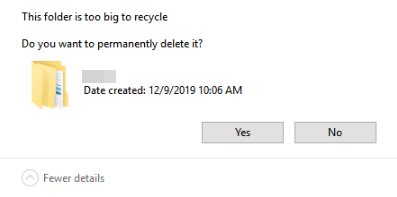
>> The Recycle Bin has met the size limit/is full.
When the Recycle Bin is about to be full, any items added might exceed the size limit.
>> You have either emptied the Recycle Bin or deleted files from it again.
If you accidentally empty the Recycle Bin, stop using the affected drive and try recovery methods before new data overwrites the deleted files.
>> The files were deleted from an external storage device.
Files deleted from an external hard drive will not be moved to the Recycle Bin, but instead will be directly wiped from the computer.
>> Improper Recycle Bin settings.
In the Recycle Bin Properties, users can specify the location and custom size. If the option "Don't move files to the Recycle Bin. Remove files immediately when deleted" is enabled, all deleted data will be permanently deleted, bypassing the Recycle Bin.
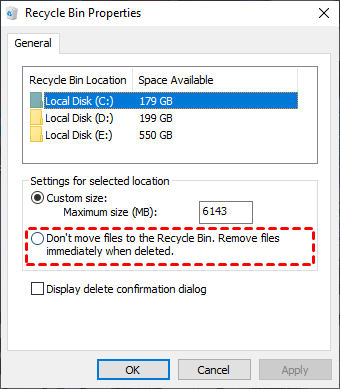
Please check if you have deleted your files in these ways.
If you've permanently deleted files from your hard drive, there are steps you can take to recover them. First, stop using your computer immediately to prevent overwriting the deleted files.
Fixes: how to recover deleted file not in Recycle Bin?
Once you understand why deleted files aren't in the Recycle Bin, retrieving them becomes much easier. To get your deleted files back, check out the detailed guide below.
Solution 1. Recover deleted files not in Recycle Bin effortlessly
When you can't find a deleted file in the Recycle Bin, a professional Windows data recovery app is the safest and easiest solution.
Compared to traditional data recovery methods, a reliable tool can provide a more efficient and trustworthy experience, allowing you to recover deleted and missing files at a high rate and with quick speed.
Deep Data Recovery is a professional Windows data rescue tool that quickly scans hard drives, saving time and labor, and is among the best choices for data rescue among many tools available.
This tool could also help you restore permanently deleted photos on computer.
- Restore deleted files and maintain the format/filename/path.
- Support data recovery from healthy/formatted internal/external HDD/SSD/USB/SD card.
- Retrieve over 200 kinds of files, including jpg/png/mp4/avi/mov/doc/xlsx/ppt/pdf/zip/rar/etc.
- Support preview/sort/filter/recovery during scanning.
- Compatible with Windows 11/10/8/7 SP1 & Server.
- Work perfectly with NTFS/FAT/exFAT/ReFS, etc.
Download now to enjoy an easy permanently deleted file recovery.
- Notes:✎...
- Don't forget to store the recovered data in another drive.
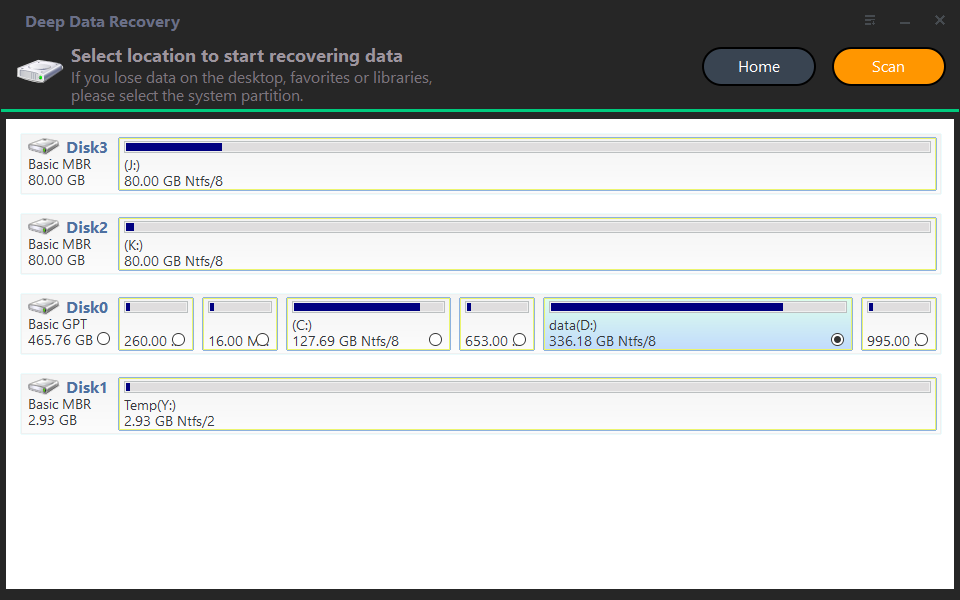
Step 1. Install and run the software, then hover the mouse over the affected drive/partition and click the "Scan" button.
Step 2. The tool automatically scans the chosen drive with Quick Scan & Deep Scan to search for deleted and missing files.
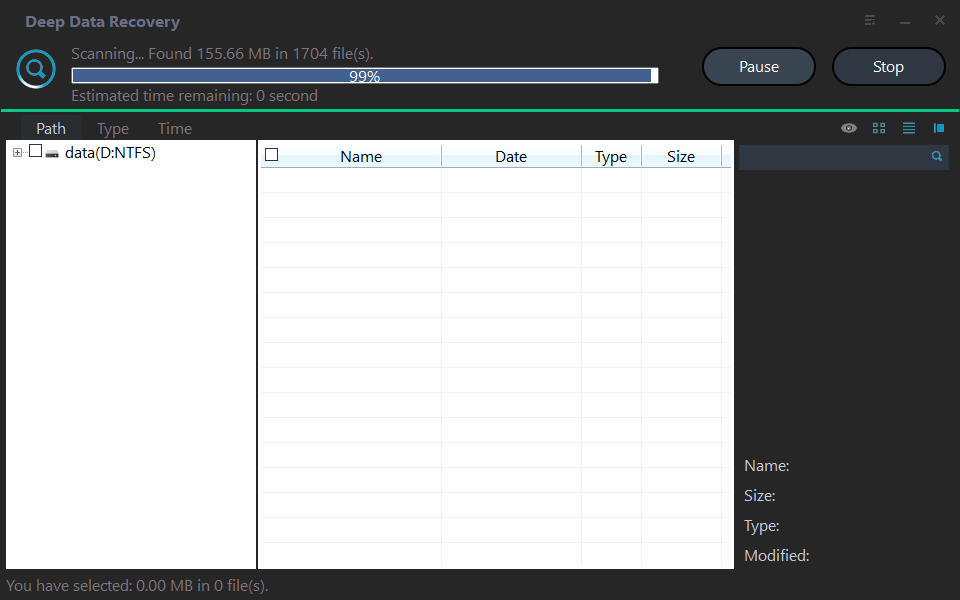
Step 3. To recover deleted files, navigate to the "Deleted files" section, then select the "Recycle Bin" option. From there, choose the files you want to recover and click the "Recover" button. If the files aren't in the Recycle Bin, try searching for them in the "Raw files" section.

You can easily resolve the issue "Deleted file not in Recycle Bin" by using this method. Additionally, this tool is also useful for recovering data from a formatted hard drive and can be applied to other data loss situations.
- Deleted file recovery. This program allows for the easy recovery of data that was deleted using the "Shift+Delete" method or by dragging to the Recycle Bin, making it simple to retrieve deleted files.
- Formatted data recovery. This tool also has a rapid format undo feature that lets you recover files from a short formatted disc before overwriting.
- Emptied recycle bin recovery. When you empty the recycle bin, any files that were in the bin will be permanently erased, but a utility can recover them before they are overwritten.
- Data loss after virus attacks. If your data is being intentionally hidden, transferred, altered, or deleted by a virus, using Deep Data Recovery can help you retrieve your valuable data back.
- Data loss after system failures. Users may not have enough time to back up or remove their data before a system crash, so you can use Deep Data Recovery to scan and recover the data for them.
You could also upgrade Deep Data Recovery to restore unlimited files with unlimited licenses on different devices.
Solution 2. Restore deleted files via File History
Windows offers various backup features such as File History, Previous Versions, Backup and Restore, to help users recover from data loss.
If you don't have a backup habit, you should establish one. Use professional data backup software for Windows to protect your data.
Windows File History is a backup tool that saves files from the C: drive to a separate drive, such as an external hard drive, storing files like Documents, Pictures, Videos, Downloads, and Desktop files.
If the files you deleted were stored on the C: drive, you can try using a file recovery software to restore them. This software scans the drive for deleted files and allows you to recover them.
- Notes:✎...
- It only works this feature has been enabled already. Please make sure you have an available backup.
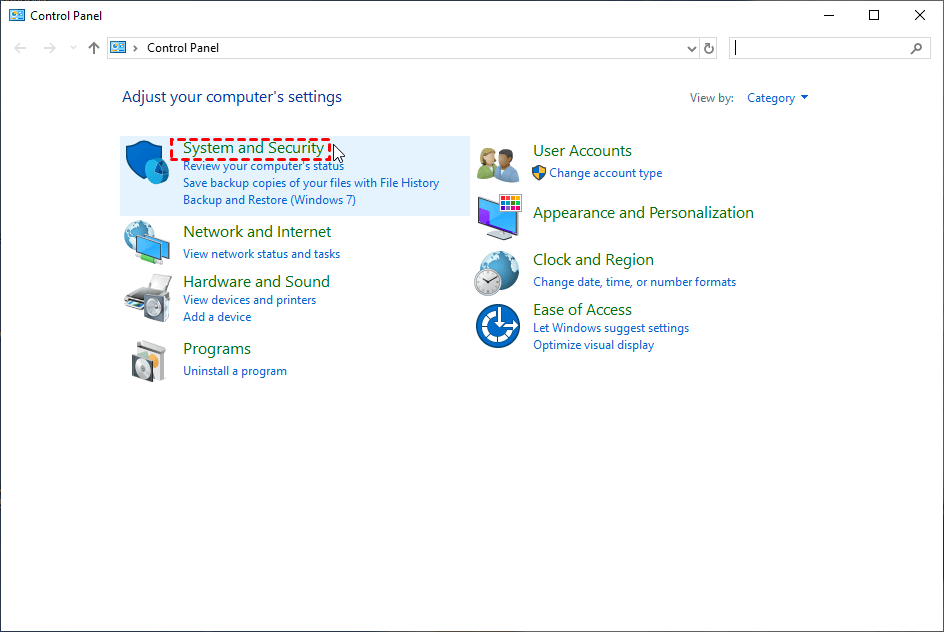
Step 1. Go to Control Panel > click System and Security.
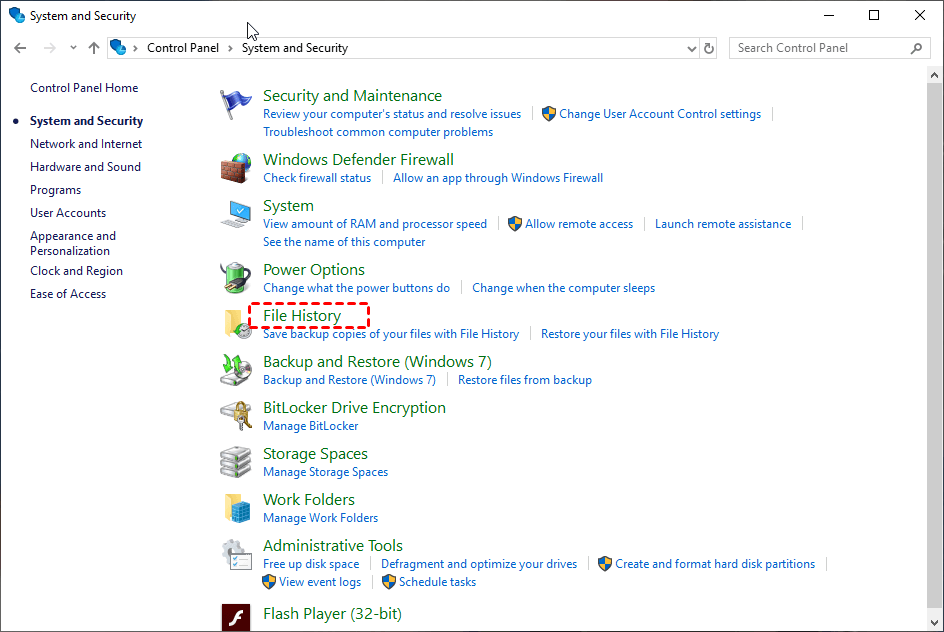
Step 2. Click File History.
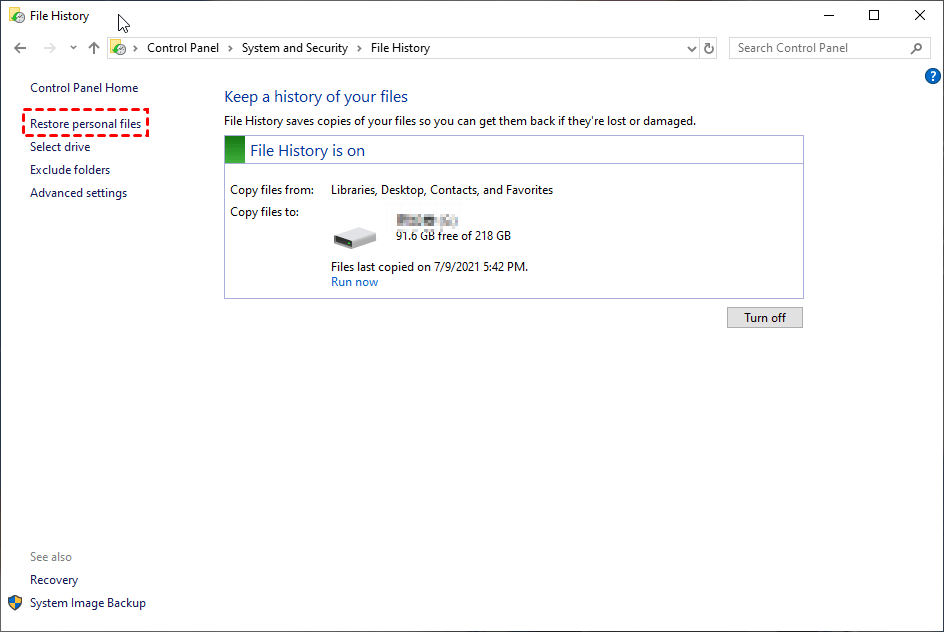
Step 3. Click Restore personal files.
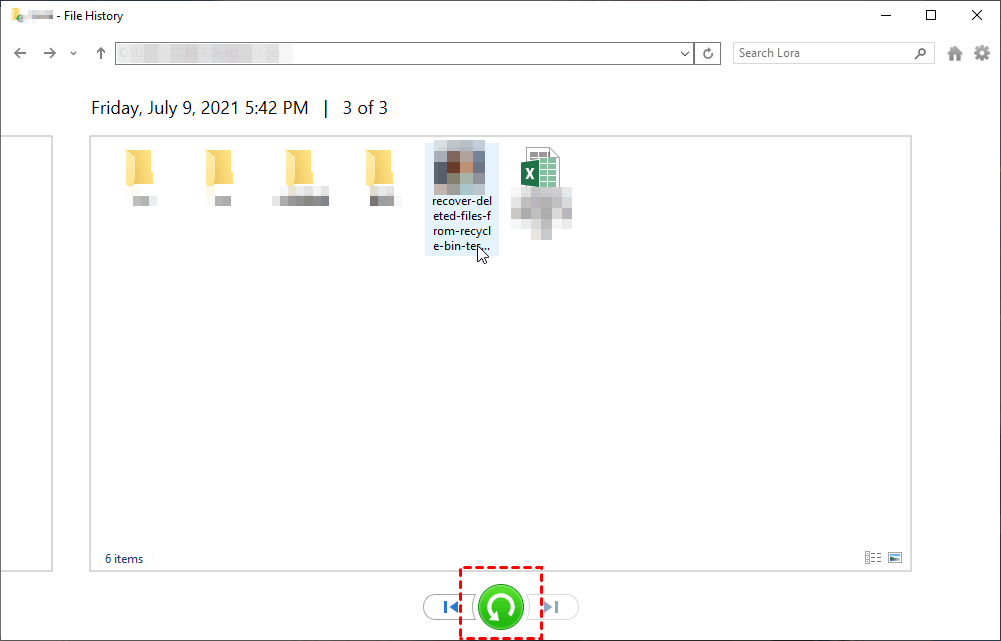
Step 4. Find and select the files you deleted > click the Recover button.
If you don't have File History enabled, you can also refer to the methods given below.
Solution 3. Get deleted files back using the Backup and Restore feature
The Windows 7 operating system has an embedded backup tool called Backup and Restore, which allows users to create backups of their system and data.
Windows 7 Backup Compatibility Tool is used to ensure the compatibility of a Windows 7 backup on a Windows 10/11 machine, and also helps Windows 10/11 users backup their files and hard drives.
- Notes:✎...
- This method only applies to users who have an available backup, so please ensure you have one before proceeding.
- Save the recovered files on a different drive, not in the original location, to ensure they're safe and not overwritten.
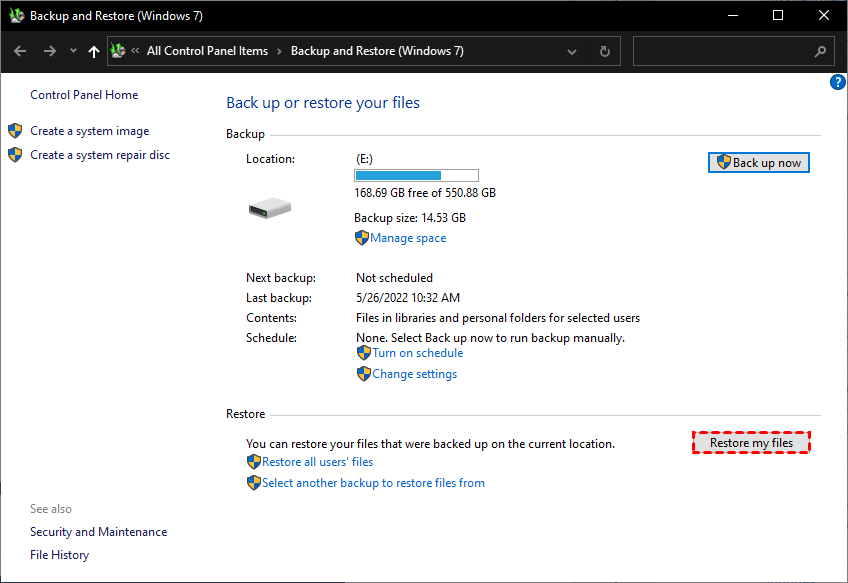
Step 1. To access the Backup and Restore feature in Windows 7, start the Control Panel, then navigate to System and Security, and finally select Backup and Restore (Windows 7).

Step 2. Click Restore my files.
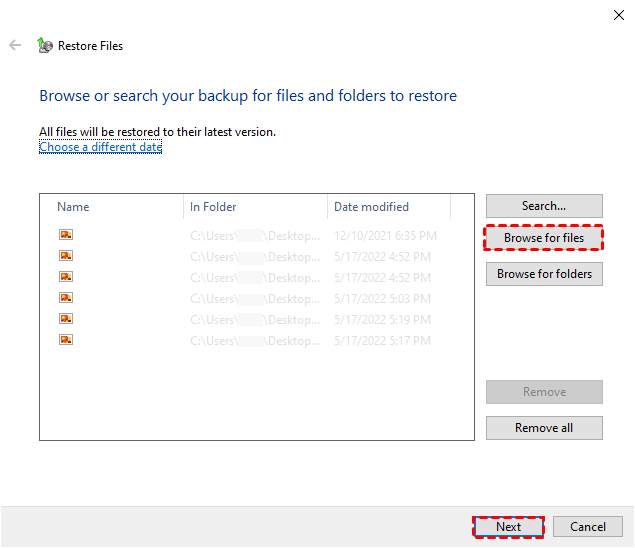
Step 3. To restore files, click Browse for files and select the files you need to recover, then click Next.
Step 4. Specify the destination according to your preferences > click Restore.
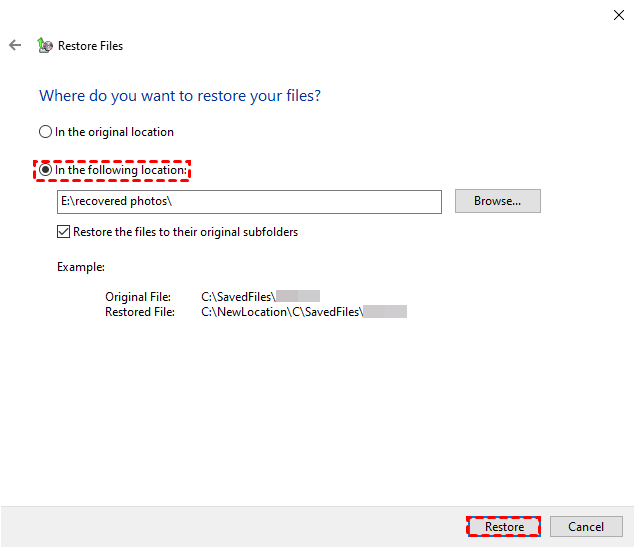
Thus, you could recover deleted files not in Recycle Bin.
How to prevent the deleted files not in recycle bin issue?
Now, with your removed files retrieved successfully, you may think it is the end and you can sit back and relax. However, if there are something improper with the Recycle Bin settings or other features, your files may be lost again. To avoid this, it's a good idea to regularly check and adjust your Recycle Bin settings to ensure your files are safely stored and not deleted unexpectedly.
Here are some fixes to prevent this issue from happening again.
Fix 1. Check the recycle bin settings
>> Right-To adjust the Recycle Bin settings, click the Recycle Bin icon on your desktop, then click Properties, and ensure the option "Don't move files to the Recycle Bin. Remove files immediately when deleted" is not selected.
Otherwise, your files will bypass the bin right away.
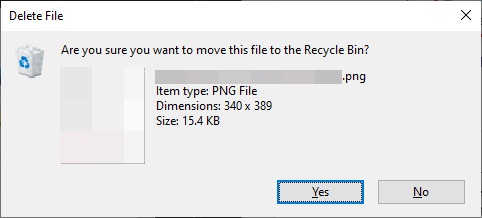
To make it safer, it is suggested to tick the option "Display delete confirmation dialog".
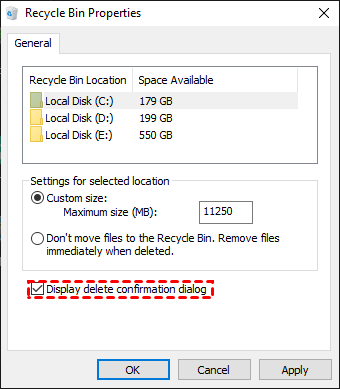
When removing items, you will be prompted to confirm whether you really want to delete the file each time, ensuring that you don't accidentally delete something important.
Fix 2. Check if you have enabled storage sense
If the trash can is full, files may be deleted automatically to make space.
There is also another automatic feature to keep enough space on your hard drive – Storage Sense.

Users who have enabled this feature may find that the Recycle Bin deletes files automatically, and disabling it can prevent files from being deleted from the bin.
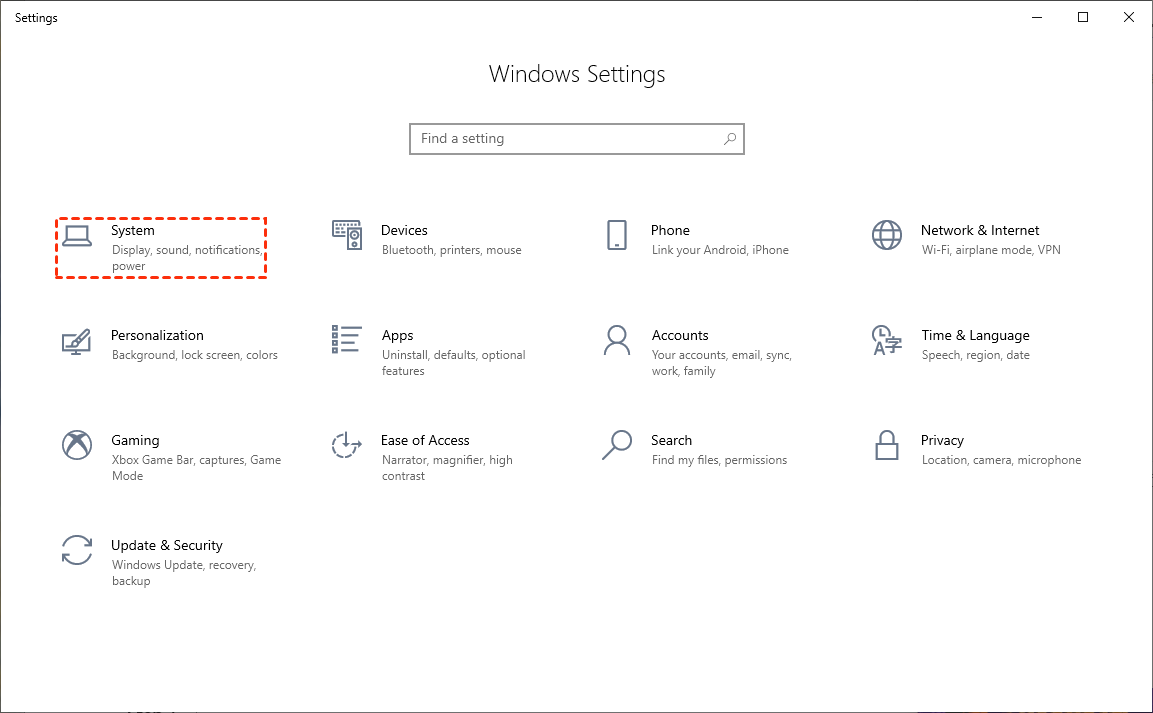
Step 1. Click the Windows Start menu > Windows Settings > System.
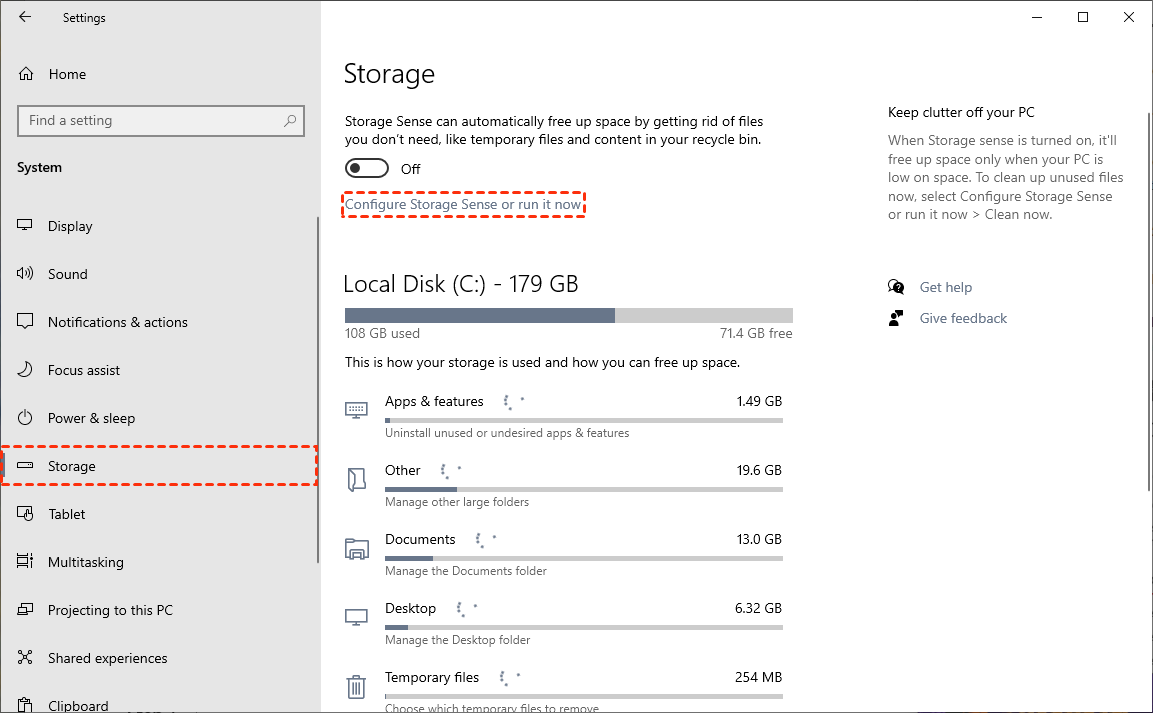
Step 2. Click Storage > Configure Storage Sense or run it now.
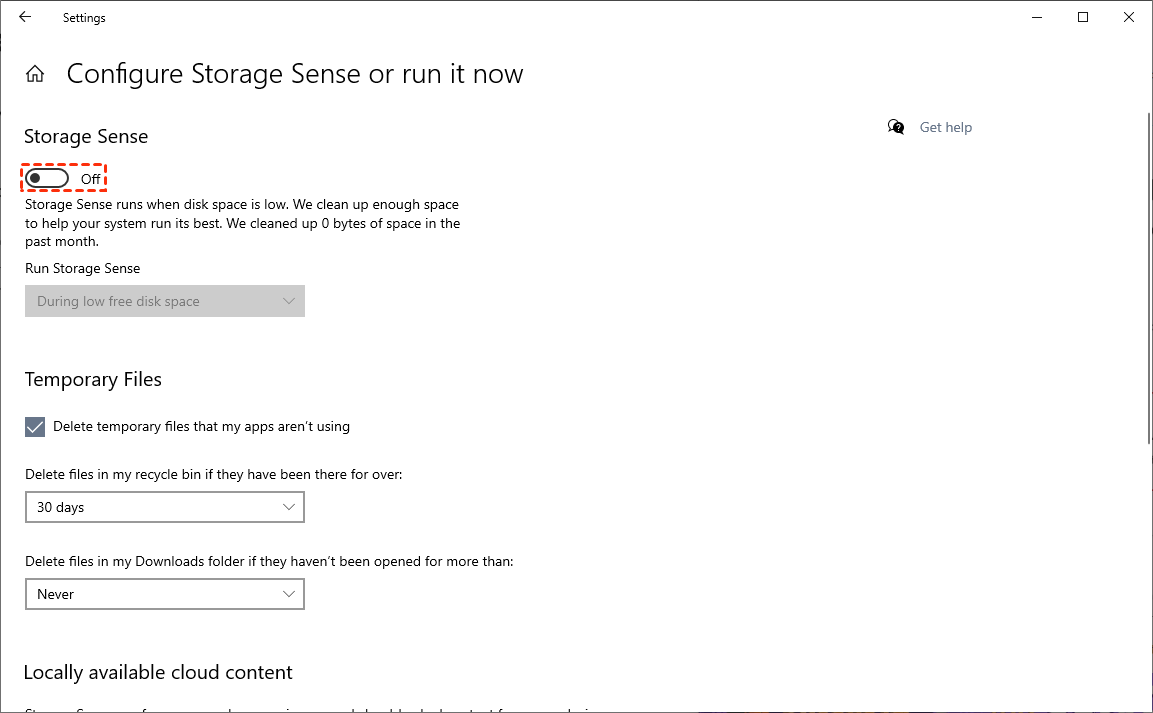
Step 3. Disable Storage Sense and set your preferences for cleaning up temporary files.
Related suggestions
If you can't find a deleted file in the Recycle Bin, it's probably gone for good, either because you permanently deleted it, emptied the Recycle Bin, or the file was on an external hard drive that's been deleted.
Regardless of how you lost or deleted your files, you can restore them from a backup or use a useful Windows data recovery tool called Deep Data Recovery.
To improve data security, check out these suggestions.
- Be cautious when deleting files to avoid accidental loss. Double-check the files you're about to delete to ensure you're not getting rid of something important. This will help prevent file loss due to careless deletion.
- Never empty the Recycle Bin unless necessary.
- Back up vital files to avoid data loss in the future.
- When using external hard drives like USB flash drives, be sure to delete data carefully to avoid accidental loss or overwriting of important files.
Related Articles
- 3 Ways to Recover Monster Hunter World/Rise Save Game Data on PC/Steam/Switch
You'll learn the three best ways to recover lost Monster Hunter game data on PC/Steam/Switch. Qiling data recovery software is the most effective method to recover Monster Hunter data and restore lost game saves on a computer and Switch hard drive. - How to Recover Shift Deleted Files Windows 11[Recover Readily]
To recover shift deleted files on Windows 11, you can use one of three tested solutions. The Windows File Recovery tool allows you to recover shift deleted files, or you can try recovering them from the File History. - Stray Lost Progress: 2 Best Ways to Recover Lost Stray Game Saves on PC/PS4/PS5
If your Stray game save is corrupted, you can recover the lost data using Qiling game data recovery software on your PC. Simply download and run the software, and follow the simple clicks to restore your Stray game data. - How to Fix Starfield Save Games Missing and Restore Progress
If your Starfield save games are missing on Steam and Xbox, You can recover lost game data using Qiling data recovery software, which we recommend to help you restore your lost game data on your computer. - How to Recover Data from WD My Book Essential/Live
Recover data from WD My Book Essential or Live after deletion, access issues, or other storage problems. - WD My Cloud Recovery - How to Recover Data from WD My Cloud Hard Drive
This article is a step-by-step guide for data recovery for WD My Cloud. Two parts are covered, one is how to recover data from damaged WD My Cloud drive. Another one is how to retrieve files from WD My Cloud with Deep Data Recovery software. -
Recover an Accidentally Replaced File
Restore an older file version after replacement by checking backups, version history, and recovery scans.
Products
Articles & Tutorials
- Data Recovery
- Data Backup
- File Recovery
- File Backup
- File synchronize
- System Backup and Restore
- Disk and Partition Clone
- Technical articles
- Disk Master Help
- Windows Deleted File and Disk Recovery Tutorials
- Windows File and Data Recovery Tutorials
- More Windows Tutorials for Install, Security, Files, and PC Tips
- Windows Boot, Repair, and Recovery Environment Tutorials
- Windows Backup Tutorials
- Windows Restore Tutorials
- Windows Clone and Migration Tutorials
- Windows Server Backup, Recovery, and Management Tutorials
- Windows Disk, Partition, and Storage Management Tutorials