How to Move Folders from C Drive to D Drive in Windows 11/10/8/7?
Want to move folders from C drive to D drive?
To free up space on your C drive, you can move folders that are not essential for your operating system and apps to run. Consider moving folders like "Downloads", "Documents", "Videos", and "Music" to your D drive. You can also move programs that you don't use frequently to your D drive. To move folders, simply right-click on them, select "Move", and choose the D drive as the destination. This should not slow down your apps on startup, as the operating system and apps are stored on the C drive. However, keep in mind that moving the program files themselves might require reinstalling them on the D drive.
- Question from Microsoft Community
You may be confused when your C drive is almost full, but there's still enough space on your D drive, leading you to think of moving folders from C to D.
To transfer folders from C drive to D drive, you can use various methods. Before doing so, it's essential to identify which folders can be moved to ensure data safety. Once you've selected the folders to be transferred, you can proceed with the methods, which will be presented in the latter content. This will help you move your files to the D drive while maintaining data integrity.
What folders can I move from C drive to D drive?
Moving folders from the C drive to another drive can free up space on the C drive, but it's essential to know what can and cannot be moved to avoid system issues.
You are allowed to move all folders or files under the "User" folder, such as Documents, Desktop, Downloads, Favorites, OneDrive, Pictures, Music, Videos, etc. However, there are three exceptions: you can't move the "Users" folder itself, the "Program Files" folder, or the "Windows" folder.
1. Windows folder contains system files that are essential to the operating system, and moving them can cause system instability or even crashes. Therefore, it's recommended to keep the Windows folder in its original location to avoid any potential issues.
2. The Program Files and Program Files (x86) folders contain the installation location of programs, and moving them can cause programs to refuse to open or run as before.
How to move folders from C drive to D drive safely in Windows 11/10/8/7?
Here are five methods to move folders from C drive to D drive Windows 10 safely: you can use the built-in "Move" feature, use a third-party file manager, use the command line, use the Windows Explorer, or use a backup software to move folders to D drive. Before moving, please backup C drive in advance to avoid any unexpected issues.
- Method 1. Move folders from C drive to D drive via Drag&Drop
- Method 2. Transfer folders from C drive to D drive via Windows Move feature
- Method 3. Change folders from C drive to D drive via Windows Registry Editor
- Method 4. Migrate folders from C drive to D drive via Command Prompt
- Method 5. Move folders from C drive to D drive via a versatile tool
Method 1. Move folders from C drive to D drive via Drag&Drop
The most common way we use to move, copy or transfer data on our computer is by using this method.
Step 1. Double-click Computer or This PC to open Windows File Explorer.
Step 2. To move a folder, navigate to the folders you want to move, right-click the folder, and select Cut or Copy from the extended menu, or press Ctrl + C (Copy) or Ctrl + X (Cut).
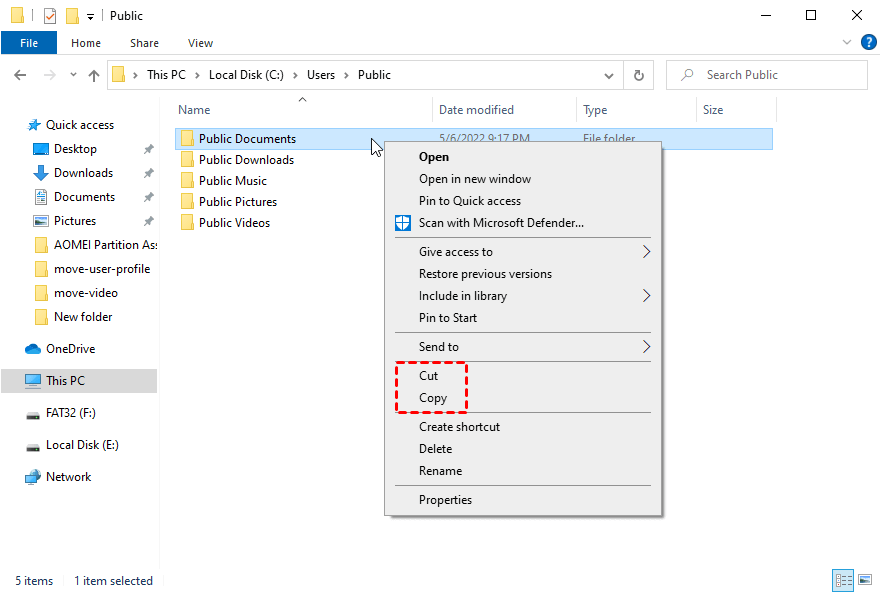
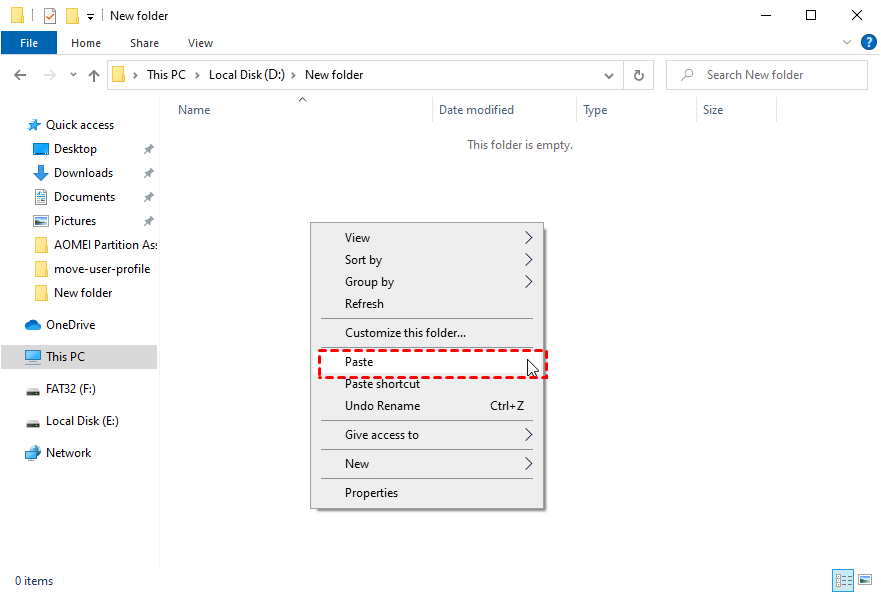
Step 3. To paste a drive or folder, first, navigate to the drive or folder you want to copy, select it, and press Ctrl + C. Then, find the D drive or other drives you want to select, and right click a blank space and select Paste, or you can press Ctrl + V.
✍ This method may seem straightforward, but it can lead to issues with opening applications as you may inadvertently delete or move crucial files or folders during the cut-to-paste process.
Method 2. Transfer folders from C drive to D drive via Windows Move feature
This method is friendly for those files in the User folder like Documents, Videos, Pictures, etc. You can read the following steps and have a try. You can use the 'Get-ChildItem' cmdlet in PowerShell to get the files, then pipe the output to the 'Where-Object' cmdlet to filter the files based on the file extension.
Step 1. Press "Windows + E" together to open "File Explorer".
Step 2. Right-click files or folders and choose "Properties".
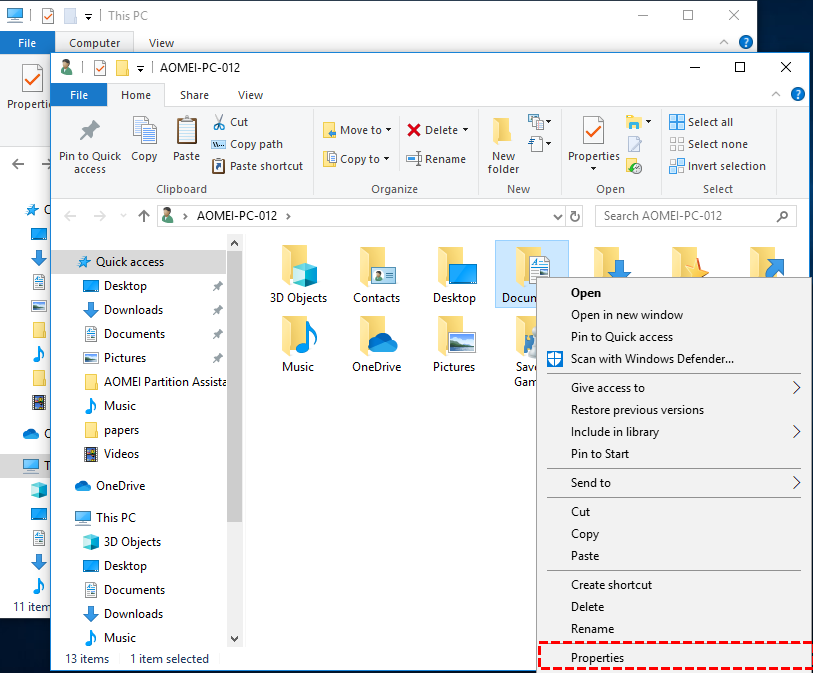
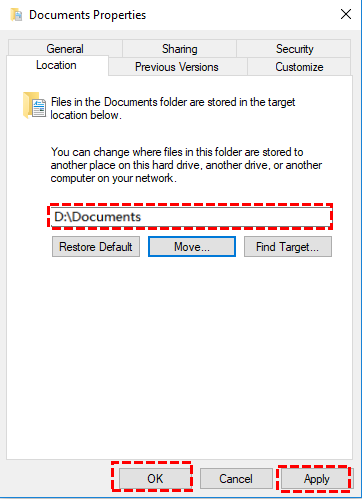
Step 3. In the "Document Properties" window, click "Location" tab and then choose "Move".

Step 4. Now, choose D drive as a destination location, and click "Apply" to finish the process.
✍ This function is widely used and useful, but it may fail to open programs if the data is not saved in folders with the same name as in the C drive, causing the system to not recognize the new path.
Method 3. Change folders from C drive to D drive via Windows Registry Editor
Windows Registry Editor is more challenging for you to move folders from C drive to a new location. Only when you complete all the following steps can you have a successful movement.
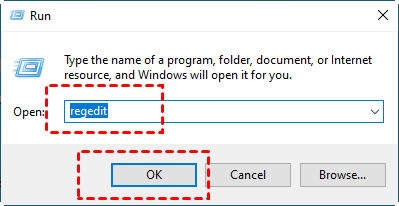
Step 1. Press "Windows + R" at the same time to open the Run box.
Step 2. Input "regedit" or "regedit.exe" and click "OK" to run Registry Editor window.
Step 3. Follow the path and you will see all the User folders are listed.
To access the Windows Update settings in Windows 7, 8, or 8.1, you can navigate to the registry key: HKEY_LOCAL_MACHINE \ SOFTWARE \ Microsoft \ Windows \ CurrentVersion.
The registry key for Windows 10 is HKEY_LOCAL_MACHINE \ SOFTWARE \ Wow6432Node \ Microsoft \ Windows \ CurrentVersion.
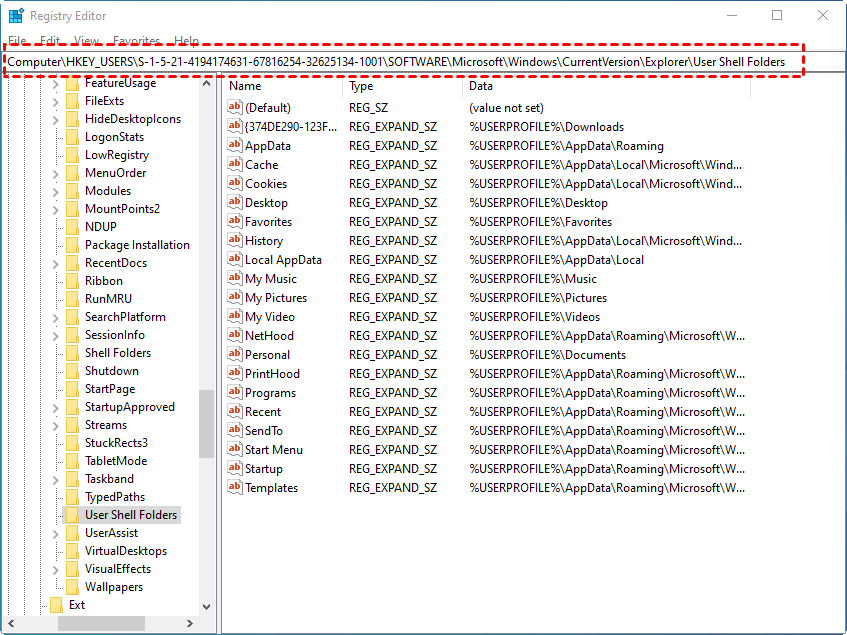
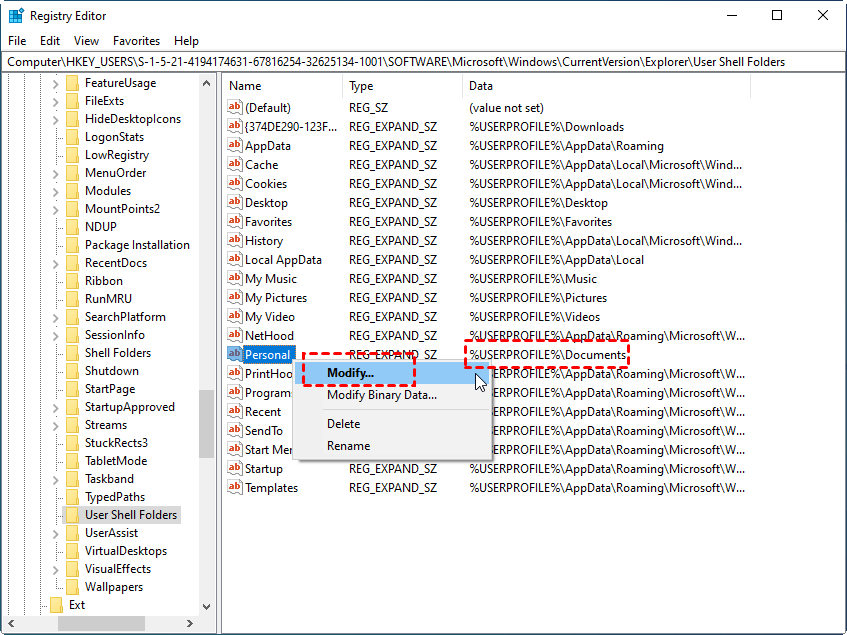
Step 4. Find the data or string named "%USERPROFILE%\Documents", right-click it, and then choose "Modify".
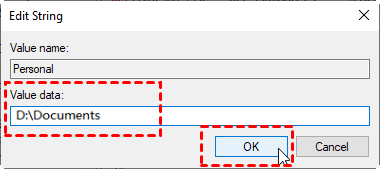
Step 5. Under "Value data", type the new location or path as you like (e.g. "D:\Documents") and click "OK" to set the new folders in advance.
Step 6. Close Registry Editor and right-click "Windows" and choose Task manager to open it.
Step 7. Find Windows Explorer under the Processes tab, right-click it and then choose "restart".
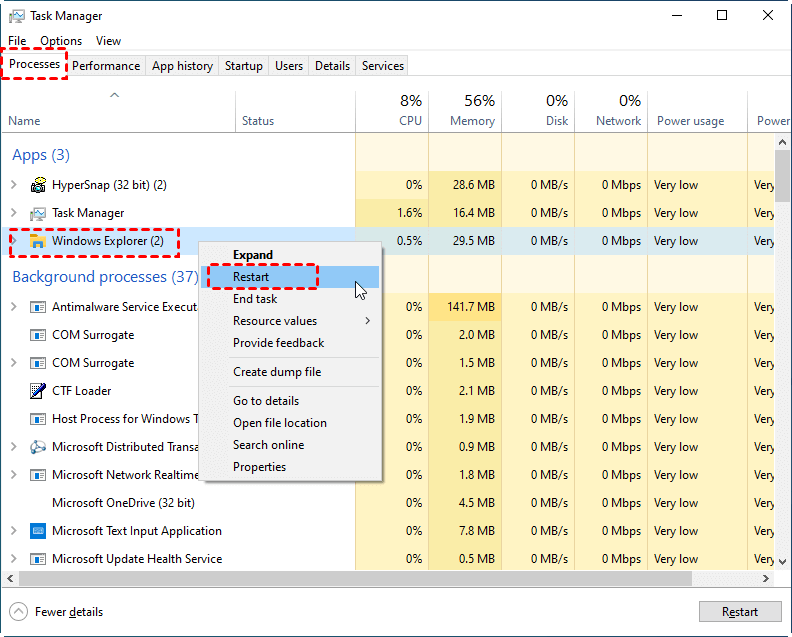
Step 8. Finally, restart your computer and the movement is done.
✍ The Windows Registry is a critical database that requires computer proficiency to navigate, and improper operations can lead to system crashes. Furthermore, modifying settings like changing the location of documents can be a tedious and frustrating process that involves multiple steps, making it a headache for users.
Method 4. Migrate folders from C drive to D drive via Command Prompt
Advanced users can move folders from C drive to D drive with Command Prompt. This method is useful for scripted transfers, but you should type the path carefully and back up important files before running commands.
Step 1. Press "Windows + R" spontaneously, then type "CMD" and hit "Enter".
Step 2. Type "copy c:\workfile.txt d:" in the popup window.
Step 3. Enter "workfile.txt", and type "copy *.txt d:" to copy text to D drive.
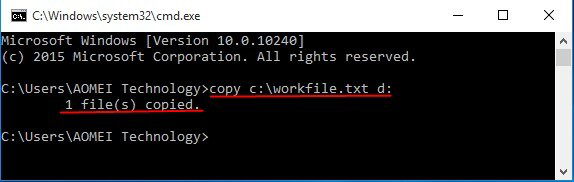
✍ Without a clear interface to show the disk information, it's easy to accidentally move the wrong folders or transfer to the wrong location, which can cause abrupt problems in C drive, such as failure to boot programs or the system, due to corrupted or damaged folders.
Method 5. Move folders from C drive to D drive via a versatile tool (Easiest)
While the four methods mentioned have some limitations, a reliable third-party tool, Qiling Disk Master Professional, offers a safe and efficient way to transfer folders from C drive to D drive. Its "APP Mover" feature allows you to move not only files and folders but also programs and applications, making it a handy solution for Windows 11, 10, 8, 7, Vista, or XP.
To move folders from the C drive to the D drive, you can do so with just a few clicks. Download the demo version to try it out and find the easiest way to accomplish this task.
Step 1. Install and run Qiling Disk Master, click "Backup and recovery" tab page and then choose "File Sync".

Step 3. Select the Documents folder, choose a new location, such as the D drive, and ensure the target drive has enough free space to store your documents. If it's full, you can extend the partition to free up space.

Step 4. Click "Proceed" to begin the process.
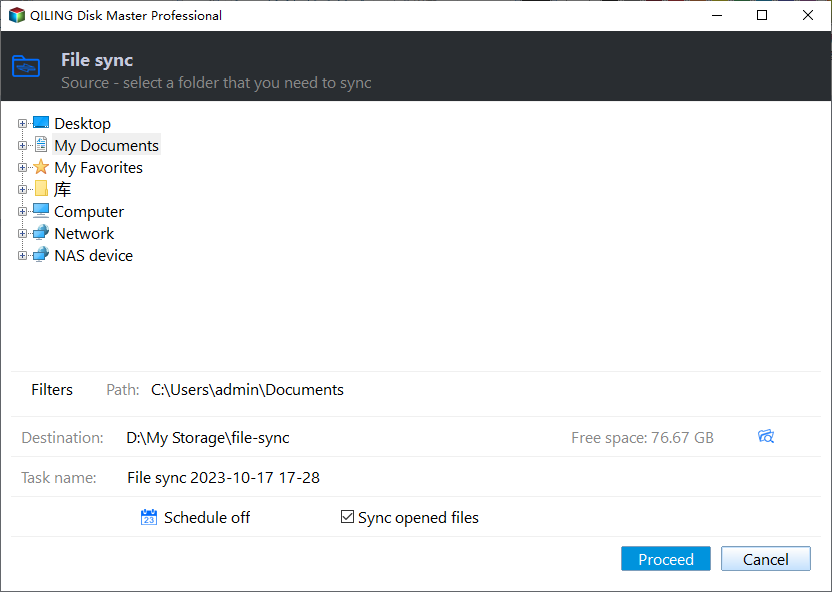
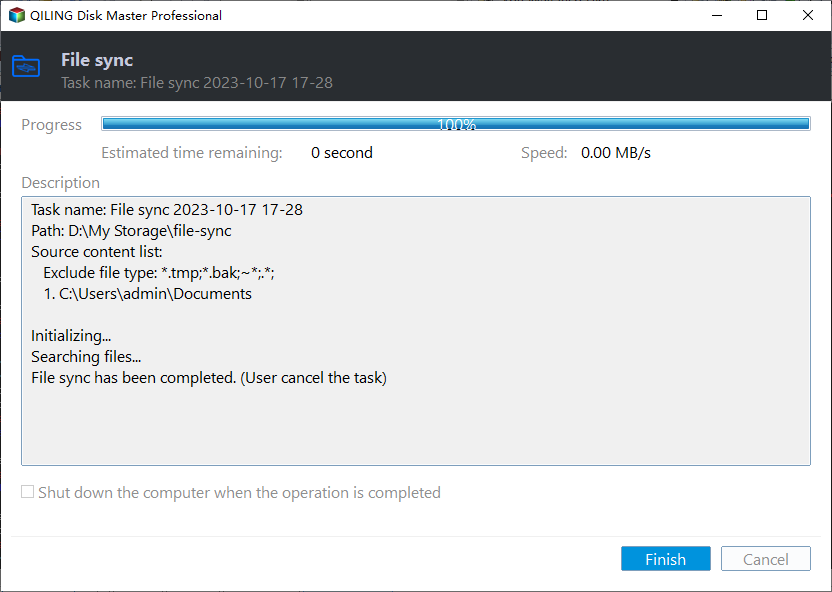
Step 5. Wait for a while, and click "Finish" to complement the movement.
Summary
To move folders from the C drive to the D drive, you can follow one of the five step-by-step methods outlined in this tutorial. If you're running low on space on the C drive, moving folders to the D drive can help. Alternatively, you can use Qiling software, which can not only move folders but also help with deleting large files, cleaning junk files, and migrating the OS to an SSD, making it a useful tool for optimizing your computer's performance.
Related Articles
- Best Free Task Scheduler Alternative - Qiling Disk Master
If you are looking for a better Task Scheduler alternative, Qiling Disk Master Standard is worth trying. Read this article carefully and learn the operating steps below. - How to Transfer/Move Files from SSD to HDD in Windows 10/8/7?
This tutorial will introduce you how to transfer files from SSD to HDD in Windows 10/8/7/Vista/XP with all-around freeware, Qiling Disk Master Standard. It is easy and fast. - How to Transfer All Data from One Surface Pro to Another
Learn how to Transfer All Data from One Surface Pro to Another with clear steps, key checks, and practical tips. - Prime USB Hidden Copier - Auto Copy Files to/from USB
A USB hidden copier is a tool that allows you to copy files from one device to another without being detected. It's a useful tool for anyone who needs to transfer files discreetly. - How to Install Work Folders and Create Multiple Sync Shares
In this article, you are going to learn how to install work folders and create multiple sync shares in Server 2012 R2/2016/2019. The details are below.
Products
Articles & Tutorials
- Data Recovery
- Data Backup
- File Recovery
- File Backup
- File synchronize
- System Backup and Restore
- Disk and Partition Clone
- Technical articles
- Disk Master Help
- Windows Deleted File and Disk Recovery Tutorials
- Windows File and Data Recovery Tutorials
- More Windows Tutorials for Install, Security, Files, and PC Tips
- Windows Boot, Repair, and Recovery Environment Tutorials
- Windows Backup Tutorials
- Windows Restore Tutorials
- Windows Clone and Migration Tutorials
- Windows Server Backup, Recovery, and Management Tutorials
- Windows Disk, Partition, and Storage Management Tutorials