[Tutorial] How to Install Windows 11 without Secure Boot and TPM
- Is Secure Boot/TPM required for Windows 11 installation?
- How to install Windows 11 without Secure Boot and TPM 2.0
- Stage 1. Bypass Secure Boot and TPM checks
- Stage 2. Create a Windows 11 bootable USB
- Stage 3. Boot your PC from the Windows 11 USB
- Stage 4. Install Windows 11 without Secure Boot and TPM
- Further Reading: Run Windows 11 on unsupported PC
- Conclusion
- FAQs
Is Secure Boot/TPM required for Windows 11 installation?
Users upgrading to Windows 11 from Windows 10 often encounter issues due to Secure Boot or TPM 2.0 requirements, resulting in error messages that prevent the upgrade.
They are hesitant to install Windows 11 without Secure Boot or TPM because of unfamiliarity with these security features.
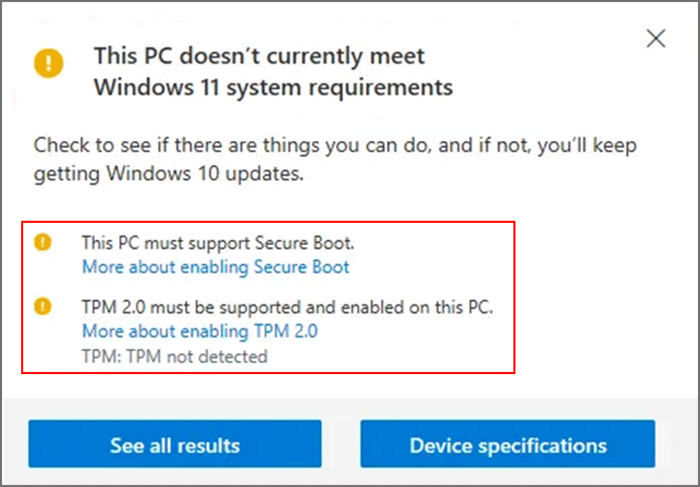
64-bit PC with a 64-The system requires a bit CPU, at least 4 GB of RAM, and a Trusted Platform Module (TPM) 2.0 chip.
| 🔰CPU | 64-bit Processor |
| 💠RAM | 4GB or higher |
| 🚩Storage | 64GB or larger |
| 🧩System firmware | UEFI and Secure Boot |
| 🎈TPM | TPM version 2.0 |
| 🔔Graphic card | DirectX + WDDM2 |
Secure Boot and TPM 2.0 are key security features that prevent unauthorized OS and hardware drivers from booting up, and verify the integrity of the OS and firmware, respectively, thereby boosting PC security.
You can still install Windows 11 without Secure Boot or TPM 2.0, albeit not directly from Microsoft. One solution is to install Windows 11 from a bootable USB, which is a viable alternative to the traditional installation method. This method will be detailed below.
How to install Windows 11 without Secure Boot and TPM 2.0
To upgrade to Windows 11 without enabling Secure Boot or TPM 2.0, you can follow a specific tutorial that involves four stages. This tutorial will guide you through the process of installing Windows 11 without Secure Boot, allowing you to bypass the usual requirements for a smooth upgrade.
Stage 1. Bypass Secure Boot and TPM checks
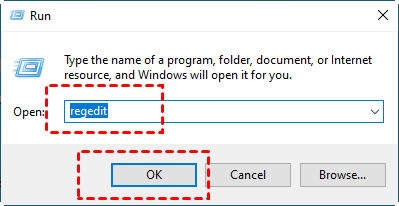
Step 1. Press "Windows + R" keys simultaneously to open the Run box.
Step 2. Input "regedit" or "regedit.exe" and click "OK" to run the Registry Editor window.
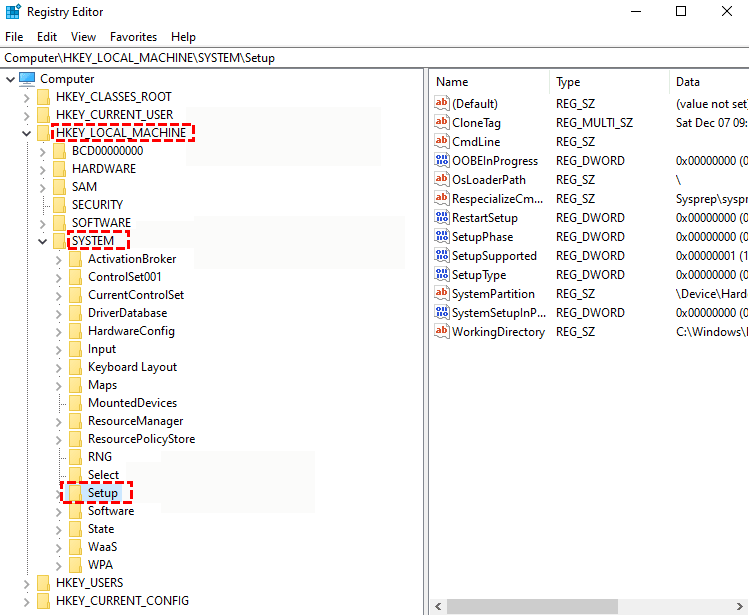
Step 3. Navigate to "HKEY_LOCAL_MACHINE\SYSTEM\Setup".
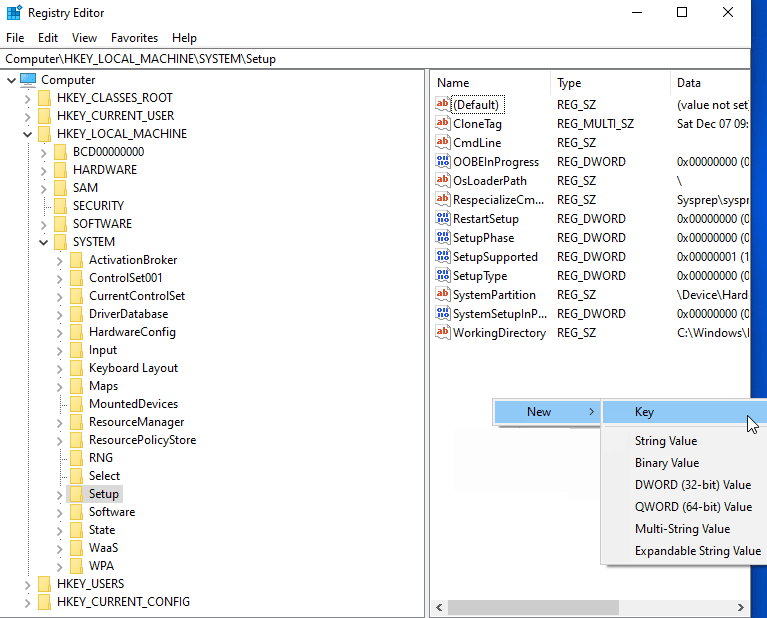
Step 2. To add a new registry key, right-click the blank area and select "New" > "Key", then name it "LabConfig".
Step 3. Under the "LabConfig" folder, right-click the blank again to create two "DWORD (32-bit) Value" options to create new DWORD value.
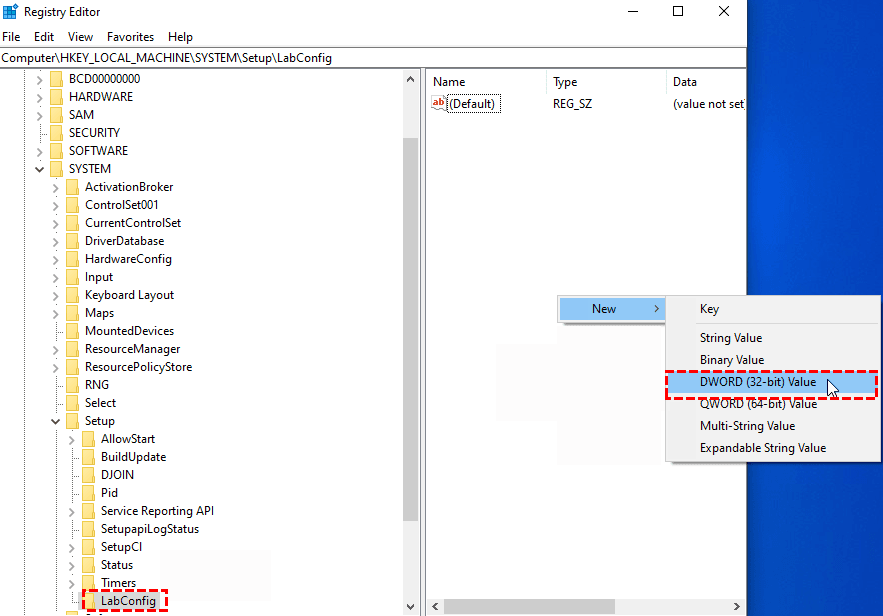
Step 5. Name them "BypassTPMCheck" and "BypassSecureBootCheck" respectively.
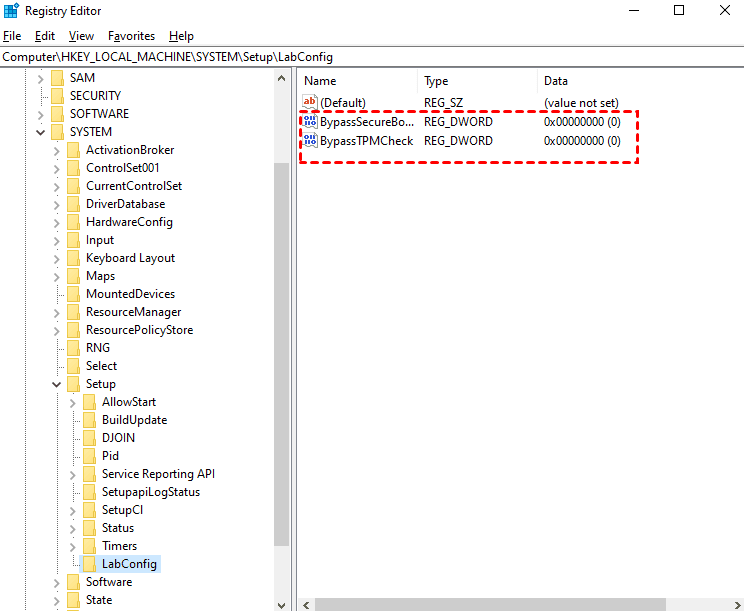
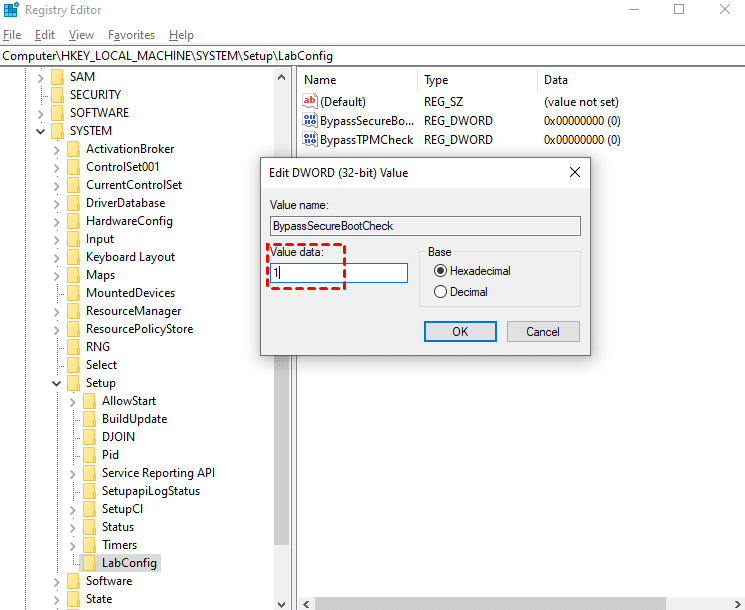
Step 6. Then double-click the two DWORD and change the "Value data" from "0" to "1".
Stage 2. Create a Windows 11 bootable USB
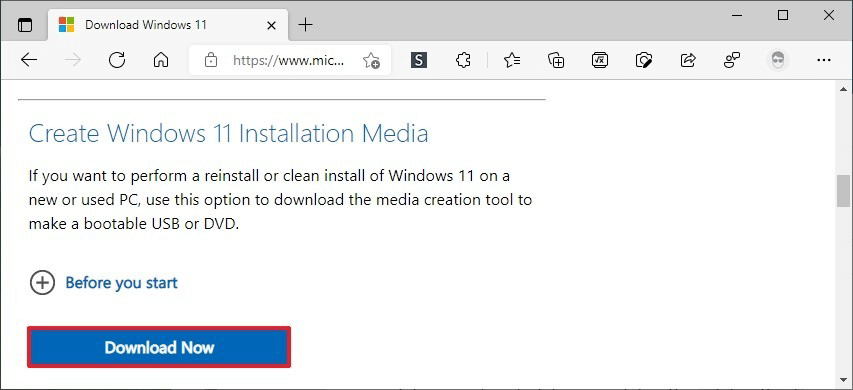
Step 1. Prepare a USB and connect it to a running computer. Download the Windows 11 Installation Media from the official website.
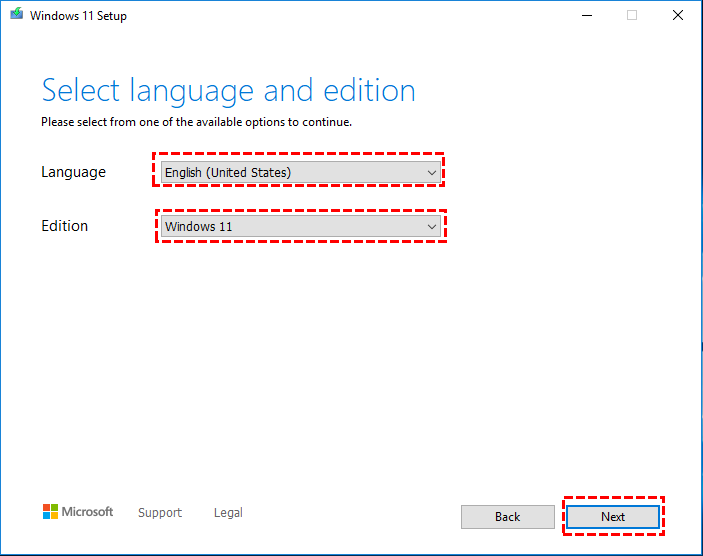
Step 2. Then, launch the tool, select the language and Windows 11 edition in the "Windows 11 Setup" window, and click "Next".
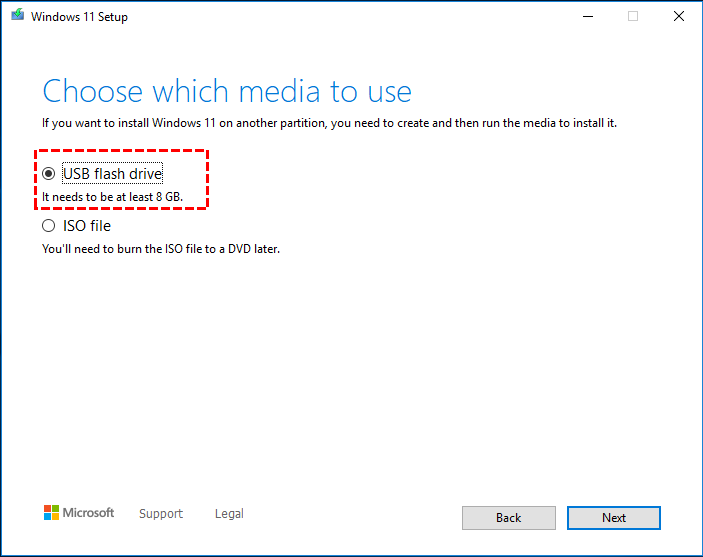
Step 3. Choose the "USB flash drive" option and select "Next".
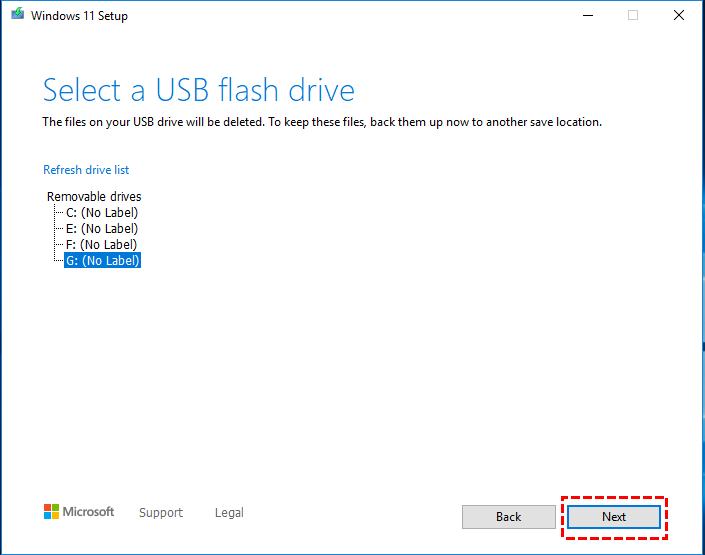
Step 4. To create a Windows 11 bootable USB, select the target USB drive, click "Next" to start the process, and once finished, you'll have a Windows 11 bootable USB.
To proceed with the Windows 11 installation, first, you need to create a bootable USB drive or DVD with the Windows 11 installation media. This is the first stage in the installation process. Once the installation media is prepared, you can then proceed to the second stage, which involves booting from the installation media and starting the Windows 11 installation process.
Stage 3. Boot your PC from the Windows 11 USB
Step 1. Insert the bootable USB to your computer that you want to install Win 11 without Secure Boot.
Step 2. To access the BIOS settings and set the USB as the boot drive, restart your PC and press and hold a key such as F1, F2, F10, ESC, or DEL to enter the BIOS settings, then set the USB drive as the boot device from there.
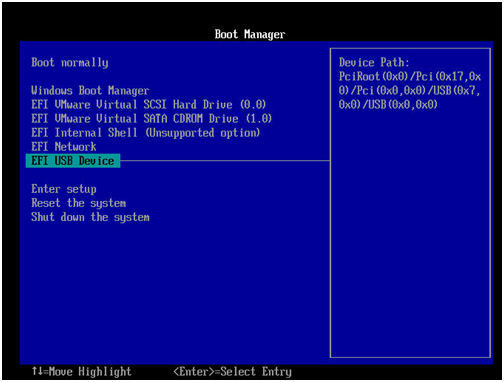
Step 3. To install Windows 11 without Secure Boot and TPM, restart the computer, boot from the USB drive, and follow the detailed step-by-step guide that appears next.
Stage 4. Install Windows 11 without Secure Boot and TPM
Step 1. When you see the Windows 11 Setup interface, set the parameters according to your needs and click "Next".

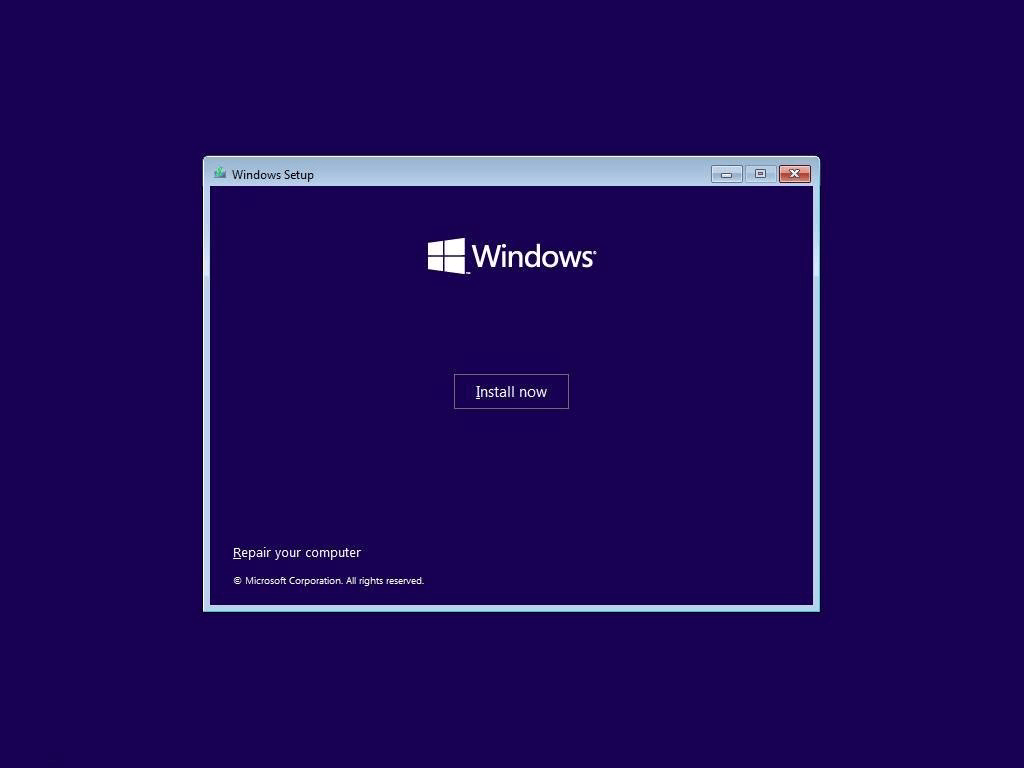
Step 2. Click the "Install now" option to move on.
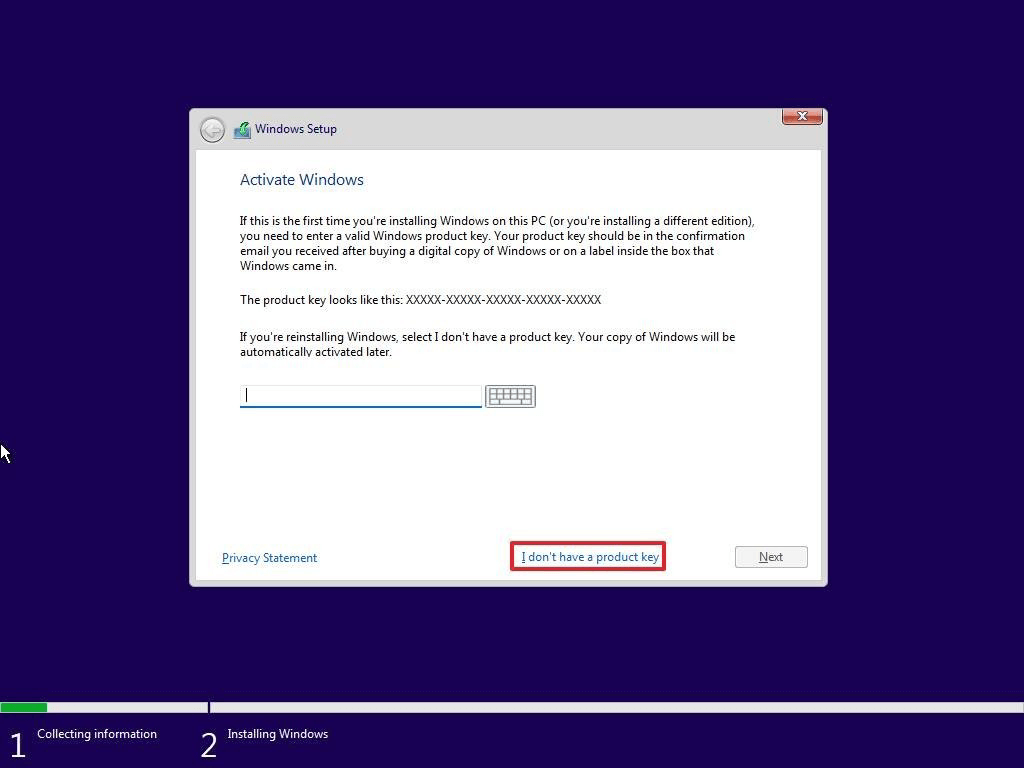
Step 3. Then enter your product key or click "I don't have a product key" to skip it.
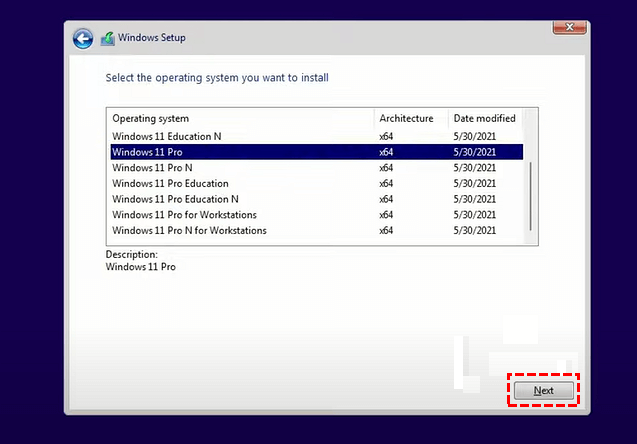
Step 4. Select an edition you plan to install and hit "Next".
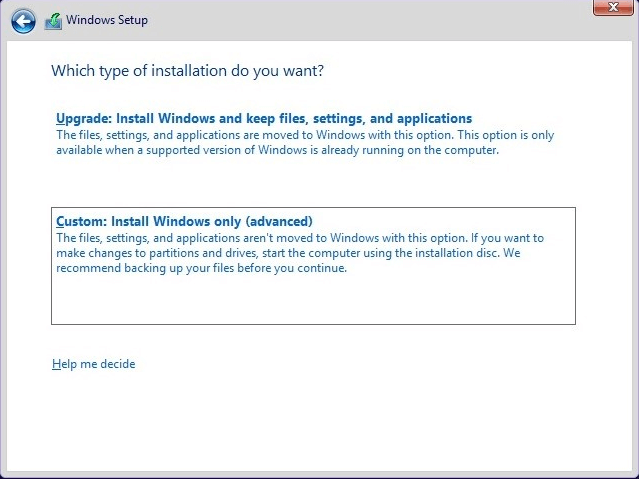
Step 5. When you're asked which type of installation you want, select "Custom: Install Windows only(advanced)".
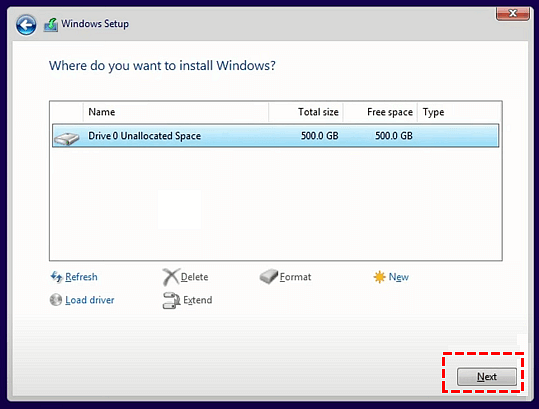
Step 6. To install Windows 11 without Secure Boot, select the destination drive where you want to put Windows 11, hit "Next", and follow the prompts to finish the installation.
To install Windows 11 without Secure Boot or TPM, create a bootable USB drive, disable Secure Boot in the BIOS settings, enable Legacy Boot, and install Windows 11, then remove the USB drive afterwards.
Further Reading: Run Windows 11 on unsupported PC
To install and run Windows 11 on a PC that doesn't meet the minimum system requirements, you can bypass the Secure Boot and TPM checks or create a Win 11 to Go USB to run the OS on any device without installation. This allows you to run Windows 11 on a PC that wouldn't normally be compatible with the OS, giving you more flexibility in your computing options.
You can create a portable Windows 11 environment on a USB drive using Qiling Disk Master Professional, allowing you to use it on both Windows and Mac computers.
Conclusion
While it's possible to install Windows 11 without Secure Boot or TPM 2.0, we recommend updating your system configuration to meet the basic requirements, such as converting MBR to GPT, extending the C drive, and enabling Secure Boot/TPM 2.0, etc. Alternatively, you can try using Qiling Disk Master to create a Windows 11 to Go USB.
FAQs
Can I still install Windows 11 without Secure Boot?
You can install Windows 11 without Secure Boot by using workarounds like creating new DWORD values, modifying the installation media, or using a third-party tool to bypass the requirements.
How do I enable TPM 2.0 without BIOS in Windows 11?
In Windows 11, users can enable TPM 2.0 without accessing the BIOS by editing the registry or using script-based tools, or by utilizing the Microsoft management interface or the device's troubleshooter.
What happens if I install Windows 11 on unsupported processor?
Installing Windows 11 on a processor that is not officially supported by Microsoft will make your device ineligible for future updates and support, and the manufacturer's warranty will not cover any resulting incompatibility issues.
Related Articles
- Is UEFI Required for Windows 11 Installation?
This guide explains Is UEFI Required for Windows 11 Installation with clear steps, key checks, and practical tips. - How to Create Windows 10 Installation Media
How to Create Windows 10 Installation Media: this guide summarizes the key steps, practical tips, and safer options so you can finish the task clearly and avoid common mistakes. - How to Download Windows 11 23H2 ISO File
Windows has released the Windows 11 23H2 update. This article will tell you how to download Windows 11 23H2 ISO file using Qiling Disk Master and Windows Media Creation Tool, and via Microsoft. - How to Install Two Operating Systems on One Computer
To install two operating systems on one computer, you can use a professional tool called Qiling Disk Master to install multiple Windows operating systems on your laptop. - How to Create Bootable USB from ISO Windows 11
This is a full guide on how to create bootable USB from ISO Windows 11. This article covers 3 ways to help you create a Windows 11 bootable USB from ISO using Qiling Disk Master, Windows Media Creation Tool, and Rufus.
Products
Articles & Tutorials
- Data Recovery
- Data Backup
- File Recovery
- File Backup
- File synchronize
- System Backup and Restore
- Disk and Partition Clone
- Technical articles
- Disk Master Help
- Windows Deleted File and Disk Recovery Tutorials
- Windows File and Data Recovery Tutorials
- More Windows Tutorials for Install, Security, Files, and PC Tips
- Windows Boot, Repair, and Recovery Environment Tutorials
- Windows Backup Tutorials
- Windows Restore Tutorials
- Windows Clone and Migration Tutorials
- Windows Server Backup, Recovery, and Management Tutorials
- Windows Disk, Partition, and Storage Management Tutorials