Is UEFI Required for Windows 11 Installation?
Is UEFI required for Windows 11?
Microsoft has released the Windows 11 22H2 update, addressing user concerns about glitches and bugs in the previous version. The update brings several improvements, including fixes for known issues, performance enhancements, and new features. Users who have been experiencing problems with Windows 11 can now look forward to a smoother and more stable experience with the 22H2 update.
According to official reports, the basic requirements of Windows 11 remain the same, with UEFI boot mode being one of them, despite various changes mentioned in tech websites.
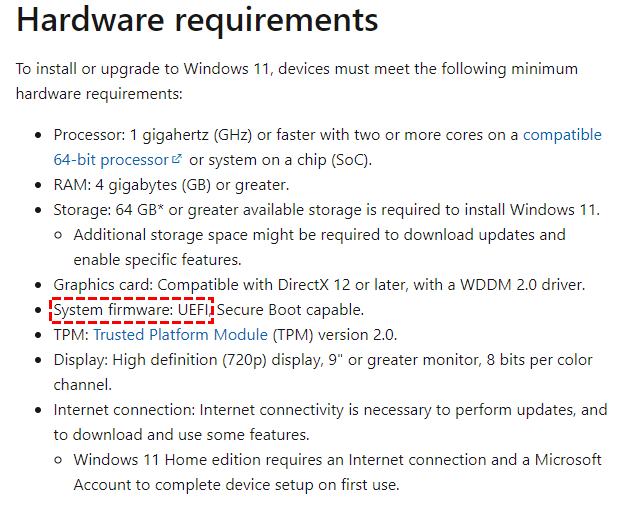
About UEFI
For PC technology newbies, the differences between BIOS and UEFI, MBR, and GPT might seem daunting, but they're actually quite straightforward. BIOS (Basic Input/Output System) and UEFI (Unified Extensible Firmware Interface) are both firmware systems that control the boot process, but UEFI is more modern, secure, and feature-rich. Meanwhile, MBR (Master Boot Record) and GPT (GUID Partition Table) refer to the two types of partition tables used to organize data on a hard drive.
1. What're BIOS & UEFI?
BIOS: The "Basic Input Output System" (BIOS) is a set of programs stored on a ROM chip on the computer's motherboard, containing essential input/output programs, self-checking and system-starting programs that are executed when the computer is powered on.
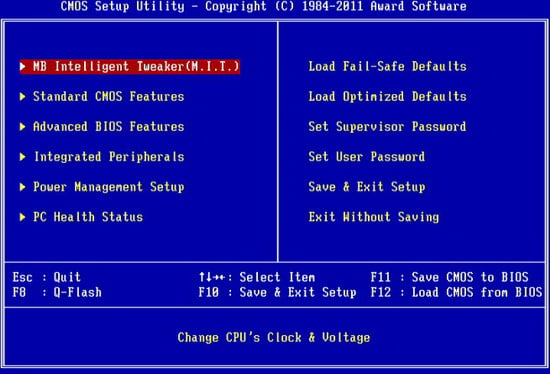
The BIOS (Basic Input/Output System) is the primary software that loads when a personal computer starts, providing direct hardware settings and control. Its main function is to activate and ensure the operational readiness of various components, allowing the operating system to boot up.
UEFI: UEFI is a PC system specification that defines the software interface between the operating system and the system firmware, providing a standardized way for the two to communicate.
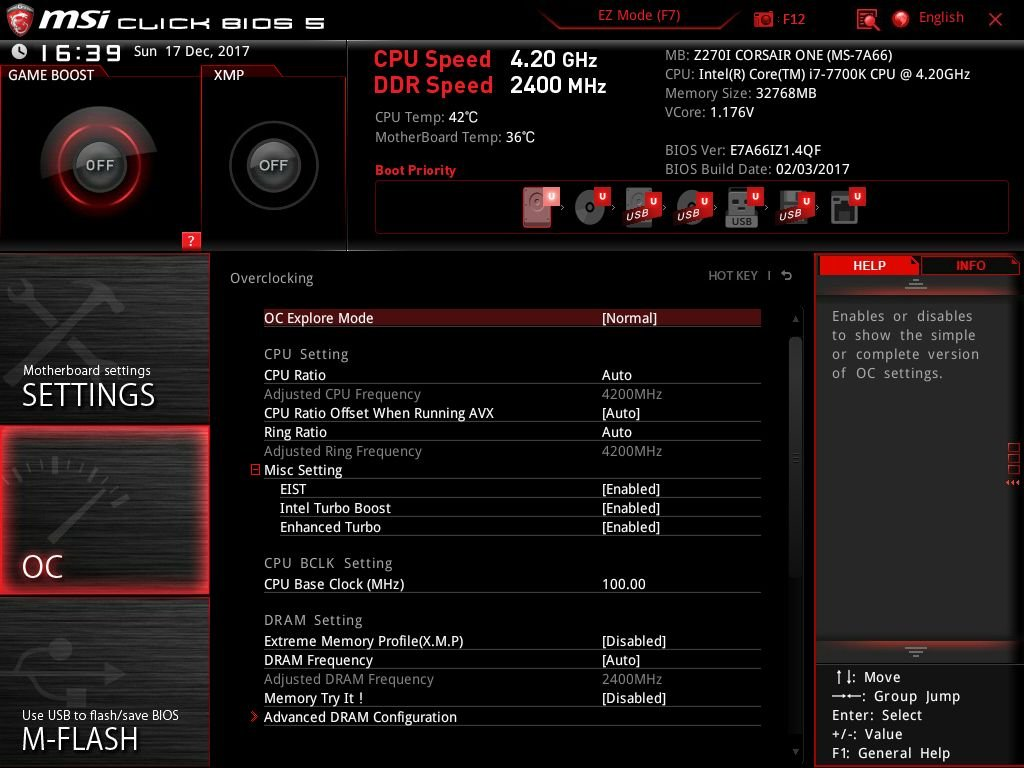
The UEFI replaces the traditional BIOS, making it easier to use and mouse-capable. It also allows Windows to boot from disks larger than 2TB, and some modern motherboards support both UEFI and BIOS.
2. What are MBR & GPT?
MBR and GPT are both partition methods.
MBR: The Master Boot Record (MBR) is a crucial part of a hard disk drive (HDD) that contains the first sector of the drive, holding essential boot information. It's a vital component that enables the boot process, allowing the computer to load the operating system.
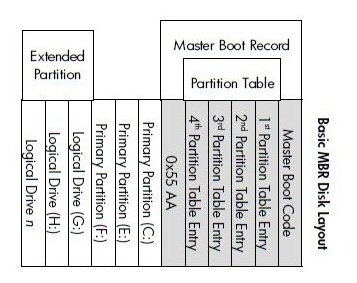
MBR is limited to hard drives of 2TB or less, and only allows for 4 partitions, making it unsuitable for larger-capacity drives.
GPT: GPT, or GUID Partition Table, is a new partition table that offers several advantages, particularly in terms of storage capacity. Unlike MBR, which is limited to handling hard drives up to 2T in size, GPT removes this constraint, theoretically allowing for an infinite number of partitions on a single hard drive.
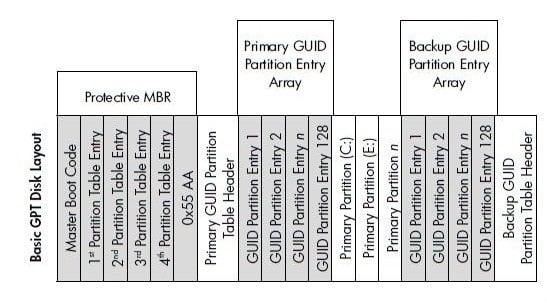
GPT partitions allow for the creation of separate partitions for different data, enabling different permissions for each partition, thereby enhancing data security on the disk.
3. BIOS + MBR VS UEFI + GPT

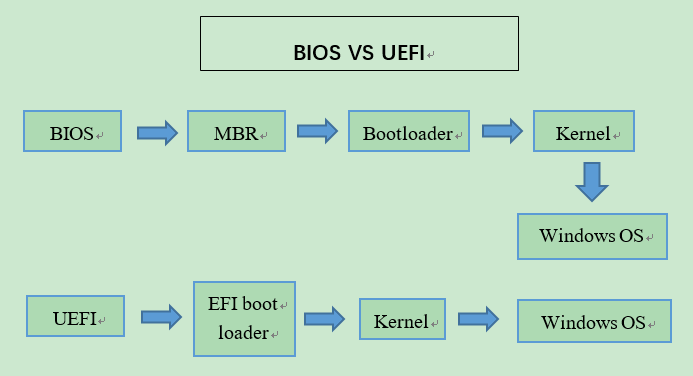
The two pictures provide a closer look at the differences between BIOS + MBR and UEFI + GPT. These two systems have distinct characteristics, and the images highlight the specific details of each.
The BIOS + MBR mode supports more systems, but it's limited by MBR, whereas the UEFI + GPT mode offers perfect compatibility, larger capacity, and faster boot speed.
The combination of BIOS + MBR is workable but the system cannot be started. The BIOS can use the hard disk of the GPT partition table as a data disk, and the system must be a 64-bit system.
How to convert Legacy BIOS to UEFI?
Motherboards manufactured in recent years support both BIOS and UEFI, with some having a Legacy + UEFI boot mode. The BIOS will boot into Legacy mode if it identifies a Legacy-installed system, and into UEFI mode if it identifies a UEFI-enabled machine.
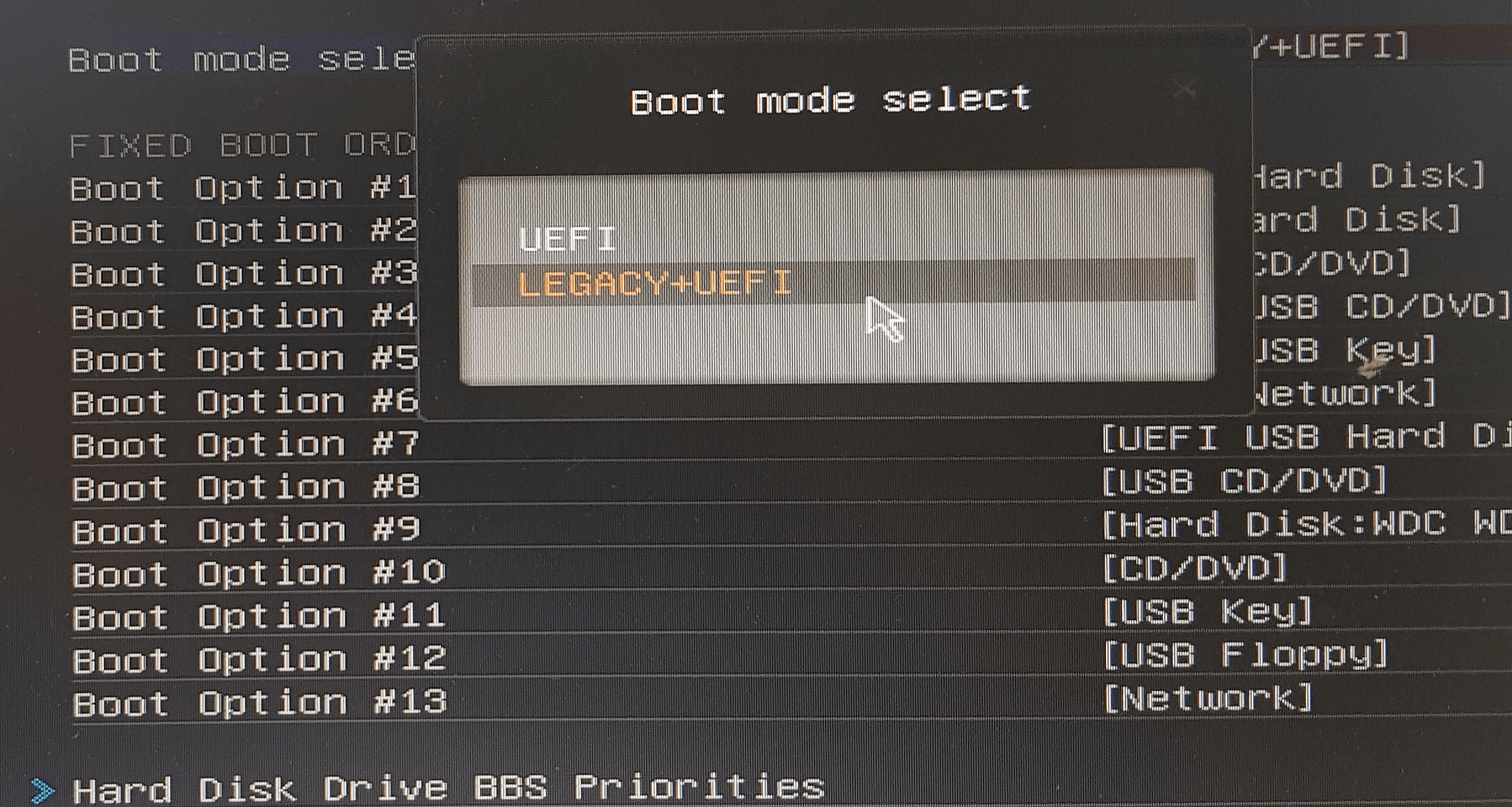
How to check boot mode on your PC?
To determine if your motherboard supports UEFI, you can check by looking for a BIOS settings screen that displays a UEFI logo or a "UEFI" option in the boot order settings. If you're unsure, you can also check the motherboard manual or manufacturer's website for specifications.
Step 1. Press "Win" + "R" at the same time, type "msinfo32" and hit "Enter" to open the System Information window.
Step 2. If the BIOS Mode in the window shows "UEFI", then you can upgrade your Windows 10, but if it shows "Legacy", it means your PC is running BIOS.
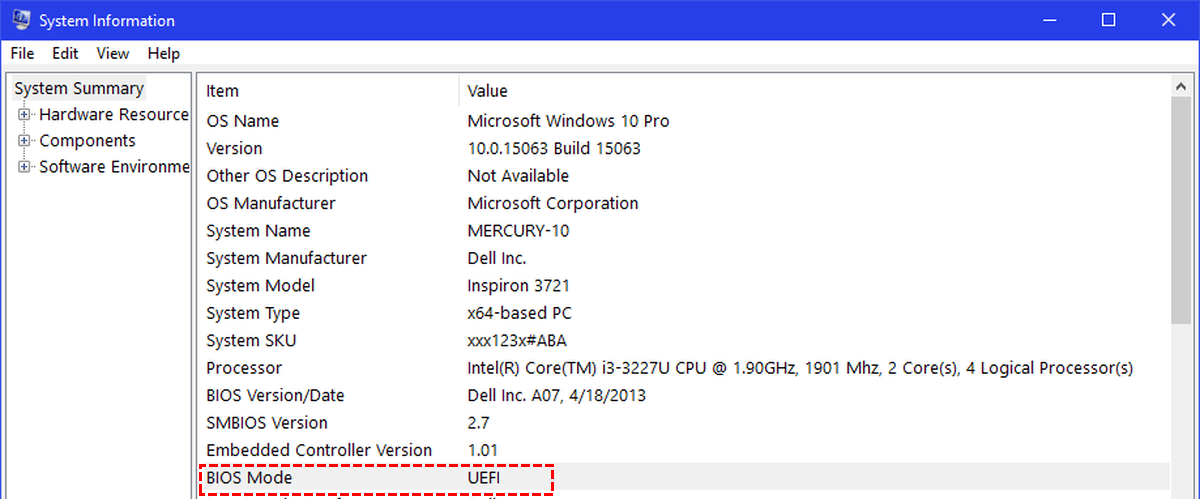
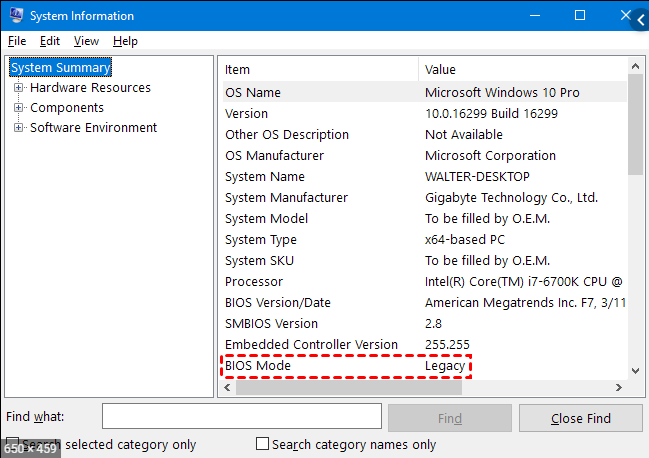
If your BIOS mode shows "Legacy", it doesn't necessarily mean your motherboard can't support UEFI. You can check your motherboard's specifications or manufacturer's website to confirm whether it supports UEFI or not.
Convert MBR to GPT without data loss
To convert the MBR system disk to GPT without losing data, you can create a new GPT disk, then clone the entire system, including the OS, programs, and data, to the new GPT disk. After the cloning process is complete, you can safely remove the old MBR disk and replace it with the new GPT disk, ensuring a smooth transition to Windows 11.
We recommend using Qiling Disk Master Professional to securely convert your MBR disk to a GPT disk. This tool allows you to convert your disk and change your BIOS mode to UEFI mode, and also offers features like migrating your OS and moving installed programs without reinstalling.
Step 1. Install and launch Qiling Disk Master Professional. Right-click the system disk and choose "Convert to GPT".
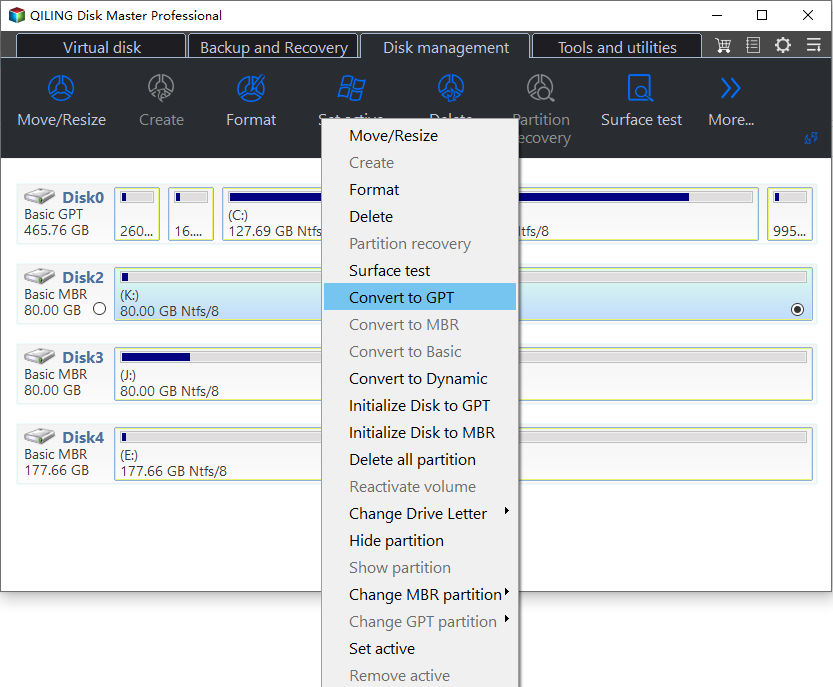
Step 2. Wait a while for the Disk master to complete the conversion operation.
The computer will finish the operation in Windows Preinstallation Environment mode.
After converting MBR to GPT, you can proceed to change your BIOS to UEFI, successfully completing the process.
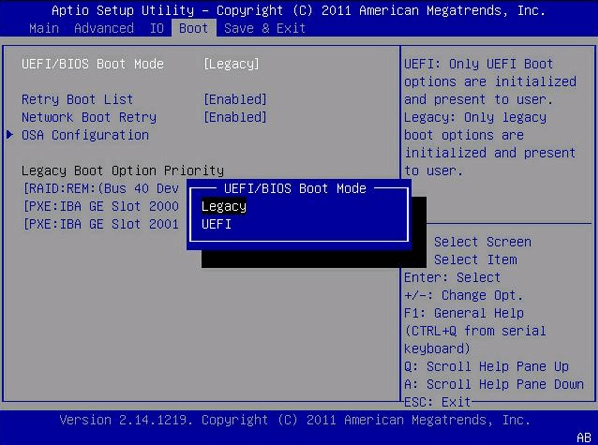
Step 1. When turning on your computer, press the correct functional key (usually F1, F2, F3, F10, or F12, or ESC) at the first screen to access the firmware interface. Note that the specific key may vary depending on the computer model.
Step 2. To enable UEFI boot mode, go to the BOOT tab and select UEFI/BIOS Boot Mode. Change Legacy to UEFI, save the changes, and exit the firmware interface.
Upgrading to Windows 11 from Windows 10 is a straightforward process. Once you're ready, you can initiate the upgrade process, which will download and install the necessary files.
To upgrade to Windows 11, UEFI is indeed required, but with the help of Qiling Disk Master, this limitation can be overcome. This software allows for safe conversion of MBR to GPT disks, and its "Win2go" feature enables the installation of Windows 11 on qualified computers. Additionally, Qiling Disk Master Server is available for Windows Server users, making it possible for them to enjoy the benefits of Windows 11 as well.
Related Articles
- [2 Simple Ways] How to Allocate a Hard Drive in Windows 11?
Learn how to Allocate a Hard Drive in Windows 11 with clear steps, key checks, and practical tips. - About Windows 11 22H2 Update--What You Want to Know
Windows 11 22H2 update will become the biggest system update after it's released for 1 year. You can get some details about it and preparer your PC for this update in advance. - Fix: Windows 11 'Windows Cannot be Installed to This Disk MBR'
Here's a tutorial to fix Windows 11 'Windows cannot be installed to this disk MBR' error in 3 methods. - Convert GPT to MBR During Windows 7 Install Without Data Loss
Learn how to Convert GPT to MBR During Windows 7 Install Without Data Loss with clear steps, key checks, and practical tips. - How to Clone OEM Partition in Windows [2024 Full Guide]
Learn how to handle How to Clone OEM Partition in Windows with cloning or migration tips, boot checks, and ways to protect data during the move. - How to Clone Only Used Space [Step-by-Step Guide]
This passage provides a step-by-step guide on how to clone only used space, and also introduces the best clone software to help you tackle more disk clone-related issues.
Products
Articles & Tutorials
- Data Recovery
- Data Backup
- File Recovery
- File Backup
- File synchronize
- System Backup and Restore
- Disk and Partition Clone
- Technical articles
- Disk Master Help
- Windows Deleted File and Disk Recovery Tutorials
- Windows File and Data Recovery Tutorials
- More Windows Tutorials for Install, Security, Files, and PC Tips
- Windows Boot, Repair, and Recovery Environment Tutorials
- Windows Backup Tutorials
- Windows Restore Tutorials
- Windows Clone and Migration Tutorials
- Windows Server Backup, Recovery, and Management Tutorials
- Windows Disk, Partition, and Storage Management Tutorials