[2 Simple Ways] How to Allocate a Hard Drive in Windows 11?
My C drive runs low on storage
I recently upgraded my 2-year-old Dell laptop to Windows 11, and initially, everything went smoothly with the new features impressing me. However, upon booting the device today, I was alerted that the C drive was running low on space.
To free up space on your C drive in Windows 11, you can consider moving some files to an external hard drive or a cloud storage service like OneDrive. You can also use the built-in Disk Cleanup tool to remove temporary files and system files you don't need. If you have a lot of programs installed, you might want to consider uninstalling some of them to free up space. Additionally, you can use the Storage Sense feature in Windows 11 to automatically clean up temporary files and free up space on your C drive. If you're not comfortable with these steps, you can also consider seeking help from a friend or a professional who can assist you in optimizing your computer's storage.

Why allocate a hard drive in Windows 11?
If you're unable to download and install Windows updates or third-party software, it's likely due to a lack of disk space, which can trigger warnings like "C drive full".
Some users choose to upgrade their hard drive to a larger one, but this requires both money and technical skills to install, which can be complex for beginners. In contrast, allocating free space from one drive to another is a more cost-effective and reasonable option for all users, especially in Windows 11.
How to allocate hard drive space in Windows 11?
When it comes to allocating free space between disks, there are two tools to consider. The first is Disk Management, a free and practical Windows built-in program that helps manage both hard drives and partitions. The second is a third-party software utility by Qiling that offers even more features.
Method 1. Use Disk Management to extend a drive with free space
With Disk Management, you can extend the target disk with a piece of unallocated space.
1. To access the Device Manager, select "This PC" from the desktop, right-click on it, and choose "Manage".
2. Click on "Disk Management" under the tab "Storage".
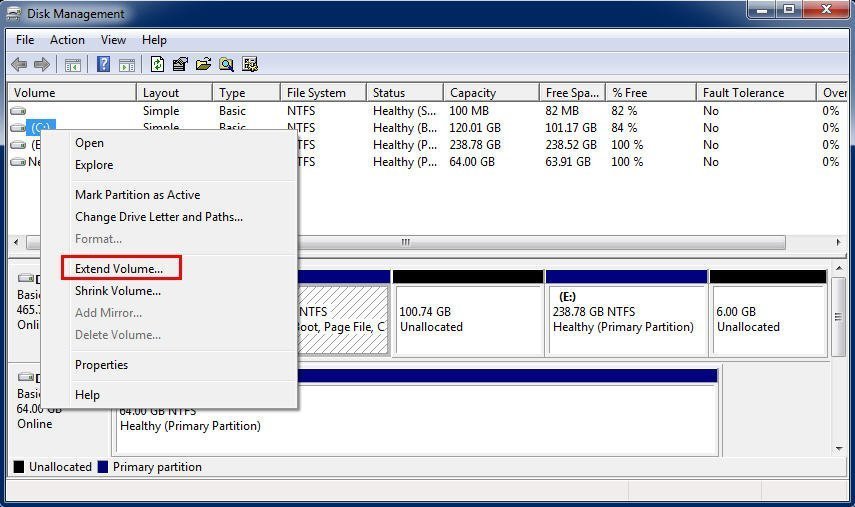
3. If you have unallocated space next to the disk you want to extend, right-click on the disk and select "Extend Volume" from the context menu. Follow the on-screen instructions to complete the process.
If there's no unallocated spaceTo create unallocated space next to the target disk, you need to delete the contiguous partition next to the disk, and then extend the target disk using the unallocated space.
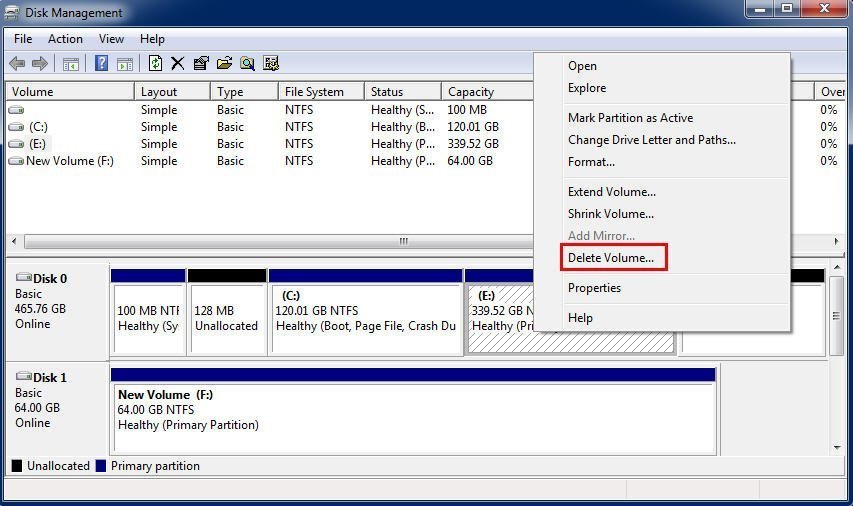
Note: You can make a backup of the partition in advance in case of any data loss.
The free space allocation with Disk Management is limited, requiring adjacent unallocated space or deleting a partition to extend a disk.
Method 2. Use a third-party software utility without deleting any partition
If you don't want to delete another disk when there's no unallocated space, Qiling Disk Master Professional is a great alternative. This powerful disk manager allows you to directly allocate free space from one partition to another, ensuring a secure process with no risk of data loss. Additionally, it also supports features like partition split and quick partition, making it a versatile and useful tool for managing your disks.
How to allocate a hard drive in Windows 11? Try the best disk manager for the free space allocation.
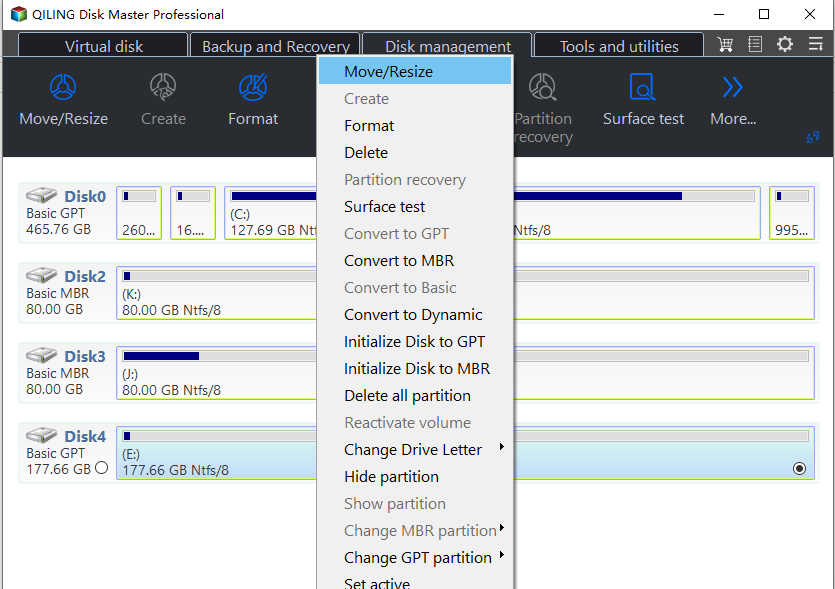
Step 1. To resize a partition, install and launch Qiling Disk Master Professional, then right-click on a partition with sufficient space and select "Move/resize" from the dropdown menu.
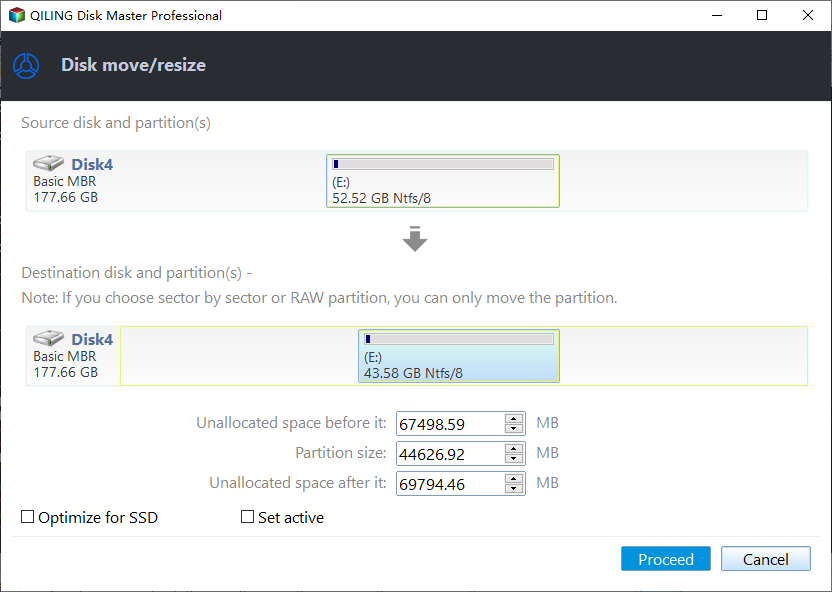
Step 2. In the next window, set the size of the free space you want to allocate and the target partition where you want to allocate the free space to.
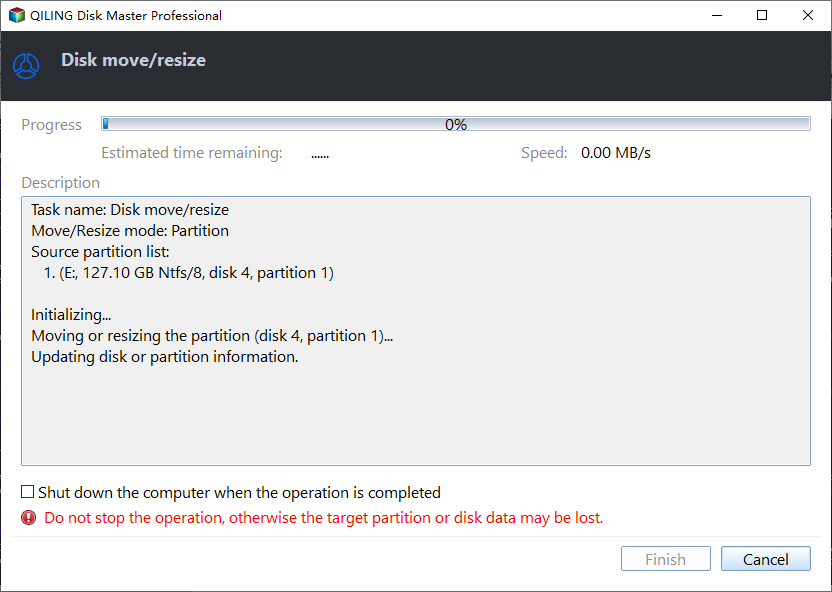
Step 3. After returning to the home interface, hit "Apply" on the upper left and then, hit "Proceed" to start the space allocation.
Conclusion
To allocate your hard drive in Windows 11, you can use Disk Management or a third-party tool like Qiling Disk Master Professional. This software allows you to directly allocate free space from one partition to another without deleting any partitions, making it a better choice for allocating storage space. If you need to use it on a server, you can try the Server edition.
Related Articles
- How to Move Windows 10 Recovery Partition without Data Loss?
If Windows 10 Recovery partition is in the way of extending C: partition, you can move recovery partition in Windows 10 safely with a free tool. - Windows 10 Not Detecting USB (Fixed with 5 Free Ways)
This guide explains Windows 10 Not Detecting USB (Fixed with 5 Free Ways) with clear steps, key checks, and practical tips. - [Fixed] Windows 10 System Reserved Partition Too Small
In Windows 10, system reserved partition too small will interfere in the OS update or upgrade. To fix this issue, you can read this post to try some solutions. - Guide | Enable UEFI Secure Boot for Windows 11 Update
Enabling UEFI Secure Boot is one of the essential requirements for Windows 11 upgrade. This page gives a comprehensive introduction to UEFI Secure Boot and shows how to enable UEFI Secure Boot step by step. - How to Clone C Drive to Larger SSD in 2024 [Full Guide]🔥
If your C drive is running low on space due to the operating system and programs, consider upgrading to a larger SSD. This article provides a step-by-step guide on how to clone your C drive to a larger SSD, allowing you to transfer all your files, programs, and settings to the new drive. - How to Clone Hard Drive From Boot [Step-by-Step Guide]
This article provides a step-by-step guide on how to clone a hard drive from boot using a professional tool, making it easy to transfer all data from an old hard drive to a new one, including the operating system and applications.
Products
Articles & Tutorials
- Data Recovery
- Data Backup
- File Recovery
- File Backup
- File synchronize
- System Backup and Restore
- Disk and Partition Clone
- Technical articles
- Disk Master Help
- Windows Deleted File and Disk Recovery Tutorials
- Windows File and Data Recovery Tutorials
- More Windows Tutorials for Install, Security, Files, and PC Tips
- Windows Boot, Repair, and Recovery Environment Tutorials
- Windows Backup Tutorials
- Windows Restore Tutorials
- Windows Clone and Migration Tutorials
- Windows Server Backup, Recovery, and Management Tutorials
- Windows Disk, Partition, and Storage Management Tutorials