How to Split Partition in Windows 10 or 11 without Formatting? (2 Methods)
Why need to split partition in Windows 10 or 11?
Splitting a partition involves dividing a large partition into two smaller ones, typically to improve performance and separate system and personal files. This is useful when the system drive contains the OS, applications, and personal files, which can slow down the OS. By dividing it into two partitions, the OS and personal files can be separated, allowing the system partition to be formatted for OS reinstallation without affecting personal data.
Splitting a hard disk partition into two smaller ones allows for more efficient use of disk space, especially when one partition is too large but underutilized. This approach enables you to store different types of data separately, making the most of the available space. Overall, it helps to make the partition number and size more reasonable.
2 Methods to split partition without formatting in Windows 10/11
To split a disk partition into two, you can use either the built-in Disk Management tool in Windows or a third-party software like Qiling Disk Master Professional. Neither method requires formatting any partitions. We will demonstrate how to do this using both methods.
Method 1. Split NTFS partition via Windows 10/11 Disk Management
To separate a large partition using Disk Management, first, you need to shrink the partition to create an unallocated space. Once you have the unallocated space, you can then create a new partition on it.
Note: Disk Management can only shrink NTFS partitions, and does not support splitting FAT32 partitions.
Step 1. To open the Disk Management tool on a Windows computer, press the Windows key and the "R" key at the same time to open the "Run" dialog box. Then, type "diskmgmt.msc" in the empty box and click "OK" to open the Disk Management tool.
Step 2. Right-click the large partition you want to shrink and select "Shrink Volume".
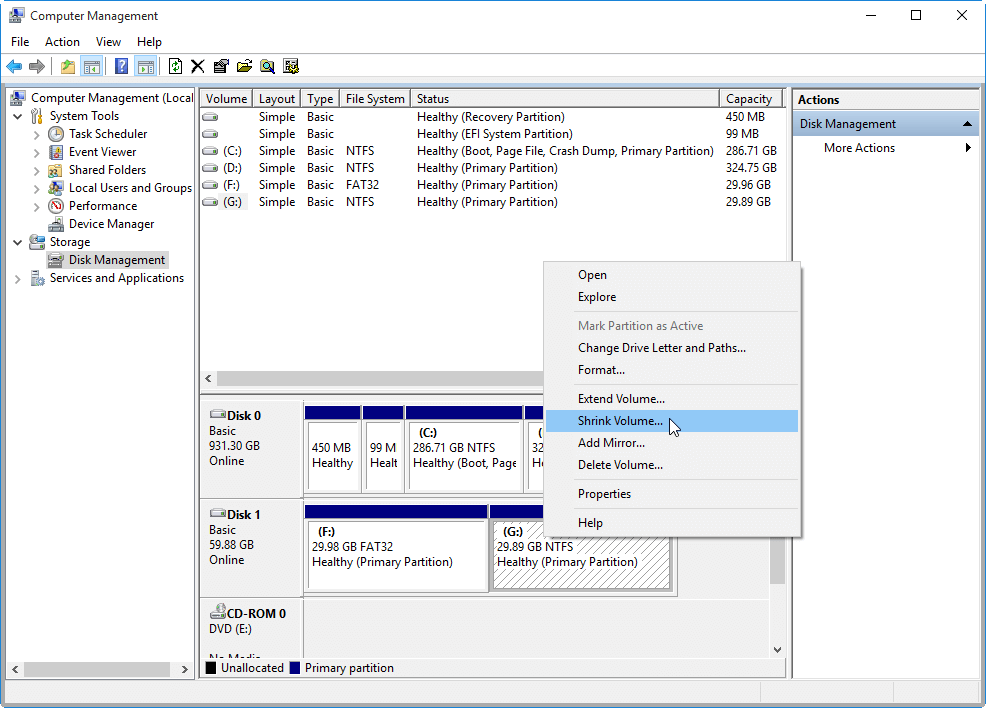
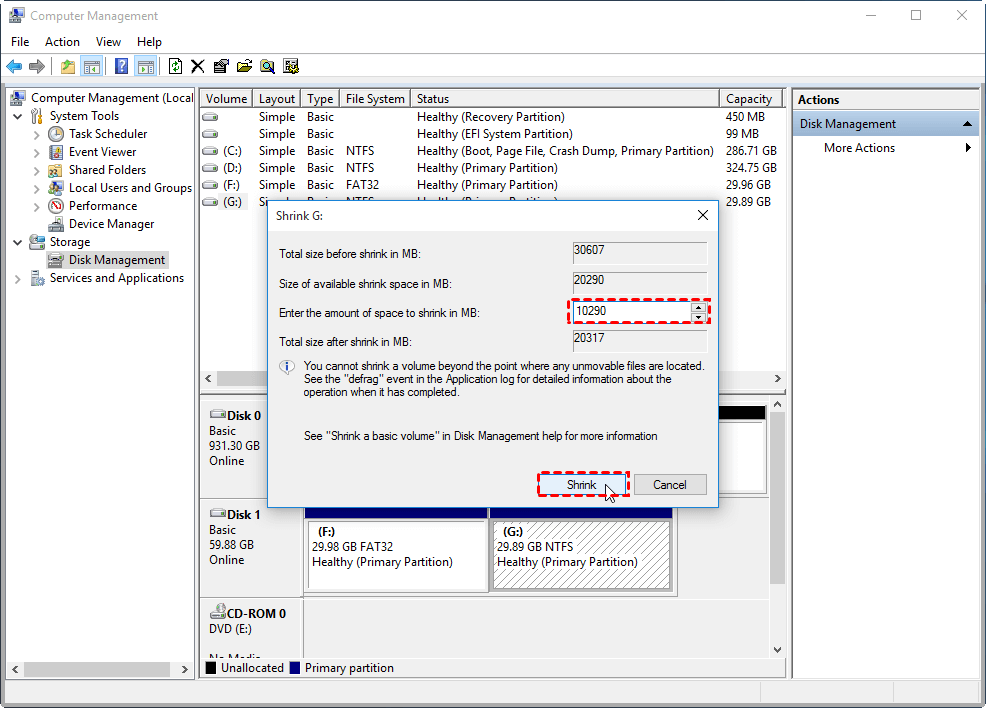
Step 3. The program first calculates the total space used by all files in the specified directory and its subdirectories. Then it will calculate how much space can be shrunken. In the next window, you can input the shrunk size (MB) and click "Shrink" to proceed.
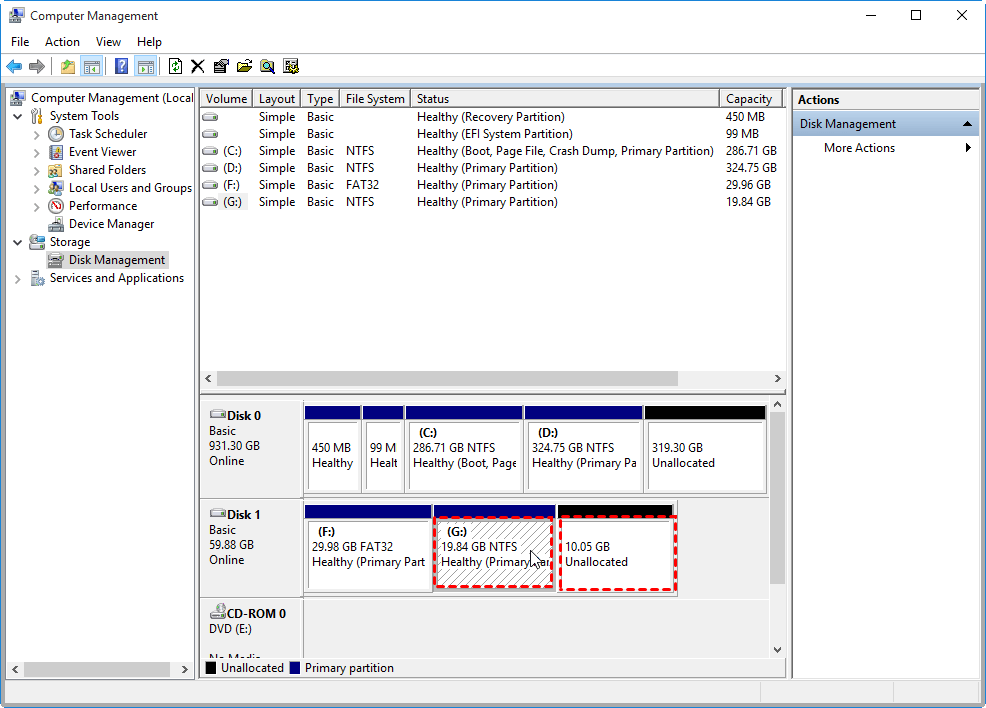
Step 4. After shrinking a partition, you will see an unallocated space after the partition you shrunk. Right-click the unallocated space and select "New Simple Volume," then follow the wizard to create a new partition on the unallocated space.
Splitting a large partition into smaller ones can be a time-consuming and potentially data-loss-prone process. However, there is a simpler and safer alternative.
Method 2. Divide partition via professional partition software
To split a large partition into two smaller ones without formatting or losing data, use a third-party partition manager like Qiling Disk Master Professional, which offers a "Split Partition" function that can split a hard disk partition into two in just three steps, without the need to shrink the partition first, making it a time-saving and safer method for both NTFS and FAT32 partitions.
To split system partitions without formatting via the software, you can use the software to create a new partition on the existing system drive, then move the system files to the new partition, and finally remove the original system partition. This process allows you to maintain the existing system files and programs without having to reformat the drive.
Note: To split a partition into two, ensure there is unused space in the partition you plan to divide.
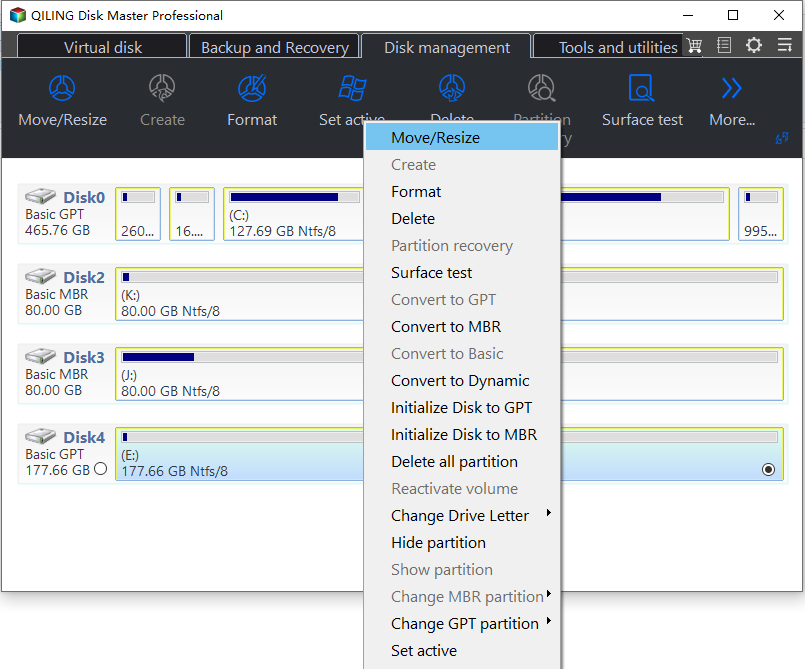
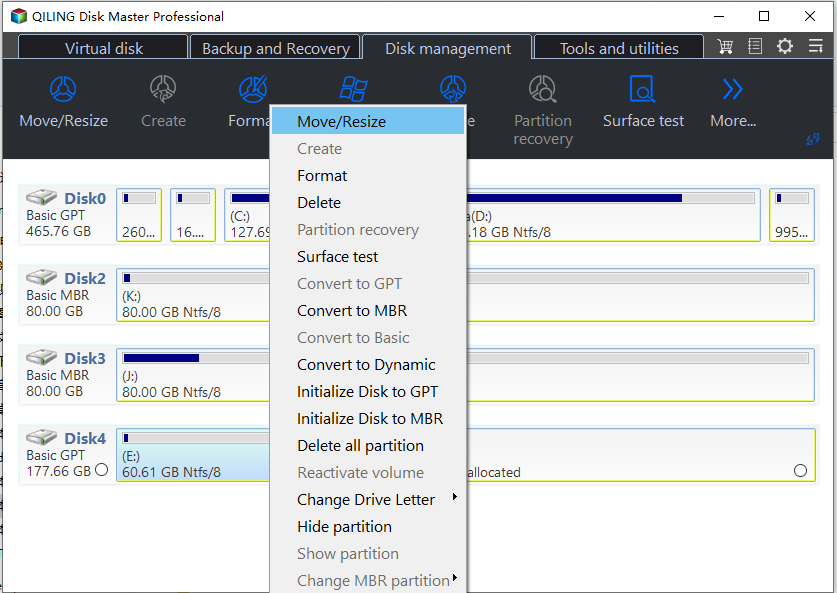
Step 1. To split the E partition, install and run Qiling Disk Master Professional, then right-click the E partition and select "Split Partition".
Step 2. In this window, you can specify the size and location of the new partition, and click "OK".
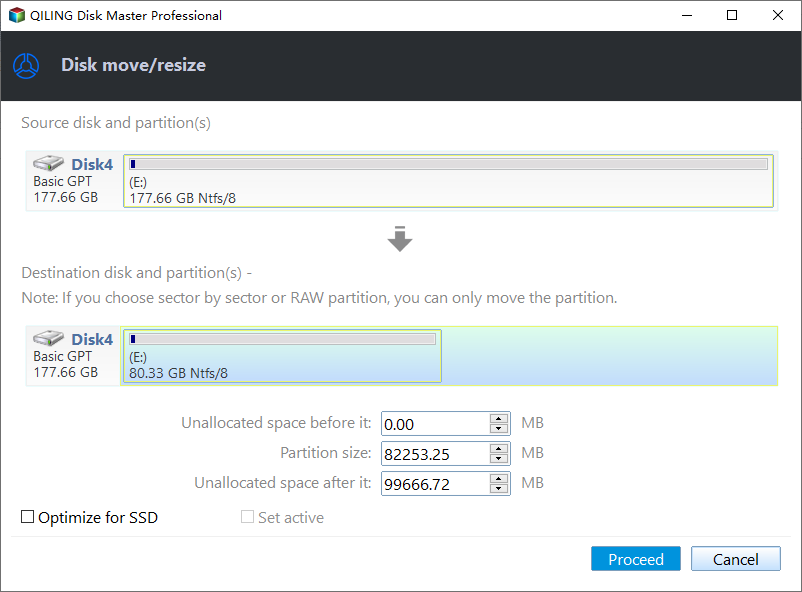
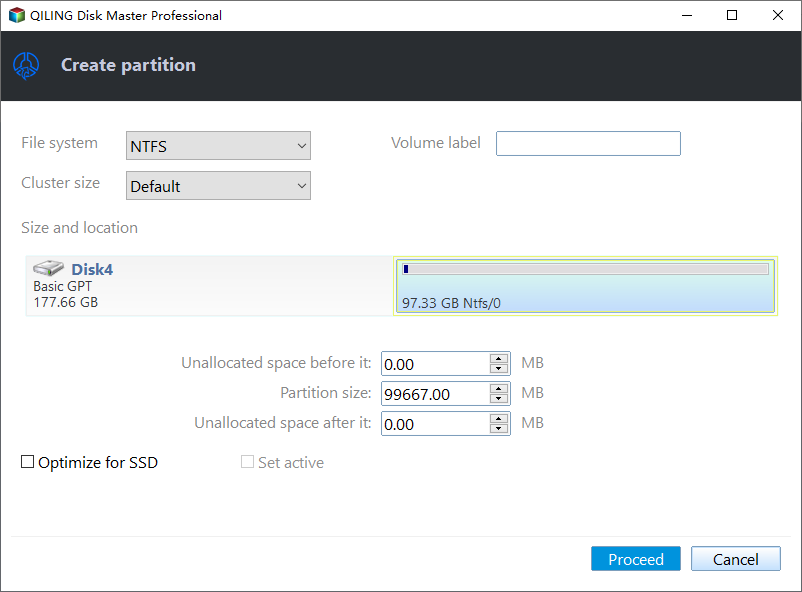
Step 3. The system will proceed with the pending operation, and the user will be taken back to the main interface. Upon completion, the user can click "Proceed" to commit the pending operation.
Tips:
● The splitting process will take some time, so allow your computer to finish this task before using it for anything else.
● 4 primary partitions are already used on the MBR disk, and you plan to split one of them. In this case, the split partition will be converted to an extended partition.logical partition automatically.
● The program won't let you split the system or boot partition on a hard disk with four primary partitions, unless you convert one of the other partitions from primary to logical, allowing the new partition to be set as logical.
Qiling Disk Master Professional offers additional functions to resize hard disk partitions in Windows, including merging adjacent partitions into one, merging unallocated space into an existing partition, moving partitions to a different location, allocating free space between partitions, and creating a partition within an existing one.
Summary
You've learned how to split a partition in Windows 10 or 11 without formatting other partitions using Disk Management and Qiling Disk Master Professional. For convenience and data safety, Qiling Disk Master is more recommended. If you need to split a partition in Windows Server 2012/2016/2019 and beyond, try Qiling Disk Master Server.
Related Articles
- Learn How to Repartition Hard Drive in Windows 10, 8, 7
The right way to repartition a hard drive is to use Qiling Partition Asssitant to repartition a hard drive. - Top Samsung SSD Factory Reset Tool for Windows 11, 10, 8, 7
This guide explains Top Samsung SSD Factory Reset Tool for Windows 11, 10, 8, 7 with clear steps, key checks, and practical tips. - Benchmark Helps You Know SSD Performance Clearly
This post explains what SSD benchmark is and introduce three SSD benchmark tools as well as benchmark measruement rules to help you know your SSD's performance. - Prolong the Lifespan of Your SSD with Several Ways
This tutorial will explain the definition of SSD lifespan and how to prolong Synology/Crucial SSD read write lifespan in both desktop and laptop in several simple ways. - Guide on Checking Disk Speed in Windows 10 Using CMD [2024 Tutorial]
Protecting your data requires that you keep tabs on your SSD's performance. This article explains how to check disk speed windows 10 cmd. - How to Check Disk Space in Windows 7 [Step-By-Step Guide]
If you're still using Windows 7, this post can help. It provides two simple methods to check disk space on Windows 7.
Products
Articles & Tutorials
- Data Recovery
- Data Backup
- File Recovery
- File Backup
- File synchronize
- System Backup and Restore
- Disk and Partition Clone
- Technical articles
- Disk Master Help
- Windows Deleted File and Disk Recovery Tutorials
- Windows File and Data Recovery Tutorials
- More Windows Tutorials for Install, Security, Files, and PC Tips
- Windows Boot, Repair, and Recovery Environment Tutorials
- Windows Backup Tutorials
- Windows Restore Tutorials
- Windows Clone and Migration Tutorials
- Windows Server Backup, Recovery, and Management Tutorials
- Windows Disk, Partition, and Storage Management Tutorials