Fix: Windows 11 'Windows Cannot be Installed to This Disk MBR'
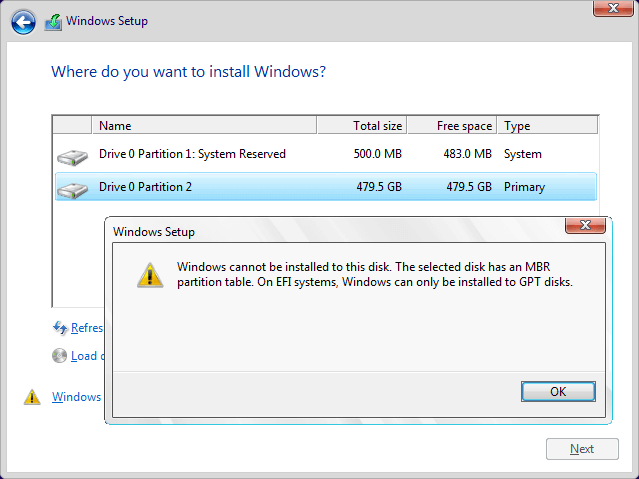
If you're experiencing the "Windows cannot be installed to this disk MBR" error during the Windows 11 installation, this article provides answers to your questions. This error typically occurs when the disk you're trying to install Windows on doesn't have a valid Master Boot Record (MBR), which is required for the installation process. To resolve this issue, you can try using the Windows 11 installation media to create a new MBR, or you can use a third-party tool to repair or recreate the MBR on the target disk. By following the steps outlined in this article, you should be able to successfully install Windows 11 on your desired disk.
About MBR and GPT
Many Windows users encounter an issue while upgrading from Windows 10 to Windows 11, as the latter requires the machine to boot in UEFI mode with a GPT partition table, which is not compatible with the MBR partition table used by Windows 10.
MBR and GPT are two distinct partition types used in computers. MBR (Master Boot Record) is an older partitioning scheme used in traditional BIOS-based systems, while GPT (GUID Partition Table) is a newer, more advanced partitioning scheme used in UEFI (Unified Extensible Firmware Interface) systems.
1. MBR
The Master Boot Record (MBR) is a traditional partition table that divides the hard disk into sectors, with the first sector containing the boot code and partition table. This table has a fixed size and can only record information for up to 4 primary partitions, limiting the maximum partition capacity of an MBR hard disk to 2TB.
2. GPT
The GUID Partition Table (GPT) is an alternative to the Master Boot Record (MBR) partitioning method. It stores the location information of the partition table in the GPT header on the hard drive, while the first sector is still used as an MBR for compatibility purposes.
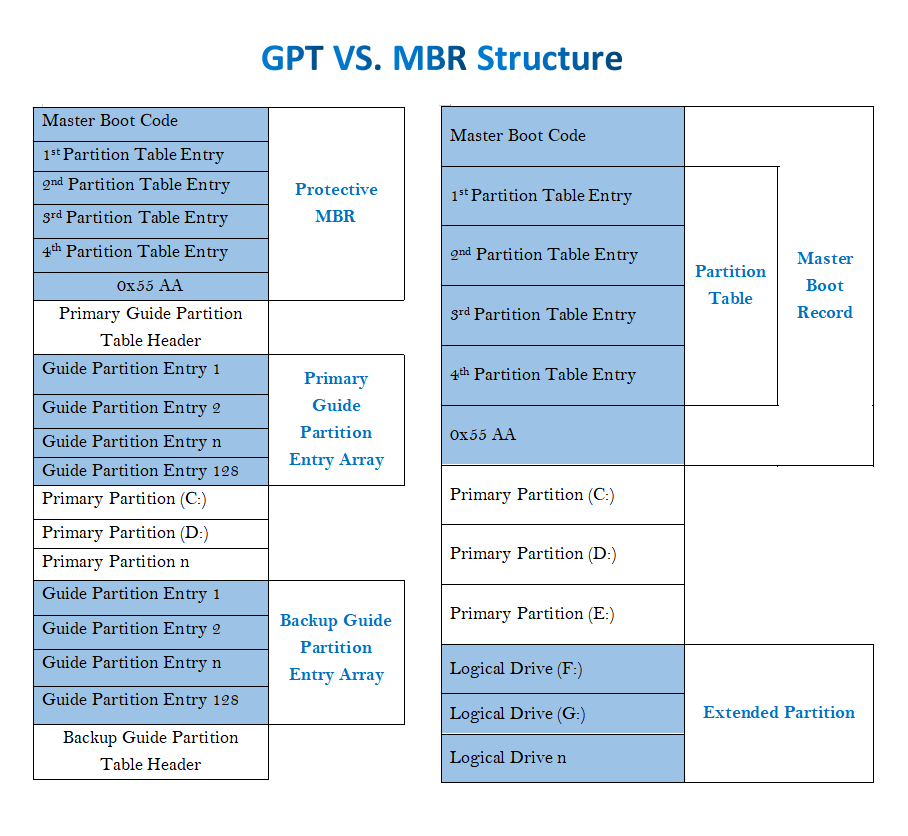
The GPT partition scheme is more advanced than MBR because it allows for a customizable maximum number of partitions, which in Windows is set to 128. The reason for this is that the GPT partition table can accommodate more partitions than the MBR partition table. This is because the GPT partition table can be expanded to support a larger number of partitions, making it more flexible and adaptable to different needs.
The traditional MBR partition table can no longer meet the demand due to increasing disk capacity, as it can only recognize up to 2TB of space, resulting in wasted hard disk space, whereas the GPT partition table can identify space above 2TB.
3. EFI & UEFI
EFI, or Extensible Firmware Interface, is an operating system that controls all hardware resources. Initially developed by Intel, it became public with the release of version 1.1, attracting many companies to join the development process. The organization, now known as the Unified EFI Forum, took over ownership, and the technology was renamed UEFI after version 2.0.
But, UEFI has been developed than EFI:
• UEFI has a complete graphics driver function
To ensure a smooth transition between EFI and BIOS, EFI only supports PS/2 keyboard and mouse operation, whereas UEFI supports all input devices, including USB keyboards and mice, thanks to its complete graphics driver.
When the UEFI graphics card also supports the GOP VBIOS process, the displayed setting interface is shown in high resolution at 640*480 or 1024*768, making the screen appear small but clear.
• UEFI has Secure Boot
After enabling UEFI Secure Boot, the motherboard verifies hardware based on the signature recorded by the TPM chip, only loading certified drivers, reducing the risk of preloaded startup programs before the operating system starts.
How to fix in Windows 11 “Windows cannot be installed to this disk MBR”
During the installation, you may encounter a "Windows cannot be installed to this disk MBR" warning, indicating the need to convert the MBR disk to a GPT partition table. To resolve this issue, you can use one of the three methods: convert MBR to GPT, use a GPT disk, or use a UEFI firmware. Each method has its own set of steps and requirements, but they all ultimately aim to convert the MBR disk to a GPT partition table, allowing you to proceed with the Windows installation.
Use Windows tools
Windows has two built-in tools to allow users to convert MBR disk to GPT disk, one is Disk Management, and the other is Diskpart. Now we'll show detailed steps.
1. Convert to GPT disk via Disk Management
Step 1. Right-click "My Computer/This PC" -->" Manage"-->" Disk Management".
Step 2. Right-click on each partition on the disk you want to convert and select "Delete Volume" to clean the disk.
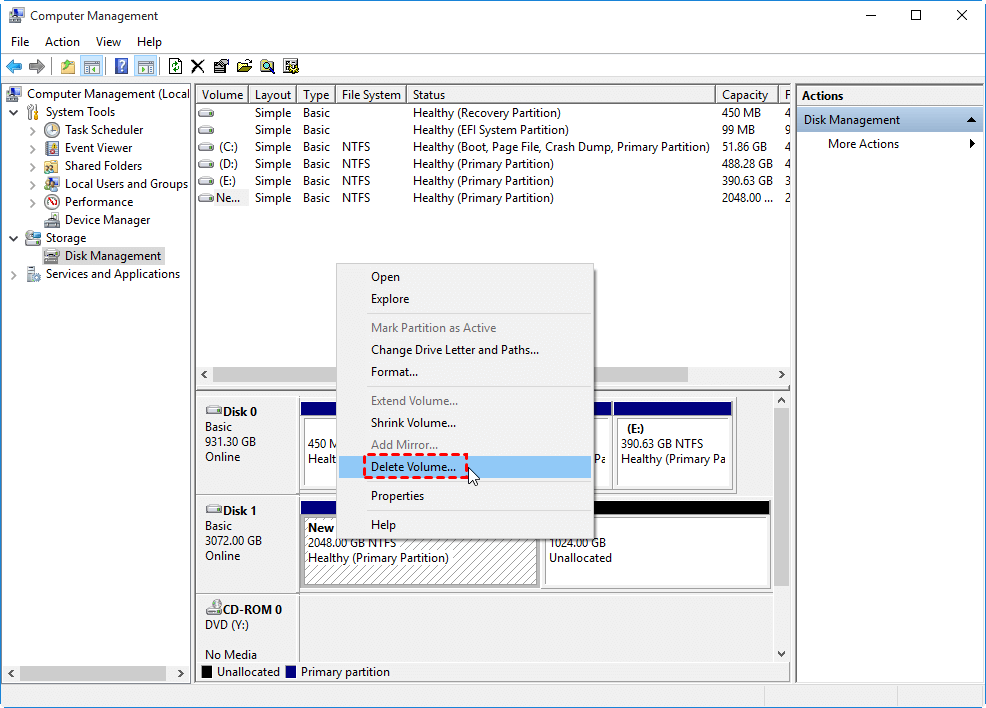
Step 3. Right-click on the target disk, and select "Convert to GPT Disk".
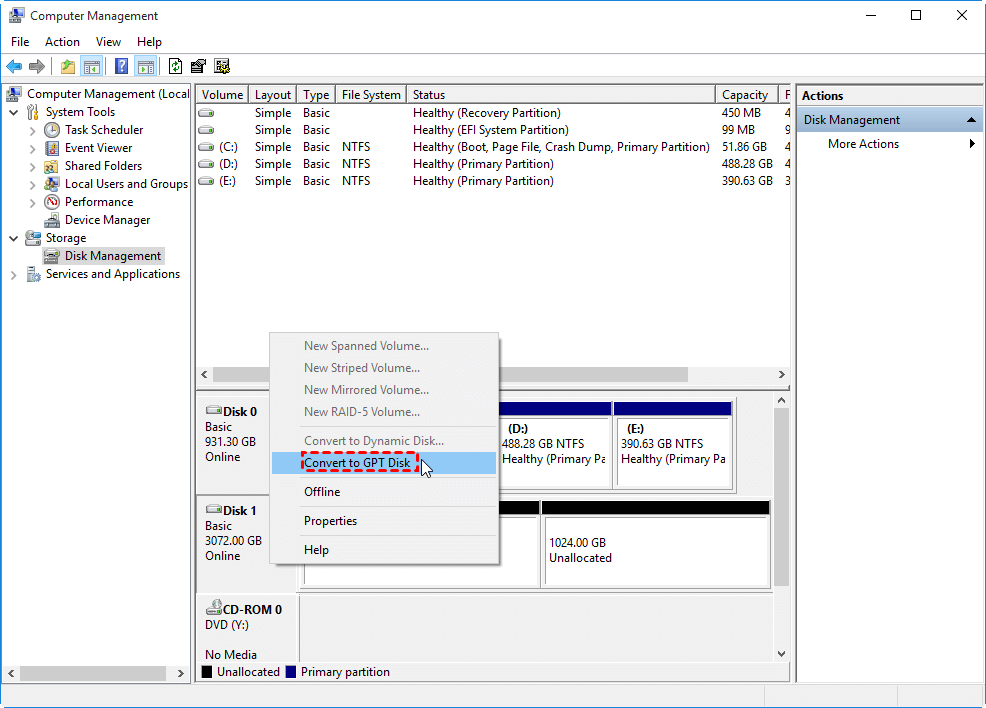
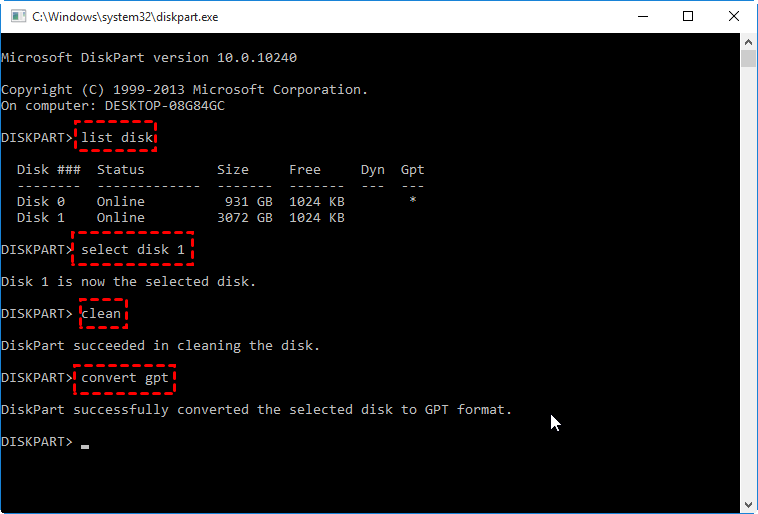
2. Convert to GPT via Diskpart
Step 1. Press the "Windows" + "R" key simultaneously, and input "diskpart" in the box. Press "Enter".
Step 2. Input "list disk" to list all disks connected to your computer.
Step 3. Input "select disk n"(n is the number of MBR disk)to select the MBR disk you want to convert to GPT.
Step 4. Input "clean" to delete all partitions existing on the target disk.
Step 5. Input "convert gpt".
Convert to GPT via a handy tool without data loss
To convert a disk to a different file system, two methods using Windows tools are available, but they require deleting all partitions and data on the disk, risking data loss. Alternatively, Qiling Disk Master Professional can convert disks without deleting data, making it a suitable choice for users who want to preserve their data. This tool supports conversion of both system and data disks in various Windows versions, including Windows 11/10/8/7/XP/Vista, and also offers a Server edition for Windows Server users.
Step 1. Install and launch the software, right-click the MBR disk you want to change, and then choose Convert to GPT.
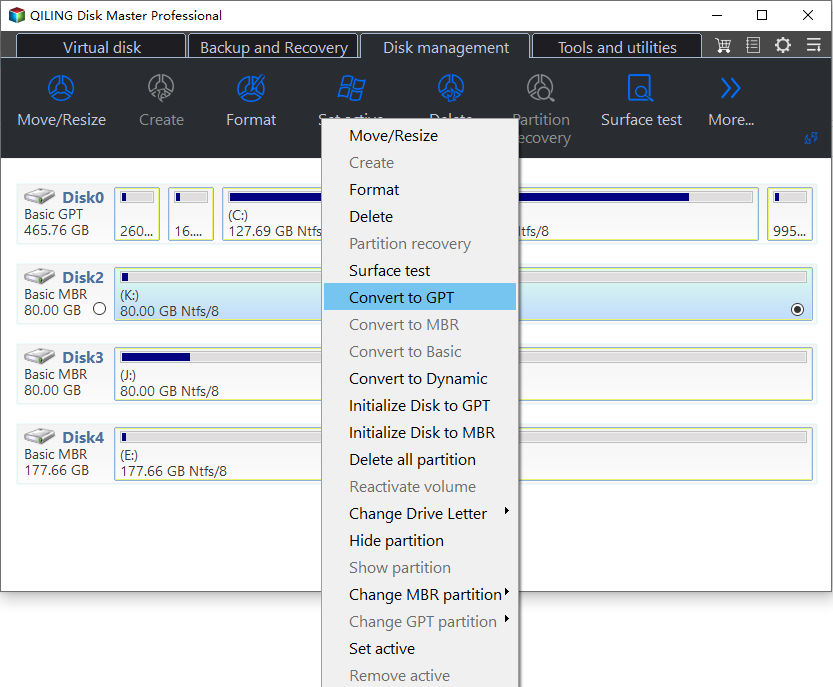
Step 2. Warting to operate and then your disk will be changed into GPT disk style.
Then you can use this disk to install Windows 11.
To sum up
The "Windows cannot be installed to this disk MBR partition table" warning can be fixed using three methods, but the simplest one for users is to convert the disk via the Qiling Disk Master. This method is particularly straightforward and can be used to resolve the issue.
This powerful tool allows users to create a Windows 11 to Go USB, clone disk/partition, migrate OS to another place, and move installed programs without reinstalling, making it easier and safer to manage devices.
Related Articles
- Guide to Migrate OS to SSD for Windows 8.1 with Pictures
This page aims to provide a step-by-step guide for beginners to successfully migrate OS to SSD Windows 8.1, enhancing system performance and speed. - How to Fix 'SD Card Is Blank or Has Unsupported File System' [100% Working Solutions]
If you cannot use your SD card, there may be something wrong with it. And this passage will offer you several ways to make the error 'SD card is blank or has unsupported file system' solved. - How to Upgrade eMMC to M.2 [Step-by-Step Guide]
Learn how to Upgrade eMMC to M.2 with clear steps, key checks, and practical tips. - What Size SSD Should I Buy to Make Spending Money Wisely
This guide explains What Size SSD Should I Buy to Make Spending Money Wisely with clear steps, key checks, and practical tips. - How to Clone Windows to a New Drive [2024 Full Guide]
This article covers a professional tool to help you clone Windows to new drive and provides detailed steps on how to clone the operating system to a new drive. - How to Clone Windows to New SSD [Most Efficient Way]
Cloning Windows to a new SSD can be efficiently done using professional cloning software, and this article will guide you through a step-by-step process to achieve this.
Products
Articles & Tutorials
- Data Recovery
- Data Backup
- File Recovery
- File Backup
- File synchronize
- System Backup and Restore
- Disk and Partition Clone
- Technical articles
- Disk Master Help
- Windows Deleted File and Disk Recovery Tutorials
- Windows File and Data Recovery Tutorials
- More Windows Tutorials for Install, Security, Files, and PC Tips
- Windows Boot, Repair, and Recovery Environment Tutorials
- Windows Backup Tutorials
- Windows Restore Tutorials
- Windows Clone and Migration Tutorials
- Windows Server Backup, Recovery, and Management Tutorials
- Windows Disk, Partition, and Storage Management Tutorials