How to Check and Enable TPM For Windows 11 Update
One of the necessary conditions for updating Windows 11 is that your computer must support TPM 2.0. If you want to know whether your computer supports TPM 2.0, you can first check your computer to see if it supports TPM 2.0. If it is not supported, then you need to upgrade the TPM. Below we will learn more about what TPM is and how to check and enable TPM for Windows 11 update.
What is TPM?
The Trusted Platform Module (TPM) is an international standard for secure encryption, also known as ISO/IEC 11889, that protects hardware with a secure encryption key.
In 1999, major IT companies like Compaq, HP, IBM, Intel, and Microsoft formed the Trusted Computing Platform Alliance (TCPA) to create a standardized, secure computing platform.
In 2003, Nokia, Sony, and other companies joined TPCA, which was then renamed the Trusted Computing Group (TCG). They aimed to standardize trustworthy computers across platforms and operating environments, proposing TPM (Trusted Platform Module) specifications, with the latest version being 2.0.
The role of TPM
TPM (Trusted Platform Module) serves multiple purposes, primarily functioning as a hardware protection key to identify devices, verify identities, encrypt data, and ensure device integrity. These functions form the core of TPM's capabilities.
● Protect the integrity of the platform
Regardless of the operating system of the TPM, its primary function is to ensure the integrity of the platform, guaranteeing that the computer starts with a trusted combination of hardware and software, and continues to run securely until the operating system and application programs are fully started.
TPM ensures platform integrity through Microsoft Office 365 licensing and Outlook Exchange, and its integrity is mainly maintained by the firmware and operating system. It can form a root of trust with the Unified Extensible Firmware Interface (UEFI), creating a trust chain for Trusted Execution Technology (TXT) that can remotely verify the computer is using specified hardware software.
● TPM can encrypt the entire disk or any partition of the hard disk
We can use Trusted Platform Module (TPM) to encrypt the entire hard disk or any partition on our computer, leveraging its technology as a key to protect storage devices. If TPM is enabled on your computer, you can utilize it to safeguard your computer's storage. Some large software companies, such as Microsoft, utilize TPM to encrypt partitions, notably through BitLocker.
TPM is not only used for startup processes and hard disk encryption, but also for encrypting system logins and application software logins. For instance, TPM can encrypt login information and passwords, such as those for commonly used software like MSN, before transmission, thereby protecting personal information and passwords from being stolen.
The difference between the old version (1.2) and the new version (2.0) of TPM
TPM 2.0, released in April 2014, has been revised and updated since then, offering more powerful functions than its predecessor TPM 1.2. The key differences between the two versions lie in their algorithms, encryption, platforms, keys, platform configuration registers (PCRs), and authorization. A comparison of these aspects reveals the improvements made in TPM 2.0. (Note: I removed the figure reference as it's not a text-based format)
|
Comparison item |
TPM1.2 |
TPM2.0 |
|
algorithm |
SHA-1 and RSA are required. |
SHA-1 and RSA are required, while SHA-1 and SHA-256 are required, and manufacturers can use TCG IDs to add new algorithms at will. |
|
encryption |
The system requires the use of a random number generator, a public-key cryptographic algorithm, a cryptographic hash function, and a mask generation function. It also needs to perform digital signature generation and verification, as well as Direct Anonymous Attestation. |
A random number generator using the Barreto-Naehrig 256-bit curve is required, as well as public-key cryptographic algorithms, cryptographic hash functions, and symmetric-key algorithms. Additionally, functions for digital signature generation and verification, as well as a mask generation function, are needed. Key generation and key derivation functions are also necessary to complete the cryptographic system. |
|
Platform Configuration Register PCRs |
To restore the unsealing Bitlocker's key, PCR (Platform Configuration Registers) can be used. If there are any minor changes during the system startup process, user intervention is required to restore it. |
Multiple PCRs can be run in parallel, each with its own algorithm for expansion operations, allowing for independent and simultaneous processing without interference between them. This enables a standard approach to running PCRs, where each bank uses the same algorithm, while still allowing for customization and differentiation between banks by assigning different algorithms or parameters to each. This setup promotes efficient and scalable processing, as each bank can be optimized and run independently, without affecting the others. |
|
Key |
There is only one key (EK) pre-installed in the chip by the manufacturer, making it difficult to replace. |
The master key is generated using the master seed and the key derivation algorithm KDF, and is divided into parent and child keys. The key is primarily stored using symmetric encryption. |
|
Root key |
One (SRK RSA-2048) |
Each hierarchy has multiple keys and algorithms. |
|
Authorization |
HMAC, PCR, location, physical presence |
A password is a secret word or phrase used to authenticate a user's identity. A Hash-based Message Authentication Code (HMAC) is a digital signature that ensures the integrity and authenticity of a message. |
Note: PCRs are mainly used to store measurement values during system startup and operation to prevent the measurement log from being tampered with, ensuring that the same code is executed every time the system is started and in the same order.
TPM 2.0 has an additional SHA-256 algorithm compared to TPM 1.2, making it more secure. In terms of authorization, TPM 2.0 adds asymmetric digital signatures to the existing HMAC, location, physical presence, and PCR of TPM 1.2, providing more detailed and secure encryption and key management.
How to detect if there is TPM 2.0 on the computer
Microsoft will release Windows 11 on October 5th, but many users will face issues as not all computers are compatible with the new system, requiring TPM 2.0 and UEFI secure boot to update.
TPM 2.0 was first used on a small number of computers in 2015 and officially in 2016. To update to Windows 11, you need to check if your computer supports one of the requirements, which is having TPM 2.0. If it doesn't exist, you won't be able to update to Windows 11. If it does exist, check if it's disabled, and if so, enable it to proceed with the update. You can check and enable TPM for Windows 11 update using the following two methods.
│Method 1: Enter tpm.msc in the run window
1. Press the "Windows key + R" on your keyboard to open the Run dialog box.
2. Enter "tpm.msc" in the run window, and then click "OK".
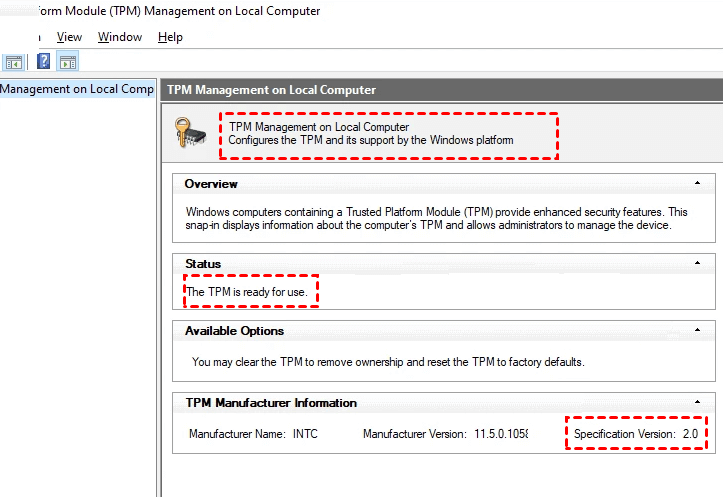
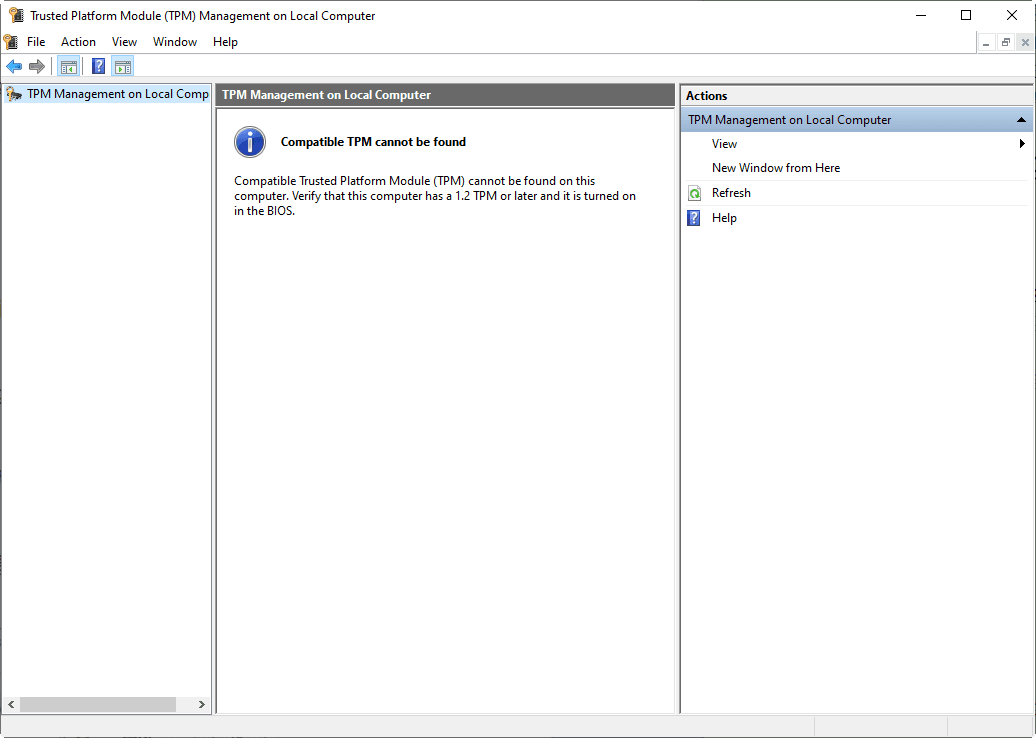
3. After opening the local computer trusted platform module (TPM) management, you may see the following two situations:
The TPM Management on Local Computer module displays the configuration of the TPM and its support by the Windows platform, with a status of "The TPM is ready for use", indicating it's enabled. To check if it's a TPM 2.0 version, look for the Specification Version value in the TPM Manufacturer Information, which should be 2.0, confirming that your computer supports TPM 2.0 and can be upgraded to Windows 11.
A message saying "Compatible TPM cannot be found" on your computer indicates that it doesn't meet the requirements for upgrading to Windows 11, specifically due to a lack of a compatible Trusted Platform Module (TPM).
│Method 2: Check for TPM for Windows 11 through the Windows Security
1. To access the Settings, click the Windows icon in the lower right corner of the computer.
2. Then select "Security & Update".
3. Then select "Windows Security".
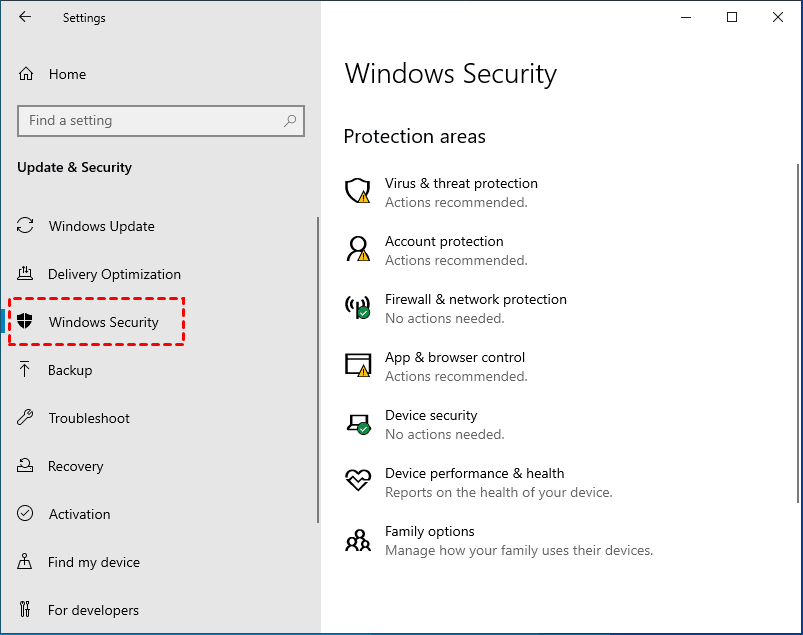
4. To check if there is a Trusted Platform Module (TPM) displayed, you can look for a security device on your computer. This device is usually a small chip on the motherboard or a separate module, and it may be labeled as a TPM.
Note:
● If you can't find the secure processor, it might be because your computer's TPM is disabled. You may need to enable TPM or check your computer's manufacturer support for more information about the secure processor.
● If you can enable TPM, please check if it's at least TPM 2.0, as lower versions won't allow Windows 11 updates.
Tip: To upgrade TPM 1.2 to TPM 2.0, follow the instructions in the article "How to Upgrade TPM 1.2 to TPM 2.0 for Windows 11".
How to enable TPM 2.0 on the computer
If your computer has TPM 2.0 but it's disabled, you can enable it in the computer settings.. The specific operation is as follows:
1. To restart your Windows 10 computer in safe mode, press the Windows key + I to open the Settings app, then click on "Update & Security", followed by "Recovery" in the left menu, and finally click on "Restart now" under the "Advanced startup" section. This will initiate a restart in safe mode.
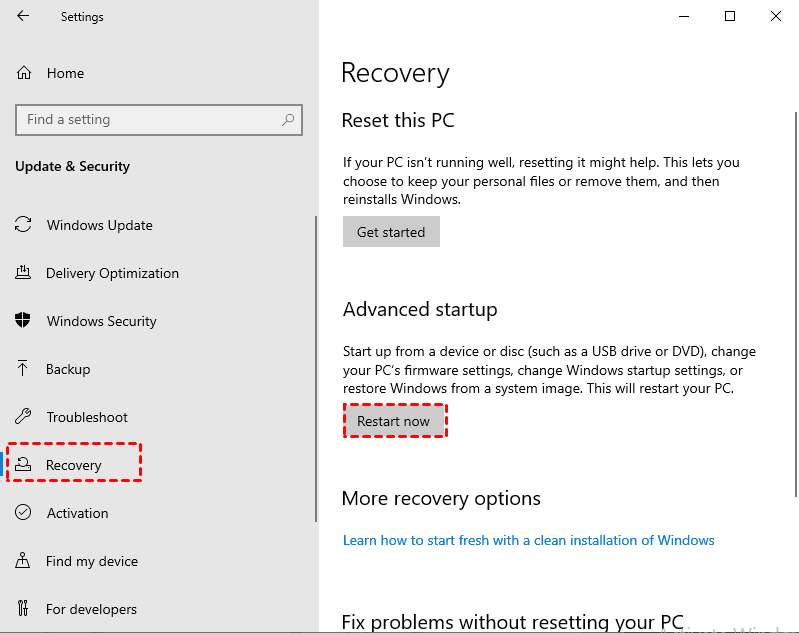
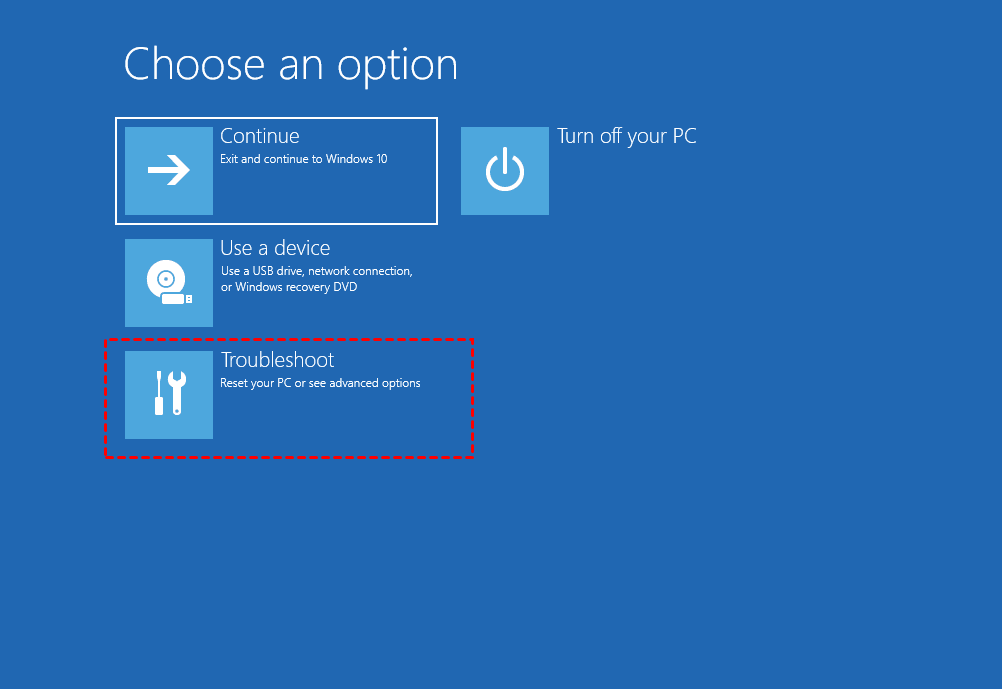
2. After clicking "Restart now", the system will enter the option stage, and then select "Troubleshoot".
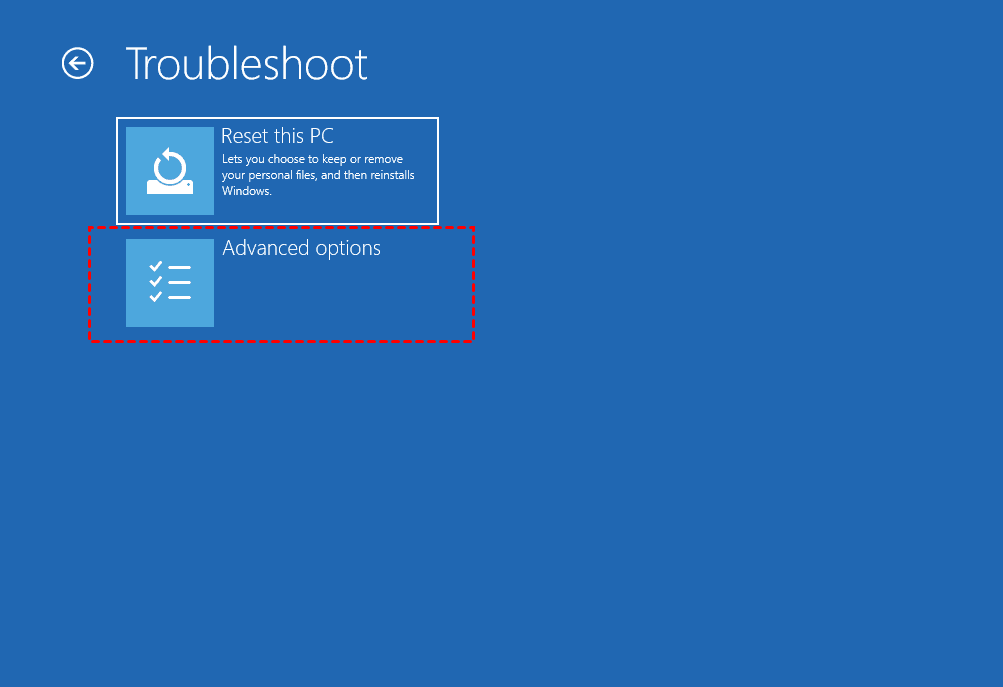
3. Select "Advanced options".
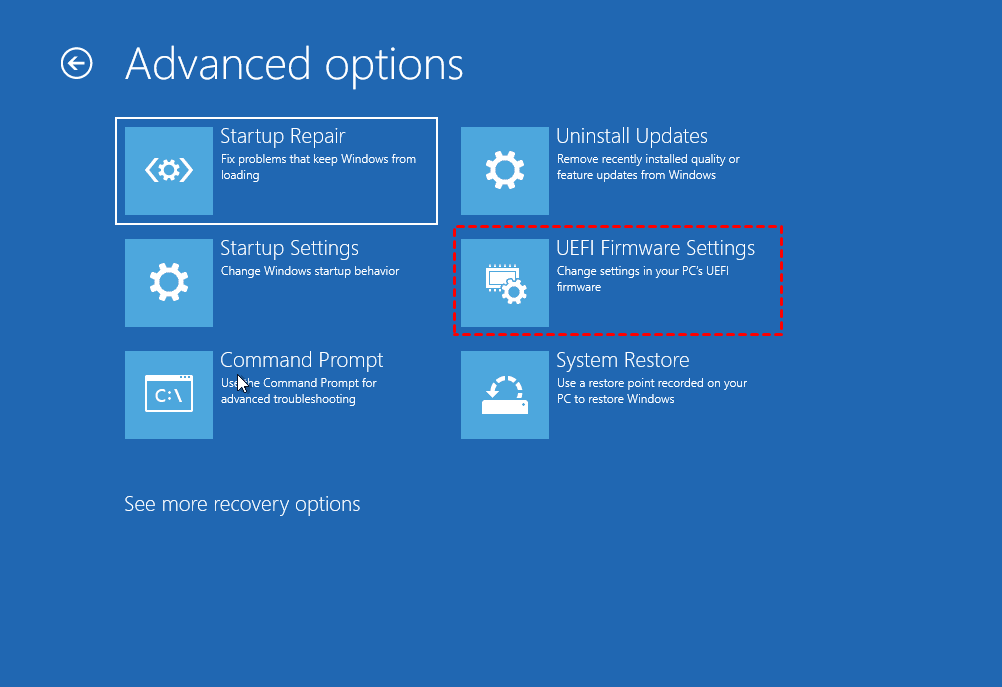
4. Select "UEFI Firmware Settings".
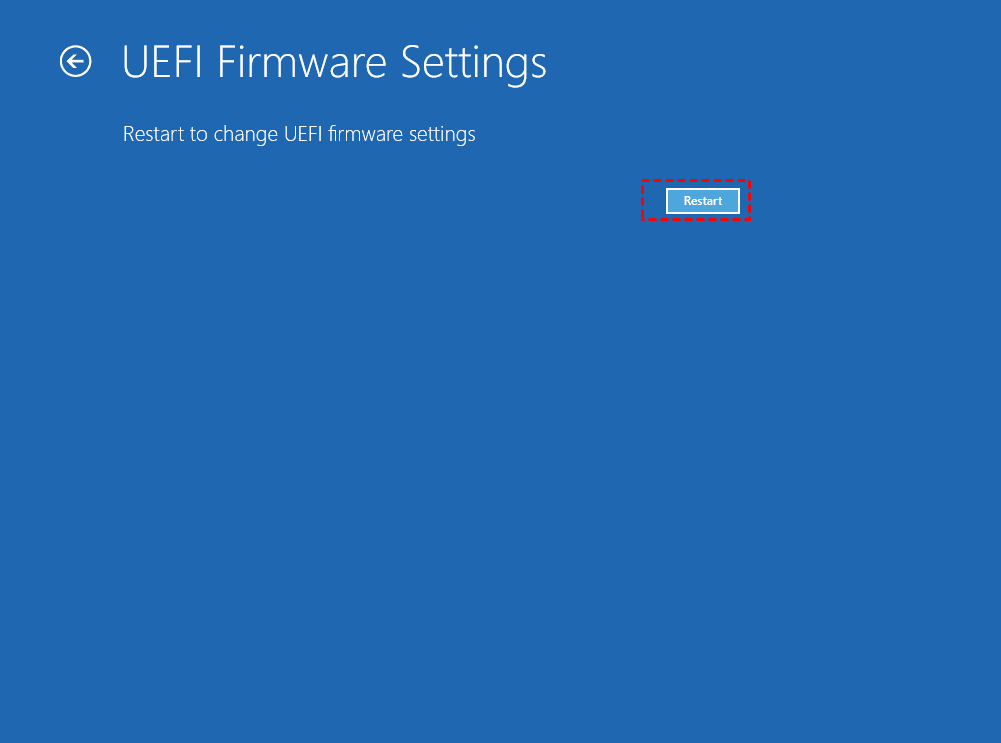
5. Click "Restart".
6. After restarting, enter the BIOS, go to the Security Settings, and select the TPM Configuration option.
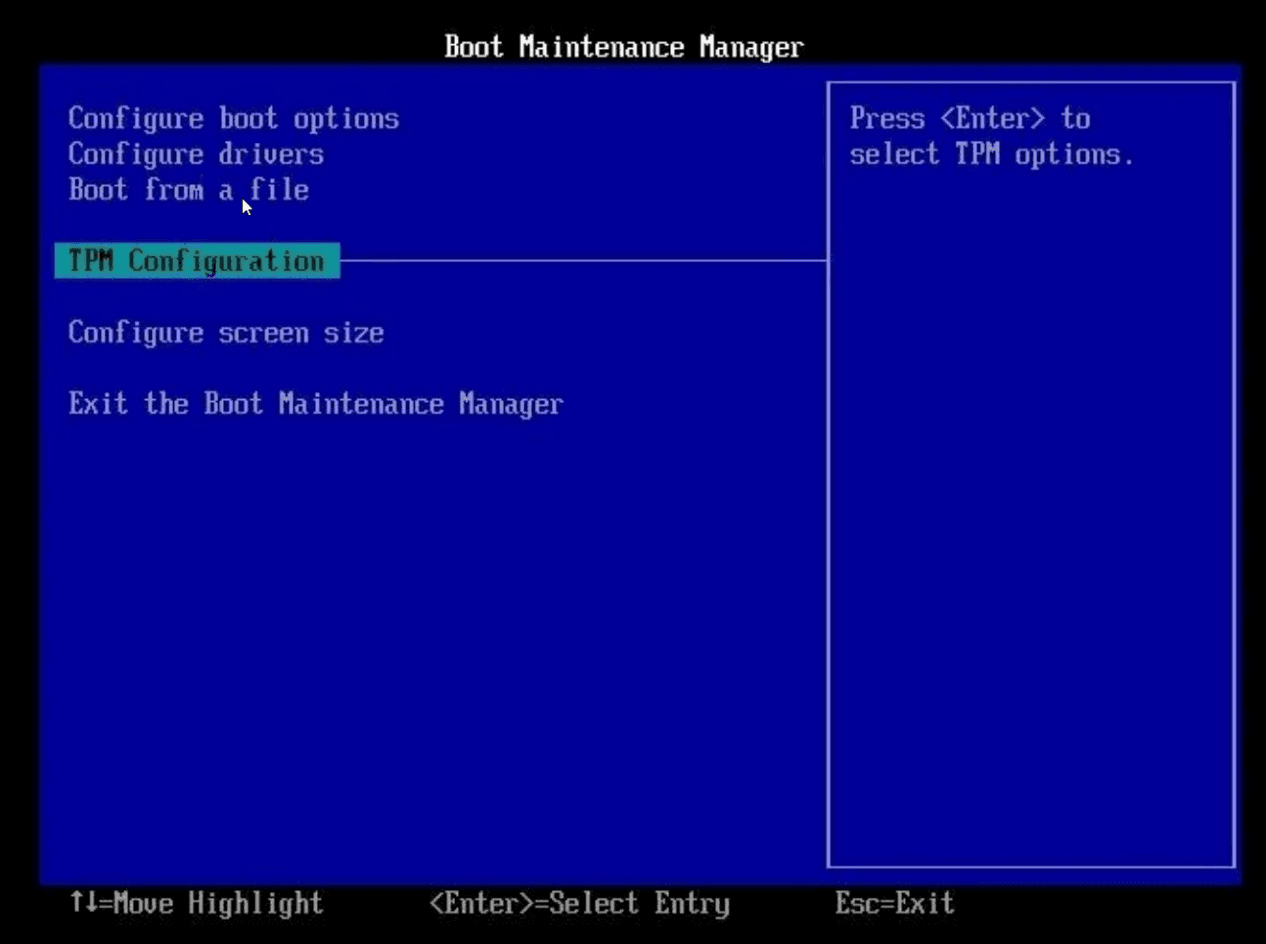
7. If you find that TPM 2.0 is disabled, you can enable it by following the steps: enable TPM, exit the settings, and restart the computer.
How to upgrade TPM 1.2 to TPM 2.0?
To upgrade the TPM 1.2 version to 2.0, check with your computer supplier's official website for specific upgrade countermeasures, as the process may vary. For example, on Dell computers, you can follow their instructions to update the TPM 1.2 to 2.0.
Steps to upgrade TPM 1.2 to 2.0 on Dell:
1. To find the Dell product support page, go to the Dell official website and navigate to the "Support" section, where you can access various resources, including manuals, drivers, and troubleshooting guides, for your specific Dell product.
2. Then enter your service tag or enter your product model.
3. Click the Driver and Download tab.
4. Select Security from the drop-down category box.
5. Find the Dell TPM 2.0 firmware update utility.
6. If the Dell TPM 2.0 update list is listed, you can run the update TPM.
How to install Windows 11 without TPM 2.0
If your computer doesn't support TPM 2.0 for Windows 11, you can install Windows 11 using the installation disk, boot from it, and then choose to overwrite the original system upgrade installation, bypassing the UEFI boot detection to install Windows 11.
Conclusion
The article explains what TPM is and the necessary information about TPM 2.0 for upgrading to Windows 11, and provides a step-by-step guide on how to check and enable TPM for the update, as well as how to upgrade TPM 1.2 to 2.0 to update Windows 11. TPM is a crucial device for system security, and TPM 2.0 is required for Windows 11 updates, so it's essential to check computer compatibility and start TPM before proceeding.
Related Articles
- How to Unpartition Hard Drive on Windows 10 And 11
Learn how to Unpartition Hard Drive on Windows 10 And 11 with clear steps, key checks, and practical tips. - Easily Merge C and D drive in Windows 10 without Losing Data
You can learn how to merge C and D drive in Windows 11/10/8/7 with several clicks by using the partition manager Qiling Disk Master. - 3 Ways to Resize Partition Windows 10 without Losing Data
This guide explains 3 Ways to Resize Partition Windows 10 without Losing Data with clear steps, key checks, and practical tips. - How to Break Windows 10 Hard Drive Limit without Data Loss?
Learn how to Break Windows 10 Hard Drive Limit without Data Loss with clear steps, key checks, and practical tips. - 3 Efficient Ways to Check SSD for Errors on Windows 10/11
This guide explains 3 Efficient Ways to Check SSD for Errors on Windows 10/11 with clear steps, key checks, and practical tips. - Full Guide: Check SSD Health in Windows 8 [Free & Efficient]
Learn how to handle Full Guide: Check SSD Health in Windows 8 with cloning or migration tips, boot checks, and ways to protect data during the move.
Products
Articles & Tutorials
- Data Recovery
- Data Backup
- File Recovery
- File Backup
- File synchronize
- System Backup and Restore
- Disk and Partition Clone
- Technical articles
- Disk Master Help
- Windows Deleted File and Disk Recovery Tutorials
- Windows File and Data Recovery Tutorials
- More Windows Tutorials for Install, Security, Files, and PC Tips
- Windows Boot, Repair, and Recovery Environment Tutorials
- Windows Backup Tutorials
- Windows Restore Tutorials
- Windows Clone and Migration Tutorials
- Windows Server Backup, Recovery, and Management Tutorials
- Windows Disk, Partition, and Storage Management Tutorials