3 Ways to Resize Partition Windows 10 without Losing Data
Question
To resize the partition on your Dell PC running Windows 10, you can use the built-in Disk Management tool. Here's a brief guide:
- Question from microsoft.com
Why should we resize partition Windows 10?
Windows 10 computer owners may need to adjust the size of their partitions for various reasons. This could involve shrinking a single partition to create unallocated space for a new partition, or expanding the system C drive to free up space and improve PC performance when the storage space becomes insufficient.
Resizing partitions in Windows 10 can be a necessary step for various reasons, but safety should be the top priority. To resize partitions safely, it's essential to understand the process and take necessary precautions. If you're unsure about how to resize partitions, don't worry, this post will guide you through the process. Just keep reading, and you'll find the answers you need.
How to resize partition in Windows 10 PC without data loss
To resize partition Windows 10 without data loss, here, I listed the 3 safest ways. Choose the method you prefer in terms of your own needs.
Way 1. Use third-party freeware
When it comes to disk partition management, Qiling Disk Master Standard is a standout software that offers a range of practical features. Not only can it resize partitions, including encrypted ones, by shrinking and extending without data loss, but it also provides additional tools like partition formatting, wiping, and cloning. What's more, this software is completely free and comes without any bundleware that could harm your PC.
Download a powerful disk manager software to resize partitions on your Windows 10 computer for free.
► Shrink a partition
To shrink a partition and create unallocated space for other partitions, you can follow these steps.
Step 1rtition Assistant Standard. Then, all disks and partitions will be listed on the interface.Step 1. Launch and install Qiling Disk Master
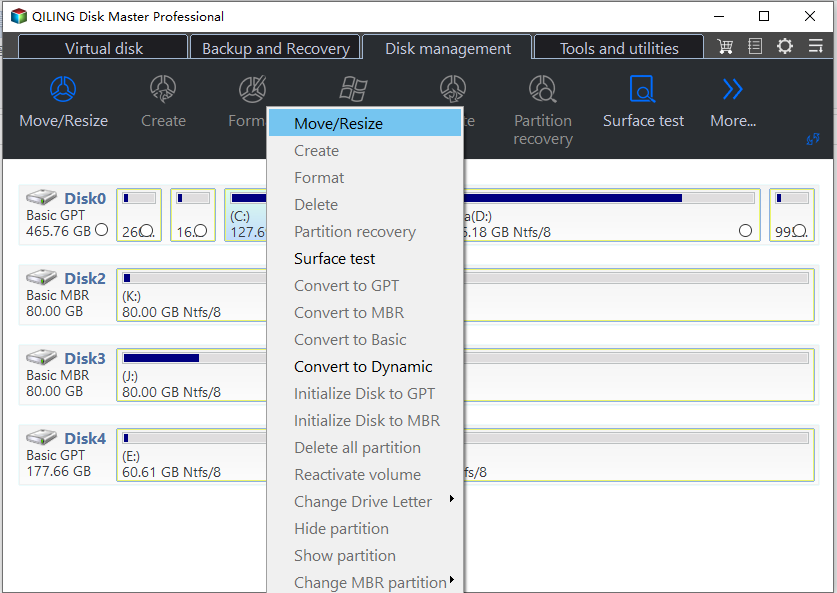
Step 2. Right-click on the partition you wish to shrink and select "Resize/Move Partition".
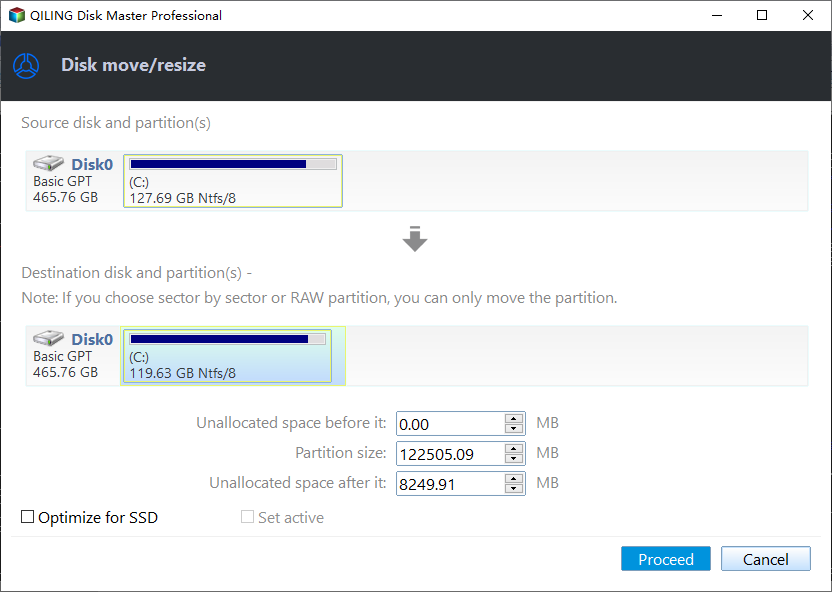
Step 3. In the next window, adjust the length of the green bar by dragging the circle on both sides to determine the size of the space to shrink. When done.
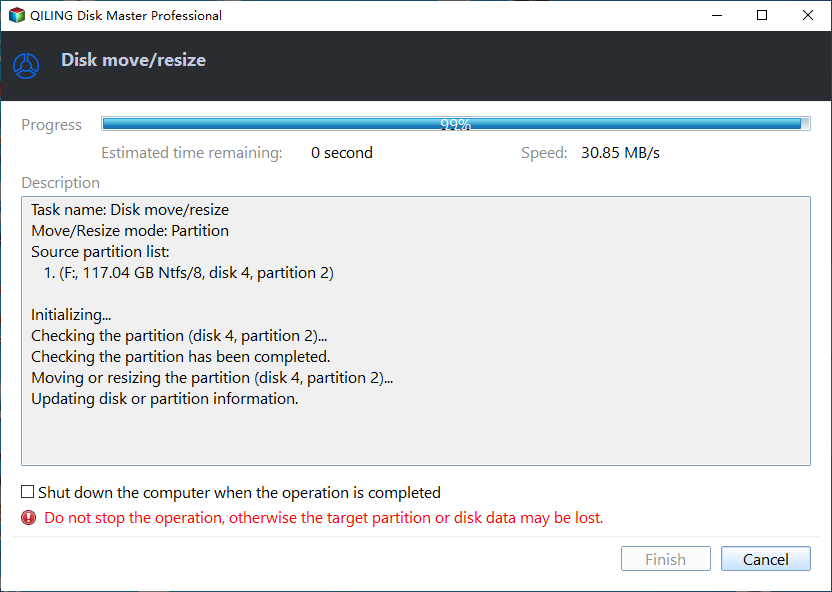
Step 4. After review, click on "Proceed" to start the shrinking operation.
► Extend a partition with 2 methods
With Qiling Disk Master Standard, there are two primary methods to extend a partition. The first method involves using the software to resize the partition, effectively increasing its size by reclaiming unused space from other partitions or the unallocated area on the disk. This approach is often used when there's available space on the same disk or when the user wants to expand the partition to accommodate growing data without relocating it.
Part 1. Extend by resizing
Note: To extend a partition using this method, there must be a piece of unallocated space on either side of the partition you wish to extend. This allows for the partition to be resized without overwriting any existing data.
Step 1. To extend a partition, locate the partition you want to extend, right-click on it, and select "Resize/Move Partition".
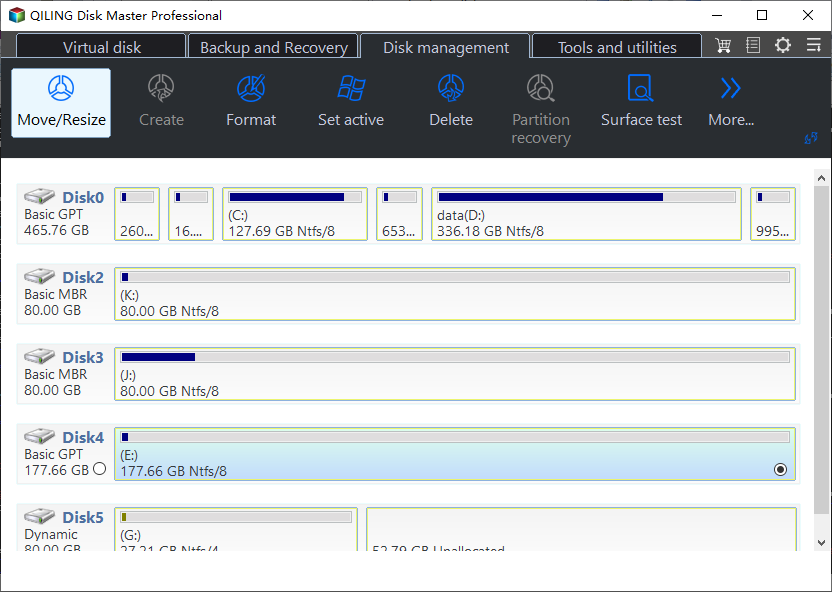
Step 2. Now, you can find there is a segment of the white bar that is contiguous to the green bar. This is the unallocated space. Drag the circle to eliminate the white bar and extend the partition.
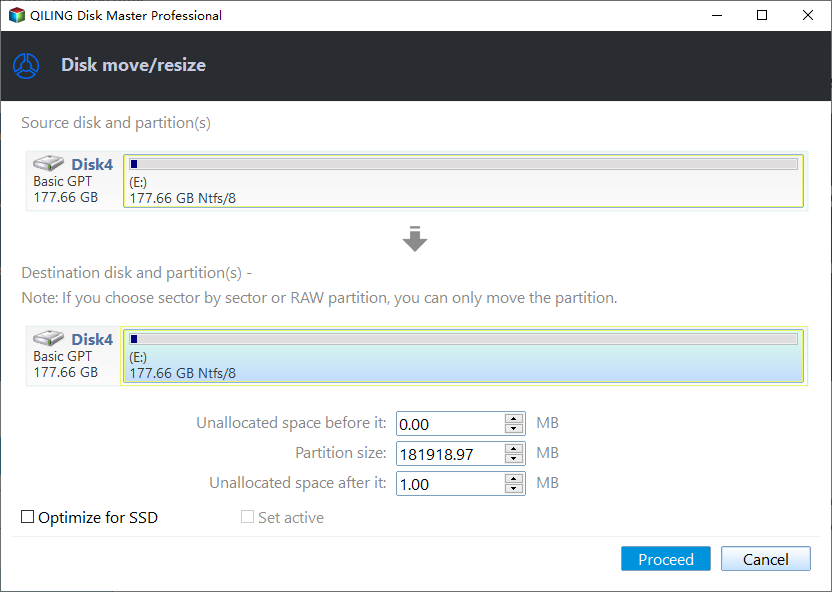
Step 3. Click on "Proceed" to start the extension.
Part 2. Extend by merging
This freeware can merge unallocated space into a target partition, even if it's not contiguous, allowing for disk space extension.
Step 1. Right-click on the unallocated space, select "Move/resize Partitions" to access the partition manager and allocate the space as needed.
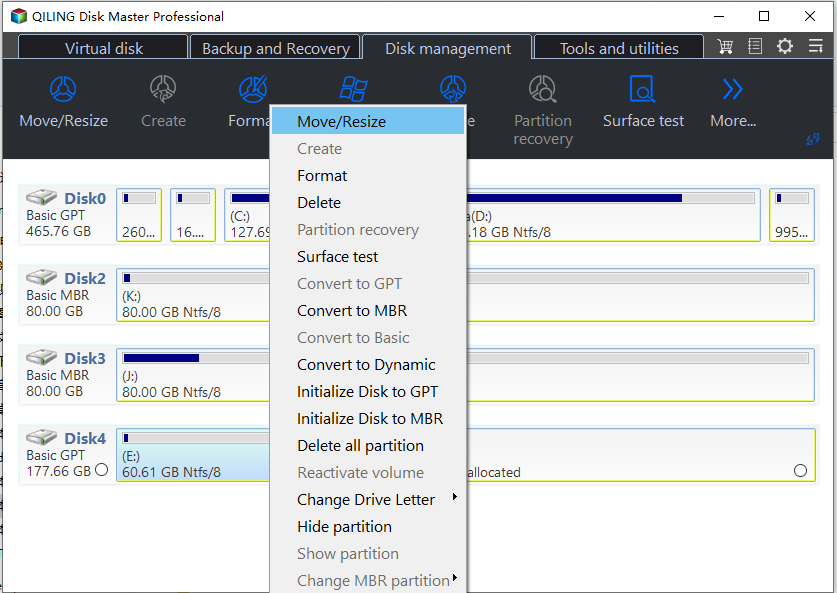
Step 2. In the next window, select the partition you want to merge the unallocated space into by ticking it off.
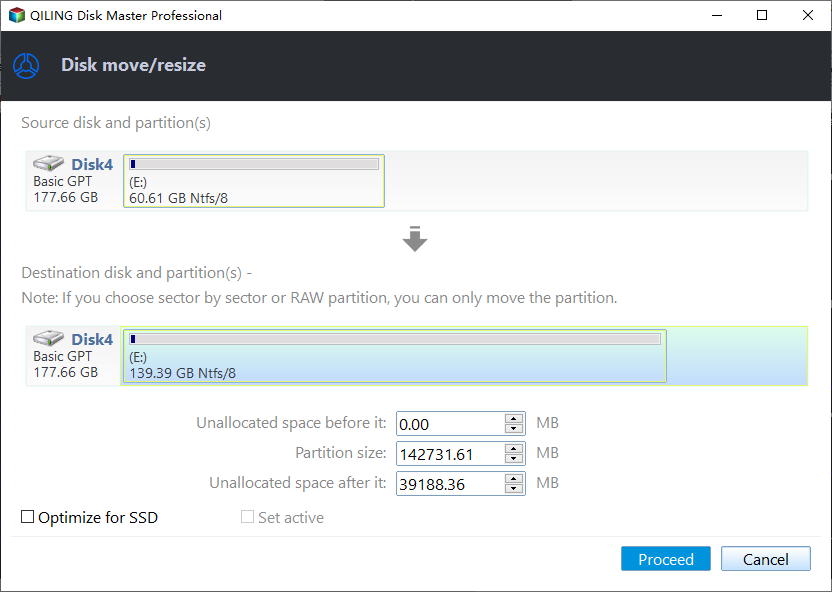
Step 3. Hit "Proceed" to start the merging process.
Way 2. Resize Partition Windows 10 Command Line
DiskPart is a utility provided by Microsoft that enables you to manage your drives by giving different commands, allowing you to resize partitions on your Windows 10 computer.
► Shrink a partition
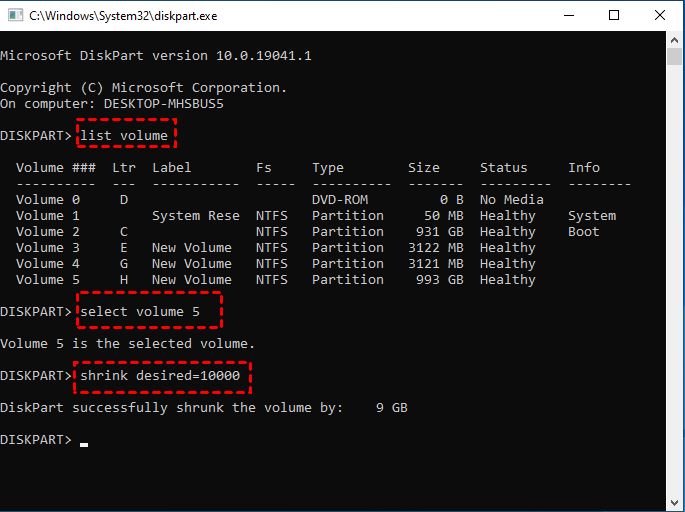
1. To access the Disk Management console, type "diskpart" in the search box on the taskbar and hit "ENTER".
2. Type "list volume" and hit "ENTER" to list all partitions on your PC.
3. To select a volume, type "select volume x" and press Enter, where "x" is the target partition number.
4. To shrink a file or folder, type "shrink desired=" followed by the size you want to shrink it to, and then hit "ENTER". For example, if you want to shrink a file to 10 MB, you would type "shrink desired=10" and hit "ENTER".
► Extend a partition
Limit: To extend a partition using DiskPart, the partition to be resized must be either RAW or NTFS, and there must be enough unallocated space adjacent to and on the right side of the target partition.
1. To access the Diskpart utility, type "diskpart" in the search box on the taskbar and press the "ENTER" key. This will open the Diskpart command-line interface, where you can execute various commands to manage your disk partitions and volumes.
2. Type "list volume" to bring all partitions on your PC.
3. Go to the specific volume number in the list by typing "select volume x" and pressing enter, replacing "x" with the desired volume number.
4. To extend a size, type "extend size=" followed by the desired size, and then hit "ENTER". For example, if you want to extend the size to 1000, you would type "extend size=1000" and press "ENTER".
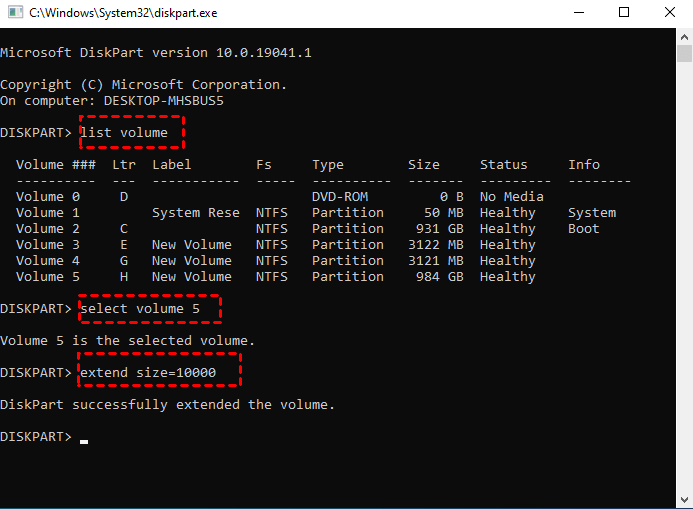
If there's no unallocated space next to the partition you want to extend, you'll get a warning saying "There is not usable space for this operation". To resolve this, you'll need to delete the partition that's adjacent to the one you're trying to extend.
Way 3. Try Disk Management
Disk Management is a Windows 11/10 inbuilt program that helps resize partitions, and can perform operations such as partition shrink, extend, format, and delete.
► Shrink a partition
1. Right-click on "This PC" on your desktop, select "Manage", and click on "Disk Management" to access the Disk Management console.
2. On the right part of the window, select the partition you wish to shrink, right-click on it and select "Shrink Volume".
3. In the popup window, enter the desired amount of space to shrink in MB and click "Shrink".

► Extend a partition
Limit: The target partition can be extended if there is enough unallocated space on the right side of it and it is contiguous with the unallocated space. Additionally, the volume to be extended must be in RAW or NTFS format.
1. Open Disk Management as mentioned above.
2. Right-click on the partition you want to extend.
3. Select "Extend Volume".
4. Follow the wizard until you click on "Finish".
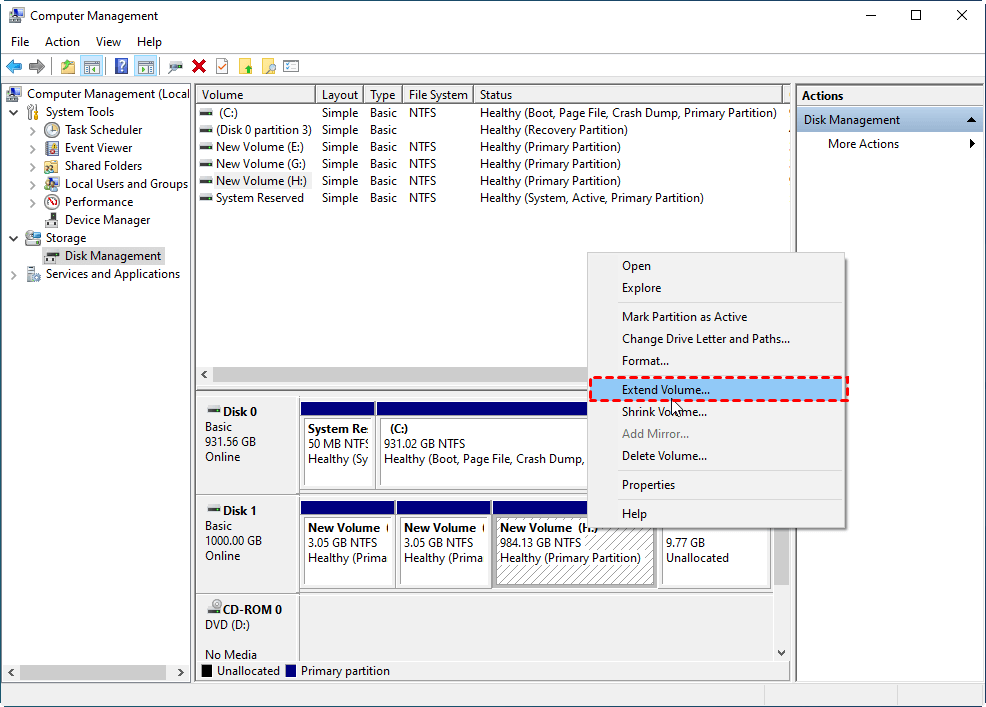
If there's no unallocated space next to the partition you're trying to extend, the "Extend Volume" option will be unavailable. In this scenario, you'll need to delete the partition adjacent to the target one to make space available for extension.
Conclusion
To resize a partition in Windows 10, it's essential to do so for various reasons, such as running out of disk space or needing to free up space for a new operating system. The built-in Windows tool can be used, but it has limitations, including restrictions on the location of unallocated space and the type of file system. A more efficient alternative is Qiling Disk Master Standard, which allows for resizing partitions without these limitations. This software also offers additional features, including partition splitting and allocating free space from one drive to another, which can be accessed by upgrading to the Pro version.
Related Articles
- Some volumes will be lost after converting dynamic disk to basic
Solutions for how to avoid volumes lost after converting dynamic disk to basic. - How to Merge C Drive That Is Less Than 2GB with Unallocated Space?
When we planned to use Qiling Disk Master to merge C drive that is less than 2GB with unallocated space, but unallocated space can't be ticked. - How to Allocate Free Space from One Partition to Another Easily and Quickly
You can allocate free space to C drive when C drive is almost full, you can refer to this post to learn how to do it. - Guide on How to Partition a Hard Drive
This guide explains Guide on How to Partition a Hard Drive with clear steps, key checks, and practical tips. - How to Change Boot Drive Windows 11 [Beginner's Guide]
There are many situations when you need to change the boot order, such as reinstalling the Windows OS, setting dual boot, or repairing errors. If you don't know how to operate it, this article will show you instructions to change boot drive Windows 11. - How to Change Drive Letter [Full Tutorial]🔥
Learn how to Change Drive Letter 🔥 with clear steps, key checks, and practical tips.
Products
Articles & Tutorials
- Data Recovery
- Data Backup
- File Recovery
- File Backup
- File synchronize
- System Backup and Restore
- Disk and Partition Clone
- Technical articles
- Disk Master Help
- Windows Deleted File and Disk Recovery Tutorials
- Windows File and Data Recovery Tutorials
- More Windows Tutorials for Install, Security, Files, and PC Tips
- Windows Boot, Repair, and Recovery Environment Tutorials
- Windows Backup Tutorials
- Windows Restore Tutorials
- Windows Clone and Migration Tutorials
- Windows Server Backup, Recovery, and Management Tutorials
- Windows Disk, Partition, and Storage Management Tutorials