What Size SSD Should I Buy to Make Spending Money Wisely
SSD disks have gained popularity among computer users seeking better performance, drawn to their advantages over traditional hard drives, including faster data access, lower power usage, and reduced noise.
When buying an SSD, consider factors like the type of NAND memory, memory controller, interface, and firmware, as well as the drive's size, to ensure you get the best performance and capability for your needs.
When selecting the right SSD size, consider the following factors: the operating system, installed programs, and data storage needs. A general rule of thumb is to have at least 256GB of storage for a standard user, while more demanding users may require 512GB or more.
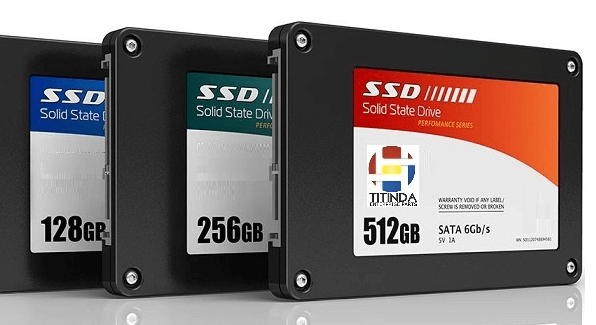
How much do you want to spend?
Traditional hard disk drives use spinning platters to store data, whereas solid-state drives (SSDs) utilize NAND flash memory and store data on memory chips, resulting in faster data access due to the absence of moving parts.
The main difference between SSDs and HDDs is that SSDs are more expensive due to their unique technology. While many people prioritize having a large storage capacity, it's essential to consider the cost factor as well. The larger the storage space you want, the more you'll have to pay, so it's a trade-off between storage capacity and budget.
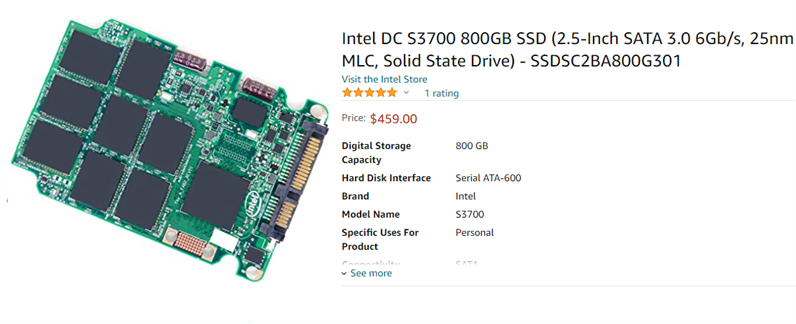
On Amazon, Intel SSD prices vary greatly depending on capacity, with 500GB costing around $50-90 and 800GB around $350-550. It's wise to choose an SSD with a suitable size for your needs.
What do you plan to do with SSD?
When considering an SSD, it's essential to understand its benefits, particularly its fast data access and booting times. Many users choose SSDs for these reasons, but it's crucial to determine how you plan to use the SSD to ensure it meets your needs.
To achieve a dual-drive configuration, you can use an SSD as the primary drive for storing your operating system, frequently used documents, and applications, while using an HDD for storing less frequently used data. This setup allows for faster data access and boot times, as the frequently used data is stored on the faster SSD.
If you want to replace a hard disk drive (HDD) with a solid-state drive (SSD), you need to determine the amount of storage space you require. Don't buy a larger SSD than you need, just get one that matches your storage needs.
What size SSD to buy?
Consider your current hard drive's size and consider replacing your whole computer if it's old, as a larger SSD is more cost-effective in the long run. If your hard drive has plenty of free space, a smaller SSD might be sufficient. However, if your hard drive is nearly full, it's recommended to get a larger SSD to match your current storage needs. This approach can save you money in the long run by avoiding the need for a future upgrade.
When purchasing a new SSD, it's not just about the size - other factors come into play. You should consider the type of SSD, such as SATA or PCIe, and the interface type, like M.
• MLC or SLC are two kinds of flash memory. MLC is more widely used and cheaper but it has fewer rewritten times. SLC is more expensive but much faster, reliable, and has a longer lifespan. SSD has a limited lifespan so lifespan is also a factor you should take into consideration.
You can optimize your SSD using professional software after purchasing one, which is good for its maintenance.
How to set a new SSD bootable quickly?
After choosing a suitable SSD, the next step is to install an operating system (OS) to the SSD. A common approach is to reinstall the OS on the SSD, but this will result in data loss, requiring you to reinstall various programs and settings after setting up the OS.
Fortunately, Qiling Disk Master Professional can help you migrate OS to SSD without reinstalling the system, using a hot clone method that doesn't interrupt running programs or require a PC restart.
The operation is simple for all users.
Step 1. Connect the target disk to your computer, ensure it can be detected, install and launch Qiling Disk Master, click "Clone" in the top toolbar, and choose "Migrate OS".

Step 2. Choose an unallocated space on the target disk as the location. If there is no unallocated space, you can check "I want to delete all partitions on disk 2 to migrate system to the disk" and then click "Next".

Step 3. In this window, you can resize the partition, modify its location, and drive letter, or keep the default settings, allowing you to customize the new disk's partition to your preferences.

Step 4. You'll back to the main interface where you can preview the result of the operation. To commit it, click "Proceed".
Step 5. A note about how to boot OS from the target disk will show up, keep it in mind and click "OK" to continue.

Tip: If you want to keep your OS, all programs, and data, you can try duplicating your entire disk using the disk clone function.
To wrap up
Choosing the right size SSD for your PC is a matter of considering your needs. Whether you opt for a larger or smaller SSD, using a tool like Qiling Disk Master can help you set it up quickly and securely, making the decision less daunting.
This tool can perform various tasks such as OS migration, disk clone, partition type conversion, and moving installed programs to another drive without data loss, offering a range of helpful utilities.
Related Articles
- Should I Partition an SSD into Multiple Drives?
This guide explains Should I Partition an SSD into Multiple Drives with clear steps, key checks, and practical tips. - The Introduction of SSD: Cons, Pros and How to Choose
This article will show you what SSD (Solid-state Drive) is, the advantage and disadvantage of SSD hard drive, and how to choose right SSD disk for your PC. - How to Free Up SSD Disk Space?
Learn how to free up space on SSD via various methods and make your computer perform more smoothly and faster. - Fix MBR2GPT Cannot Find OS Partition Error Like an Expert
Read this article to efficiently fix MBR2GPT cannot find OS partition errors like an expert. - Guide to Test Seagate Expansion Speed with Pictures in 2024
If you're looking for a Seagate Expansion hard drive and want to know which one is best for you, this blog post is for you. It provides the information you need to make an informed decision and also offers tips on how to test the speed of the drive. - Tools to Run Toshiba Hard Drive Test - Health & Speed 2024
Discover the essential tools to run a Toshiba hard drive test and maintain optimal health and speed. It's crucial for peak performance and detecting potential issues. Our recommended tools provide in-depth analysis, allowing you to monitor health and optimize speed effectively.
Products
Articles & Tutorials
- Data Recovery
- Data Backup
- File Recovery
- File Backup
- File synchronize
- System Backup and Restore
- Disk and Partition Clone
- Technical articles
- Disk Master Help
- Windows Deleted File and Disk Recovery Tutorials
- Windows File and Data Recovery Tutorials
- More Windows Tutorials for Install, Security, Files, and PC Tips
- Windows Boot, Repair, and Recovery Environment Tutorials
- Windows Backup Tutorials
- Windows Restore Tutorials
- Windows Clone and Migration Tutorials
- Windows Server Backup, Recovery, and Management Tutorials
- Windows Disk, Partition, and Storage Management Tutorials