How to Free up Space on SSD?
About SSD
SSDs are attractive to PC users, especially gamers, due to their fast read and write speeds and large storage space. However, like all equipment, they require regular maintenance, including regular file management to ensure smooth operation.
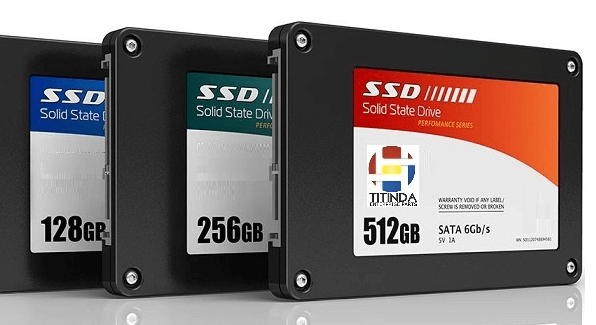
This article provides solutions to free up space on your Windows PC, both through Windows itself and with the help of a powerful tool, ultimately improving your PC's performance.
Free up SSD disk space via Windows 10
1. Turn off Windows Driver and System Restore
System Restore is used to fix PC issues, but it takes up space, so disabling it can free up space.
Step 1. Right-click "This PC", and click "Properties" in the menu.
Step 2. Select "System Protection" on the left.
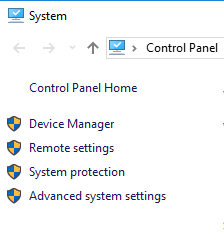
Step 3. Choose the disk you want to disable System Protection for, and click "Configure"

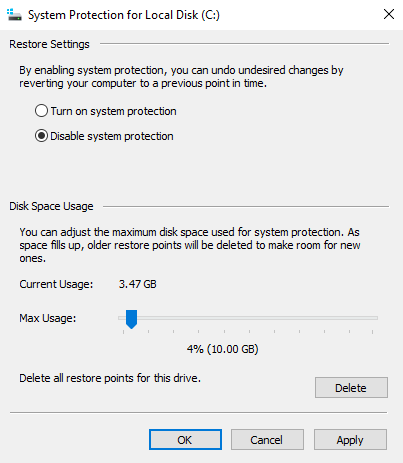
Step 4. Select "Disable system protection", and click "OK".
2. Reduce Recycle Bin
After deleting large files, it's a good idea to regularly empty the Recycle Bin to free up space on your computer. You can also set it to automatically delete contents at regular intervals. This helps maintain your computer's performance and storage capacity.
Step 1. Search "Task Scheduler" in the search bar, and press "Enter".
Step 2. To create a new task in Task Scheduler, right-click on "Task Scheduler Library" and select "New Folder" to create a new folder, then right-click on the new folder and select "Create Task".
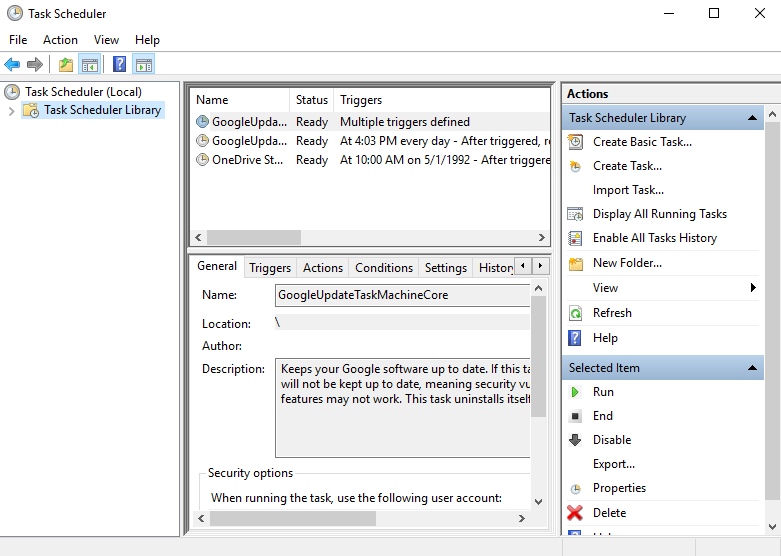
Step 3. Enter a name for the task, like "Empty Windows Recycle Bin".
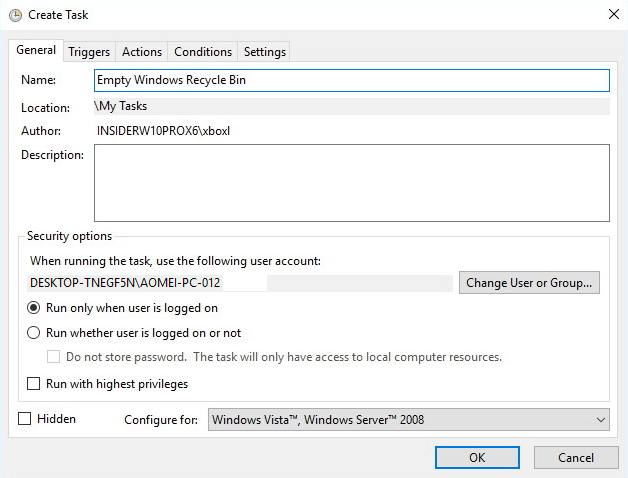
Step 4. In the Triggers tab, click New to create an action that will trigger the task.
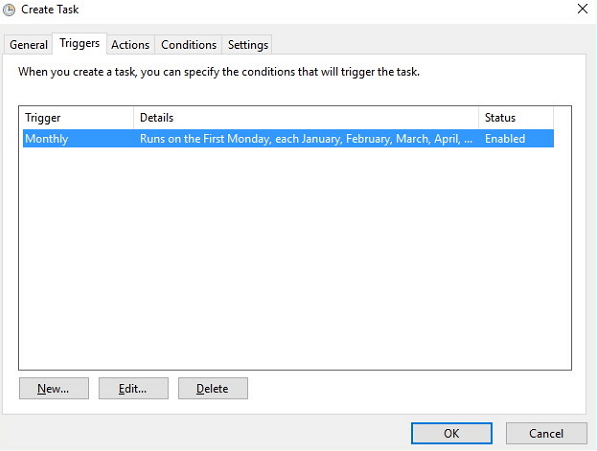
Step 5. You can set a schedule to act clean regularly.
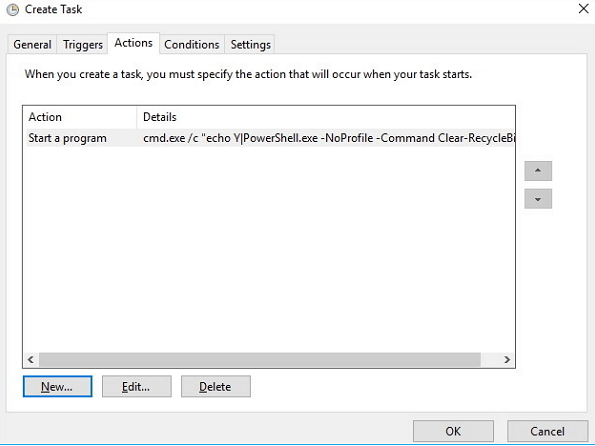
Step 6. Click "New". Then, follow the steps below:
In the "Programs/script" enter cmd.exe.
In the "Add arguments" field, enter "/c echo Y|PowerShell.exe -NoProfile -Command Clear-RecycleBin" and click "OK".

3. Disable Hibernation
Hibernation mode creates a "hiberfil.sys" file on your system drive, taking up space on your SSD. Disabling it can help free up space.
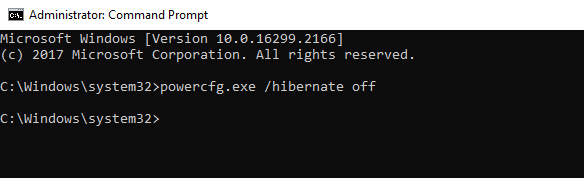
Step 1: Insert cmd in the search box. Right-click on it and select "Run as administrator".
Step 2. Type powercfg.exe /hibernate off and hit Enter. It will disable Hibernation and delete the hiberfil.sys file that on your SSD.
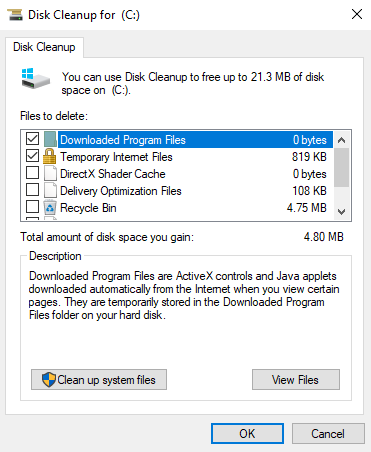
4. Disk Cleanup
Step 1. Click "Start", search "Disk Cleanup" and select the result to open the experience.
Step 2. Select the files that you want to delete from the C drive or other drives, click the "OK".
Free up SSD disk space via a handy tool
You can clean up some files on your SSD by using various methods, but the space is often taken up by programs. Moving installed programs using Windows Settings can be risky and may lead to launch failures, requiring time-consuming uninstall and reinstall processes. If you have another hard drive with enough free space, migrating some programs to it can free up significant space, but doing so securely and ensuring the moved programs run smoothly requires careful consideration.
Qiling Disk Master Professional's "App Mover" function can help you quickly and securely move installed programs, ensuring they function perfectly after the move. You can try the Demo version to learn more details.
Step 1. Install and run Partition Assistant, click "Free up" on in the top toolbar, and choose "App Mover".
Step 2. To move programs to a new SSD, follow these steps: First, open the Disk Management window. All details about the disks will show in the new window, choose the SSD that you want to move programs from, and click "Next".
Step 3. Choose programs you want to move and select the target location, then click "Move".
Step 4. To start the process, confirm that you want to close running applications when moving starts by clicking "OK" in the new pop-up window. This will initiate the process.
After successfully moving programs from the destination SSD, your old SSD will have a significant amount of free space, and you can also use the "Delete Large Files" feature to thoroughly clean your PC.
To sum up
Qiling Disk Master is a software that helps users manage their SSD storage space effectively. Although SSDs have a large capacity, users still need to organize their files and programs to keep their system running smoothly. This software allows users to migrate their OS to another SSD or clone their entire SSD, making it a convenient tool for maintaining their PC and protecting their data. It serves as a personal disk manager, providing users with a simple and efficient way to manage their SSD.
Related Articles
- The Directory Name Is Invalid in Windows 7/8/10 – Fixed
In this article, you are going to learn what "the directory name is invalid" error is and how to fix it accordingly. Details are below. - WD My Passport Backup with Free Software in Windows 10/8/7 | 2 Ways
WD My Passport comes with WD Backup software to auto backup PC files to WD Passport drive. But it has some compatibility and functional limitations. Try the 2nd way to protect your important files better. - Quick Fix for Work Folders Not Syncing
If you're experiencing issues with “Work Folders not syncing”, click on this article to find a quick fix for the problem. - Top 4 Ways to Backup Outlook Live Emails on Your PC
This tutorial offers 4 ways to backup Outlook live emails on your PC. Pick up one way that best fits your need. - Windows 10 File Sharing Not Working - How to Resolve
This guide explains Windows 10 File Sharing Not Working - How to Resolve with clear steps, key checks, and practical tips. - 6 Ways to Fix Windows 7/10 Sync Center Problems [2022Guide]
This guide explains 6 Ways to Fix Windows 7/10 Sync Center Problems with clear steps, key checks, and practical tips.
Products
Articles & Tutorials
- Data Recovery
- Data Backup
- File Recovery
- File Backup
- File synchronize
- System Backup and Restore
- Disk and Partition Clone
- Technical articles
- Disk Master Help
- Windows Deleted File and Disk Recovery Tutorials
- Windows File and Data Recovery Tutorials
- More Windows Tutorials for Install, Security, Files, and PC Tips
- Windows Boot, Repair, and Recovery Environment Tutorials
- Windows Backup Tutorials
- Windows Restore Tutorials
- Windows Clone and Migration Tutorials
- Windows Server Backup, Recovery, and Management Tutorials
- Windows Disk, Partition, and Storage Management Tutorials