Should I Partition an SSD into Multiple Drives?
Should I partition SSD?
When you get a new SSD, it's not necessary to partition it like you would with a traditional HDD. In the past, SSDs were small and used as a system drive alone, so partitioning wasn't needed. Now that SSDs have larger capacities, like 1TB, you can use them as a single drive or partition them to suit your needs.
As solid-state drives (SSDs) become increasingly popular, users are wondering whether partitioning their SSDs can improve performance, just like it does on traditional hard disk drives (HDDs). The question is whether dividing an SSD into separate partitions can provide the same benefits as it does on HDDs, and this article aims to provide an answer.
Is it OK to partition SSD?
An HDD's working mechanism is different from an SSD, with its outermost tracks having a higher transfer rate. This means that if you partition an HDD and install the operating system on the first partition, while putting files and data in other partitions, the disk can still have good performance.
And partitioning an SSD does not have any negative impact on the SSD, also it won't give it better performance.
Since SSDs don't have moving mechanical components and use memory to store data, their transfer rates are consistent across different memory chips. As a result, SSDs don't confine data to specific physical regions, making partitioning unnecessary for performance improvement.
However, partitioning SSD indeed has some advantages:
◤ Easier to back up and restore the system
◤ Efficiently manage OS and data
◤ Protect data and programs from a system crash or failure issues
How to partition an SSD in Windows 11, 10, 8, and 7?
With the increased capacity of SSDs, it's now possible to partition an SSD for organizational purposes, allowing for more efficient management of your digital files.
Before we start, first, you need to check your SSD, especially if it's a new disk.
Step 1. Install SSD to your computer correctly via the connection cable. Restart PC, right-click "This PC/My Computer" > "Manage".
Step 2. Click Disk Management and check the state of your SSD.
To resize your SSD, first, open the Disk Management tool. You can see the size and other information of your SSD. Then, right-click your SSD, and select the "Initialize Disk" option.
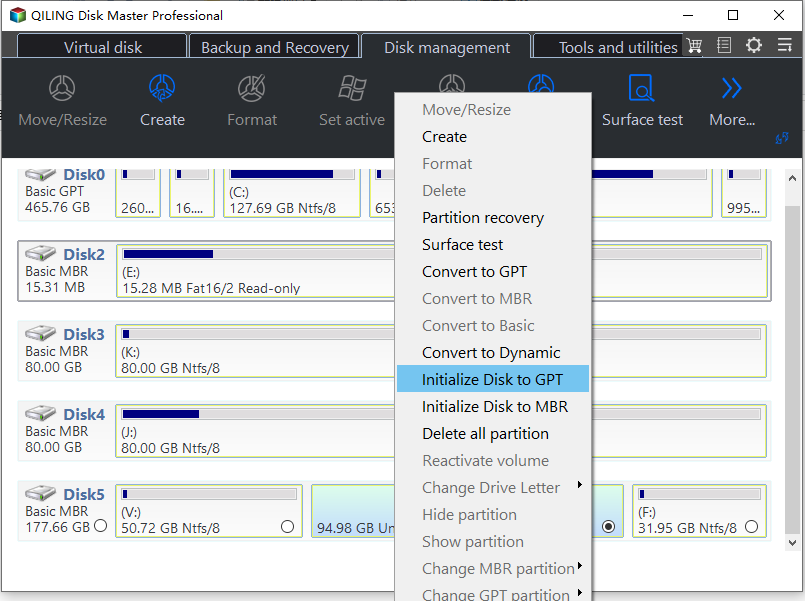
Step 3. To create partitions on your SSD, first determine whether you need MBR or GPT, which depends on your specific needs. If you're unsure, you can read about the differences between MBR and GPT. Once you've made your choice, you can proceed with creating partitions on your SSD.
How to quickly partition SSD and create drives?
It's normal to encounter create partition failure in Disk Management, but if you're trying to create a partition on your current SSD with only a C drive, you can consider using SSD partition software like Qiling Disk Master Professional for assistance.
This software allows you to securely split a partition and create a new one, making it easy to partition an SSD in Windows 11, 10, 8, and 7. It also offers additional features such as merging partitions and quickly partitioning a new disk.
Step 1. Launch Partition Assistant, right-click the target partition (e.g., C), and select "Split Partitions" to initiate the partition splitting process.
Step 2. You can resize the partition by dragging the double-headed arrow leftwards or rightwards to determine the size of the original partition and new partition, or type in the number of the size you want to give to your new/original partition and click "OK" to continue.
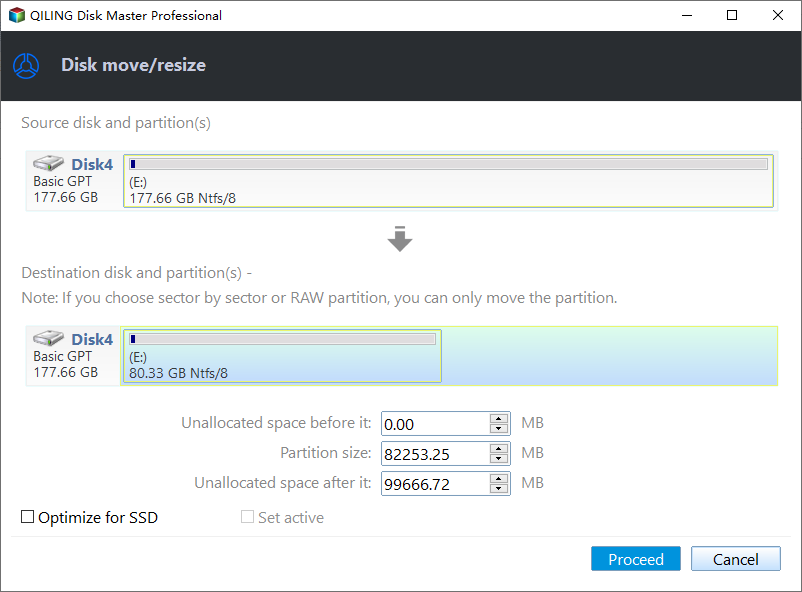
Tips: If the partitions are on a solid-state drive (SSD), you can select the option to "Allow partition alignment to optimize the performance of SSD".
Step 3. Now you can see the change has been represented in the main window. Click "Apply" to confirm the change.
Conclusion
Partitioning an SSD is okay and can be done with Qiling Disk Master to organize files and data. This tool offers advanced features, including the ability to create multiple partitions at once and align SSD partitions for improved performance. It can also help allocate free space from data partitions to system drives, and convert system disks between MBR and GPT styles.
Related Articles
- The Introduction of SSD: Cons, Pros and How to Choose
This article will show you what SSD (Solid-state Drive) is, the advantage and disadvantage of SSD hard drive, and how to choose right SSD disk for your PC. - Quickly Migrate Windows 10 to SSD without Reinstalling OS
With the Qiling Disk Master Standard, you can migrate Windows 10 to SSD drive directly instead of performing a clean installation.Check out the step-by-step guide on how to transfer Windows OS to SSD now. - Solved: SSD Not Showing Up in Disk Management on Windows 10/11/8/7
This guide explains Solved: SSD Not Showing Up in Disk Management on Windows 10/11/8/7 with clear steps, key checks, and practical tips. - Steam Deck Disk Speed Test Tutorial 2024 [Your Guide Is Here]
This guide explains Steam Deck Disk Speed Test Tutorial 2024 with clear steps, key checks, and practical tips. - How to Repartition a Hard Drive on Windows 10/11 [Step-by-Step]
Learn how to repartition your computer's hard drive with this comprehensive guide. - 5 Ways to Reset Windows 11 Password without Logging in🔥
This guide explains 5 Ways to Reset Windows 11 Password without Logging in🔥 with clear steps, key checks, and practical tips.
Products
Articles & Tutorials
- Data Recovery
- Data Backup
- File Recovery
- File Backup
- File synchronize
- System Backup and Restore
- Disk and Partition Clone
- Technical articles
- Disk Master Help
- Windows Deleted File and Disk Recovery Tutorials
- Windows File and Data Recovery Tutorials
- More Windows Tutorials for Install, Security, Files, and PC Tips
- Windows Boot, Repair, and Recovery Environment Tutorials
- Windows Backup Tutorials
- Windows Restore Tutorials
- Windows Clone and Migration Tutorials
- Windows Server Backup, Recovery, and Management Tutorials
- Windows Disk, Partition, and Storage Management Tutorials