Migrate Windows 10 to SSD without Reinstalling | Bootable
Quick Navigation:
- Why migrate Windows 10 to SSD?
- Reinstall Windows 10 from scratch or clone Windows 10 to SSD
- Dedicated Windows 10 migration tool - Qiling Disk Master
- How to migrate Windows 10 to SSD step by step
- Final words
Many users want to migrate Windows 10 to an SSD without reinstalling the OS, but are unsure of the process. Fortunately, this article will guide you through the entire process, from preparation to a secure boot, making it easy to transfer your OS to a new SSD.
Why migrate Windows 10 to SSD?
Windows 10 has improved booting time compared to previous versions, but users may still feel that their computer is not running fast enough. To optimize overall performance, including booting time and writing and reading speed, many users consider moving Windows 10 to an SSD, which is said to be 10 times faster than a common HDD.
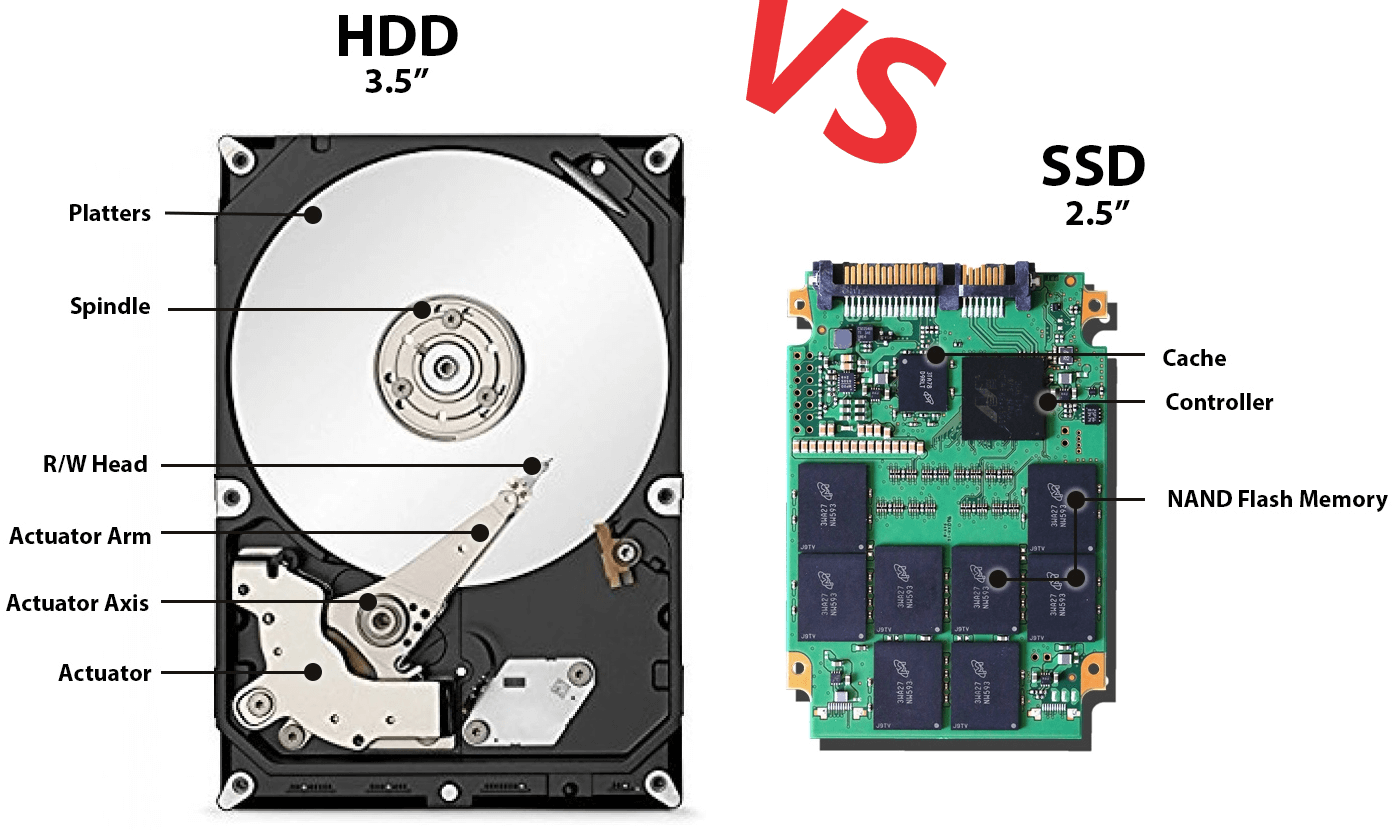
SSDs are quieter and more durable than traditional hard drives, making them a better option for data protection.
If your computer comes with a smaller SSD, you may be frustrated by its low disk space. To resolve this, you can clone the SSD to a larger one, which will provide greater capacity.
Reinstall Windows 10 from scratch or clone Windows 10 to SSD
Reinstalling Windows involves installing a brand new copy of the operating system and necessary drivers to get a computer up and running. This process is helpful when programs and personal data are stored on a separate partition, as it won't affect the existing data.
If you save programs on the system partition, they will be uninstalled and personal data deleted during the installation process, requiring you to reinstall and potentially reactivate them, and risking data loss if not backed up beforehand.
You can transfer Windows 10 from HDD to SSD without reinstalling by cloning the hard drive to the SSD using professional disk cloning software.
Cloning a disk includes all its contents, such as the operating system, drivers, disk layout, installed programs, personal data, and working documents, allowing you to use the cloned disk directly after the process.
Dedicated Windows 10 migration tool - Qiling Disk Master
To keep programs and important data on your disk, you'll need the help of a Windows 10 migration tool. Qiling Disk Master Professional, designed for Windows OS, makes it easy to move your Windows 10 OS to an SSD, supporting popular brands like Samsung, WD, Seagate, and Crucial.
Besides, Qiling Disk Master owns other features you may like:
☞ User-friendly interface to make all steps easy.
☞ Intelligent Clone allows you to not only clone a hard drive to a larger drive, but also clone Windows 10 to a smaller SSD, making it a versatile tool for various cloning needs.
☞ You can improve the performance and extend the lifespan of an SSD (solid-state drive) by utilizing its "SSD Alignment" feature, which helps to optimize the drive's speed and efficiency.
☞ You can choose to clone all sectors of the old drive with the "Sector by sector clone" feature if your SSD is larger.
☞ You can clone a Master Boot Record (MBR) disk to a GUID Partition Table (GPT) disk without converting the partition styles.
How to migrate Windows 10 to SSD step by step
To maximize the benefits of your old hard disk, consider using it as storage for your operating system (OS) on a solid-state drive (SSD). This setup allows you to take advantage of the hard disk's larger capacity while still enjoying the performance benefits of the SSD. This way, you can have the best of both worlds - larger storage capacity and improved performance.
Step 1. What needs to be done in advance?
Prepare for the disk:
- Get a right SSD to fit on your computer. Laptops typically use 2.5-inch hard drives, although some ultraportable notebooks may use smaller 1.8-inch drives. SSDs, on the other hand, come in different thicknesses (7mm or 9.5mm) and interfaces.
- If your computer is a laptop, To prepare an SSD for use, you'll typically need a SATA-to-USB cable or adapter. This allows you to connect the SSD to your computer, enabling you to transfer data, clone the SSD, or simply use it as an external storage device. The SATA-to-USB cable or adapter serves as a bridge between the SSD's SATA interface and your computer's USB port, making it possible to interact with the SSD in a way that's easily accessible and manageable.
- Put a diet on the HDD To free up space on a hard drive that's larger than an SSD, consider deleting unnecessary files, uninstalling unused programs, and transferring large files to another disk, such as movies, MP3s, or working documents. This can help optimize the drive's performance.
Other preparations before migration:
- Set SATA Controller mode to AHCI to ensure faster speed.
- To prevent system crashes or data loss, create a system backup or disk image for your computer. This allows you to recover your computer even if the cloned SSD won't boot due to certain reasons.
Step 2. Move Windows 10 to SSD with cloning software
1. Connect your SSD and make sure your computer can recognize it. Install and run Qiling Disk Master (you may try its demo version). Click Clone at the sidebar and then System Clone.

2. Select the new SSD as destination disk, and click Next.
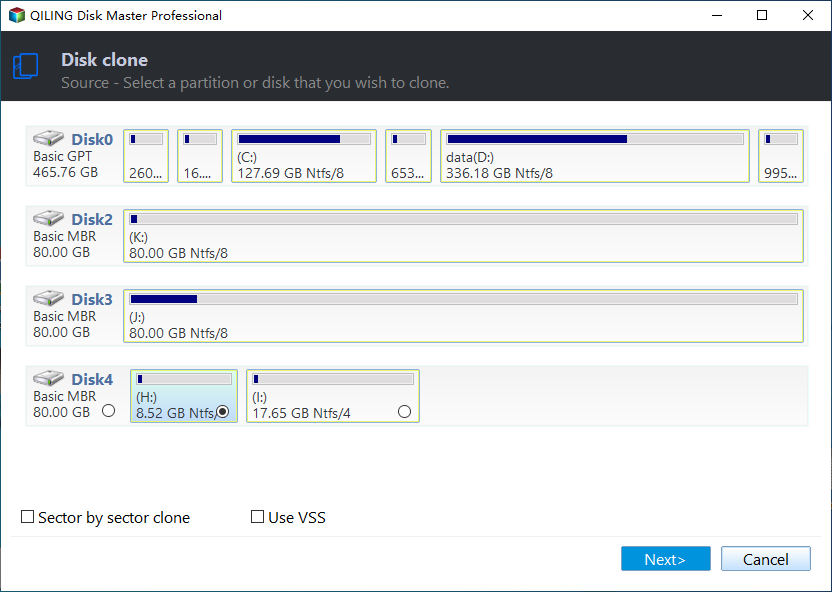
3. To increase the read and write speed of the new SSD, check "SSD Alignment" and then click "Proceed" to start the process.

Tips ✎...
◎ To ensure your computer can still boot even if it becomes unbootable, it's recommended to either create a bootable media or add the Windows Recovery Environment after cloning. This way, you can still boot your computer and access the recovery tools if needed.
◎ Sector by sector clone: Cloning allows you to create an exact copy of the selected drive(s), including all sectors, whether they're used or not, to a destination drive.
💡 To move data on an entire hard drive to a new SSD, follow the steps for cloning a hard drive on Windows 11/10.
Step 3. Boot from the cloned SSD
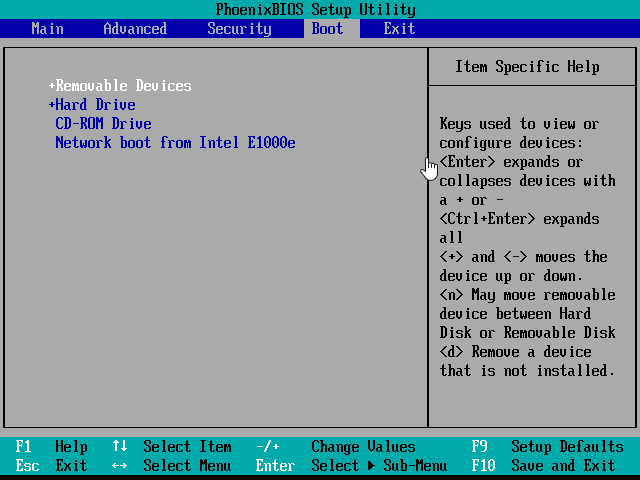
To switch to a new hard drive in Windows 10, you'll need to physically replace the old one with the new one using a screwdriver. After restarting your computer, you'll see a prompt that says something like "Press ESC to enter BIOS." At this point, you'll need to go into the BIOS settings, navigate to the Boot tab, and set the cloned SSD (solid-state drive) as the first boot option.
Step 4. Format HDD for reuse (optional)
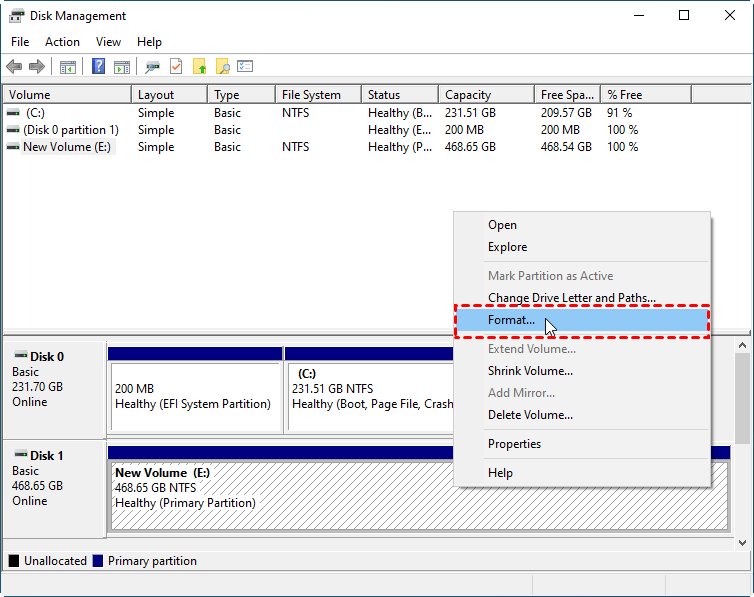
To open the Disk Management tool, type `diskmgmt.msc` in the Run window and click OK. Then, right-click on the HDD disk and select "Format..." to begin the formatting process, following the on-screen instructions.
Final words
You can easily and quickly migrate Windows 10 to a new SSD using Qiling Disk Master, a disk cloning software, without reinstalling the OS, resulting in a faster experience.
This software remains a powerful tool for backing up Windows 10 systems and files, offering flexible backup options and the ability to restore the entire system, making it a reliable solution for protecting against errors and crashes.
Related Articles
- How to Migrate Windows 10 to M.2 SSD without Reinstalling
- How to Clone Windows 10 to NVMe SSD (Step by Step Guide)
- Migrate Windows 7/8/10 OS to SanDisk SSD
- Best Way to Migrate Windows 10 to SSD Samsung
- Transfer OEM Windows 10 & License to New Hard Drive in 4 Steps
- Backup Scheme in Qiling Centralized Disk Master
Backup Scheme can help you manage your disk space by deleting old backups while keeping the latest backups. And you configure this task with 5 options. - Migrate Windows 10 to a New Hard Drive Without Reinstalling
Migrate Windows 10 to a new hard drive by cloning the system disk and preparing the target drive for boot.
Products
Articles & Tutorials
- Data Recovery
- Data Backup
- File Recovery
- File Backup
- File synchronize
- System Backup and Restore
- Disk and Partition Clone
- Technical articles
- Disk Master Help
- Windows Deleted File and Disk Recovery Tutorials
- Windows File and Data Recovery Tutorials
- More Windows Tutorials for Install, Security, Files, and PC Tips
- Windows Boot, Repair, and Recovery Environment Tutorials
- Windows Backup Tutorials
- Windows Restore Tutorials
- Windows Clone and Migration Tutorials
- Windows Server Backup, Recovery, and Management Tutorials
- Windows Disk, Partition, and Storage Management Tutorials