Migrate Windows 10 to a New Hard Drive Without Reinstalling
Migrating Windows 10 to a new drive keeps installed programs, settings, and files. The target disk must include the correct boot partitions.
Background and causes
A successful migration copies EFI or System Reserved partitions, the Windows partition, and recovery partitions when needed.
- Confirm the exact disk, partition, drive letter, file system, and capacity before changing anything.
- Recover or back up important files before formatting, deleting, converting, or recreating partitions.
- For boot-related changes, check BIOS/UEFI mode and boot order before editing disk layout.
Use Windows built-in tools
Check whether the current disk is MBR or GPT, connect the new drive, and make sure it has enough capacity for used space.
Use Qiling tools for guided steps
 Qiling Disk Master
Clone disks or partitions with a visible preview before applying changes.
Step 1. Open Qiling Disk Master, choose Clone, and select the clone mode that matches Windows 10 migration.
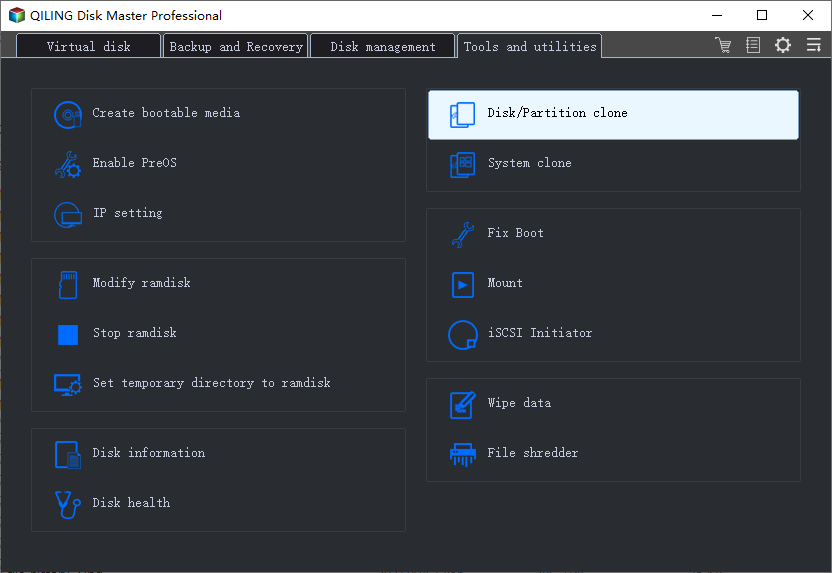
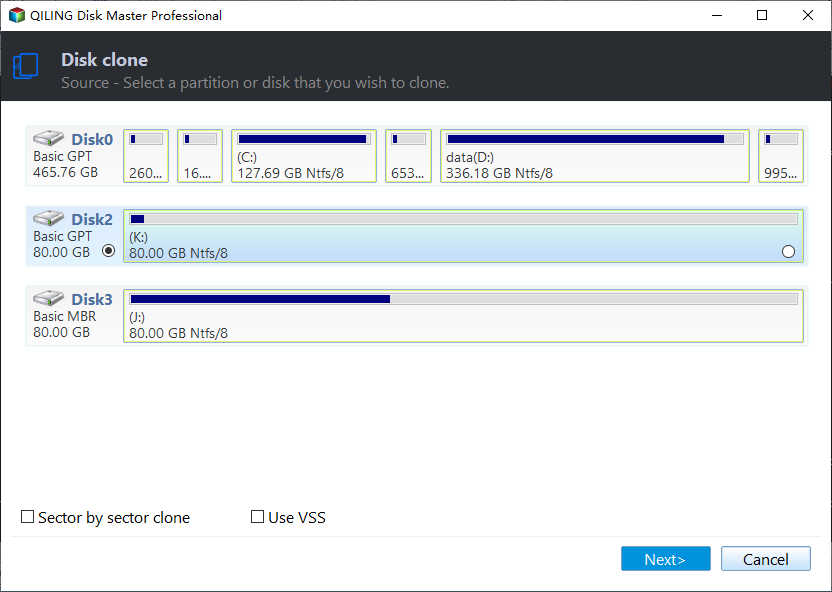
Step 2. Select the source disk or partition, then choose the destination disk. Confirm that the destination has no needed files.
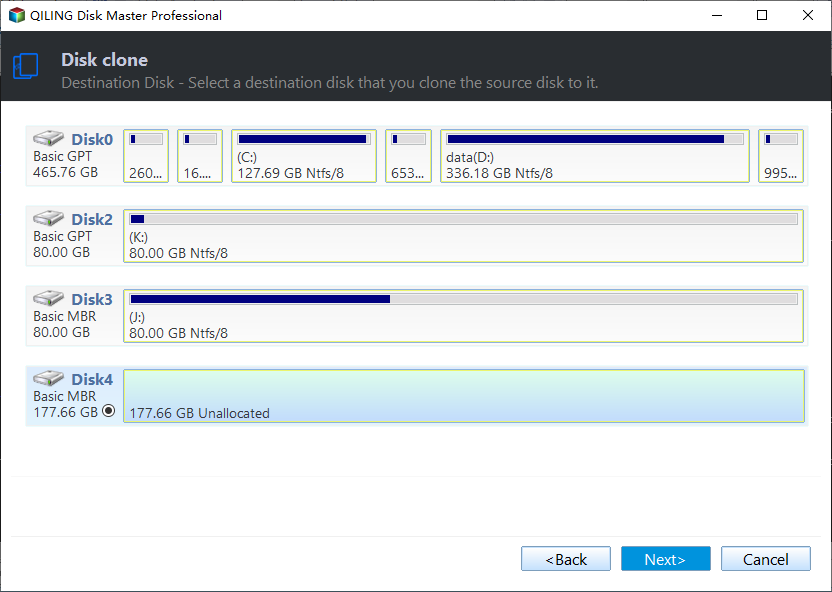
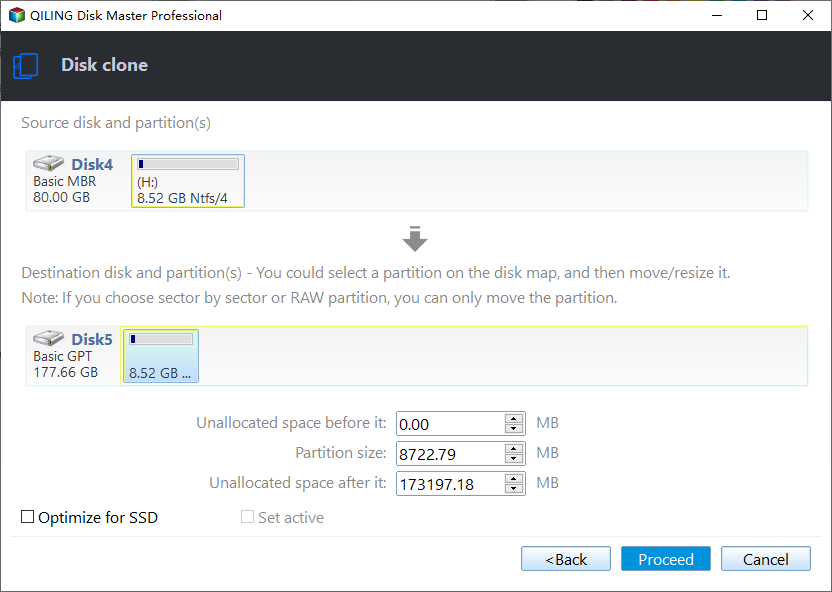
Step 3. Preview the target layout, keep required EFI or recovery partitions, and click Proceed to start.
Check the result
After cloning, boot from the new hard drive and keep the old disk unchanged until the new startup is stable.
Related Articles
-
Clone Hard Drive Windows 10
Clone Windows and data to another HDD or SSD with a guided workflow. -
Clone HDD to SSD
Move Windows from HDD to SSD and prepare the target disk for boot.
Products
Articles & Tutorials
- Data Recovery
- Data Backup
- File Recovery
- File Backup
- File synchronize
- System Backup and Restore
- Disk and Partition Clone
- Technical articles
- Disk Master Help
- Windows Deleted File and Disk Recovery Tutorials
- Windows File and Data Recovery Tutorials
- More Windows Tutorials for Install, Security, Files, and PC Tips
- Windows Boot, Repair, and Recovery Environment Tutorials
- Windows Backup Tutorials
- Windows Restore Tutorials
- Windows Clone and Migration Tutorials
- Windows Server Backup, Recovery, and Management Tutorials
- Windows Disk, Partition, and Storage Management Tutorials