Windows 11 Product Key Finder and Backup Tips
A Windows 11 product key may be stored in firmware, linked to a Microsoft account, printed on purchase records, or included in a digital license. Finding it before reinstalling reduces activation problems.
Understand the problem
Many modern PCs use digital activation instead of a visible key. Still, you should record edition, activation status, Microsoft account, and purchase proof before reinstalling or replacing hardware.
- Confirm the exact disk, partition, drive letter, file system, boot mode, or Windows version before changing settings.
- Back up or recover important files before formatting, deleting, resizing, converting, reinstalling, or cleaning a drive.
- For boot or installation tasks, check BIOS or UEFI mode, disk style, boot order, and device compatibility first.
Use Windows built-in tools
Check license information from safe sources.
- Open Settings, System, Activation to check activation status and edition.
- Sign in with the Microsoft account linked to the license.
- Check purchase email, retail box, or business license portal.
- For OEM PCs, check whether the key is embedded in firmware.
- Back up personal files before reinstalling Windows 11.
Use Qiling tools for guided steps
 Qiling Disk Master
Back up files and license records before reinstalling or changing Windows 11 hardware.
Function. Back up important files before changing Windows or disk settings
Step 1. Connect an external drive or choose another safe destination with enough space for Windows 11 user files and license documents.
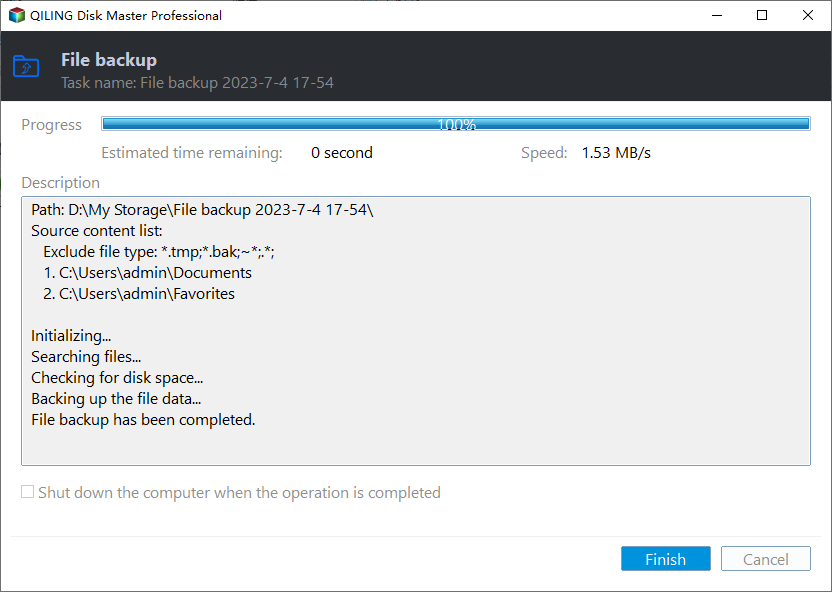
Step 2. Open Qiling Disk Master and choose File Backup. This keeps a copy of important files before you change partitions, boot settings, cleanup options, or Windows installation files.

Step 3. In the tree control, select the files and folders that must be protected. Include screenshots of Activation settings, purchase emails, exported browser data, and installer files

Step 4. Choose another internal disk, external drive, NAS folder, or network path as the destination. Avoid saving the backup to the partition that will be changed.

Step 5. Review the source and destination, then click Proceed. Wait until the backup completes before continuing with the repair or setup task.
Check the result
After reinstalling, connect to the internet, sign in with the right account, and confirm Windows 11 activation under Settings.
Related Articles
-
Windows 11 Requirements Check Tool
Check hardware and system readiness before reinstalling or upgrading Windows 11. -
Upgrade to Windows 11 and Keep Files
Upgrade while keeping files and reducing activation or rollback risks.
Products
Articles & Tutorials
- Data Recovery
- Data Backup
- File Recovery
- File Backup
- File synchronize
- System Backup and Restore
- Disk and Partition Clone
- Technical articles
- Disk Master Help
- Windows Deleted File and Disk Recovery Tutorials
- Windows File and Data Recovery Tutorials
- More Windows Tutorials for Install, Security, Files, and PC Tips
- Windows Boot, Repair, and Recovery Environment Tutorials
- Windows Backup Tutorials
- Windows Restore Tutorials
- Windows Clone and Migration Tutorials
- Windows Server Backup, Recovery, and Management Tutorials
- Windows Disk, Partition, and Storage Management Tutorials