Windows 11 Requirements Check Tool - Know Windows 11 Compatibility
Want to upgrade to Windows 11
Windows 11 offers a new UI, exciting features, and user-friendly tools to boost productivity, but its strict device configuration requirements have hindered many users from upgrading directly from Windows 10, 8, and 7.
To check Windows 11 requirements, you can use a Windows 11 requirements check tool to examine whether your personal computer meets the minimum system requirements, including CPU, memory, storage, system firmware, TPM, graphics card, monitor, and more.
How do I check if my computer is Windows 11 compatible?
To check if your Windows 10 PC meets the requirements for Windows 11, you can use one of two tools. You can either use the PC Health Check app, which is a tool provided by Microsoft to help you determine if your device is compatible with Windows 11, or you can use the Microsoft System Requirements Checker, which is a tool that checks your device's specifications against the minimum requirements for Windows 11.
▶ Checker 1. PC Health Check Tool
The PC Health Check Tool is a Windows 11 requirements check tool released by Microsoft to determine if your system can support Windows 11. To check your computer's compatibility, follow the guide below.
Step 1. Go to the Microsoft official website and download the APP.
Step 2. Install and open it. Click "Check now" in the main interface.
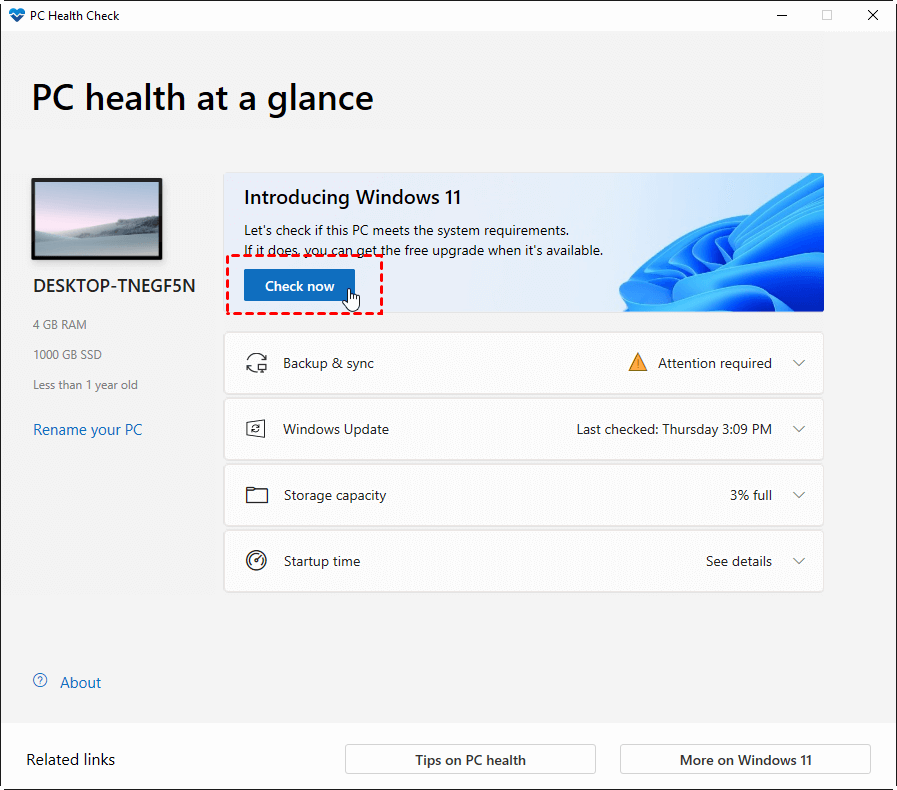
Step 3. If your computer is eligible, you'll see a message saying "This PC can run Windows 11" and you can upgrade directly to Windows 11.
You'll get a warning that says "This PC doesn't currently meet Windows 11 system requirements" if your computer is incompatible, and clicking "see all results" will show which aspects are not available.

Unfortunately, this tool only provides a list of reasons why your PC can't support Windows 11 updates, but doesn't offer any solutions to fix the issues. As a result, you'll need to spend additional time searching for relevant fixes, which can be challenging for those without extensive computer knowledge.
How do you get Windows 11 if PC does not meet minimum requirements?
Windows 11 requirements check helps ensure a more reliable and higher quality experience, but if your PC doesn't meet the minimum requirements, your request for installing Windows 11 will be rejected. This is because forced installation may lead to compatibility issues and prevent your PC from receiving future updates. However, if you still want to install Windows 11 on a computer that doesn't support it, you have two options to consider.
▶ Option 1. Update to meet the requirements
To update your computer to meet the Windows 11 requirements, you can modify the incompatible configuration. For instance, you can extend the C drive to meet the 64GB or greater storage space requirement. Additionally, since Windows 11 only supports booting from UEFI mode, which pairs with the GPT partition scheme, you may need to convert your MBR disk to GPT disk and change Legacy BIOS to UEFI. Fortunately, MBR2GPT conversion can be done with Qiling Disk Master without data loss, allowing you to check again if your computer can support Windows 11 after making these changes.
▶ Option 2. Create Windows 11 bootable USB
Updating your current system is an option, but if most of your systems don't support Windows 11, it's complicated and time-consuming to update them one by one. A more convenient method is to create a Windows 11 bootable USB, which is highly portable and compatible, allowing you to start Windows 11 from any computer anytime and anywhere.
Since Microsoft's built-In Windows, To Go doesn't support Windows 11 bootable USB drives, so Qiling Disk Master Standard is recommended instead. It supports Windows 11, as well as Windows 10, 8, 7, XP, and Vista, and is completely free.
- ★What you need to do:
- Prepare a USB drive which is at least 13 GB.
- All data on the USB will be erased, so please back up any important data in advance.
- Download Windows 11 ISO file on your current computer.
You can download the freeware and follow the guide to create a Windows 11 bootable USB using the "Create bootable media" feature, which allows you to boot from the USB drive and install Windows 11 on your computer.
Step 1. Plug the USB drive and make sure it is detected by your computer.
Step 2. Install and launch Qiling Disk Master Standard. Then click "Tools"> "Create bootable media" on the top menu.

Step 3. Select a USB drive as your target drive and click "Proceed".
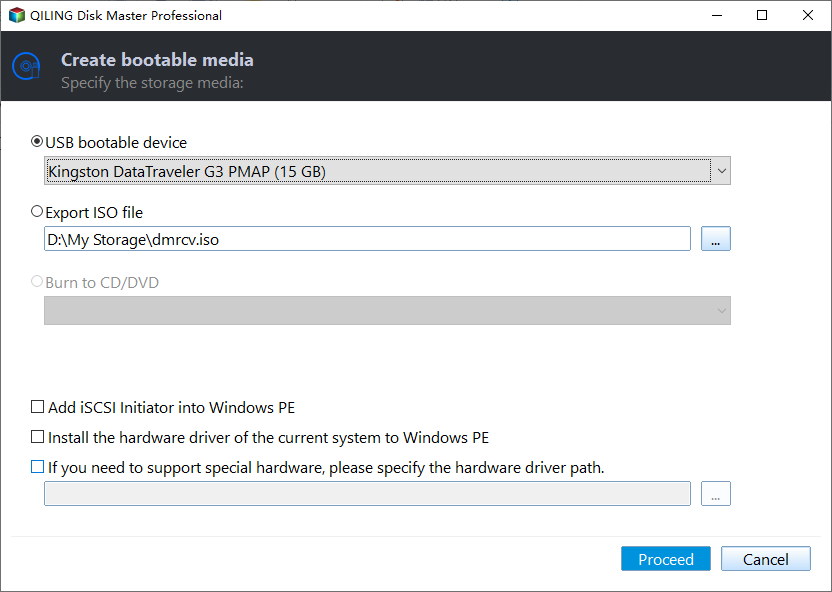
Step 4. Wait for the boot disk to finish, and then click "Finish".
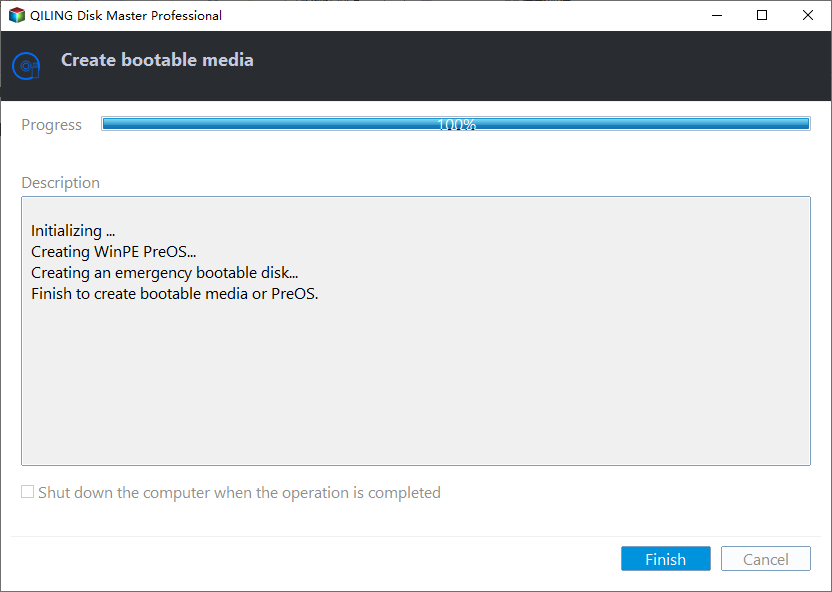
With the help of Qiling Disk Master Standard, a top-notch Windows 11 requirements checker tool, creating a Windows 11 bootable USB is a breeze, requiring just a few simple steps. This allows you to use Windows 11 on any computer without the need for installation.
You may be interested in: Installing Windows 11 from USB.
Conclusion
If your PC is not compatible with the Windows 11 update, you can still enjoy Windows 11 by creating a bootable USB using a reliable Windows 11 requirements check tool. Qiling Disk Master Standard is a favorable choice, not only a tool to check Windows 11 system requirements but also a professional partition manager that allows you to safely partition your hard drive, migrate OS to HHD/SSD, convert file system between FAT32 and NTFS, and clone disk.
Related Articles
- General, VHD and VHDX: What's the difference?
This guide explains General, VHD and VHDX: What's the difference with clear steps, key checks, and practical tips. - Great Windows 7 ISO to USB Bootable Software Free Download
Free download software to create bootable Windows 7 To Go USB drive by making Windows 7 ISO or installation CD to USB without ease. - Step-by-Step Guide: How to Run Windows 10 from USB Drive
This guide explains Step-by-Step Guide: How to Run Windows 10 from USB Drive with clear steps, key checks, and practical tips. - Windows 11 Requirements Check Tool - Know Windows 11 Compatibility
This guide explains Windows 11 Requirements Check Tool - Know Windows 11 Compatibility with clear steps, key checks, and practical tips. - How to Download Windows 11 23H2 ISO File
Windows has released the Windows 11 23H2 update. This article will tell you how to download Windows 11 23H2 ISO file using Qiling Disk Master and Windows Media Creation Tool, and via Microsoft. - How to Install Two Operating Systems on One Computer
To install two operating systems on one computer, you can use a professional tool called Qiling Disk Master to install multiple Windows operating systems on your laptop.
Products
Articles & Tutorials
- Data Recovery
- Data Backup
- File Recovery
- File Backup
- File synchronize
- System Backup and Restore
- Disk and Partition Clone
- Technical articles
- Disk Master Help
- Windows Deleted File and Disk Recovery Tutorials
- Windows File and Data Recovery Tutorials
- More Windows Tutorials for Install, Security, Files, and PC Tips
- Windows Boot, Repair, and Recovery Environment Tutorials
- Windows Backup Tutorials
- Windows Restore Tutorials
- Windows Clone and Migration Tutorials
- Windows Server Backup, Recovery, and Management Tutorials
- Windows Disk, Partition, and Storage Management Tutorials