Create Windows 7 Recovery Disk or Disc Step by Step Guide
What is Windows 7 recovery disk for?
Windows 7 has a built-The System Repair Disc, also known as a recovery disc, is a tool that allows you to access System Recovery Options. It can help troubleshoot severe issues, such as system failure or hard drive failure, and even reinstall your computer if needed.
To create a recovery disc, you can use a CD/DVD, but if you don't have one, you can create an ISO image file instead. Alternatively, you can use backup and restore software to create a bootable media using CD/DVD or USB, which is compatible with all Windows versions, including Windows 7, 8, and 10. If your computer crashes and you didn't create a recovery disc beforehand, you can even create one from another computer.
How to create Windows 7 recovery disk or disc 32/64 bit
You can create a Windows 7 recovery disk or disc for all editions using three methods: the Backup and Restore feature, an ISO file, or a third-party tool. The latter method is the most straightforward and easiest way to create a recovery disk.
Way 1: Create recovery disc via Backup and Restore
To create a Windows 7 system repair disc, you need to insert a blank CD or DVD into your computer's disc drive, then go to the Start menu, click on "Control Panel," and select "System and Security." From there, click on "Backup and Restore," and then click on "Create a system repair disc".
Step 1: Plug CD or DVD disc into the optical drive
Step 2: To create a system repair disc, type "recdisc" in the Run window (accessed by pressing "Win + R") and click OK, or search for "Backup and Restore" and click on it, then select "Create a system repair disc" from the resulting options.
Step 3: Insert your CD/DVD, click "Create disc", complete the process, and you'll get a window with the "Repair disc Windows 7 32/64-bit" option. Once done, safely remove the disc and store it in a secure location.
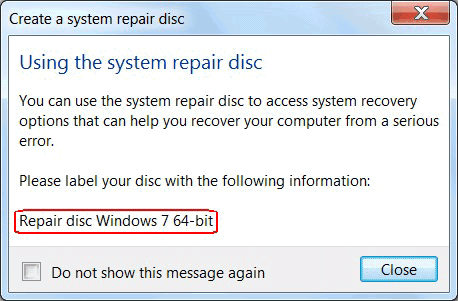
If you have a CD or DVD disc, this method is helpful. If not, you can still use ISO image files to create a recovery disk.
Way 2: Create Windows 7 recovery disk USB via ISO
There are three things you need to prepare before creating a Windows 7 recovery disk via an ISO image file: a blank CD or DVD, a computer with Windows 7 installed, and the Windows 7 installation DVD or a valid Windows 7 product key.
1. ISO image file.If you do not have it, you can download it from Microsoft Store.
2. Storage device. A storage device is used to save ISO image files, acting as a recovery disk's media, and a USB drive is a suitable option for portability.
3. The Windows 7 USB DVD download tool is a utility used to burn an ISO image file onto a USB flash drive, allowing for the creation of a bootable USB drive from an ISO file.
To see the specific steps below
Step 1: Open the Windows 7 USB DVD download tool, click "Browse" to locate your ISO image files, and then click Next.
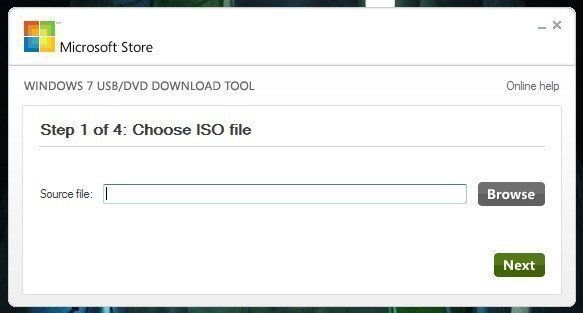
Step 2: Choose USB as your media type.
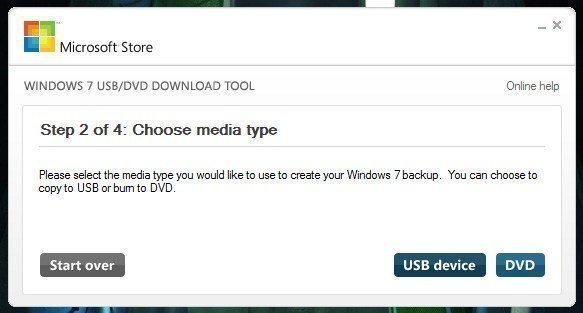
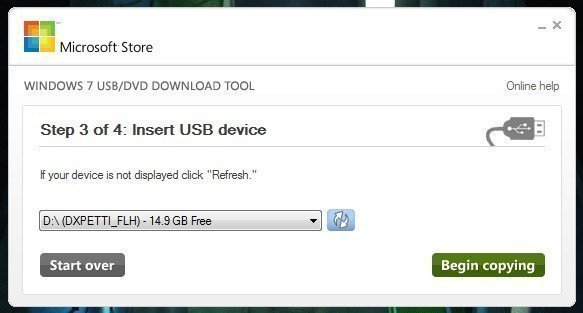
Step 3: To create a bootable USB drive, insert the USB flash drive, select it, and click Begin copying. This process will format the drive first, then create a bootable USB device, so it's recommended to back up any important files beforehand.
Step 5: Once you have finished, you can verify that the recovery disk contains the same content as the original ISO file, ensuring it's identical.
The way to download the ISO image file from Microsoft Store is quite simple, but it requires a product key, which means you won't be able to download it without one.
Above two ways to create a Windows 7 recovery disk have a common limitation: they only work across different versions of the same architecture (32-bit or 64-bit), and cannot be used to restore a different architecture version (e.g., a 32-bit disk cannot be used to restore a 64-bit system). The recovery disk created using these methods will contain all necessary drivers for the specified computer, making it specific to that system and unable to be used for repairs on a different computer.
To create a recovery disk to boot any version of Windows, you can use the built-in feature in Windows, called "Recovery Drive". This will allow you to create a bootable USB drive or CD/DVD that can be used to boot and recover any version of Windows, including Windows 10, 8, 7, and XP.
Way 3: Create Windows 7 recovery disk USB with third-party media creator
To boot all versions of Windows 7/8/10, you can use Qiling Disk Master to create a bootable media via USB or CD/DVD. This allows you to restore your unbootable computer, even with different hardware, whenever needed.
You need to download Qiling Disk Master to create a bootable disk for Windows 7/8/10.
Step 1. Open this software, click Tools and Create Bootable Media subsequently.

Note A bootable disc based on Windows PE is supported, which retains all features provided by Qiling Disk Master Standard, making it a reliable and comprehensive tool.
Step 2. Select a USB device as your bootable media, then click Next.

Step 3. Wait before unplugging the USB device until the process is complete and you see "Finish" in the lower right corner.
Conclusion
Windows 7 recovery disk or disc provides a troubleshooting option for your computer. If this doesn't resolve the issue, you can use the recovery disk or disc to reinstall Windows 7.
To create a recovery disk or disc, you can use one of several methods depending on your computer's hardware. If you have multiple computers with the same hardware, any of the methods will work. However, if you have computers with different hardware, the best option is to use a cloud-based recovery service, which can create a recovery disk or disc that can be used on any computer. This method is particularly useful if you have computers with different operating systems or hardware configurations.
Related Articles
- How to Create Windows 7 Recovery USB Drive | 2 Easy Ways
It's wise to learn to create Windows 7 recovery USB drive, which can help you to repair or restore your system if your computer fails to boot. - How to Create and Use Windows 7 Repair Disk with ISO
Learn how to Create and Use Windows 7 Repair Disk with ISO with clear steps, key checks, and practical tips. - 3 Ways to Create a System Repair Disc in Windows 10/8.1/8/7
This guide explains 3 Ways to Create a System Repair Disc in Windows 10/8.1/8/7 with clear steps, key checks, and practical tips. - PXE Boot Windows 7 with PXE Boot Tool in Qiling Disk Master
If you have multiple computers to install and maintain, or want to boot Windows 7 without installation disc or USB, it may be a good idea to network boot Windows 7 via PXE. In this article, I'll show you a easy way to PXE boot Windows 7. - How to Use Network Boot Multiple Computers?
If you have more than one computer to install or maintain, it would be much more convenient to network boot multiple computers with PXE. - How to Make Norton Ghost Bootable USB Drive in Windows 11/10/8/7
This article provides users with 2 available ways to create Norton Ghost bootable USB. Also, an easier way to create bootable USB for Windows is given.
Products
Articles & Tutorials
- Data Recovery
- Data Backup
- File Recovery
- File Backup
- File synchronize
- System Backup and Restore
- Disk and Partition Clone
- Technical articles
- Disk Master Help
- Windows Deleted File and Disk Recovery Tutorials
- Windows File and Data Recovery Tutorials
- More Windows Tutorials for Install, Security, Files, and PC Tips
- Windows Boot, Repair, and Recovery Environment Tutorials
- Windows Backup Tutorials
- Windows Restore Tutorials
- Windows Clone and Migration Tutorials
- Windows Server Backup, Recovery, and Management Tutorials
- Windows Disk, Partition, and Storage Management Tutorials