Backup Windows 8 to External Hard Drive and Protect Security
Why backup Windows 8 to external hard drive?
Computer users may experience unexpected failures like computer breakdown, blue screen, or black screen in Windows PCs, including Windows 8 and 8.1, which can render the computer unbootable and result in data loss, including photos, videos, and files.
Installing a new operating system can be a lengthy process that takes up half a day or more, and even after reinstalling, you'll still need to spend time installing and activating various programs. Unfortunately, there's no way to recover lost files, photos, and videos, so you'll have to live with the loss. The entire process can be quite time-consuming, making it a frustrating experience.
In Windows 8, backing up your system allows you to quickly restore your computer and data by restoring a system image from an external hard drive, avoiding potential dilemmas.
Best way to backup Windows 8 to external hard drive
In Windows 8, you can create a system image using the built-in software, which allows you to backup your system to an internal or external hard drive, or a network location. You should choose the option that best suits your needs, considering factors such as storage space, data security, and accessibility.
| Advantages | Disadvantages | |
| Internal hard drive | Backup frequently used files or folders and restore files quickly. | Lose them forever if the disk fails or system crashes. |
| External or USB hard disk | To avoid data loss due to computer failure, consider using an external hard drive or cloud storage. This approach not only protects your data but also provides flexibility and portability, allowing you to access your files from anywhere. | Very vulnerable to viruses or theft. |
| Network location or NAS | Preventing computer failure or theft allows for secure and uninterrupted access to data, facilitating sharing and collaboration. | The fatal problem is power failure or machine breakdown. |
Backing up files to a network location or NAS appears to be the most effective method, but it still carries the risk of data loss due to power failure or machine breakdown. To ensure data security, it's recommended to follow the 3-2-1 backup strategy. In Windows 8, two approaches can be used to backup disk.
Backup Windows 8 to external hard drive with built-in tool
The best way is to follow 3-To backup Windows 8, you can use the built-in Backup and Restore feature to create a system image or backup individual files. You can choose to save the backup to an internal or external drive, or even a network location or NAS. This allows you to select the best option for your needs, whether it's a local backup or a more remote one.
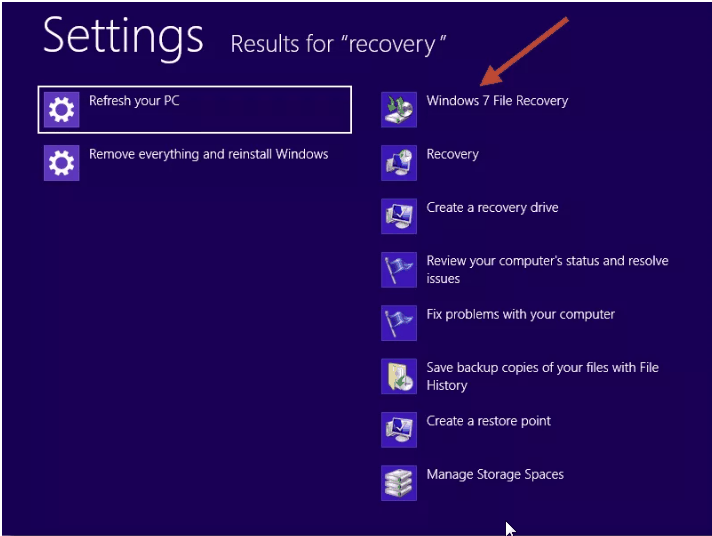
Step 1. To recover files in Windows 8, type 'Recovery' in the start screen, select 'Settings', and then choose 'Windows 7 File Recovery'.
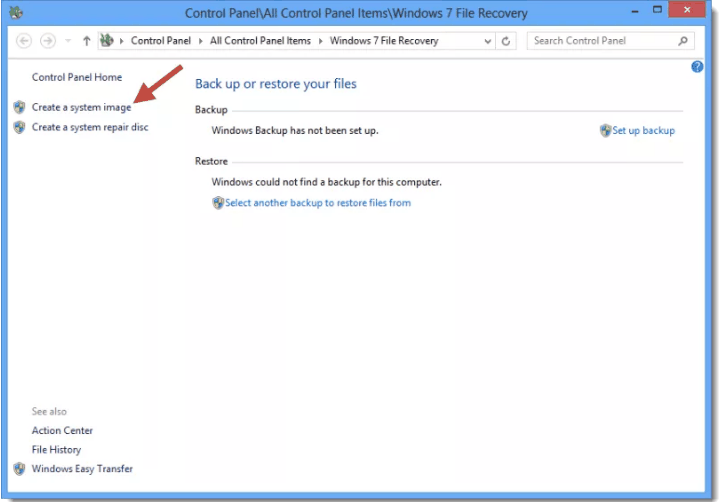
Step 2. To create a system image in Windows 7, go to the Control Panel and click on "System and Security," then click on "Backup your computer." In the Backup and Restore window, click on "Create a system image".
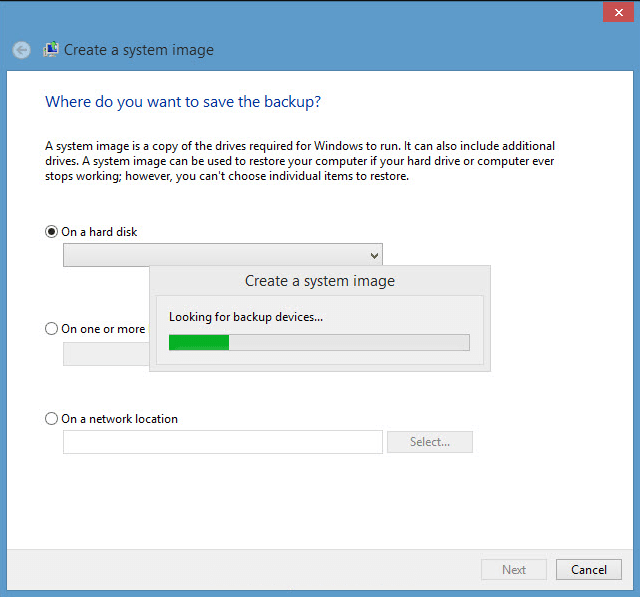
Step 3. To implement the 3-2-1 backup strategy, you need to select a destination location for your system image. You have three options to choose from, and you'll need to repeat the process three times, as you can only select one backup destination at a time. This step is crucial to ensure your system image is safely backed up.
On one or more DVDs: Use DVDs.
On a network locationTo set up a network location, select the "Set up a network location" option, then enter the network location, user name, and password.
Step 4. Confirm your backup settings and click Proceed to begin the pending operations.

When this operation is complete, you will be prompted to create a system repair disc, which is primarily used to restore your computer in case of a crash.
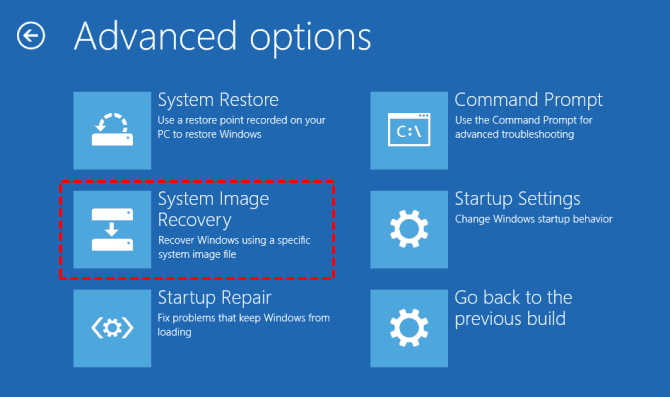
You can also create a recovery drive to help recover a computer with issues. This drive allows you to boot from it and navigate to Troubleshoot > Advanced options > System Image Recovery, where you can follow the instructions to complete the recovery process.
Backup PC to external hard drive in Windows 8 with Qiling Disk Master
You can use the Windows built-Windows 8 users can use the built-in tool to backup their system to an external hard drive, but this task needs to be run manually. Achieving the 3-2-1 backup strategy, which involves having three copies of data, two of which are local and one offsite, is also possible. However, the process becomes more complicated for different backup destinations.
To make backing up easy and flexible, consider using third-party free backup software like Qiling Backuper Standard, which allows you to do more than you think.
- Backup Windows 8 and run it as a scheduled task. This calendar app allows you to schedule backups for daily, weekly, or monthly intervals, with customizable date and time settings.
- Backup only changed files. The Windows 8 PC's backup feature automatically saves only changed files, utilizing an incremental backup method, which saves time and disk usage.
- Save disk space as much as possible. Besides, it still allows you to compress or split backup images automatically, and you don't even need to set it up.
- Support 3-The backup strategy supports various backup destinations, including internal or external disks, USB drives, cloud drives, network locations, or NAS, allowing users to choose one or multiple destinations to back up their Windows 8 system.
- Create bootable media for emergency use. It can create bootable USB or CD/DVD and quickly recover a system in case of a disaster.
To get started, download this software to try it out. It supports Windows 7, 8, 8.1, 10, and 11. For server users, try Qiling Disk Master Server.
Step 1. Plug your external hard drive into your computer and ensure it's recognized. Then, install and launch the software, and click on "Backup > System Backup" to proceed.

Step 2. This software will automatically select the system partition and all boot-related partitions to start Windows by default, giving you three options to set the destination location for the system image.
Add Share or NAS DevicesTo backup files to a network location or NAS, you can add it by clicking an option and inputting a display name, IP address, user name, and password.
Select a cloud drive: It allows you to backup files to Google DriveOneDrive and Dropbox can be installed on a computer, allowing users to store and access their files remotely, as well as share them with others.

Step 3. To automate the backup process, set a daily, weekly, or monthly schedule. This will enable the software to backup only changed files, reducing disk usage through compression or splitting features. Once enabled, click "Proceed" to backup your PC to an external hard drive in Windows 8.

👍Tips:
❤ This software uses normal compression by default, but you can change it to high compression in the Options tab, especially when setting a scheduled task.
❤ You can also choose to backup only changed files with differential backup, which uses slightly more backup time but makes it easier to restore and has a higher success rate. Upgrading now will give you access to this feature, along with a 5% discount for one PC.
❤ Upgrading allows you to maintain automatic backup cleanup methods, which regularly delete old backup images, effectively resolving backup disk full issues caused by increasing images and limited space.
With a backup image, you can restore your system to a new hard drive or computer, even if the hardware is different.

Also, its advanced edition - The Qiling Disk Master Technician or TechPlus edition still allows for simultaneous deployment of a system image to multiple computers over a network, and also supports presetting computer names and IP addresses to ensure proper network connectivity. Additionally, it supports restoring to dissimilar hardware.

Summary
You can back up Windows 8 to an external hard drive with the built-in tool or Qiling Disk Master. The built-in tool is useful for basic backup, while Qiling Disk Master offers system image backup, scheduled backup, incremental backup, and backup cleanup options in advanced editions.
Qiling Disk Master Standard can back up files, disks, partitions, and the system according to your needs. For recovery, advanced editions can also help restore a system image to a new hard drive or different hardware.
For continuous data protection, keep a regular backup plan and store important backups on a separate external drive.
Related Articles
- How to Automatic Backup Windows 7 to External Hard Drive
You will learn how to automatic backup Windows 7 to external hard drive easily. Both ways are included. - Set Up Automatic Backup Windows 10 to External Hard Drive
This article explains how to auto backup your computer to external hard drive in Windows 10. The importance of backup needs no elaboration, and an automatic schedule can certainly save you a lot of trouble. - How to Solve File Is Too Large to Copy to External Hard Drive Problem?
If the file is too large to copy to external hard drive, you need to know why that happens and find out effective ways to settle that issue. - An Easy Way to Fill Hard Drive with Random Data
Learn how to fill a hard drive with random data using Qiling Disk Master Professional, so old data is overwritten before reuse or disposal. - How to Clone HDD to SSD with Alignment Easily
You can learn what is SSD alignment and how to clone HDD to SSD with Alignment easily. Please read on for more details. - Two Effective Ways to Clone HDD to SSD Samsung in Windows OS
If you're looking to clone your HDD to a Samsung SSD in Windows 11, 10, 8, or 7, this article provides some expert advice.
Products
Articles & Tutorials
- Data Recovery
- Data Backup
- File Recovery
- File Backup
- File synchronize
- System Backup and Restore
- Disk and Partition Clone
- Technical articles
- Disk Master Help
- Windows Deleted File and Disk Recovery Tutorials
- Windows File and Data Recovery Tutorials
- More Windows Tutorials for Install, Security, Files, and PC Tips
- Windows Boot, Repair, and Recovery Environment Tutorials
- Windows Backup Tutorials
- Windows Restore Tutorials
- Windows Clone and Migration Tutorials
- Windows Server Backup, Recovery, and Management Tutorials
- Windows Disk, Partition, and Storage Management Tutorials