How to Clone SSD to HDD in Windows 8/8.1 (4 Steps)
Need to clone SSD to HDD in Windows 8/8.1
HDD (Hard Disk Drive) and SSD (Solid-State Drive) are two primary storage device types, each with its own set of advantages and disadvantages. While HDDs offer larger storage capacities at a lower cost, they are slower and more prone to mechanical failures. In contrast, SSDs are faster, more reliable, and energy-efficient, but often come with higher price tags and limited storage capacities. The choice between the two ultimately depends on individual needs and priorities.
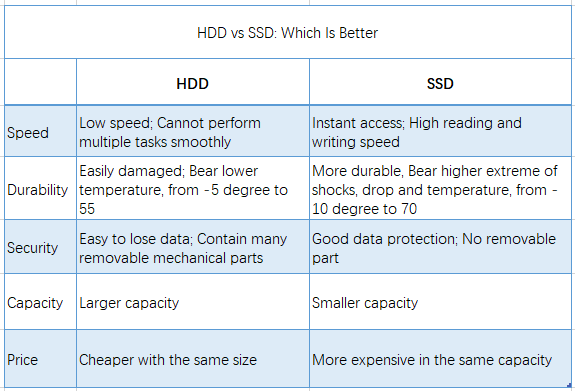
Cloning an SSD to an HDD can be beneficial in certain situations, offering improved performance. This process is often necessary when users need to upgrade their storage capacity, replace a failing drive, or transfer data to a larger HDD. In such cases, cloning the SSD to the HDD ensures that all data, including operating systems, programs, and files, are preserved and can be accessed from the new drive.
- Make an exact copy of SSD for backup. Many users want to back up their system and data, but the high cost of SSDs makes them opt for a more affordable HDD as a backup device, copying everything from their SSD to the HDD instead.
- Get a larger capacity. Some users clone their SSD to a larger HDD to free up space on the SSD for new programs and files, as the SSD can fill up quickly due to its small capacity.
- Avoid reinstalling OS. After cloning your SSD to a larger HDD, all of your data, including Windows and programs, will be transferred to the HDD, so you won't need to reinstall anything.
Best SSD to HDD clone software - Qiling Disk Master
To clone an SSD to an HDD in Windows 8/8.1, use a professional disk cloning software like Qiling Disk Master Professional, which can save you time and effort.
💙 Multiple clone types
The software supports three types of cloning: Disk Clone, System Clone, and Partition Clone. For a full hard drive or SSD clone, Disk Clone is the option to choose.
💙 Various clone options
The software offers several features to simplify and speed up the task, including optimizing SSD performance with "SSD Alignment", cloning all sectors of a hard drive with "Sector by sector clone", and adjusting the partition size of the destination disk with "Edit Partitions".
💙 Wide compatibility
This software supports all Windows PC systems, including Windows XP, Vista, 7, 8, 8.1, 10, and 11. It also allows cloning between different partition styles, such as cloning a MBR disk to a GPT disk.
How do I clone SSD to HDD in Windows 8/8.1?
To clone SSD to HDD or HDD to SSD in Windows 8/8.1, follow these steps: First, download and install a cloning software such as Qiling Backup. Next, launch the software and select the source drive (SSD) and the target drive (HDD).
💡 Preparations:
- Install a new hard drive (HDD) on your computer, ensuring it's detected. For laptops, a USB-to-SATA cable may be necessary to connect the HDD.
- Before cloning your system to a target HDD, make sure to backup any important files on the target HDD, so they don't get deleted during the cloning process.
- Download Qiling Disk Master Professional and install it on your computer.
Step 1. To launch the Qiling Disk Master Professional software, click on "Tools" and then select "Disk Clone" on the interface, which has a dark-blue background.

Step 2. Select the existing SSD as the source disk (here is Disk0), then click Next.

Step 3. Select the new HDD as the destination disk (here is Disk1), then click Next.

Step 4. In the Operation Summary page, confirm your settings and click Proceed to clone Windows 8/8.1 to new hard drive immediately.

>> Edit Partitions: If the target disk is larger than the original disk, use this option to resize partitions on the target disk, ensuring the cloned disk shows its full capacity after cloning. Otherwise, it will not display its full capacity.
>> SSD Alignment: If you're cloning to an SSD, check this option to improve the overall performance of the SSD.
>> Sector by sector clone: If you check this option, it will clone every bit of the source disk and make Edit Partitions unavailable.
✍ Tips:
- You can create a bootable media to boot your computer and clone the hard drive without booting into Windows.
- Qiling Disk Master is a Windows backup and restore software that allows you to backup a disk and then restore it to another location.
- If your computer is running a server system like Windows Server, you can consider using Qiling Disk Master Server.
You can clone your SSD to HDD or HDD to SSD in Windows 8/8.1 using professional disk cloning software, which involves just 4 simple steps and a few clicks. This software will handle the rest, and the best part is that you won't need to reinstall Windows and programs, making the process even smoother. To explore all its features, download the software and see for yourself.
Related Articles
- How to Clone Hard Drive in Windows 8/8.1 to New HDD/SSD?
Learn how to Clone Hard Drive in Windows 8/8.1 to New HDD/SSD with clear steps, key checks, and practical tips. - [Free] Backup SSD to HDD Partition in Windows 10/8/7
Learn how to backup an SSD to internal or external hard drive (HDD) partition to keep OS safe in case the SSD fails for Windows 10/8/7 with free SSD/HDD backup software. - Fix The Request Failed Due to a Fatal Device Hardware Error
Learn how to Fix The Request Failed Due to a Fatal Device Hardware Error with clear steps, key checks, and practical tips. - How to Easily Format/Unlock Encrypted Hard Drive without Password?
Qiling Disk Master Standard will do you a big favor to format/unlock the encrypted drive, if you have a BitLocker encrypted hard drive and forget the password. - The Best Solution to Clone Multiple Computers over Network
You will learn the best solution to clone multiple computers over network, which ensures that you could clone over network successfully and quickly. Get it right now! - Easiest Way to Clone Multiple Partition Hard Drive to SSD
You will learn all you need to know about cloning multiple partition hard drive to SSD including the reason, best disk cloning tool, and stepwise guide.
Products
Articles & Tutorials
- Data Recovery
- Data Backup
- File Recovery
- File Backup
- File synchronize
- System Backup and Restore
- Disk and Partition Clone
- Technical articles
- Disk Master Help
- Windows Deleted File and Disk Recovery Tutorials
- Windows File and Data Recovery Tutorials
- More Windows Tutorials for Install, Security, Files, and PC Tips
- Windows Boot, Repair, and Recovery Environment Tutorials
- Windows Backup Tutorials
- Windows Restore Tutorials
- Windows Clone and Migration Tutorials
- Windows Server Backup, Recovery, and Management Tutorials
- Windows Disk, Partition, and Storage Management Tutorials